 Connected Business Community
Let's Connect
Connected Business Community
Let's Connect
Create Customer Payments
Customer Receipts is the document of payment for the invoice of ordered items that was shipped to the customer. Interprise Suite gives you the options to accept the different methods of customer payment, check, credit card, cash and others. Cash and Check payments can be directly deposited or kept on hand for later until ready to deposit.
Create Customer Payment
- You can create a new payment by clicking on Customer module > Receipt > New Receipt.
- A search screen of active customers is displayed. Select a customer in the list to display the Receipt form.
Payment Information Section
Description
Received From
This field shows the customer name. Payment Type This field shows the customer's payment method. The options are Cash, Check, Credit Card or External System Card Payment. For every payment method,the payment method information section also changes its format. Amount Paid / Apply button The amount of payment to be paid by the customer. Click the Apply button to confirm the amount. Once clicked, it will automatically allocate the payment to the customer's outstanding balances. You may allocate the customer check payment to any of the customer's outstanding balances. Through allocation, you will be able to allocate the whole or part of the customer payment amount by clicking on the Apply Credit button on the Debits tab. Date Paid The date by which the payment has been made. You may change this to the actual payment date. Currency This field reflects the customer payment in the customer's currency. The next field shows the current exchange rate. Notes Optional: You can add your notes in the Notes field. - Take note of the Debits tab. It displays the customer’s outstanding balance documents. These documents may be an invoice, refund or void receipt.
- Provide the payment method information in the Payment Method Information section.Various fields will appear for each payment method.
Continue to the steps in processing payment for check, credit card or cash.
See Also: Check Payment | Credit Card Payment | Cash and Others. - Allocate the customer payments to the customer outstanding balances. Note: Through allocation, you will be able to allocate the whole or part of the customer payment amount.
See Also: Allocate Customer Payments and Other Documents
See Also:
Accept Payment on Order or Upon Invoice | Define New Payment Types
Check Payment
If Check was the payment type selected, the fields for the check details will display in the Payment Method Information section.
The following information must be provided in the Payment Information section to complete the check payment.
- Enter the Check Number or any reference number of the check you received.
- Default bank account for receipts would appear in the Bank Account field. You can choose another bank account to use.
- From the Account options,
- Choose Deposit if you plan to deposit the payment into the selected bank account
- Choose Undeposited if you plan to deposit the customer receipts later. All undeposited receipts will flow into the Banking module for processing. You can use the Deposit Receipt option anytime to deposit the customer payments.
- Type in the Paying in Slip number or any indicator from the payment you received.
- In the Bank Currency Value field, the value of the customer payment is recalculated based on your home currency. Double click on the value inside this field to display the Different Currency Value Bank Account window. From this window, you can add in any bank charge amount and other charges if applicable. This information flows into the Banking module as bank payments.
- Save the details before closing the Receipt form.
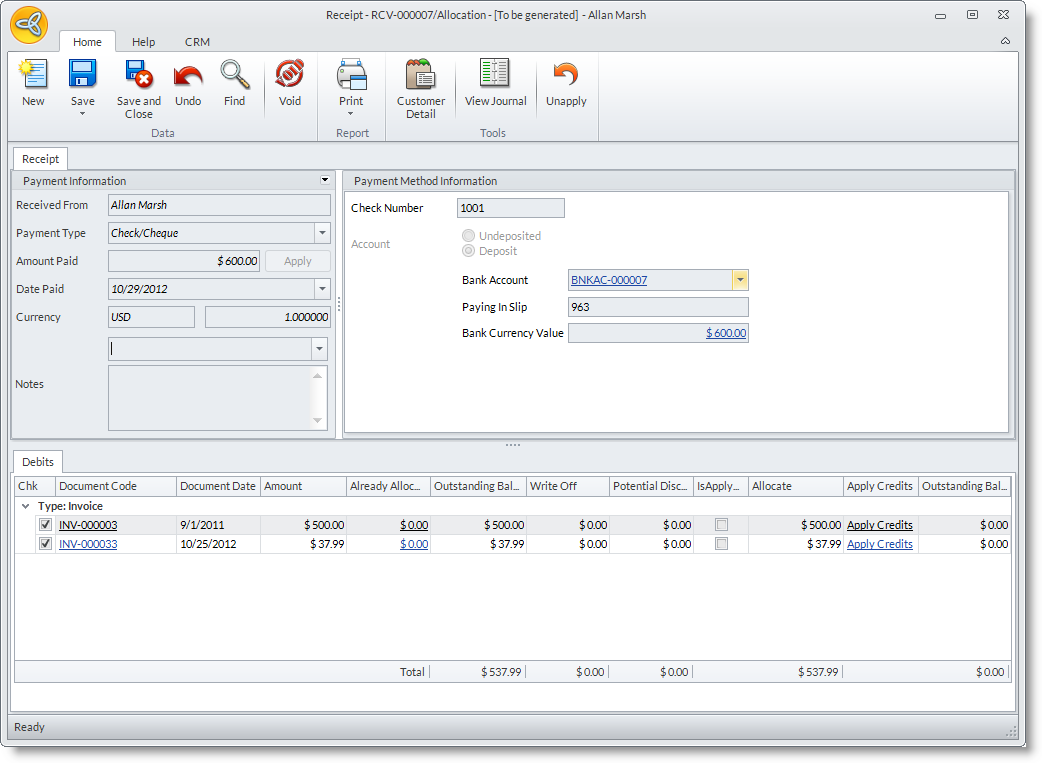
Click Image to Enlarge
See Also:
Set Default Bank Account to Deposit Checks | Deposit Customer Receipts
Credit Card Payment
If Credit Card was the payment type selected, the fields for the Credit Card details will display in the Payment Method Information section.

Credit card payments only support swipe and the ability to keep card on file in Interprise Gateway.
Supported Credit Card Swipers:
- For unencrypted swipe card transactions, use only Magshell 900 Magnetic Stripe Reader from Card Scanning Solutions.
- For encrypted swipe card transactions, use card reader for Keyboard emulation mode. You may contact TransNational to order this device.
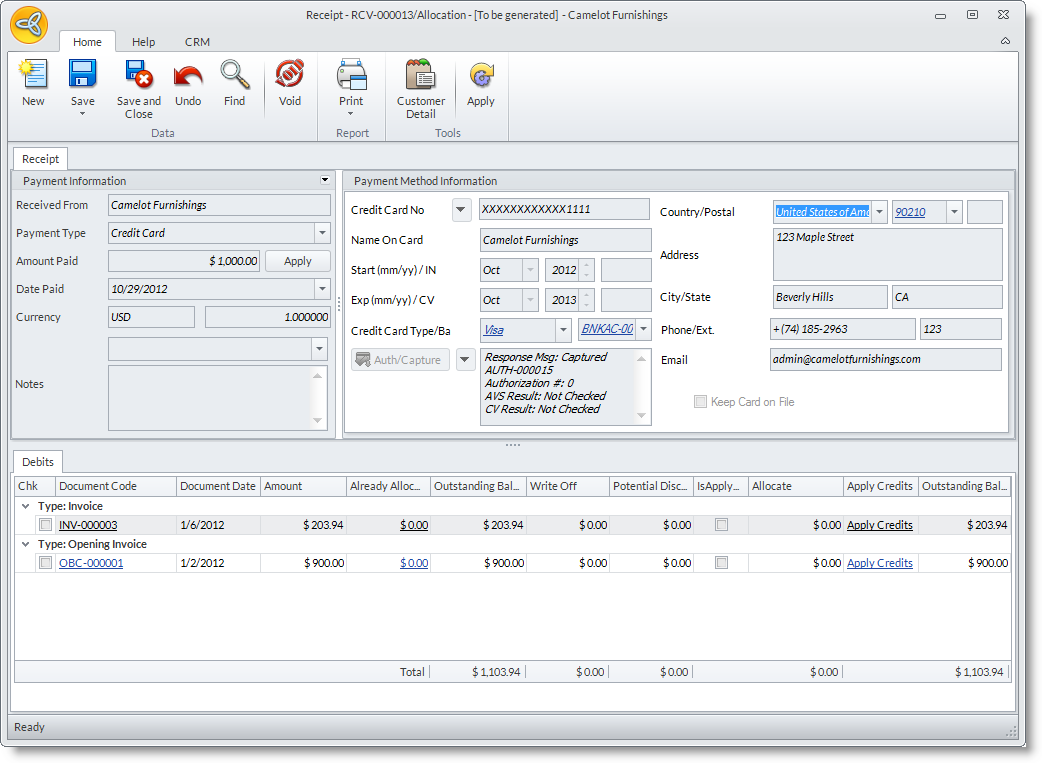
Click Image to Enlarge
The following information must be provided in the Payment Method Information section to complete the Credit Card payment.
To use this feature, you need to have your merchant account setup in the credit card gateway. Also, make sure that there is a default credit card gateway to use specified in the Payment Type assigned to the credit card payment term.
Enter Credit Card Details
Enter the card number to use for the payment.
Authorize and Capture the Credit card
- Choose from the credit card options. The credit card charge options are as follows:
- Authorize - This option allows you to authorize the credit card payment using the default credit card gateway. An Authorization Code is generated and you will be allowed to capture and charge the customer when ready.
- Verbally Authorize - This option allows you to enter the authorization number given to you verbally through phone or via email. Enter the Authorization Code and click on the Authorize option.
- After providing the details to the credit card payment, you may save the payment by clicking on any of the save options from the toolbar menu.
- You may allocate the customer payment to any of the customer’s outstanding balances.
Through allocation, you will be able to allocate the whole or part of the customer payment amount.
Generate a Token ID for Credit Card Payments
Token ID is used for customers who use the same credit card information all over again when doing transactions. What id does is that in lieu of the credit card number, token ID is being used by the system in case it contains the same credit card information.
These are the benefits of the credit card tokenization:
- Adds the convenience both on the part of the customer and the seller to input the same customer’s credit card information
- It is a PA-DSS (Payment Application - Data Security Standard) compliance to avoid the risk of hacking sensitive information by third parties
- It can recur sales order with the payment
Steps
- Go to Customer module.
- On the Record menu page group, select New Order under the Order drop down list. A list of customers will then display.
- Select the customer you want the order to be processed. The Sales order form will then display.
- Once you have already filled out the required fields, select Payment Tab. On the Payment type option, select Credit Card on the drop down list. The payment method information window will then display.
- Fill out the required fields on the payment method information:
- Credit Card / Ref. No. – is the credit card number provided by the customer.
- Name on Card – the name of the credit card holder.
- Start(mm/yy) / IN - Start date of the credit card.
- Exp (mm/yy / CV – expiration date of the credit card. CV stands for card validation found at the back of the credit card.
- Credit card Type / Bar – credit card type can be Mastercard, Visa, etc. Bar stands for the bank account used.
- Country – specify the country.
- Address – fill up the address of the customer.
- City/State/Postal – you can input directly the postal code to fill out city and state.
- Phone/Ext. – can be modified as needed.
- Email – can be modified as needed.
- To generate a token ID for the credit card number, check the box Keep Card on File. Click Authorize.
You can only have the credit card number tokenized if the customer has given the permission to store it in the database. Otherwise, you cannot generate a token ID for the customer’s credit card number.
- Once approved by Interprise gateway, a Token ID (Gateway Ref#) is then generated found beside the Credit Card Number.
The storage of the tokenized Credit Card is stored in the credit card table excluding the sensitive information such as the card validation and credit card number. It automatically contains a read-only masked credit card number e.g. xxxxxxxxxxxx1111 with token ID beside it. Token ID expires after a year if unused.
Capture Swiped Credit Card Payments
Merchants who use swiped card transactions, also known as Card present transactions, receive higher credit card rates nowadays. So how does Connected Business handles this? It is through transmitting the additional field magdata which contains the raw data grabbed from the card reader to the Interprise Payment gateway.
Before making any transactions, credit card gateway must first be setup.
See Also: Interprise Credit Card Gateway
- Create a new Sales Order (or you can also create a new Sales Invoice or Receipt) transaction.
- On the Payment tab, select credit card as payment tab.
- When you swipe the card, this will wait for the data entry on the port. On the Payment Method Information section, the last 4 digits of the credit card number as well as the expiration date of the credit card will be shown.
- Click Authorize.
- Once it is approved, you can go to the website with the payment entry method as swiped.
Swiped credit card is available only for sales order, sales invoice and receipt transactions. If you are using other payment gateways, the swipe button will not appear.
Void the Credit Card Payments
The Credit Option voids the credit card payment. The customer payment will be set to void status after saving.
Authorize the Credit Card Payment at the Point of Order or Invoice
- From the Sales Order form, you can use the Authorize option to authorize the credit card payment.
- Interprise Suite does this automatically when converting the sales order into invoice.
Authorize and Capture the Credit Card Payment at the Point of Invoice
- The Authorize and Authorize and Capture options are also accessible from the Sales Invoice form. When entering credit card payment upon invoice, you can use the Authorize or Verbally Authorized option to authorize the credit card payment. You can then use the Authorize/Capture option to capture to complete the credit card payment.
- Connected Business does this automatically when posting the invoice. Upon clicking on the Save and Post option in the toolbar menu of the Sales Invoice form, the system attempts to authorize and capture the customer credit card.
View Authorized and Unauthorized Credit Card Payments
- Select Customer Receipt under the Find menu of the Customer Module. The Customer Receipt search screen will display.
- Click on the Authorized / Unauthorized Card Payment tab. Listed in these tabs are the authorized and unauthorized credit card transactions.
Chargeback the Customer Credit Card to Refund His Payment
In an event that the customer disputes the transaction, you may initiate a chargeback and bring back the funds back to his credit card account using the Refund option.
Complete Credit Card Payment Without charging the Customer Credit Card
When working offline or using a back-end payment processing solution, you may still complete the credit card payment without charging the customer or calling a live payment gateway. The Manual Gateway allows you to do just that. You will only need to assign the Manual gateway as the default credit card gateway. To do this,
- Select Payment Type under the Maintain menu of the System Manager module. The Payment Type setup form will display.
- Select the credit card payment type and assign the Manual Gateway in the Credit Card Gateway column.
- You can then assign the payment type to the credit card payment term. To do this, select Payment Term under the Maintain menu. The Payment Term setup form will display.
- Select the Credit Card payment term in the list to go to the Details tab.
- In the Payment Type field, select the payment type assigned with the Manual gateway.

Cash and Other Payments
If Cash and Other were selected, the fields for the Cash details will display in the Payment Method section. The following information must be provided in the Payment Method Information section to complete the Cash Payment.
- If applicable, enter any reference of the cash payment you received in the Check Number field.
- From the Account options, choose
- Deposit if you plan to deposit the payment into the selected bank account.
- Undeposited if you plan to deposit the customer receipts later. All undeposited receipts will flow into the Banking module for processing. You can use the Deposit Receipt option anytime to deposit the customer payments.
- The default bank account to deposit the cash payment is displayed. You can change the default bank account.
- Enter a paying in slip number, if any.
- The Bank Currency Value field recalculates the amount of the customer payment based on the bank account currency so you'll know the amount to be banked. Double-clicking on the value inside the Bank Currency Value field will display the Different Currency Bank Account form. This form allows you to know the current exchange rate of the bank account currency and know how much will be banked. It also allows you to add in other applicable charges. This information will flow into the Banking module as bank payments.
- After providing the details to the cash and other payment, you may save the payment by clicking on any of the save options, Save, Save and New and Save and Close. After saving, the receipt will be included in the list of documents for allocation in the Allocation Details tab.
- You may allocate the customer payment to any of the customer’s outstanding balances. Through allocation, you will be able to allocate the whole or part of the customer payment amount.
See Also:
Deposit Customer Receipts | Maintain Customer Payments | Allocate Customer Payments