
Maintain Customer Payments
|
Content
|
|---|
Customer Payments can be updated, maintained and adjusted in the Customer module. You can allocate receipts, amend a document allocation, authrorize a credit card payment or even process credit card payments.
Maintain Customer Payments
All Customer payments can be viewed by following the steps below:
- From the Customer module, select Receipt > Find Receipt. A search list of unallocated and allocated receipts, authorized and unauthorized credit card transactions is displayed.
- You may:
- Maintain or allocate receipts by selecting a receipt in the Customer Payment History tab.
- Maintain or amend a document allocation in the Customer Allocation tab.
- Authorize credit card payments in the Unauthorized Card Payment tab.
- Amend or process the credit card payments in the Authorized Card Payment tab.
- Selecting any one of the options above, the Customer Receipt form will be displayed.
- Edit the details as necessary and save again before closing the form.

View Customer Payment in the Invoice form
You can also view the specific payment of a customer within the sales invoice form. An invoice can be newly created or an existing one.
- From the Customer Module > Invoice > Find Invoice. Select the specific invoice on the list of Sales Invoices displayed.
- On the Sales Invoice form, click Enter Payment > View Payment.
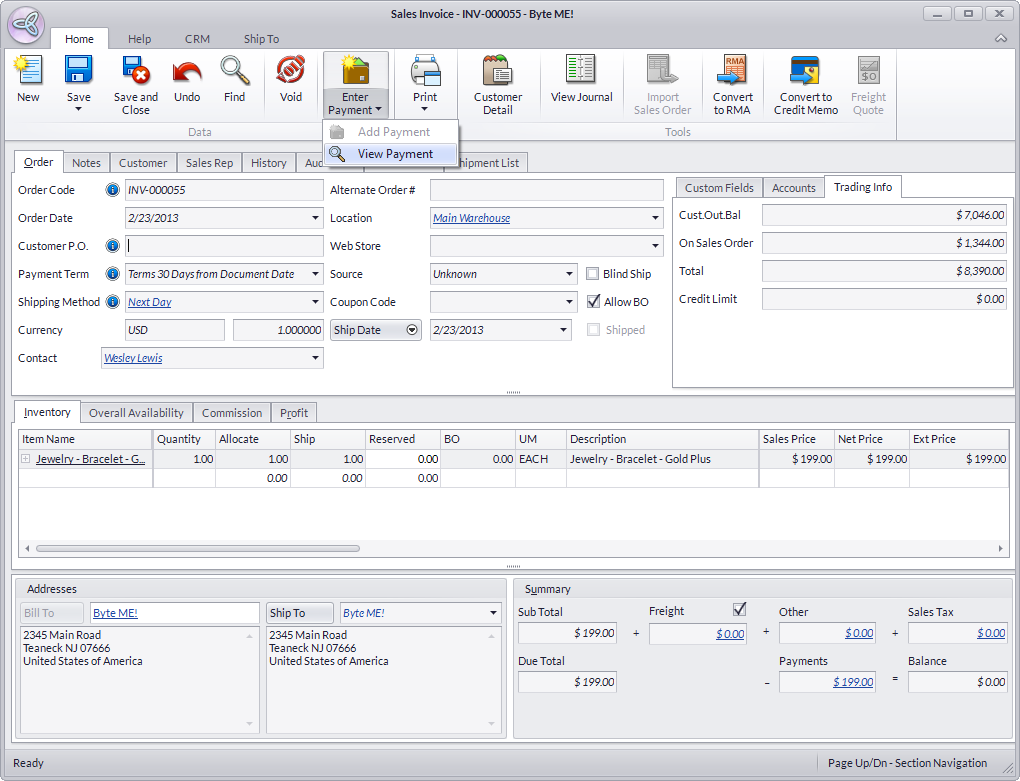
Click Image to Enlarge
Click Image to Enlarge
You may add payments on top of the existing payment applied (if not yet paid in full) on the Sales Invoice.
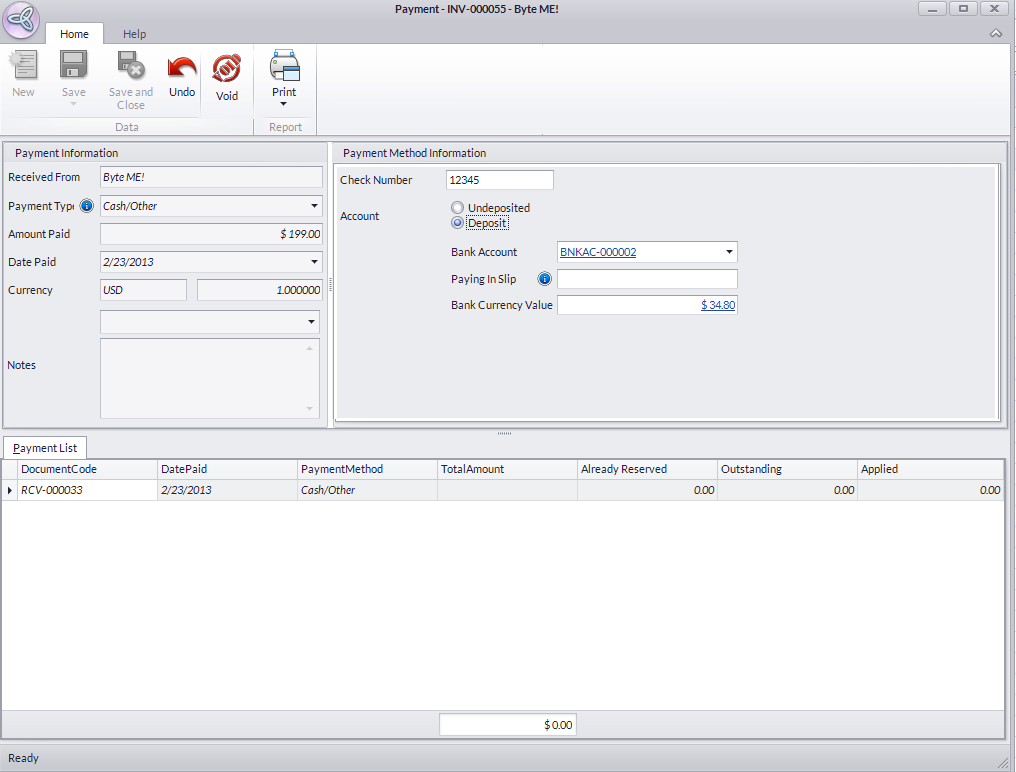
Click Image to Enlarge
- Click on Save and Close.
Void Customer Receipts
In an event of a check ending up as NSF, you can void the check payment through the Void Receipt menu.
- Go to the Customer module, select Receipt > Void Receipt. A search list of posted customer payments and previous void receipts is displayed.
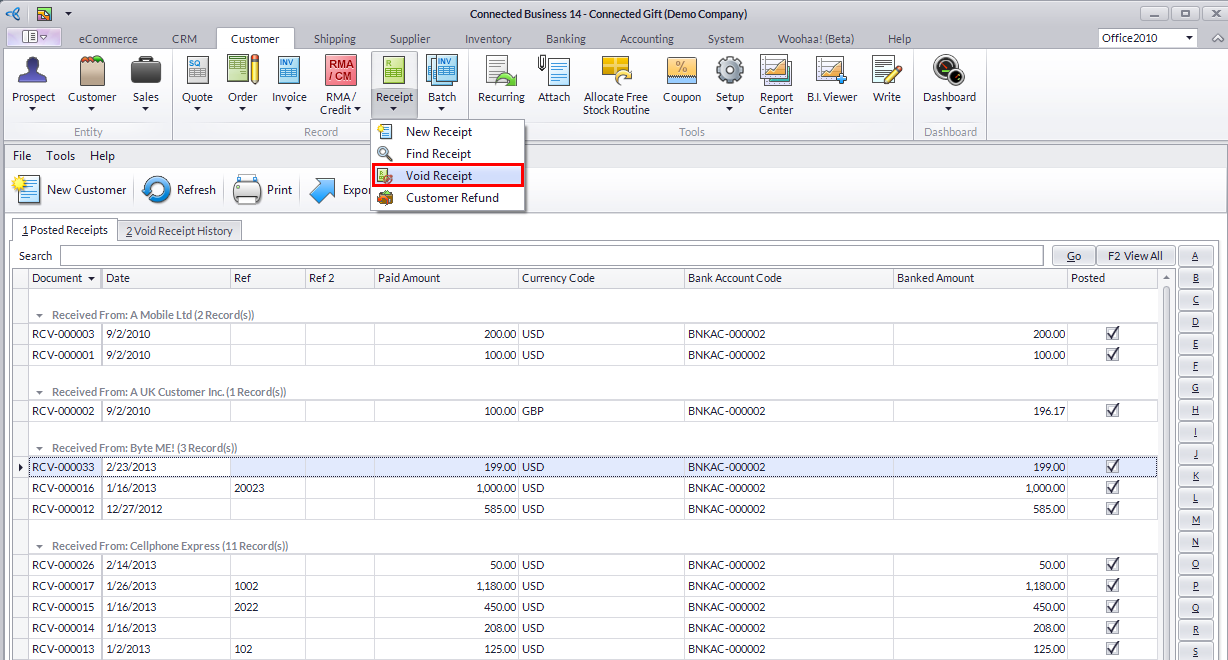
Click Image to Enlarge
- Select the customer receipt to void from the Posted Receipts tab. The Receipt form will display.
- Click the Void button on the toolbar to void the receipt.
- Choose Yes in the prompt to void the receipt.

When voiding NSF check payments, the Different Currency Bank Account window will appear. You may indicate the NSF charge amount pronounced by the bank and other charges (if any). This bank charge flows to the Banking module and creates a Bank Payment record from the bank account. Click Close to go back to theReceipt form.
- You may view the journal created for the voided receipt. Click on View Journal button to view the journal entry.
Alternately, you may also void a customer payment within the Sales Invoice form:
- From the Customer Module > Invoice > Find Invoice. Select the specific invoice on the list of Sales Invoices displayed.
- On the Sales Invoice form, click Enter Payment > View Payment.
- From the Payment Form, you can Void the payment made, or Save and Close to apply modifications (if you have made any) in the form.
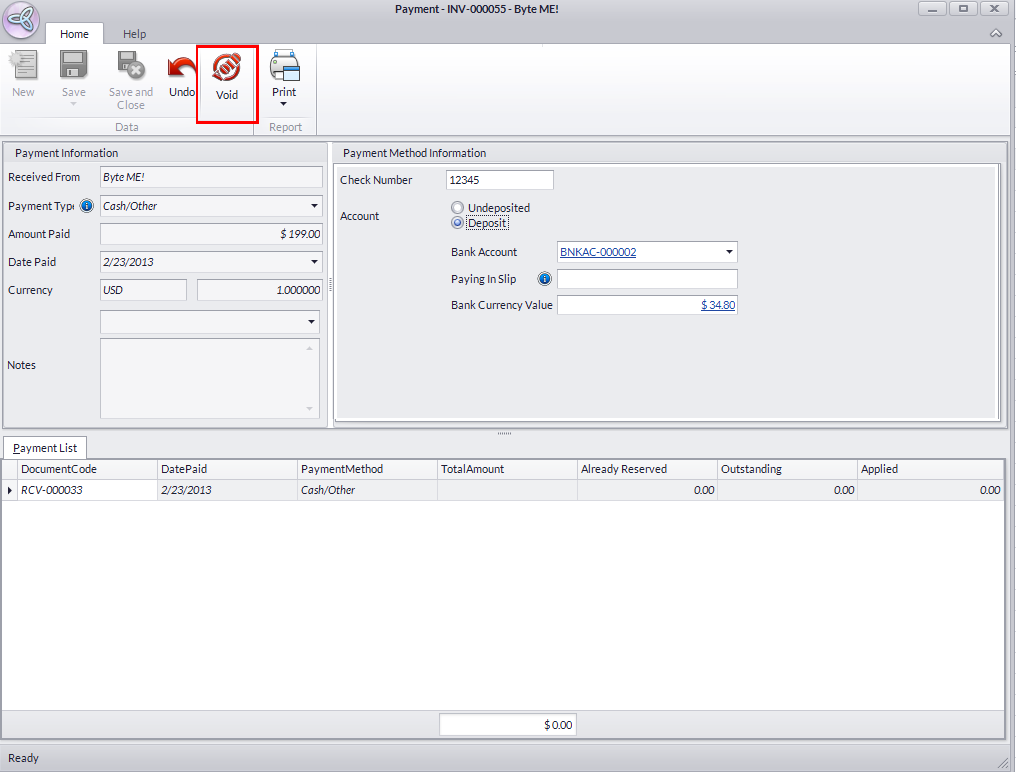
Click Image to Enlarge
- Click on the Close button.
Amend Voided Receipts
Since the customer invoice was completed from the point of receipt, the Void Receipt record stands in place of the customer’s receivable. You may allocate customer payments to the voided receipts to make up for the voided payment.
- Go to the Customer module, select Receipt > Find Receipt. A search list of unallocated and allocated receipts is displayed.
- Select any of the customer receipt to display the Receipt form.
- Switch to the Allocation Details tab to see if there are receipts or credits that you can allocate against the void receipt document. You may also create a new receipt by using the New Receipt option.
- Select a payment or credit document from theDebits tab.
- Click Save and Close.
See Also:
Review Customer Receivables | Set Promised Payments | Send Statements or Invoice Copies | Send Debtor or Reminder Letters