Deposit Customer Receipts
|
Content
|
|---|
Deposit Receipts are records of funds transfer to a bank account from previously undeposited customer receipts. Connected Business will search for customers’ undeposited receipts and you can choose which of these will be deposited.
Steps
A. DEPOSIT CUSTOMER RECEIPT
- Go to the Banking module > Deposits and select the New Deposit Receipt option. The New Deposit form will be displayed.
- In the Bank Account field, select the bank account where you want to deposit the receipt.
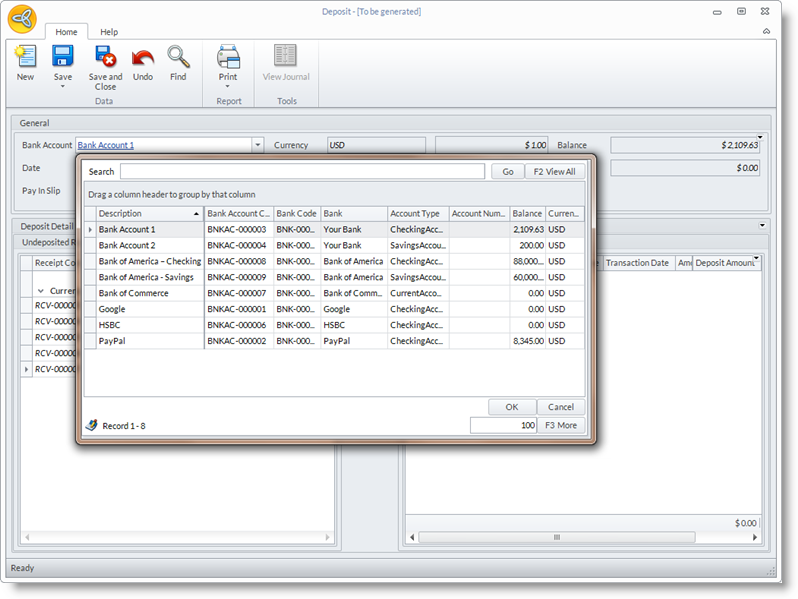
- The document date is set to the current date but you may change the date accordingly.
- You can add related documents codes and reference numbers in the Pay in Slip and Reference fields.
- In the Undeposited Receipts section, select the receipts to deposit. Click on the (>) button to select a single receipt or (>>) button to select all receipts and move them to the Receipt(s) To Deposit section.
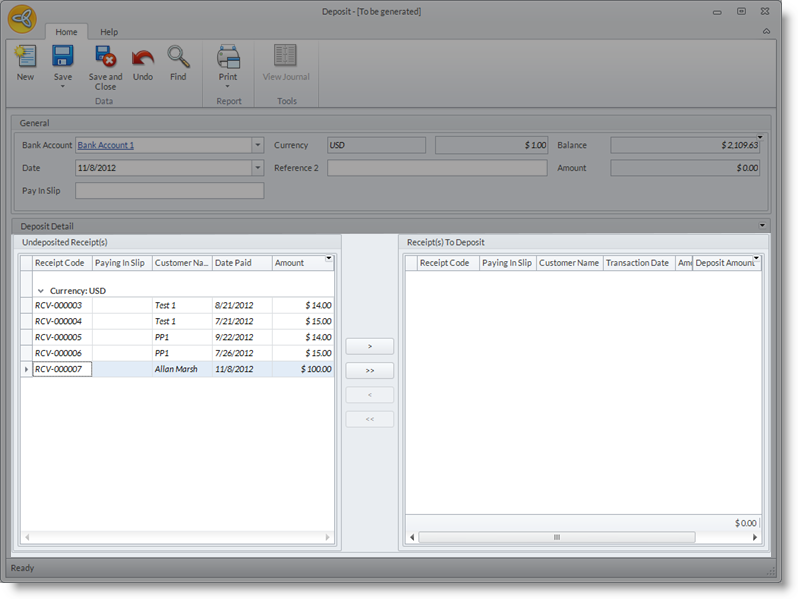
- Save the details before closing the form.

B. DIRECTLY DEPOSIT CUSTOMER RECEIPTS TO BANK ACCOUNT
You can also deposit customer receipts directly to a bank account without having to create a new deposit receipt transaction. From the New Customer Receipt form, select the Deposit option from the Payment Method Information section. In the Bank Account field, select the bank account where you want to deposit the receipt.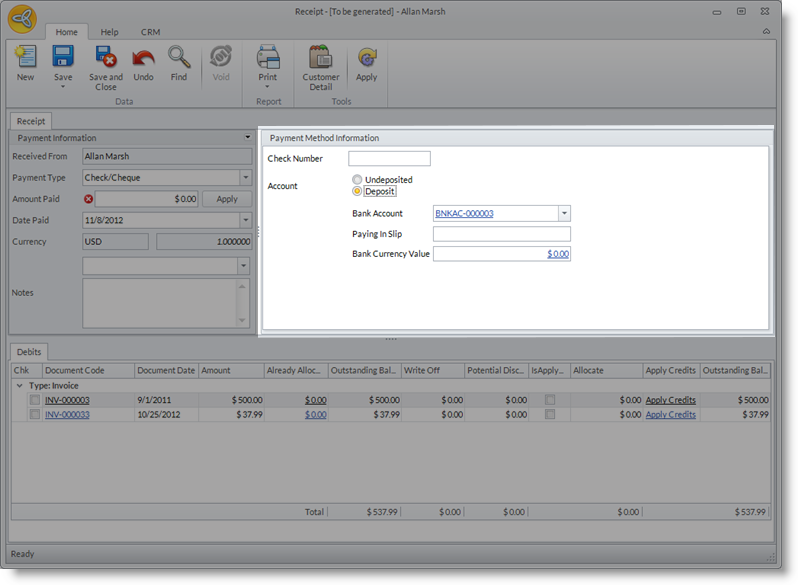
C. VIEW DEPOSITS
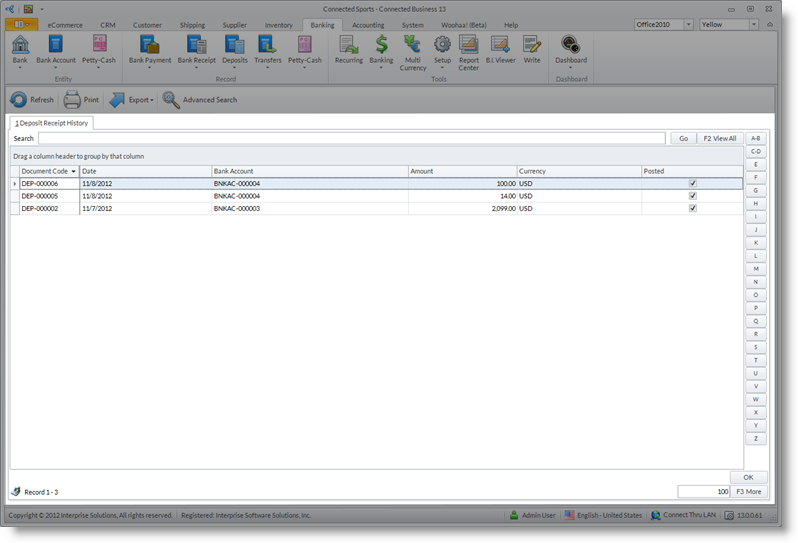
- Go to the Banking module > Deposits and select Find Deposit Receipts option. The Deposit Receipt History will be displayed with the list of deposited receipts.
- Select the deposit receipt you want to review.