 Connected Business Community
Let's Connect
Connected Business Community
Let's Connect
Allocate Customer Payments
| Content |
|---|
This article talks about how to allocate payments in Connected Business (v13 and v14).
In Connected Business v13, payments can be allocated or applied AFTER saving the payment. However, in Connected Business v14, payments can already be allocated or applied BEFORE saving the payment.
Manually Allocate Customer Payment
To manually allocate a payment in Connected Business v13,
- Go to Customer module > Receipt > New Receipt. The list of Bill To Customers will be displayed.
- Select a customer from the list to load the Receipt form.
- Enter the amount to be paid in the Amount Paid field then click Save.

If the payment is not saved before allocating it to the customer’s existing invoice/s, a message prompt will be displayed confirming if the payment is correct. Click Yes to confirm and save the payment. Otherwise, click No.
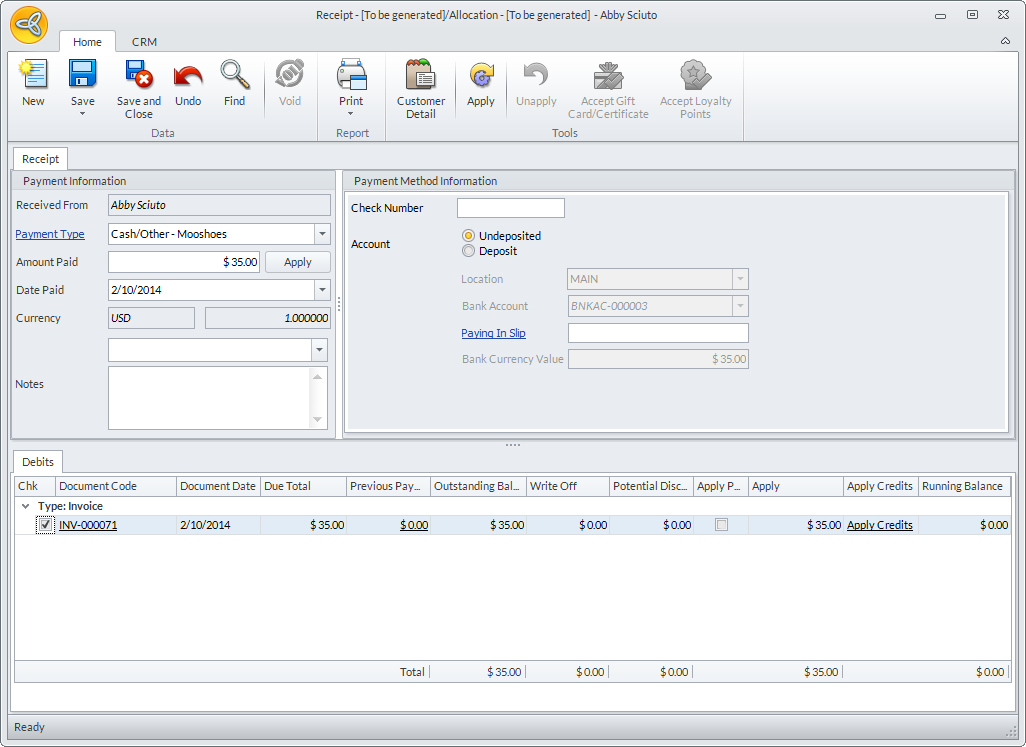
- In the Debits section, select the invoice where the payment will be allocated then click Save or Save and Close to save the allocation.

Click Image to Enlarge
In Connected Business v14, you can select the invoice/s where the payment will be allocated before saving the payment.
Click Image to Enlarge

Automatically Allocate Customer Payment
To automatically allocate a payment in Connected Business v13,
- Go to Customer module > Receipt > New Receipt. The list of Bill To Customers will be displayed.
- Select a customer from the list to load the Receipt form.
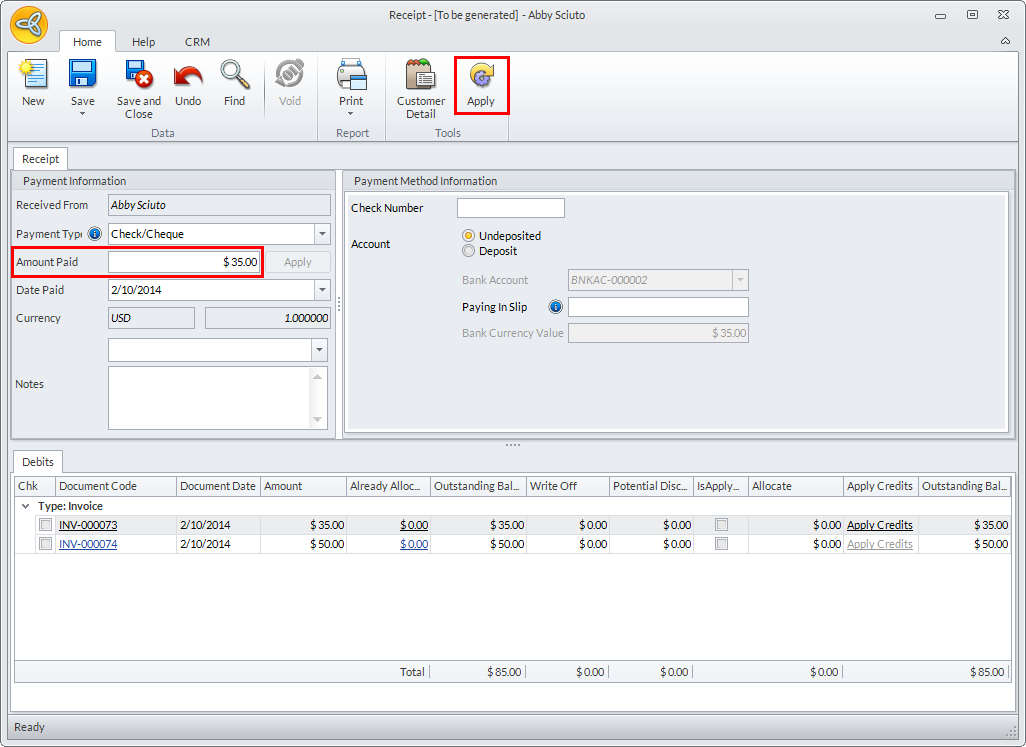
- Enter the paid amount in the Amount Paid field then click the Apply button.
Click Image to Enlarge
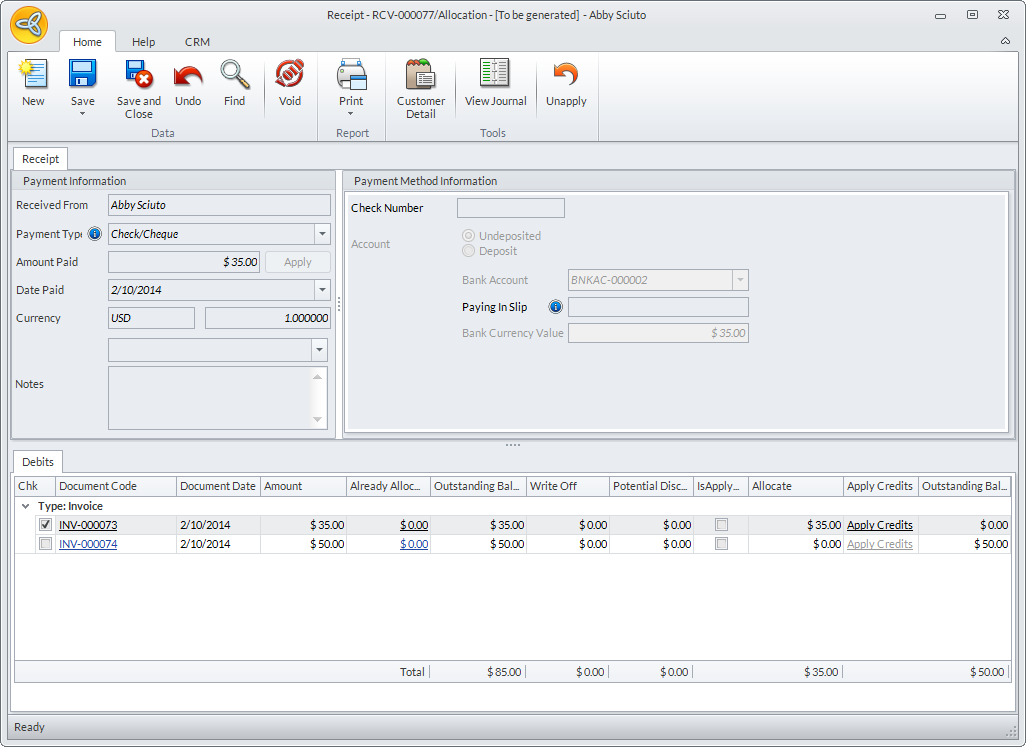
Clicking the Apply button automatically saves the payment.
- The payment will be automatically allocated to the latest invoice/s in the list and the unallocated invoices (if any) will be disabled or removed from the list.
Click Image to Enlarge
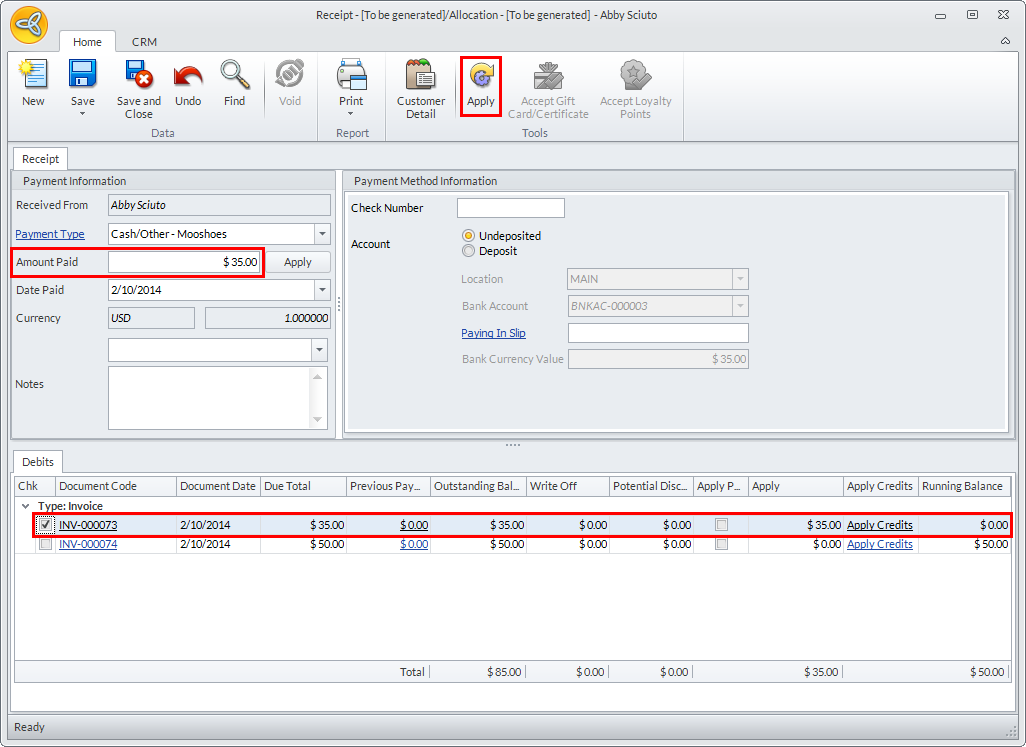
In Connected Business v14, clicking the Apply button will not automatically save the payment but will only allocate the payment to the latest invoice in the list. Upon saving the payment, the rest of the unallocated invoices will be removed from the list.
Click Image to Enlarge
Click Image to Enlarge
You can click Save or Save and Close to save the allocation.
Enter Payment Amount Upon Allocation
In Connected Business v13, payment allocation involves manually entering the amount to be paid before you can allocate it to any existing invoices.
In Connected Business v14, allocating payments have been made easy by automatically entering the amount to be applied upon selecting the invoices to be paid.
This feature is only available in Connected Business v14 and higher.
- From the Customer module go to Receipt > New Receipt. The list of Bill To Customers will be displayed. Select customer from the list to load the Receipt form.
- In the Debits section, tick the checkbox of the invoice/s code to be paid. The amount to be applied will be automatically entered in the Amount Paid field.

Click Image to Enlarge
- Select the payment type to be used for the allocation then click Save or Save and Close to save the allocation.
Apply Customer Payments As Credits
You can apply unallocated payments as credits. To do this,
- Go to Customer module > Receipt > New Receipt. The list of Bill To Customers will be displayed.
- Select a customer from the list to load the Receipt form.
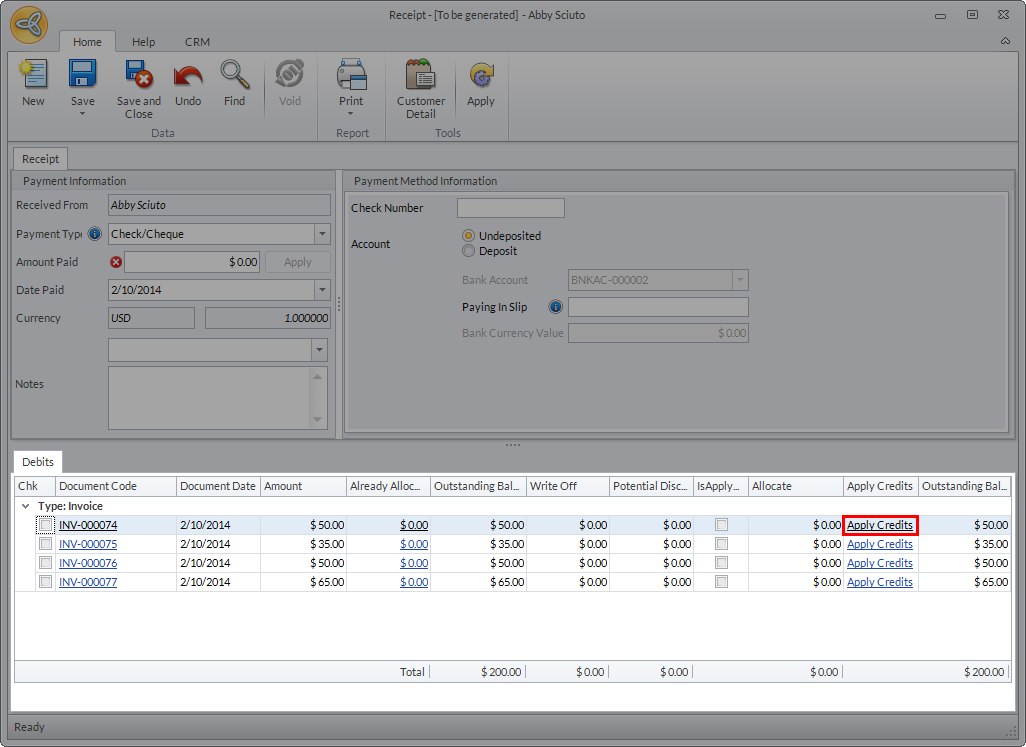
- From the Debits section, click the Apply Credits link of the invoice where the receipt will be allocated. The Apply Credits form will be displayed.
Click Image to Enlarge
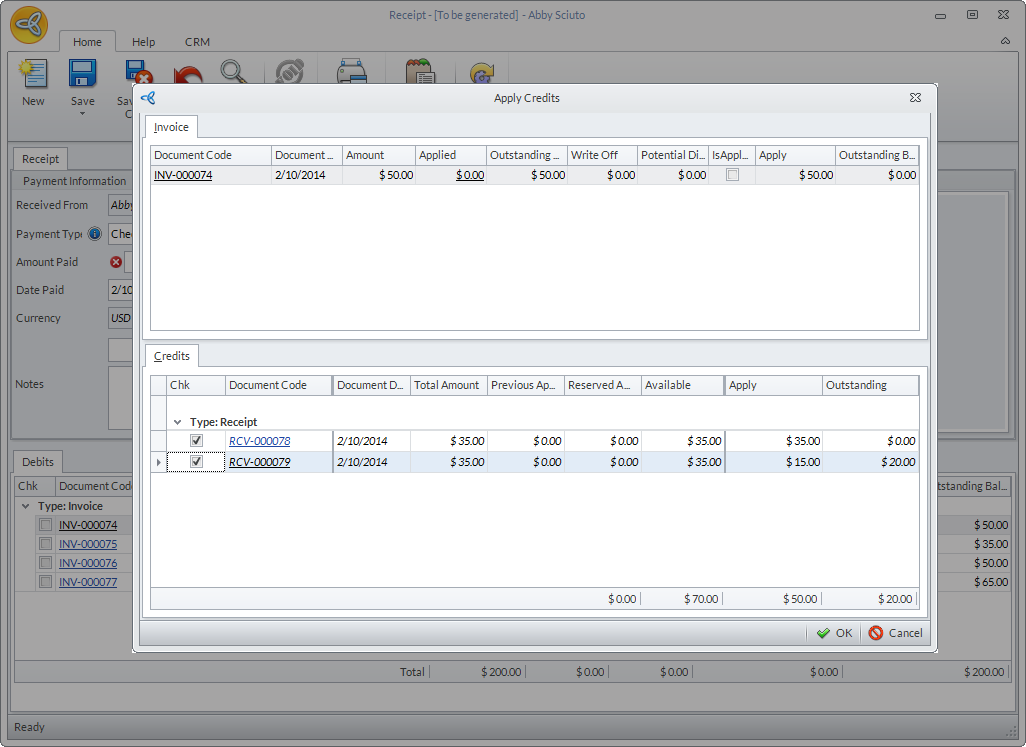
- In the Credits section, select the credit memo or receipt to be allocated against the invoice then click OK to save the allocation.
Click Image to Enlarge
You can also allocate multiple credit memos or receipts (if applicable) against the invoice to pay the outstanding balance in full.
- Close the Receipt form. If prompted to save changes in the Receipt form, click Yes to save the payment (if the invoice balance s partially paid), otherwise, click No to close the form.
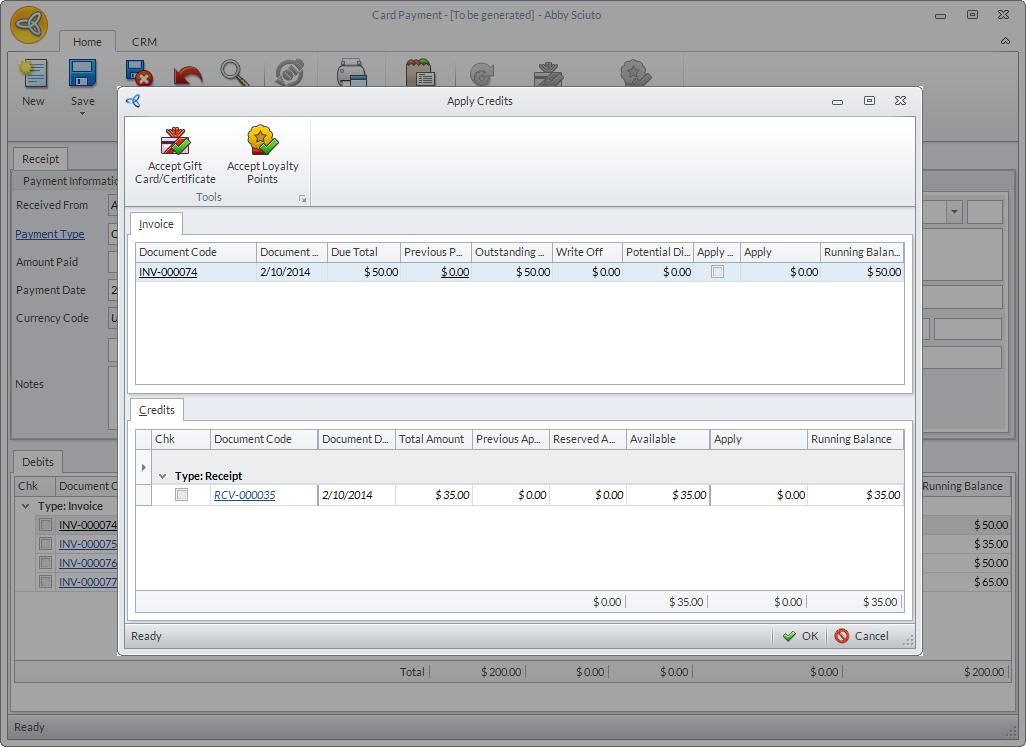
In Connected Business v14, aside from credits and customer receipts, you can also apply gift card/certificates or loyalty points against the invoice. See Apply Gift Card/Certificate As Credit.
Click Image to Enlarge
Apply Potential Discounts
Potential discounts from settlement terms can also be applied when allocating customer payments.
You can only apply potential discounts if the settlement term for the invoice includes discounts e.g Terms 30 Days from Document Date - 2% Discount if Paid within 7 Days. You can check the settlement term for the invoice from the Sales Invoice form > Payment Term.
To apply potential discounts,
- Go to Customer module > Receipt > New Receipt. The list of Bill To Customers will be displayed.
- Select a customer from the list to load the Receipt form.
- Enter the amount to be paid in the Amount Paid field, select the Payment Type then click Save.
- In the Debits section, tick the invoice where the payment will be applied. Upon allocating the payment to the invoice, The Is Apply Potential Discount checkbox will be ticked which means that a discount has been applied to the invoice. The discounted amount is indicated in the Potential Discount column.
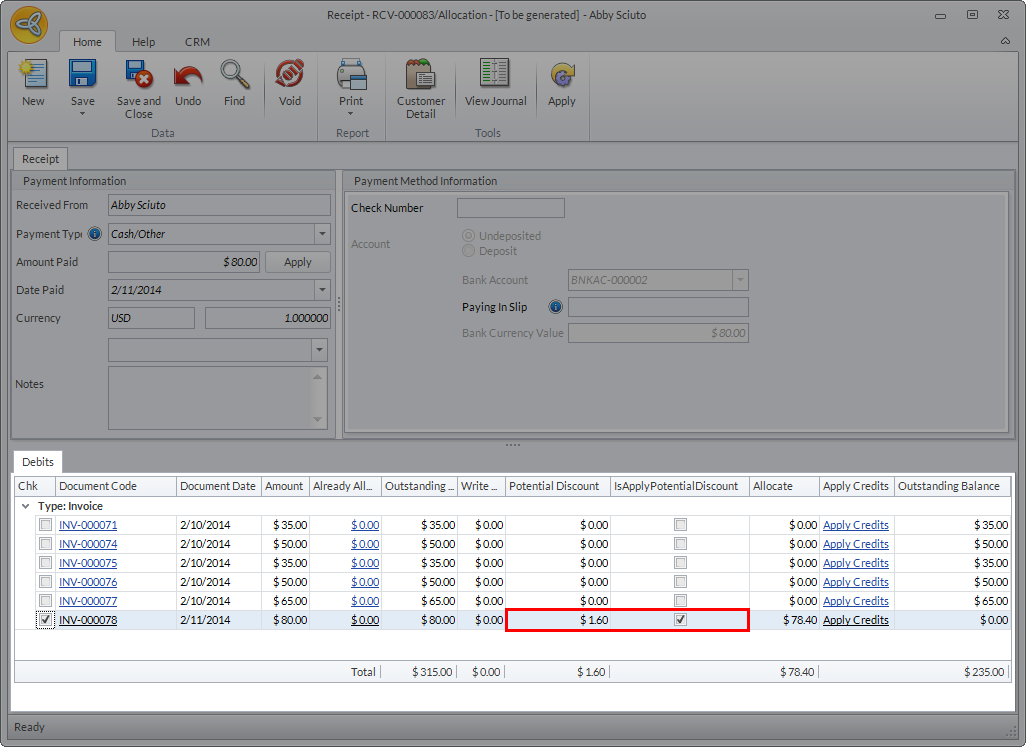
Click Image to Enlarge
- Click Save or Save and Close to save the allocation.
In Connected Business v14, potential discounts can be applied before saving the payment.
The amount discounted from the balance will be treated as unallocated payment or credit. You can check the allocation document from the Customer Detail form > Transactions > Receipt. Set the View Option to Open then select the Receipt document from the list of unallocated receipts. You can see the discounted amount from the Outstanding column.
Write Off Outstanding Balances
You can write off amounts that are too small to be considered as receivables. The write off amount will be based on the value defined in the Auto Write Off preference of the Customer Preference form (go to Customer module > Setup > Preferences > Accounts Receivable section > Auto Write Off). The system will automatically write off any amount that is equal or lesser than the value defined in the Auto Write Off preference.
To write off outstanding balances,
- Go to Customer module > Receipt > New Receipt. The list of Bill To Customers will be displayed.
- Select a customer from the list to load the Receipt form.
- In the Amount Paid field, enter amount to be paid.
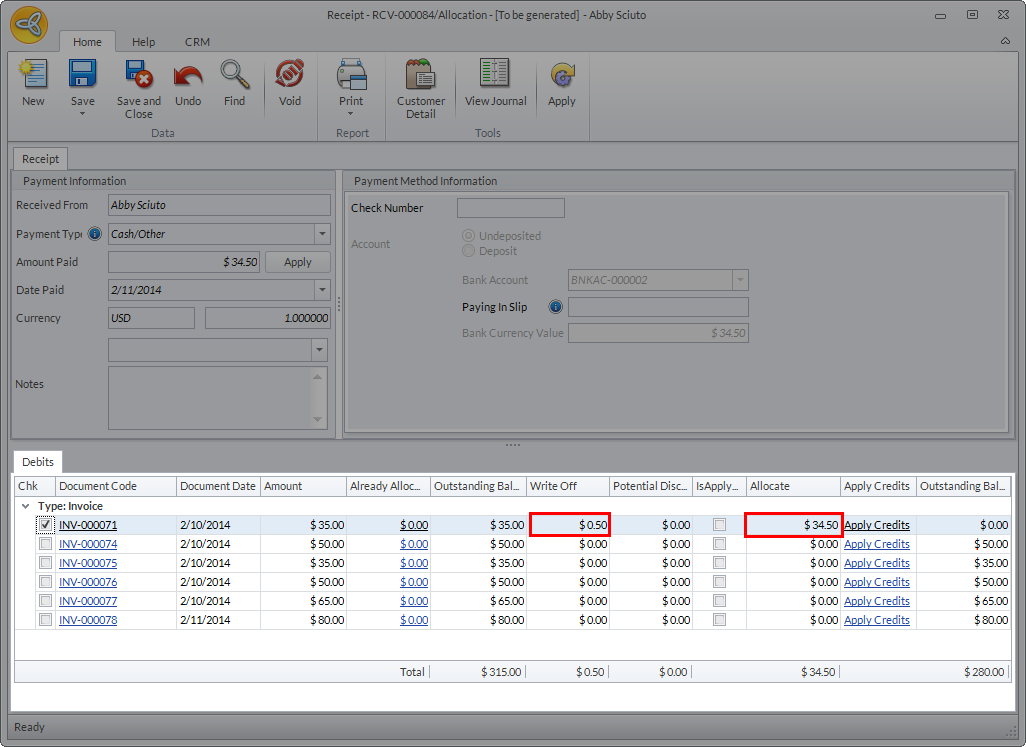
Click Image to Enlarge
For the system to write off the remaining unpaid amount, the difference in the amount paid and the outstanding balance must be equal or lesser than the defined write off amount in the Customer Preference form.
- Click Save to save the payment.
- Tick the invoice code where the payment will be allocated then click Save. The system will automatically write off the amount if the difference between the amount paid and the outstanding balance is equal or lesser than the defined write off amount. The amount written off is indicated in the Write Off column.
Deallocate Customer Payment
To deallocate customer payments,
- Go to Customer module > Receipt > Find Receipt. The Customer Payment History list will be displayed. Alternatively, you can deallocate customer payments when saving new customer receipts.
- Select receipt document from the list to load the Receipt form.
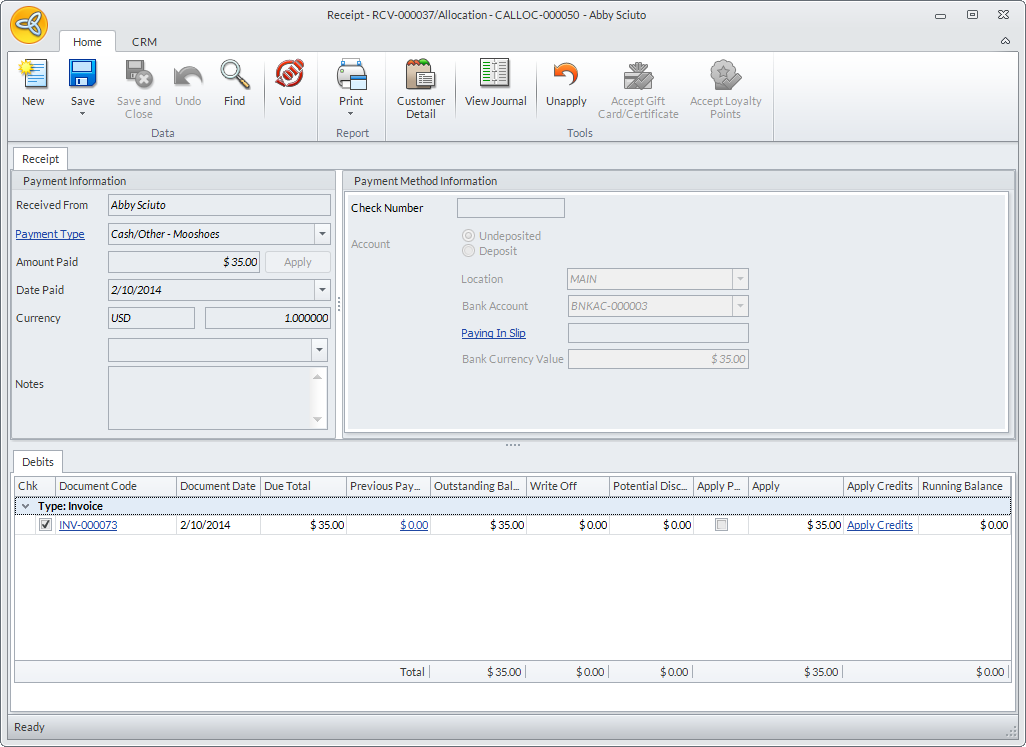
- In the Receipt form, click the Unapply button.
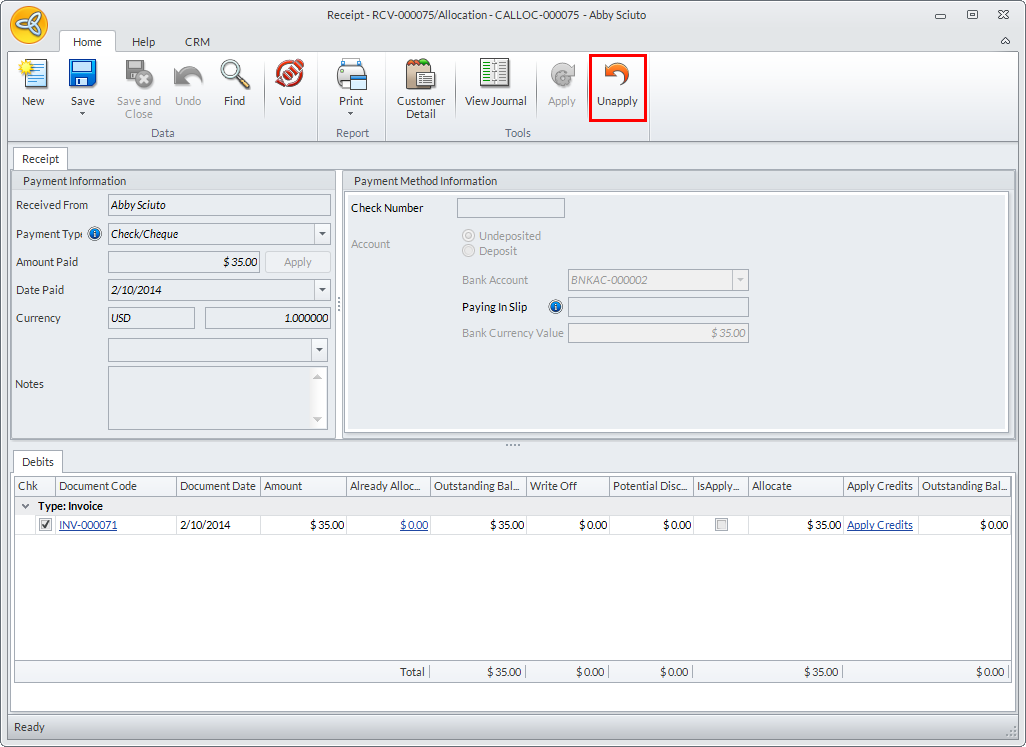
Click Image to Enlarge
The balance of the invoice where the payment was allocated will be reverted to the previous outstanding balance.
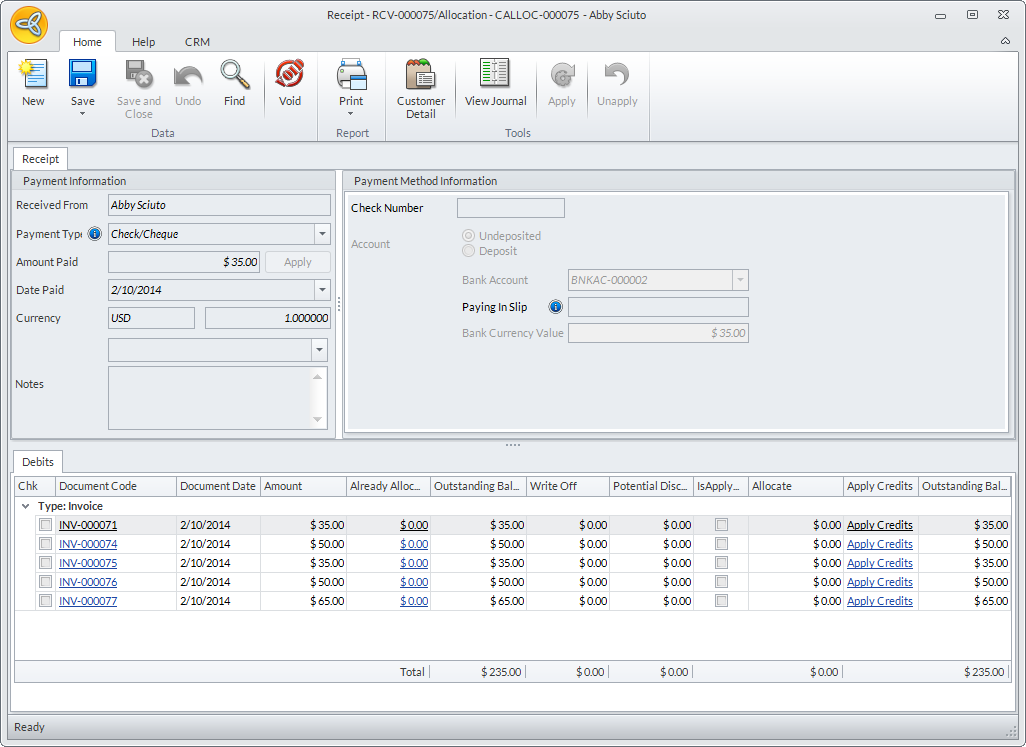
Click Image to Enlarge
- Click Save or Save and Close to apply changes.
Payments made within the sales invoice form can only be voided but not deallocated.
You can also reallocate the payment or change the payment allocation from one invoice to another. Upon clicking the Unapply button, the list of unallocated invoices will be displayed in the Debits section. Select the invoice where the payment will be allocated, click Apply then click Save or Save and Close.
The allocation cannot be modified once the payment is saved.
All deallocated payments will be treated as unallocated payments or credits. You can find the list of unallocated and partially allocated receipts from the Customer Detail form > Transactions > Receipts. Set the View Option to Open to view the list of all unallocated customer receipts.
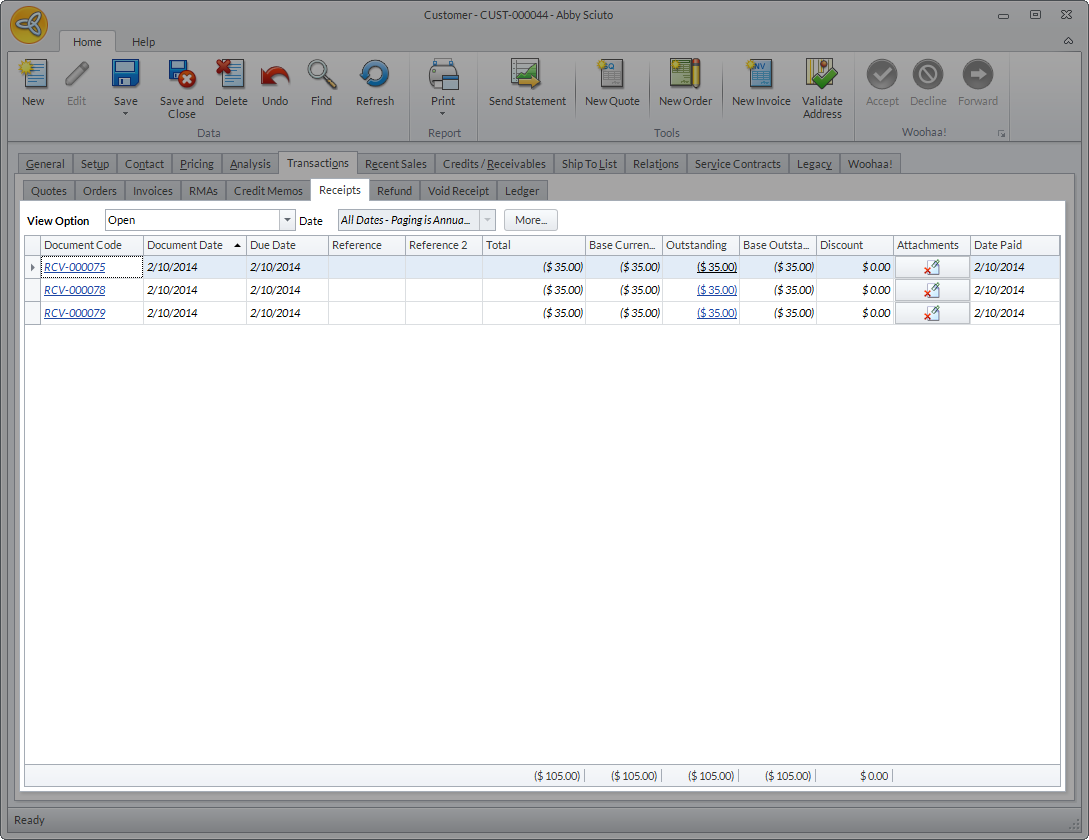
Click Image to Enlarge
You can also view the list of all unallocated customer receipts from the Apply Credits form when applying credits against the customer’s existing invoices. See Apply Customer Payments As Credits.
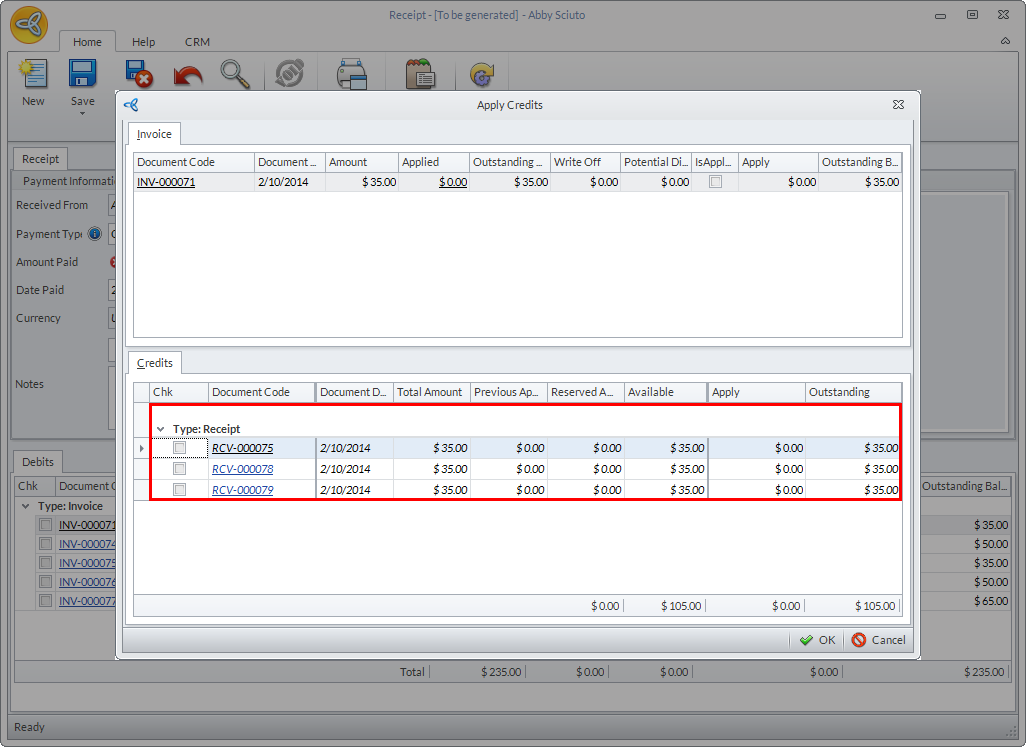
Click Image to Enlarge