 Connected Business Community
Let's Connect
Connected Business Community
Let's Connect
Set UP POS Web Service
This section will discuss on on how to install Connected Business POS web service on your desktop computers.
Install POS Web Service
- Install the POS Web Service components using the Connected Business installer. Once the POS component is successfully installed, you can access the POS folder usually located in the location path: C:\Program Files (x86)\Interprise Solutions\Connected Business 13\POS\Web.
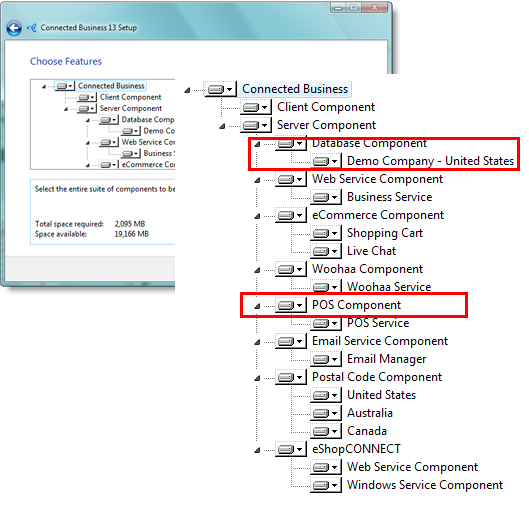
Click Image to Enlarge
- Open Windows IIS manager. Go to Run menu of Windows and type-in inetmgr.

Connected Business POS is currently working only on IIS 7 and higher versions. Make sure IIS is enabled on your computer. If not please refer to this article on how to install IIS on your computer: http://learn.iis.net/page.aspx/28/installing-iis-on-windows-vista-and-windows-7/

Click Image to Enlarge
- Set application pool for the POS Service. The POS service requires an application pool based on ASP.NET 4.0 (Integrated).
If ASP.NET 4.0 is not registered on your IIS, please refer to: http://msdn.microsoft.com/en-us/library/ie/k6h9cz8h.aspx

Click Image to Enlarge
The application pool should have the following settings:- NET Framework Version : v4.0
- Enable 32-Bit Applications: True
In Connected Business v14, this option should be set to False.
- Managed Pipeline Mode: Integrated
- Identity: NetworkService
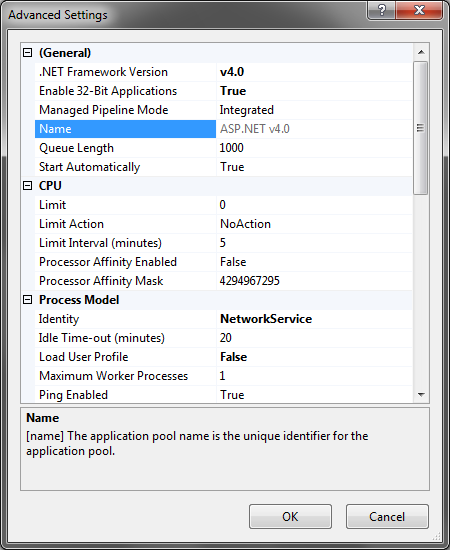
- Add POS Web Service.Add a web application that points to the installed POS web service components. This web application would be your POS web service. The following settings must be set:
- Alias: ConnectedBusinessPOS (this can be any name you preferred)
- Application Pool: ASP.NET v4.0 (any application pool as long as it meets the requirements mentioned on step #3)
- Physical Path: C:\Program Files (x86)\Connected Business 13\POS\Web (or where you install the POS web service components)
You can refer to the following link for more info on how to create web application on IIS: http://technet.microsoft.com/en-us/library/cc772042(v=ws.10).aspx

Click Image to Enlarge
The POS web service should only allow Anonymous Authentication.
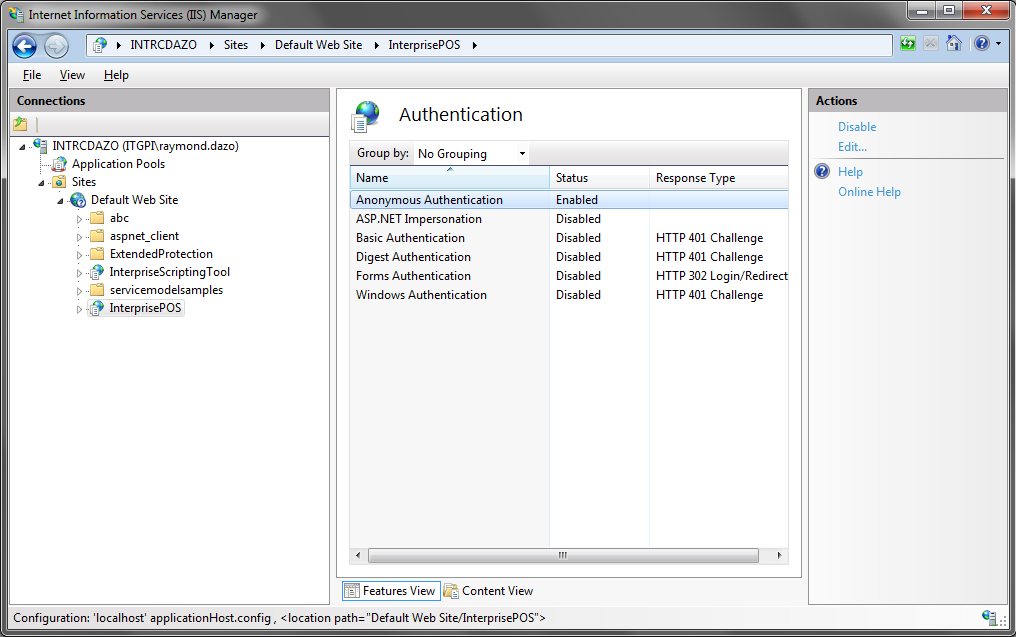
Click Image to Enlarge
POS web service should allow all-access by the built-in Windows NETWORK SERVICE user account. This is required when creating a web application in IIS.

Click Image to Enlarge
- Point Web Service to Database. The POS web service should point to the proper Connected Business database. We will use the demo database that comes with the installer. Load the Connected Application Configuration Toolto modify the “web.config” file that the POS web service uses to connect to a database. The location of the web.config file is found on the root folder where the POS web service components are installed.
You need to provide a valid Connected Business user account. You can use "webadmin" for Connected Business 13 POS and "posadmin" for Connected Business 14 POS. The POS web service will use this to connect to the database. This connection will not affect licensing.
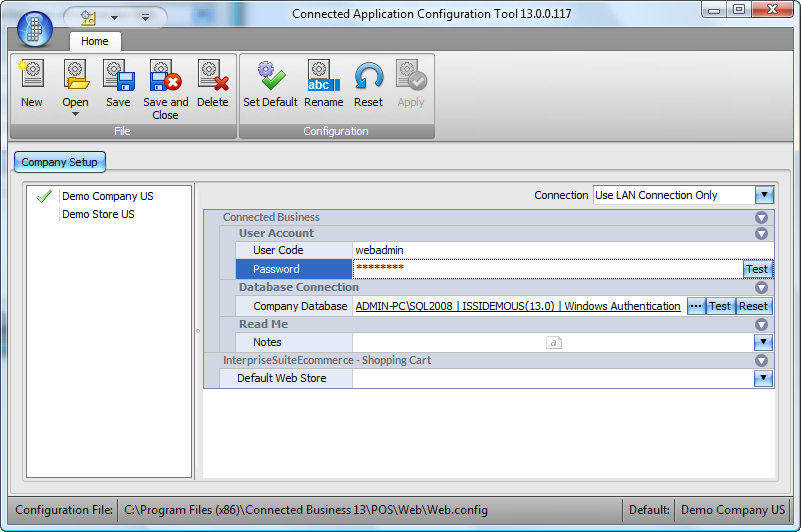
Click Image to Enlarge
You must also give the NETWORK SERVICE windows user account access to the demo database:
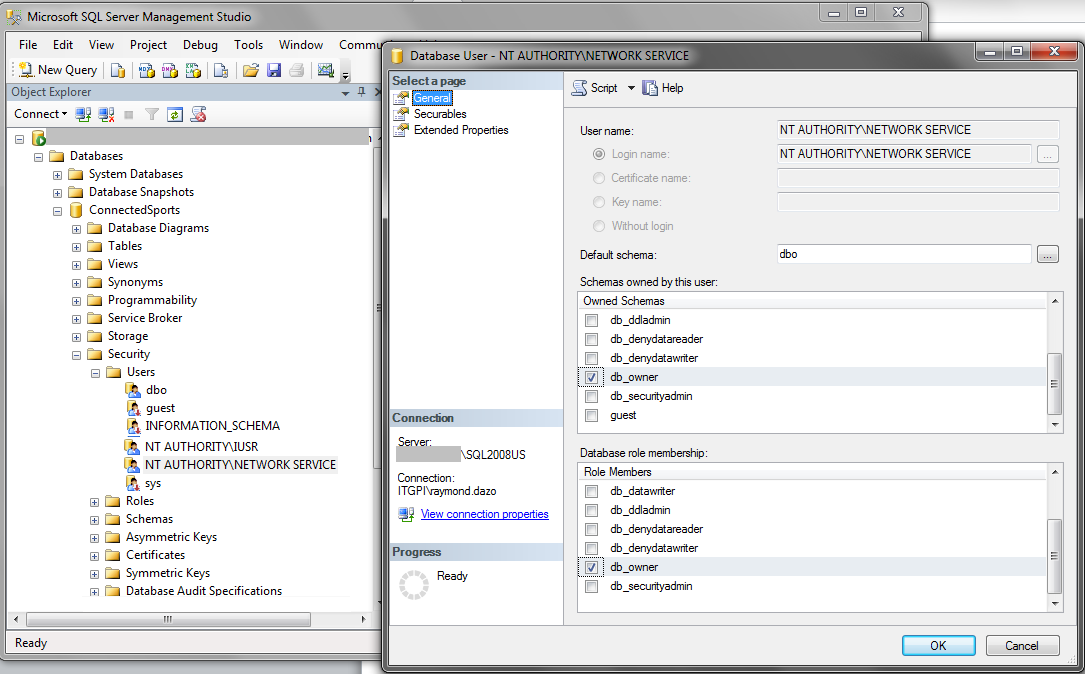
Click Image to Enlarge
- Use POS Web Service. Once all of the above setup is done, we can now use the POS web service. To test if our service is working, go back to IIS and browse to your service just like in the image below:

Click Image to Enlarge
Your default browser should come up. For this example, the POS web service is hosted on “localhost” website. The address bar would display the URL of the web service, in this case: http://localhost/ConnectedBusinessPOS/
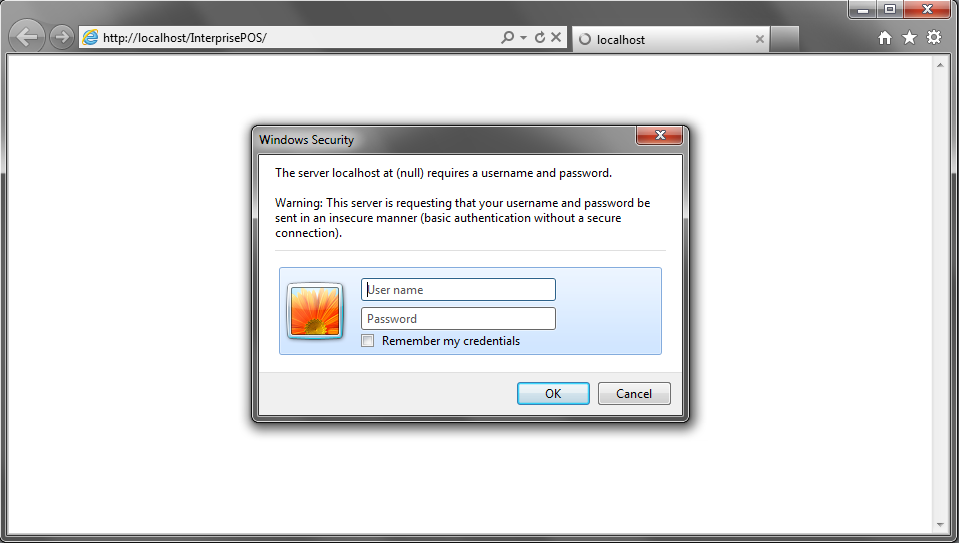
Click Image to Enlarge
The POS web service would prompt you for credentials. Once it does, it means your POS web service is now running. The POS web service requires user identification for every web request. You need to enter a valid Connected Business account to continue. Once log-in, the home page may display “access-denied” as no default page is set yet.
You may also browse to a help page within the POS web service: http://localhost/ConnectedBusinessPOS/Transactions/help
Click Image to Enlarge
You can now use the POS web service. To use the service, load Connected Touch application and open the InterprisePOS.itapp file. To install Connected Business POS, refer to Install Connected Business POS.
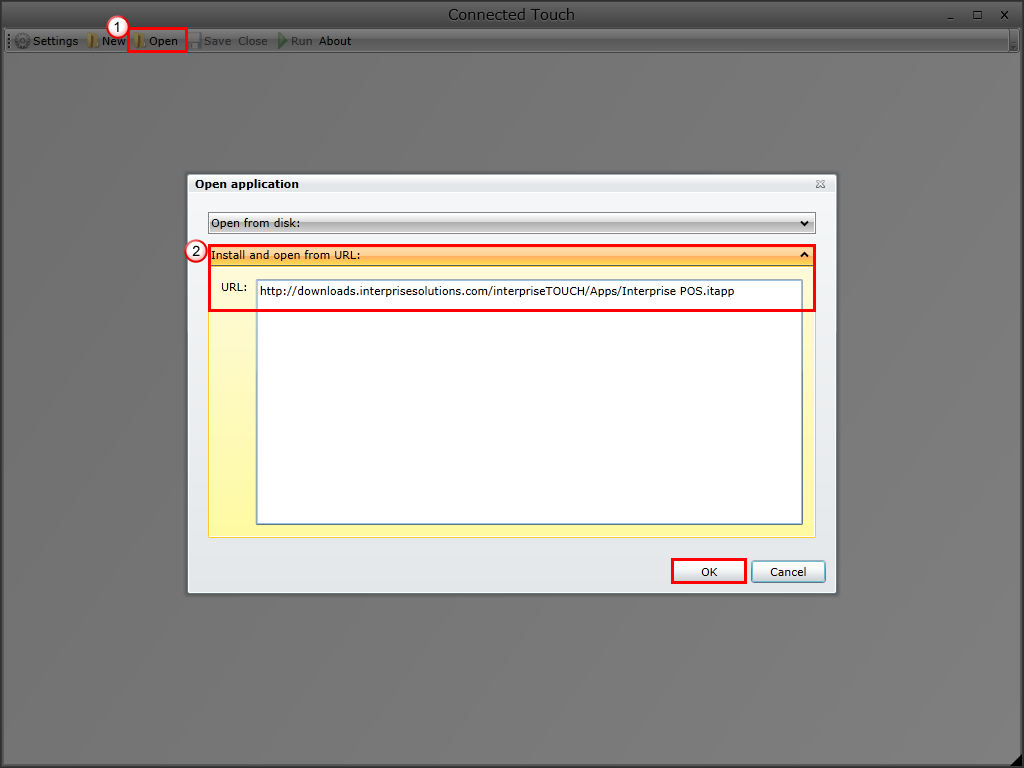
Click Image to Enlarge

POS REST Service API
Below is the list of POS REST Service API. Click to view the file in pdf format.