
Set Up Product Page Web Configuration
Users can access the Web Option from the Item Form of each inventory item. The Web Option tab enables admins to define properties for each item that involve its behavior in the webstore.
To do so,
- From the eCommerce Module > Item > Find Item.
- The Item list form will be displayed. Select the item you want to modify its web options by double-clicking the item on the list.
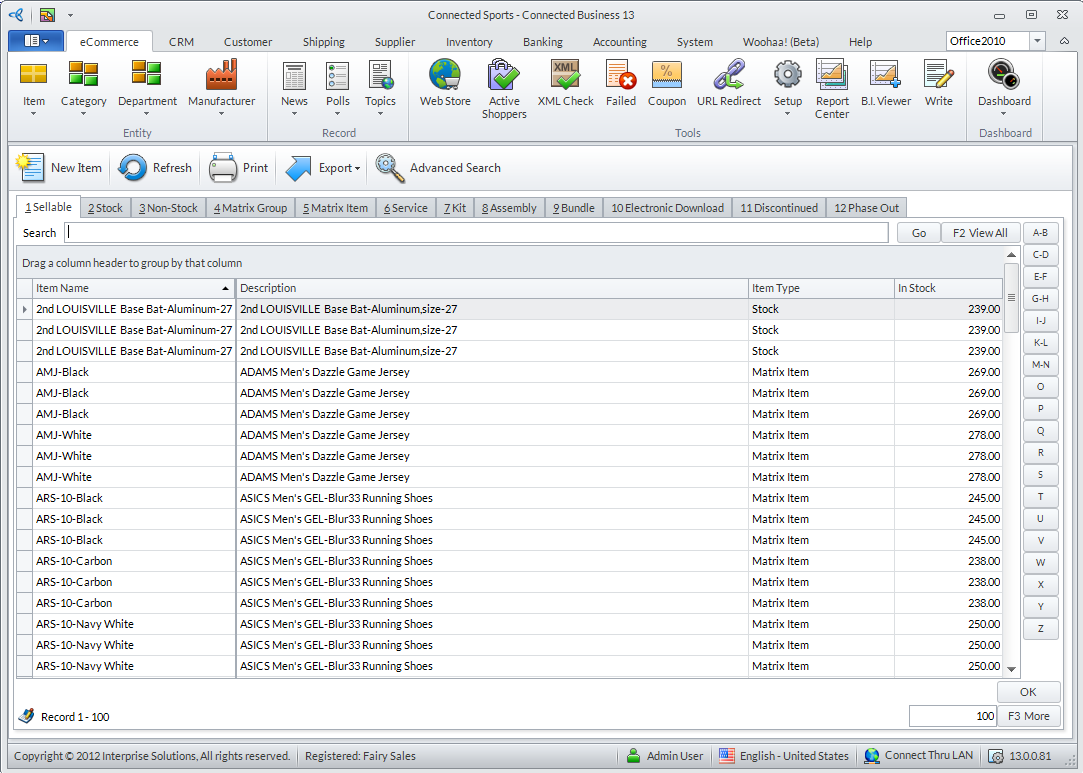
Click Image to Enlarge
- The Item Form will be displayed. Access the Web Option tab to display the item's web properties.
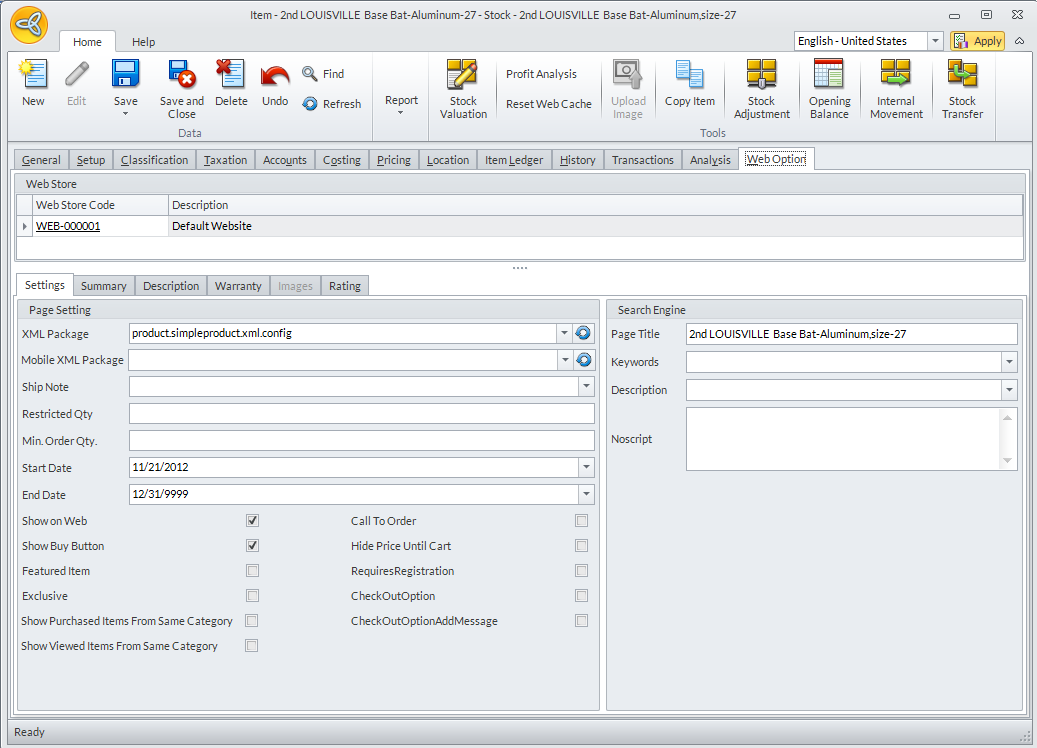
Click Image to Enlarge
- From the Web Options tab, you can modify the following fields:
Web Options
Fields
Description
XML Package This determines how the product page should appear in the internet.
For more information, please refer to the Set Up Item Display Format and Web Store Product Display Formats online documentations.
Ship Note Enter here the message to show on the product page regarding certain shipping conditions or infos.
Restricted Qty. A parameter for entering the URL link of the store service of the web store. By default this is set to http://localhost/<domain_name>/storefrontservice.asmx.
Min. Order Qty. Indicate here the minimum amount that can be ordered for this product.
Start Date Determines the date by which this item will be available for selling
End Date Determines the date by which this item will not be shown anymore in the store
Show On Web When checked this product is shown on the store site.
Show Buy Button When unchecked the buy button doesn’t appear in the product page.
Featured Item When checked, this product will also be show in the Featured Item display.
For more information, please refer to the Set Up Featured Item List online documentation.
Exclusive When this is checked this product is set as the first item in the list in the mapping entities.
Check Out Option Add Message If checked, this shows an Order Option text box to allow the customers to enter their particular details regarding this order option.
Call To Order When checked this product will only be ordered through phone.
For more information, please refer to the Set Up Item Orderable by Phone online documentation.
Hide Price Until Cart When checked this product only show its price when in shopping cart.
Req. Registration To View If checked this product will be shown only to those registered customers.
For more information, please refer to the Set Up Password-Protected Products online documentation.
Check Out Option If checked this product will be available only as an order option. This property works hand in hand with the Check Out Option Add Message property.
Page Title Indicates the title of the page as displayed in the search.
Keywords Enter here the possible keywords to use to access this product page.
Description Specifies the description or details of the page as shown in the search.
Alternate Text Determines the text that will be shown if this page is not visible.
NoScript Indicates the text that will appear if script is not supported.