
Set Up Featured Item List
Featured Items are a way to give csutomers a preview of what kind of procucts a webstore has to offer.
This article will describe how to add an Featured Items to a webstore in Connected Business.
Enable Featured Items
To enable featured items,
- From the Inventory Module, go to Item > Find Item. The Item list will be displayed.

Click Image to Enlarge
- Select an item from the list. The corresponding Item form will be displayed.
- Open the Web Options tab, go to the Settings sub-tab and tick the Featured Item checkbox.
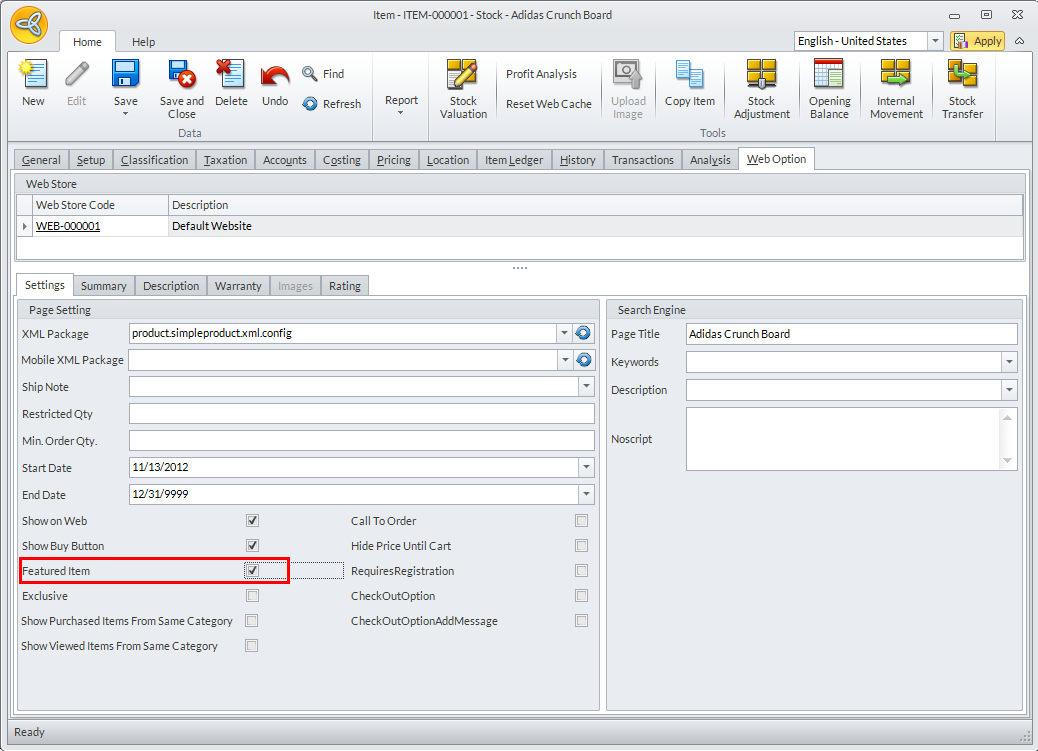
Click Image to Enlarge
- Save and Close the form to apply your changes.

Modify Featured Items Layout
To modify the layout,
- From the eCommerce Module, go to Setup > Application Configuration. The AppConfig form will be displayed.
- Enter "featured" as the search keyword in the Search Bar. The list of Featured Items configurations will be displayed.
- Modify the configurations as needed.
The configurations are as follows:
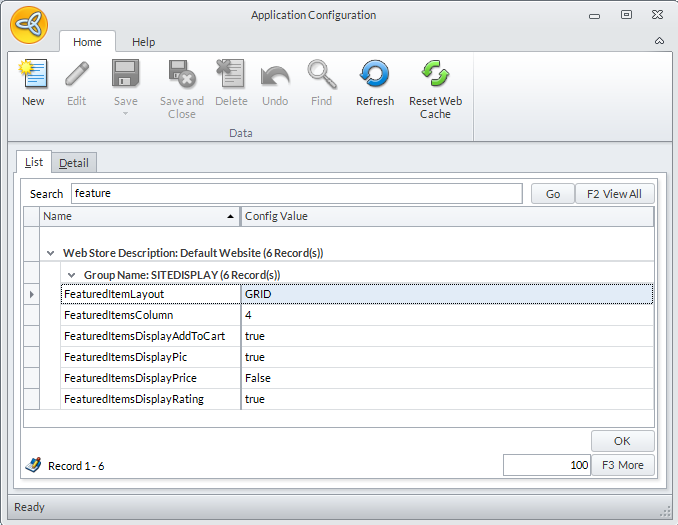
Click Image to Enlarge
Application Configuration Entries
Fields
Required Config Value Entry
FeaturedItemLayout GRID (Default) or LIST FeaturedItemsColumn Numerical (4 by Default)
FeaturedItemsDisplayAddToCart True or False
FeaturedItemsDisplayPic True or False FeaturedItemsDisplayPrice True or False FeaturedItemsDisplayRating True or False NumHomePageSpecials The number of specials shown on the home page featured box - Save after each modification to apply changes.