
Period End Processes
|
Content
|
|---|
The Process Month End Wizard covers the processing of recurring transactions for the Customer, Supplier, Banking and Accounting to make sure no pending recurrences are left out. Check the checkbox on the left of the record to select the record for processing. Select the Process Month End menu item under the Tools menu to load the Process Month End Wizard.
Before proceeding with the month end processes, it is recommended to backup your database as a caution.
Process Recurring Transactions
The Process Month End Wizard reminds the user of any recurring transactions to process. The recurring transactions to process are listed in the Recurring Transaction category.
Steps
- From the Accounting Module, select Period > Close Period. The Month End Process Wizard will display.
- Note the recurring transactions to process.
- Click on the transaction under the Recurring Transaction category to look up transactions to recur.
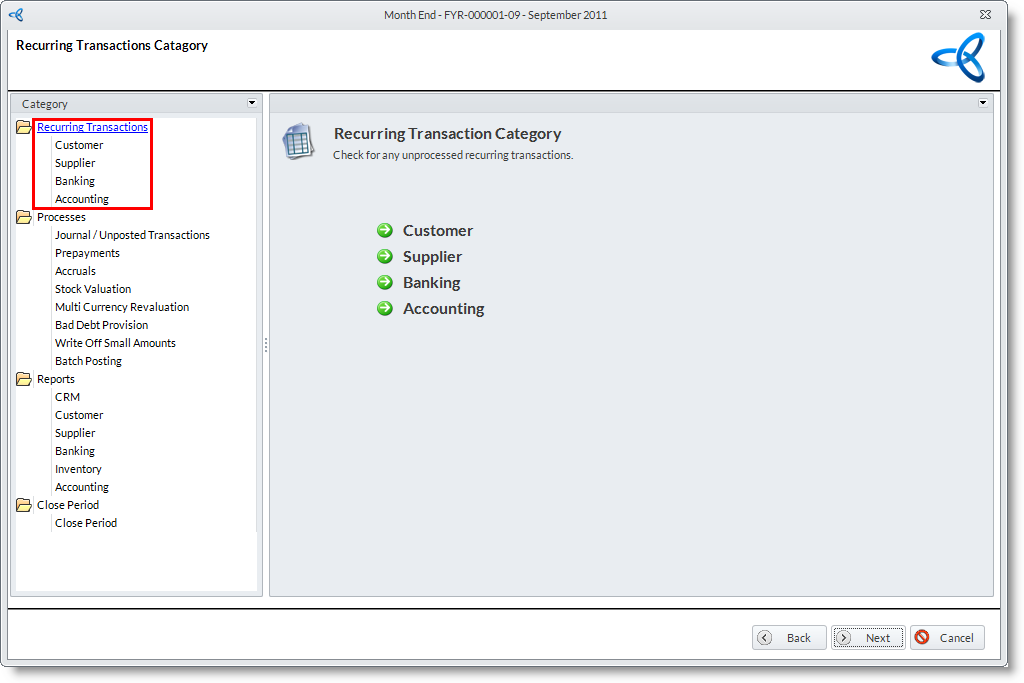
- Select the recurring transaction in the Process Recurring Transactions tab and click OK to proceed. The Process Recurring Transactions Wizard will display.
See Also:
Recurring Sales Orders | Recurring Purchase Orders | Manage Recurring Bank Payments/Receipts | Manage Recurring Journal Entries

Make Adjustments Before Batch Posting
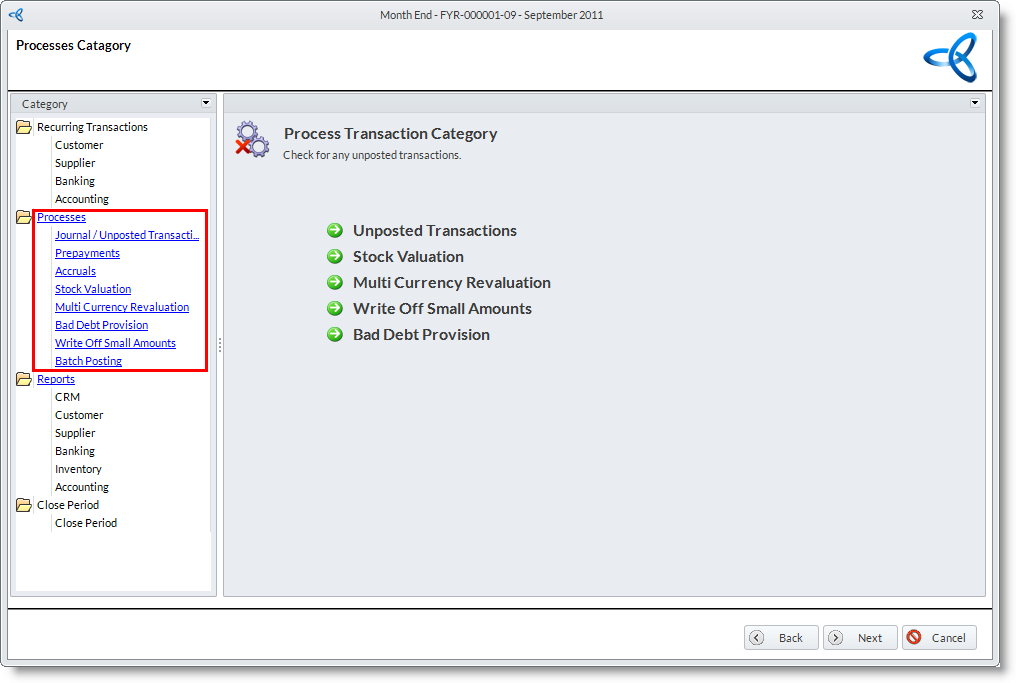
The Process month-end wizard allows for the event that the user would make adjustments to journal entries (e.g., if an error had occurred in posting the journal entry), perform revaluations to stock and multicurrency transactions, process write offs and bad debt provisions, and finally batch post journals to the General Ledger. The batch post process prompts the user of any error in batch posting and report errors, if any, and allows the user to make the necessary adjustments making sure that there were no transactions are left in the Unposted Journals file.
- Select the transaction under the Processes category to maintain.
See Also:
Manage Journal Entries | Manage Prepayments | Manage Accruals | Revaluate Multicurrency Transactions | Revaluate Stock Values
Print Period End Reports
The Process month-end wizard reminds the user of reports to print and allows them to do so with tools within the wizard.
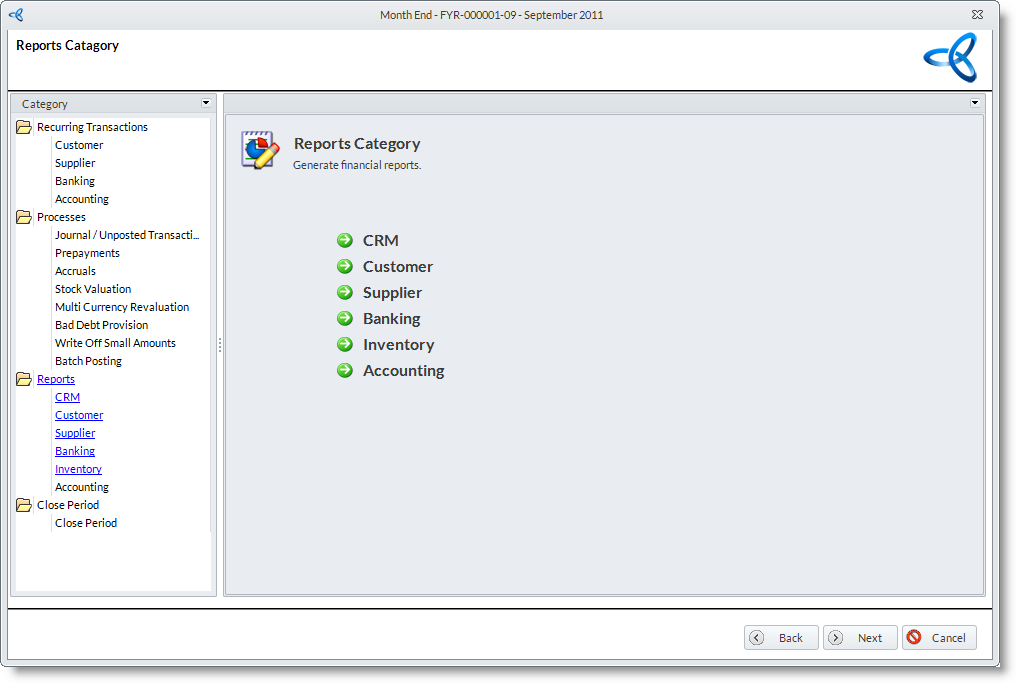

Connected Business automatically creates PDF documents of each report if the user skips printing them from the process month end wizard. The reports can be viewed from the Accounting Period form.
Close Current Period
The Close Period option closes the current or future accounting period.
- Select Close > Close Period button from the menu. The periods of the current fiscal year is displayed.
- Select the current period in the list and click on the Close Period button.
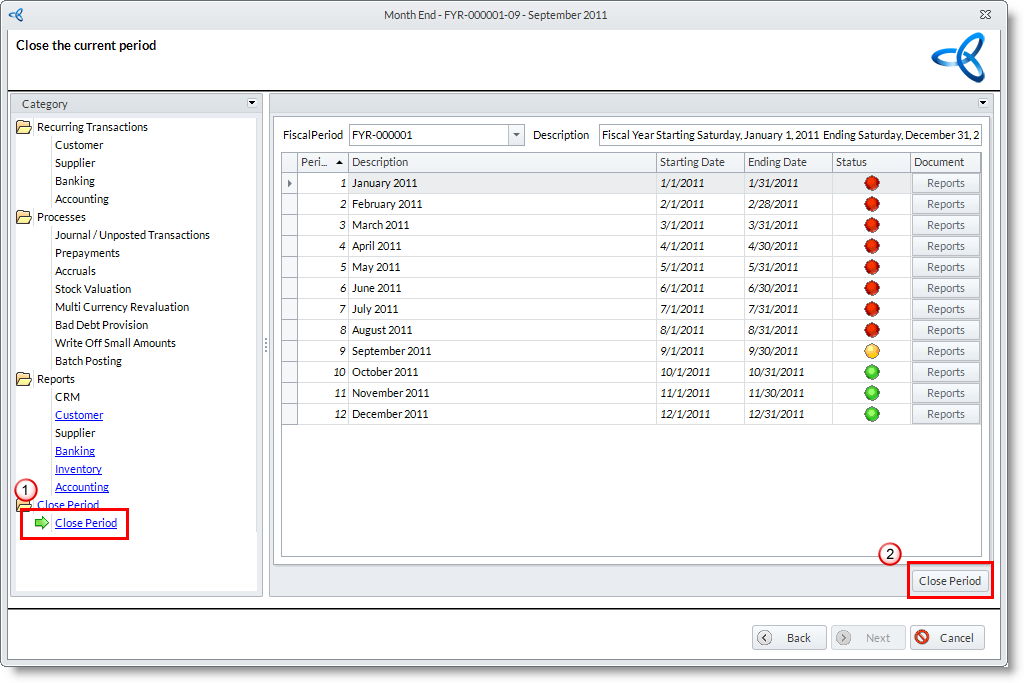
If you chose to close a future accounting period the current and the next open accounting periods will be closed.
- If there are unposted journals in the period to close, you will be prompted to batch post this journals before closing the period. Choose Yes to display the Batch Posting Wizard.
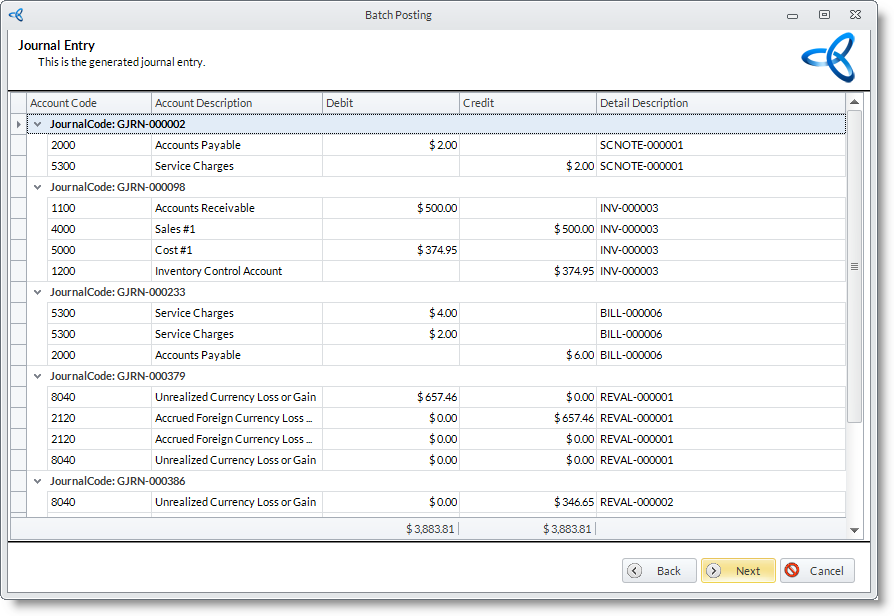
- After batch posting, click on the Close Period option again. In the confirmation message, select Yes in the prompt to close the period. The period will then be closed (indicated with a red dot).