
Revaluate Stock Values
Stock Revaluation routine is designed to clean up the Cost of Goods Sold and Inventory Control account especially when you trade with inventory with different costing methods. For FIFO items, the cost of goods sold can go wrong as users can sell stock before they get a bill with the current cost price. When we process a FIFO item at average cost, the stock revaluation routine is then used to clean up the values.
The great thing about the routine is that if we change the Standard or Average Cost (manually by resetting the Average or Standard Cost or automatically with the current cost price from the goods received or bill), it will adjust the Cost of Goods Sold and Inventory account appropriately by revaluating the stock values.
Before going through the steps of stock revaluation, consider the cases below:
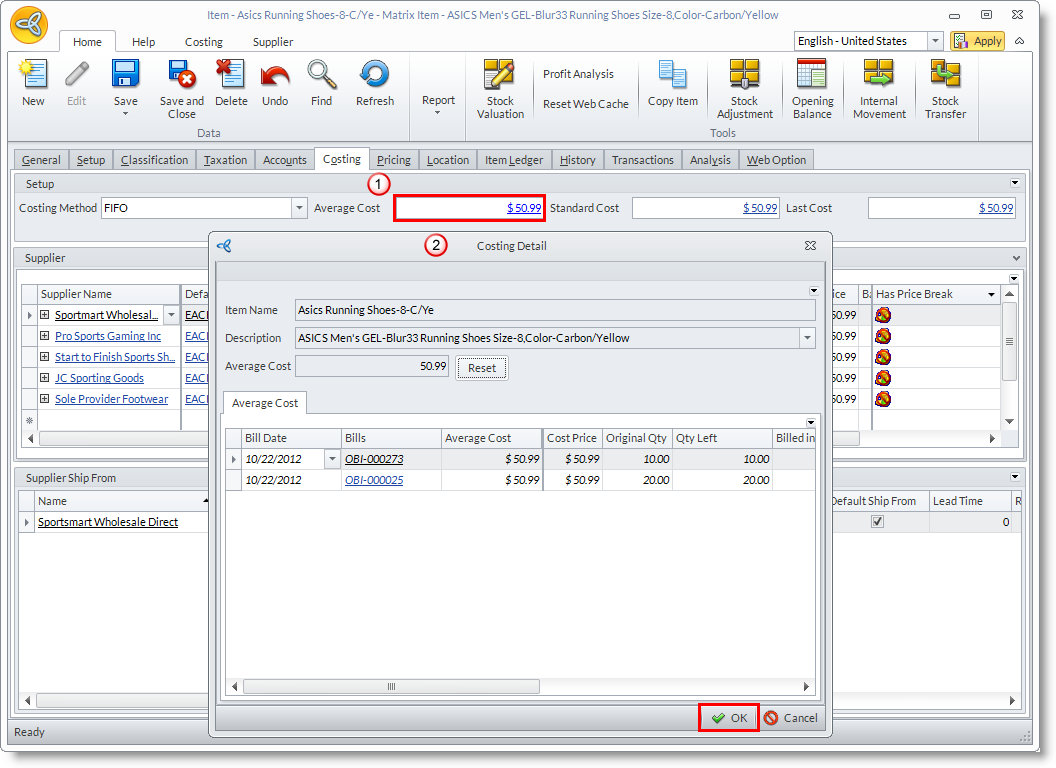
- Shown in the image below are the details to an Average Costing item. You can drill down to the Average Cost value to display the Average Cost history form.
Click Image to Enlarge
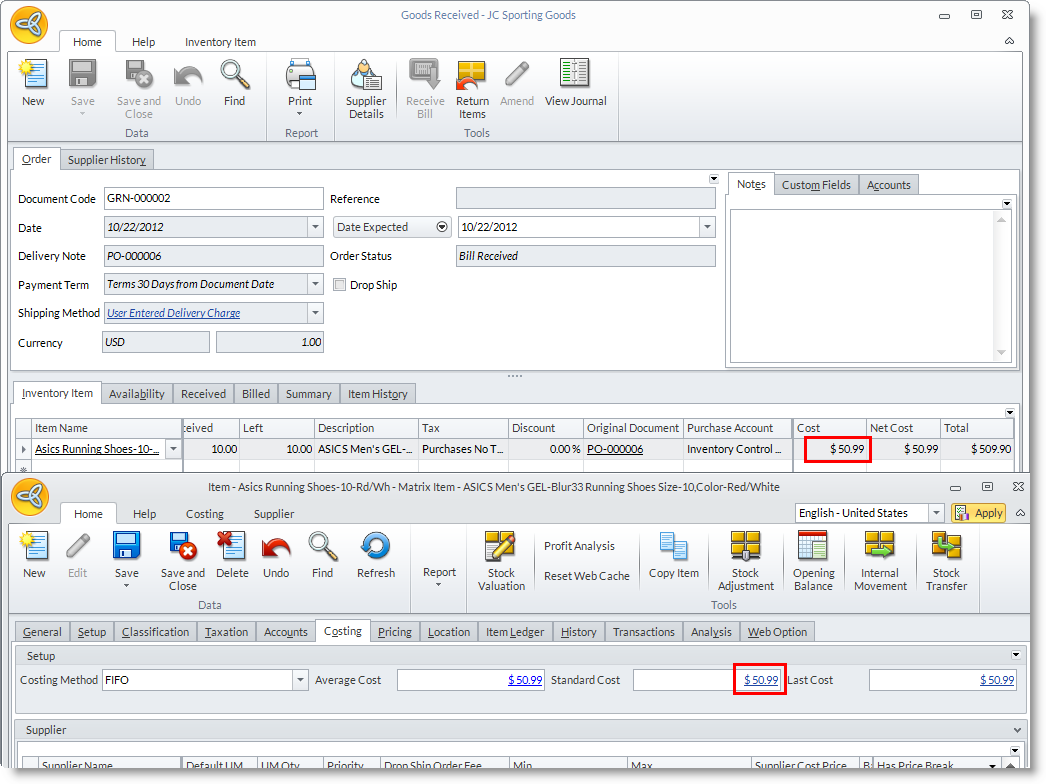
- Shown in the image below are the details to a FIFO item. The stock value for the FIFO item should be the Qty left in Stock of a particular GRN or Adjustment multiplied by the unit cost price or the current cost price if available.
Click Image to Enlarge
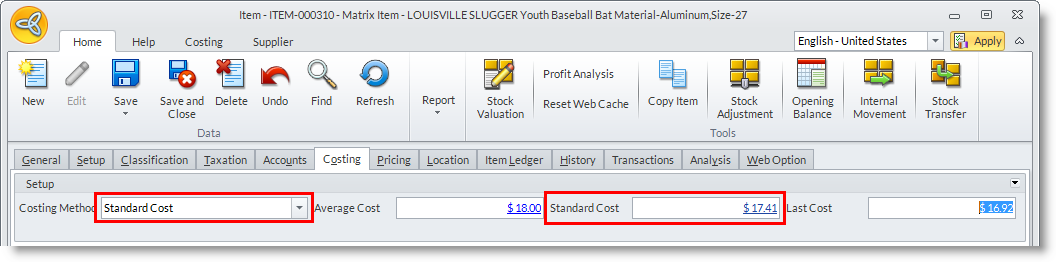
- Shown in the image below are the details to a Standard Cost item. You can drill down to the Standard Cost value to display the Standard Cost history form. Note that the Qty left in stock multiplied by the Standard Cost should be equal in value.
Click Image to Enlarge
Steps
- From the Accounting module, select Revaluation > Stock button from the menu options. The search screen displaying stock revaluations will appear. This allows you to view previous revaluations you have done.
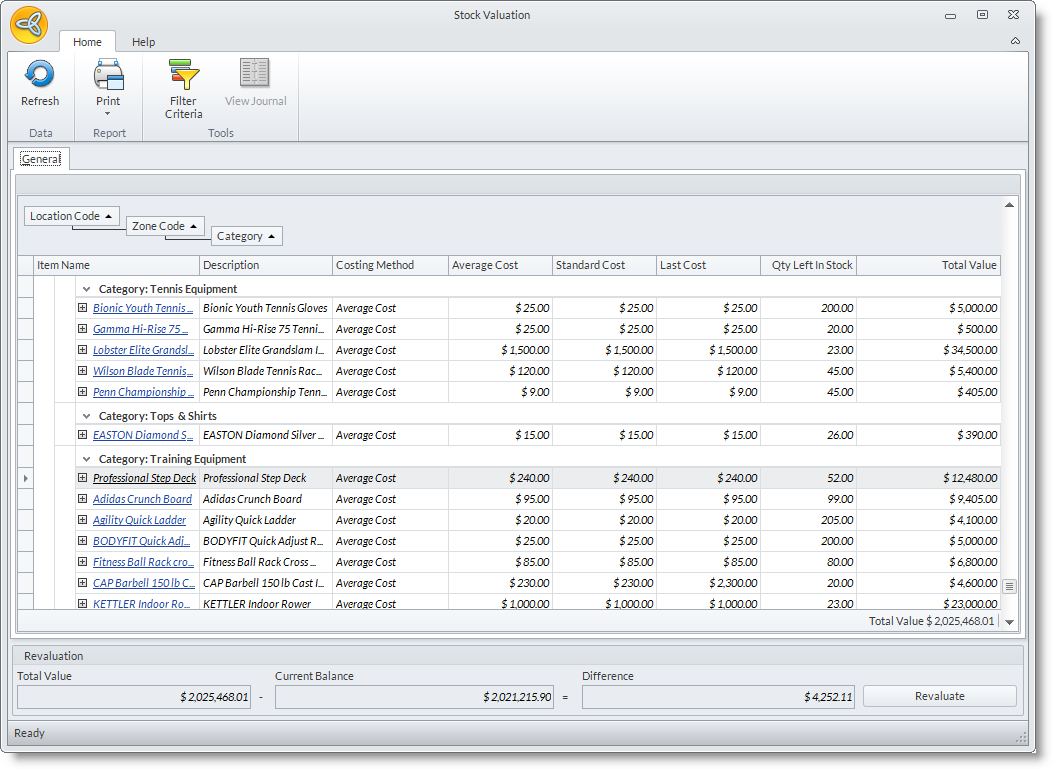
- Click the New button on the menu of the search screen. The Stock Valuation form will display.
Click Image to Enlarge

Even negative stock values would appear as we might have sold inventory we do not have and this need to appear in the Cost of Goods Sold and the Inventory Control account. Note also that you can drill down on the + button to see what makes up the cost.
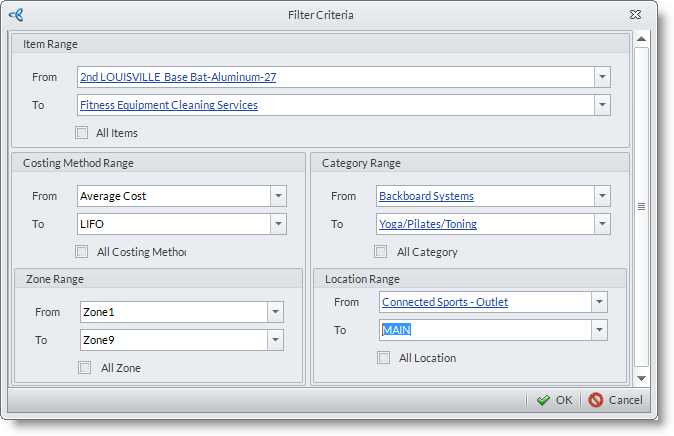
- Set the filter using the Filter Criteria pane. You can use the following fields to set the filter:
Click Image to Enlarge
- Item Range – the range of the item codes. You can either select a specific Item(s) or select All Items by ticking the checkbox.
- Costing Method Range – the range of costing methods. You can either select a specific Costing Method(s) or select All Costing Method by ticking the checkbox.
- Category Range – the range of item categories. You can either select a specific category or select All Category by ticking the checkbox.
- Location Range – the range of location. You can either select a specific item(s) or select All Location by ticking the checkbox.
- Zone Range – the range of location zones. You can either select a specific item(s) or select All Zones by ticking the checkbox.
- The grid will be populated with the preferred items. The total value of the items and the current value of the items since the last revaluation will be shown. The difference between the total value and the current value will also be shown.

Click Image to Enlarge
- Click the Revaluate button to revaluate the stock values. After clicking the revaluate button the difference should revert back to zero.
Stock Revaluation by All Location
To be able to use this option, the Sales Analysis by Location and Ignore Negative Stock on Revaluation in the Accounting Preferences must be enabled.
- From the Accounting module, select Revaluation > Stock button from the menu options. The search screen displaying stock revaluations will appear. This allows you to view previous revaluations you have done.
- Click the New button on the menu of the search screen. The Stock Valuation form will display.
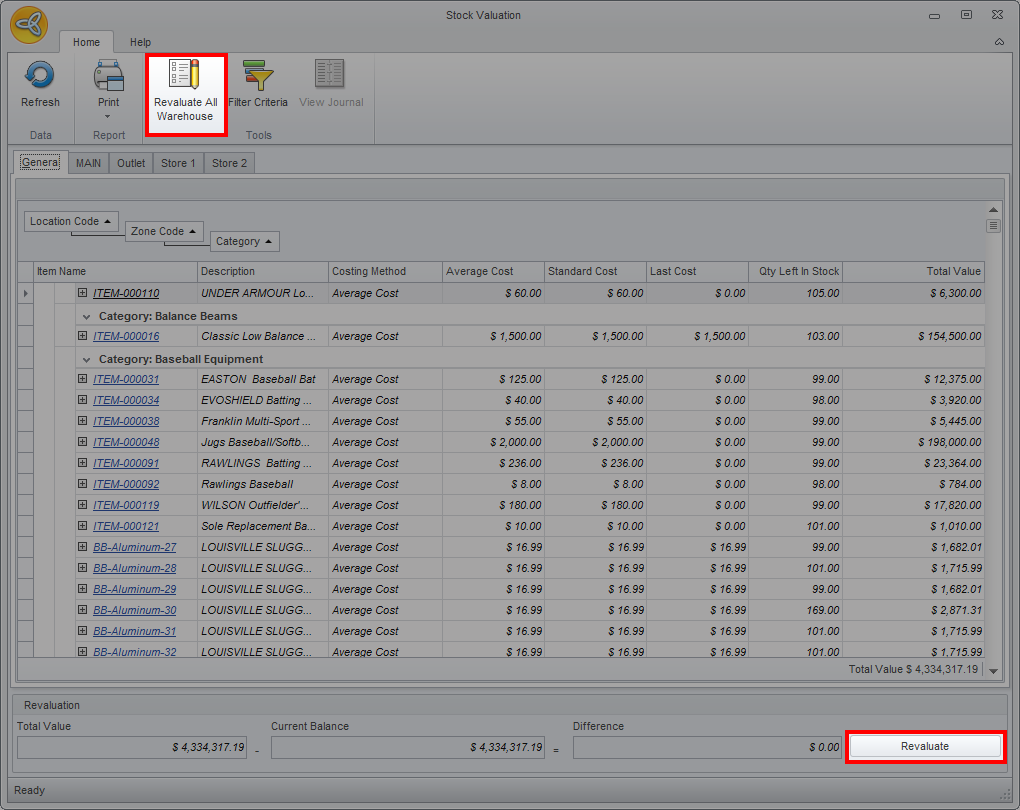
- Click Revaluate All Warehouse button to revaluate stocks from all warehouses. You may also want to revaluate stocks per warehouse by clicking on each location tab then click on the Revaluate button below.
Click Image to Enlarge
- Click on the Close button.
Stock Revaluation for Multiple Inventory
- Create a New Inventory Control Account through the Accounting module.
- On a New Item or an existing item, go to Accounts tab. Change the Account code column of the Inventory Control account by selecting the newly created Inventory Control Account code.
- Check the Chart of Account for the new Inventory Control Account Code through Accounting > Financial > Financial Center > Chart of Account > latest Balance Sheet. You should see that there are no values reflected yet for this account code.
- Now, create a new GRN. Specify the item(s), Qty of items received and change the item unit price column.
- Depending upon the costing method set for the item, you can check the details by selecting View Journal button on the menu. The journal will then displaying the specific account codes used.
- You may also check directly the inventory control account code through the chart of account(if the changes are already applied).
- You may now revaluate stock values if the difference exists.
