 Connected Business Community
Let's Connect
Connected Business Community
Let's Connect
Manage Stock Adjustments
|
Content
|
|---|
Stock Adjustments is done when there is an increase or decrease in the quantity of inventory items in the warehouse (due to replenishment, reordering or a decrease in the original quantity of the inventory items caused by unusual events). It is made to amend the differences in the original quantity of the items.
Record Stock Adjustments
From the Inventory Module > Stock > Stock Adjustment > New Stock Adjustment

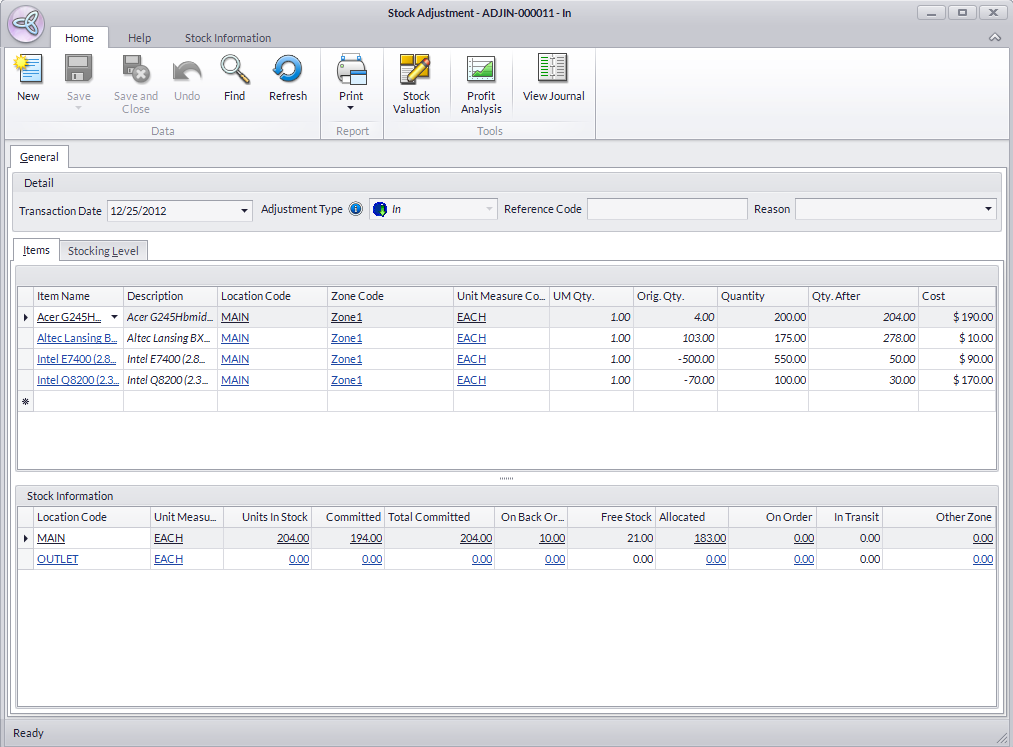
The Stock Adjustment form will be displayed.
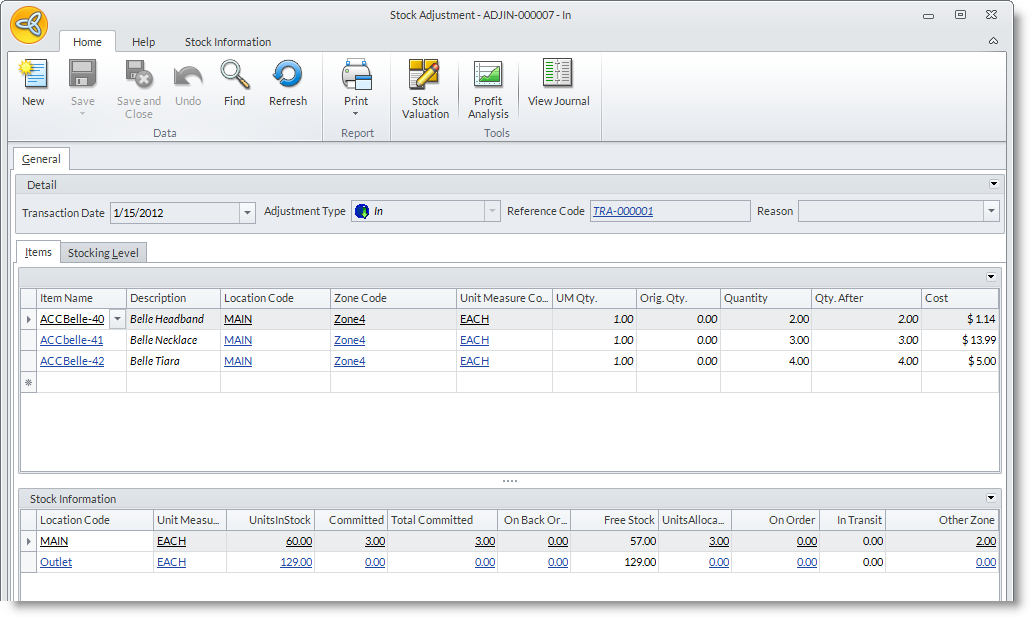
Input details for your stock adjustment based on the table below:
|
Additional Information Section |
|
|
Fields |
Description |
|
Date |
Set on the current date. Select the date in the calendar to change from the default current date. |
|
Adjustment Type |
must be the same for all the items in the current location.
|
|
Reason |
Select the Reason that matches the cause of the stock adjustment. The reaseon must be the same for all the items in the curret stock adjustment. |
|
Item |
Input the items to be adjusted here. |
|
Location Code and Zone Code |
Select from the Location Code and Zone Code's respective dropdown menus. Be guided by the Stock Type and Stock Levels from the Location and Zone selection menu. |
| Home Fax/Ext |
Shows an alternate fax number. |
|
Quantity |
Enter the original quantity here. |
|
Quantity After |
Enter the original quantity here - if to be increased or decreased. |
DEFINE STOCK ADJUSTMENT REASON
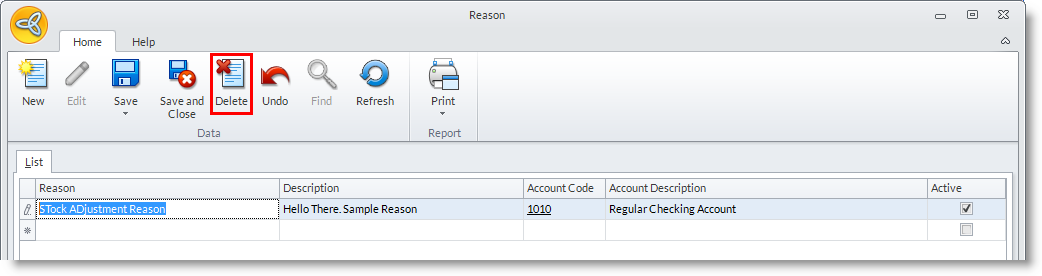
- Inventory Module > Setup > Reason
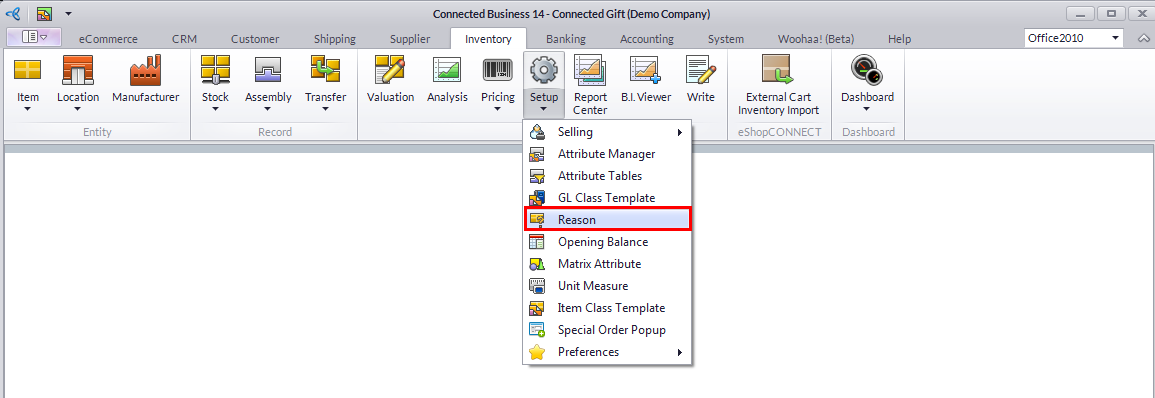
- The Reason Form will display.
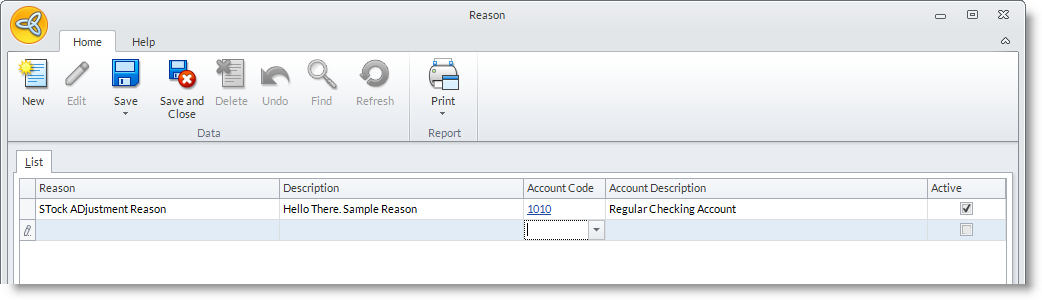
- Select a location in the list to display the Location Detail form.
- Input a reason and a brief description of the adjustment.
- Input the appropriate account code for the item to be adjusted, matching the adjustment reason you inputted in the previous item.
- In the Active checkbox, enable the adjustment reason by putting a checkmark on the box.
- Save your inputs before closing the form.
INACTIVATE STOCK ADJUSTMENT REASONS
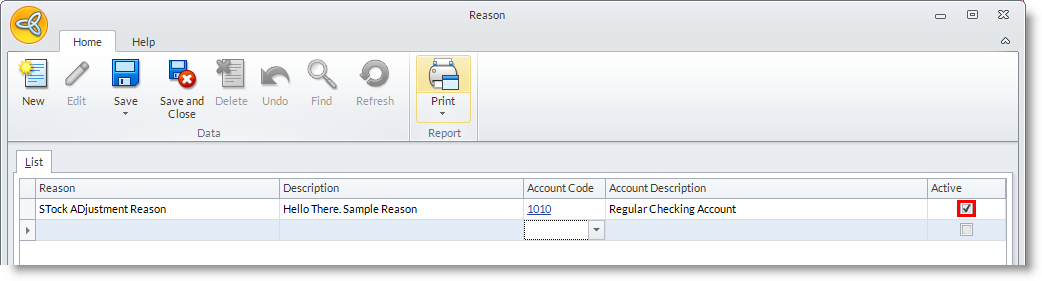
From the Adjustment Reason Form, uncheck the Active checkbox to inactivate an adjustment reason.
DELETE STOCK ADJUSTMENT REASONS
From the Adjustment Reason Form, select the adjustment reason you want to delete and click on the Delete button from the menu bar to delete. Select Yes in the prompt to delete to confirm.
RECORD INVENTORY OPENING BALANCE

To learn more about this topic, see more: Record Inventory Opening Balance

Maintain Stock Adjustments
- From the Inventory Module > Stock > Stock Adjustment > Find Stock Adjustment.

- The Stock Adjustment search bar will be displayed.
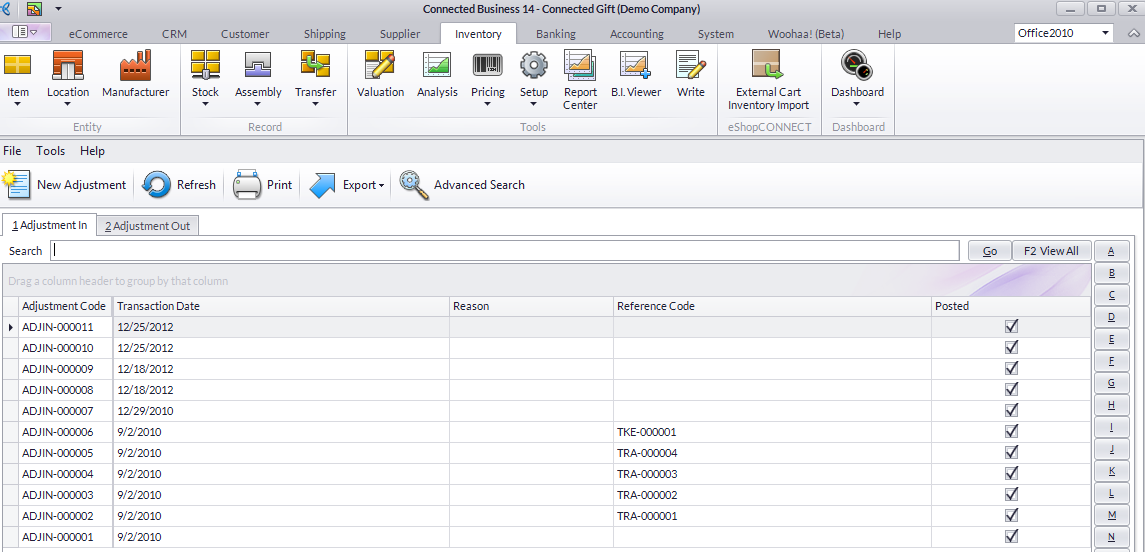
- Select the stock adjustment record to display the Stock Adjustment form.
AMEND STOCK ADJUSTMENTS
In case of making an adjustment using the wrong adjustment type (Adjustment In instead of Out or vice versa) or simply want to undo the adjustment made, you can create a new adjustment that would reverse the first.
- From the Inventory Module > Stock > Stock Adjustment > New Stock Adjustment. The Adjustment form is displayed.
- Select the Adjustment Type that would negate the previous adjustment made and enter the same quantity to adjust e.g. select Out to create a negative adjustment to amend the previous adjustment.
- Select the Adjustment Reason that matches the reason for the adjustment.
- Save the details before closing the form.