 Connected Business Community
Let's Connect
Connected Business Community
Let's Connect
Apply Customer Payments
|
Content
|
|---|
If the customer has an existing and open credit notes or payments, it can be applied directly to the sales invoices or opening balances by using the customer simplified payment option. By double clicking the Apply Credit button on each transaction, you can allocate partial or full payments depending on the customer payment.
Apply a Customer Payment
Suppose a customer has an opening balance and an existing sales invoice(s) that needs to be paid. Once you will create a receipt for the customer, the balances will be reflected on the Debits tab of the Receipt form. The steps below will help you apply a customer payment with remaining credits.
- From the Customer module, click on Receipt ► New Receipt. Select a specific customer from the Bill to Customers tab.
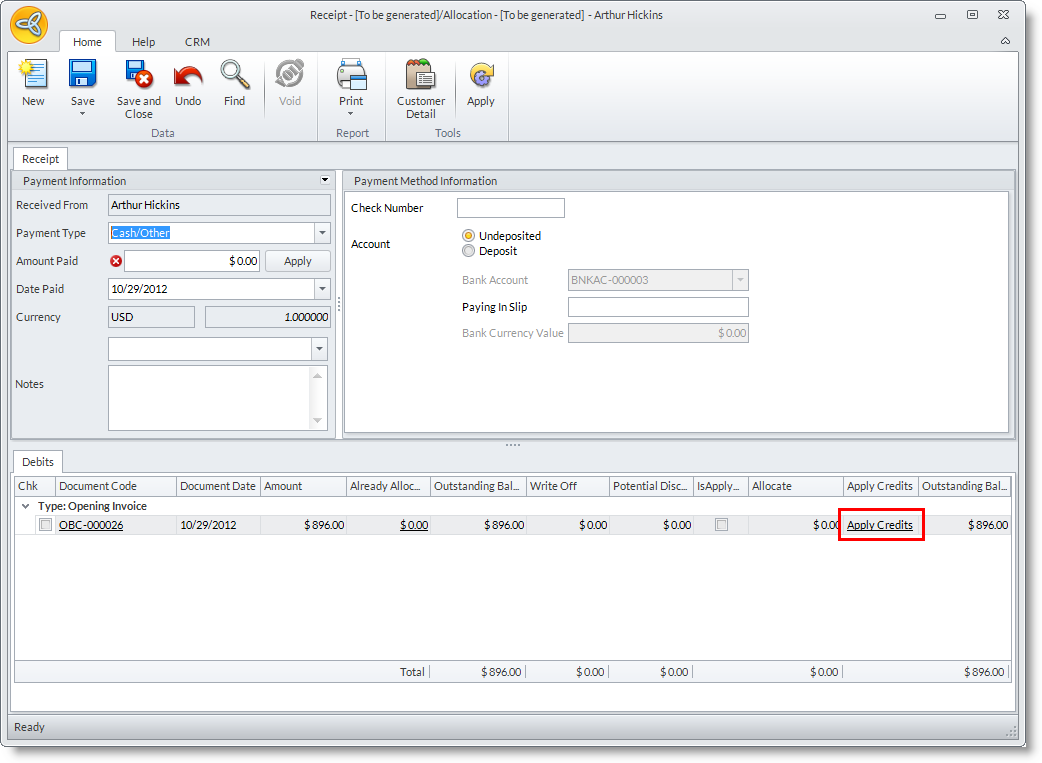
- On the Receipt form, you will see the list of document codes. You may apply a customer credits on the document code by clicking on the Apply Creditbutton.
Click Image to Enlarge

The Apply Credit button is disabled when you have no credits to apply.
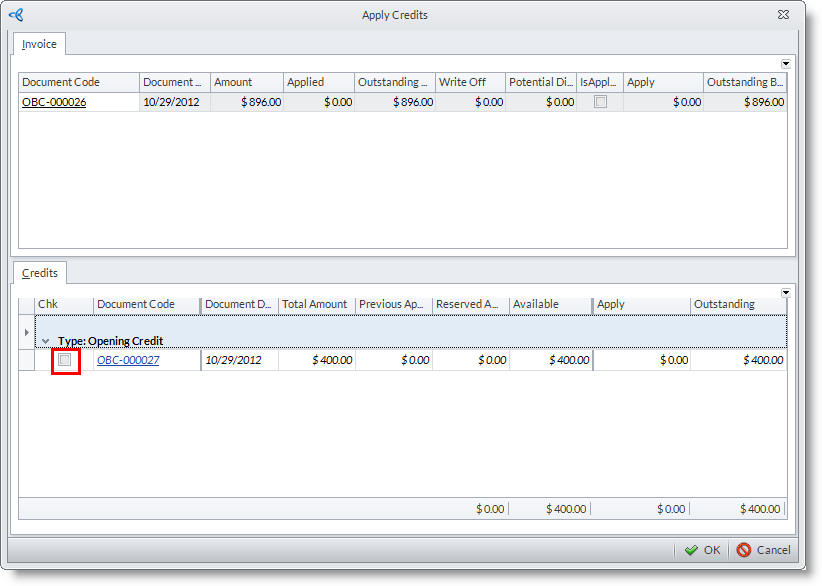
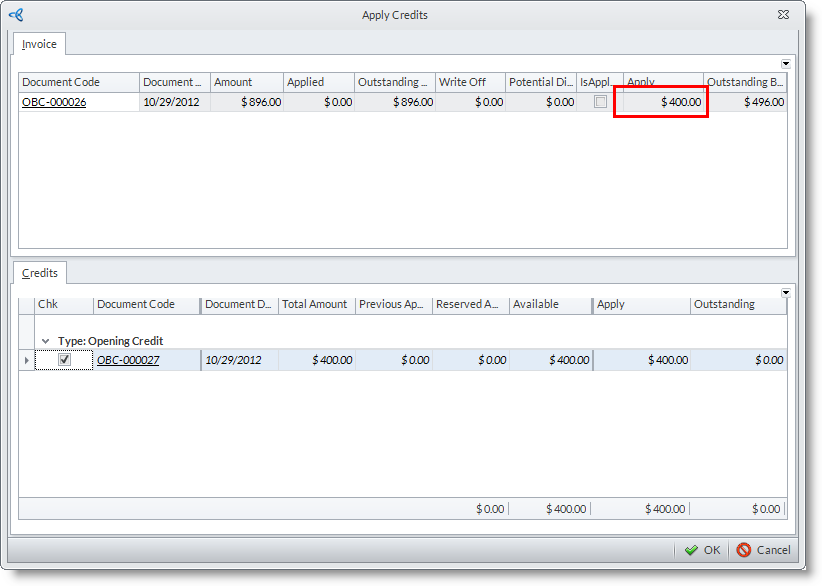
- On the Apply Credit form, select the opening credit with which you want to apply the payment for the invoice on the Invoice tab. Once clicked, the credit will be automatically apply (pay) to the existing sales invoice of the customer. Click OK.
Click Image to Enlarge
Click Image to Enlarge
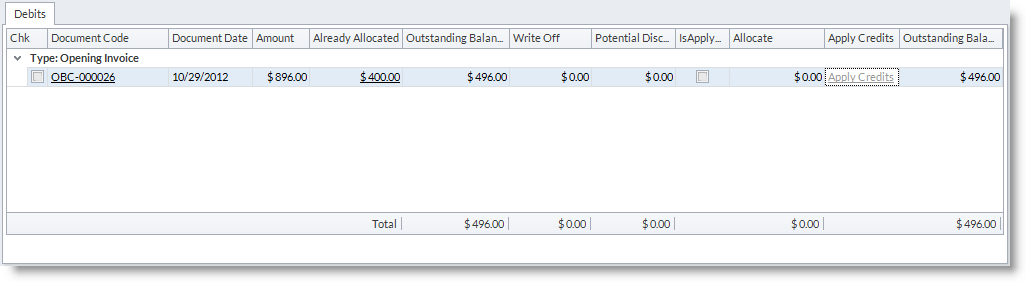
- You will see on the Already Allocated Column on the Debits Section of the Receipt form that the credit has been allocated or applied to the specific sales invoice.
In order to allocate payment for a credit note or sales invoice, you need to allocate payment for each transaction. This means you need to click on the Apply Credit button for each transaction.
- Click Save and Close.
If a Customer has NO more credits to apply or allocate payments for his/her existing sales invoice(or other documents), the Apply Credit button automatically be disabled. This is designed to ensure that credits are aldready allocated to invoices and other documents.

Apply Potential Discounts
From the Customer Payment form, you may apply potential discount from settlement terms. To do this,
- Click on the checkbox inside the Potential Discount column.
If qualified according to the terms of payment, a potential discount is deducted from the outstanding balance.
- Click on the Save option from the Apply Credits form. A message will prompt you of a gain/loss for the discount given.
Know the Remaining Amount of the Customer Payment
The Available column of the Apply Credit form shows the remaining unallocated amount. The Previous Applied column shows the previously allocated amount.
Know the Reserved Amount in the Sales Order
For payment documents, the Reserved Amount column shows the amount reserved to a sales order.
See Also:
Specify a Maximum Amount to Write Off from the Customer Receivables