
Set Promised Payment Dates
Overview
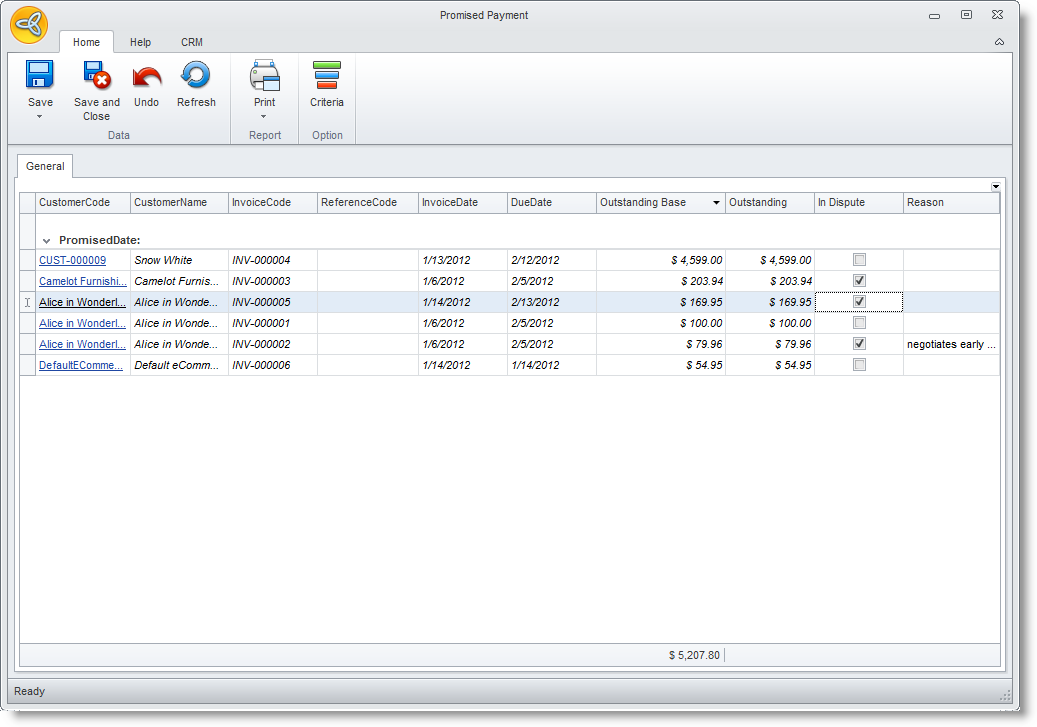
The Promised Payment menu item allows you to generate and review a list of the customers that had promised payment in their debts through the Promised Payment form.
Review Promised Payment Dates
Steps
- From the Customer module, select Credit > Promised Payment. The Promised Payment form will display.
- You can filter promised payments of customers by clicking on the Criteria button from the menu options. The Criteria form will appear. You can set the following criteria for looking up the records.
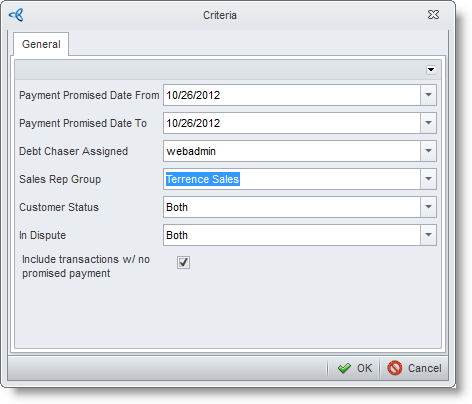
- by Promised Payment Dates
- by assigned Debt Chaser – user assigned as the debt chaser
- by assigned Sales Rep Group – sales rep assigned to the customer
- by Customer Status – active, inactive or both
- by In dispute Status – include/exclude transactions with Indispute status
- Include/Exclude transactions with no promised payment dates
- Set how you will filter the promised payments you have set for customers with aged debts. Click Ok to apply the filter and close the Criteria form.
- Back in the Promised Payment form, click the Refresh button to recollect the data.
- After filtering the data, you can print the list into a report by clicking the Print button from the menu.

You can set the Promised Payment Dates through the Manage customer credits and receivables
