 Connected Business Community
Let's Connect
Connected Business Community
Let's Connect
Gift Card/Certificate
| Content |
|---|
The gift card and gift certificate are the two latest additions of items that can be set up in Connected Business. These can be activated upon initial use and can be used to pay for purchases within the application. You can also manually or automatically generate the gift card/certificate serial numbers and send it thru email.
This article will demonstrate how to generate gift card/certificate serial numbers, recharge gift cards, apply gift cards/certificates as credits, and all other gift card/certificate-related processes.

This feature is only available in Connected Business v14 and higher.
Generate Gift Card/Certificate Serial Number
Gift card/certificate serial numbers can be manually or automatically generated. This can be set either from the New Item Wizard (upon creating the item) or from the Item Detail form. Note: For more information on creating gift card/certificate, refer to Create Gift Card or Create Gift Certificate.
To automatically generate the gift card/certificate serial numbers, tick the Auto Generate Serial checkbox from the General page of the New Item Wizard or from the Setup tab of the Item Detail form. If you want to manually enter the serial number, untick the Auto Generate Serial checkbox.
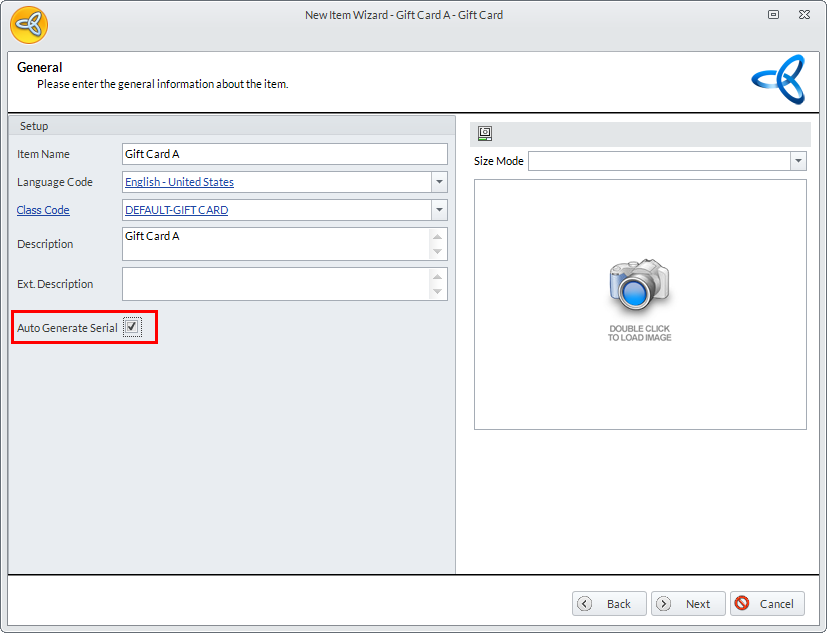
Click Image to Enlarge
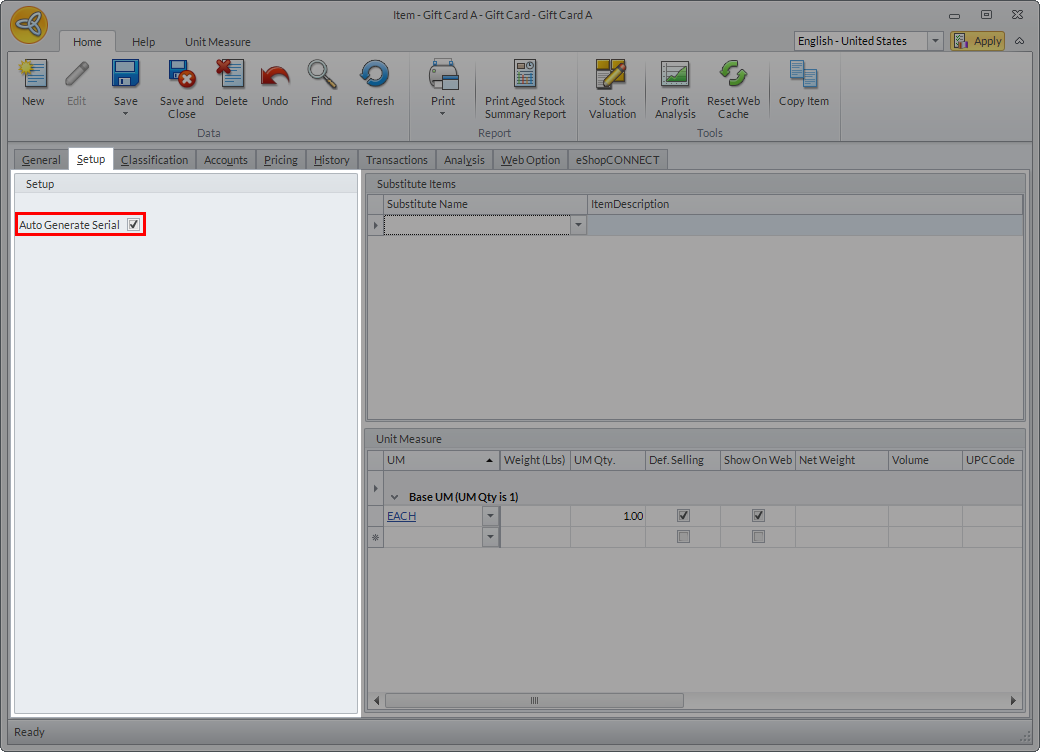
Click Image to Enlarge
You can only generate the gift card/certificate serial numbers upon creating the invoice for the gift card/certificate item. To do this,
- Create a sales invoice for the gift card/certificate. Go to Customer module > Invoice > New Invoice. Select from the list of Sales Order ready for invoicing or from the Ship To or Bill To Customers (for this discussion, we will select a customer from the Ship To list). The Sales Invoice form will be displayed.
- Add the gift card/certificate item in the sales invoice.
- Click the Serial Numbers tab. If the item is set to automatically generate the serial numbers, the auto generated gift card/certificate serial number (which is a unique series of number generated by the system) will be displayed.
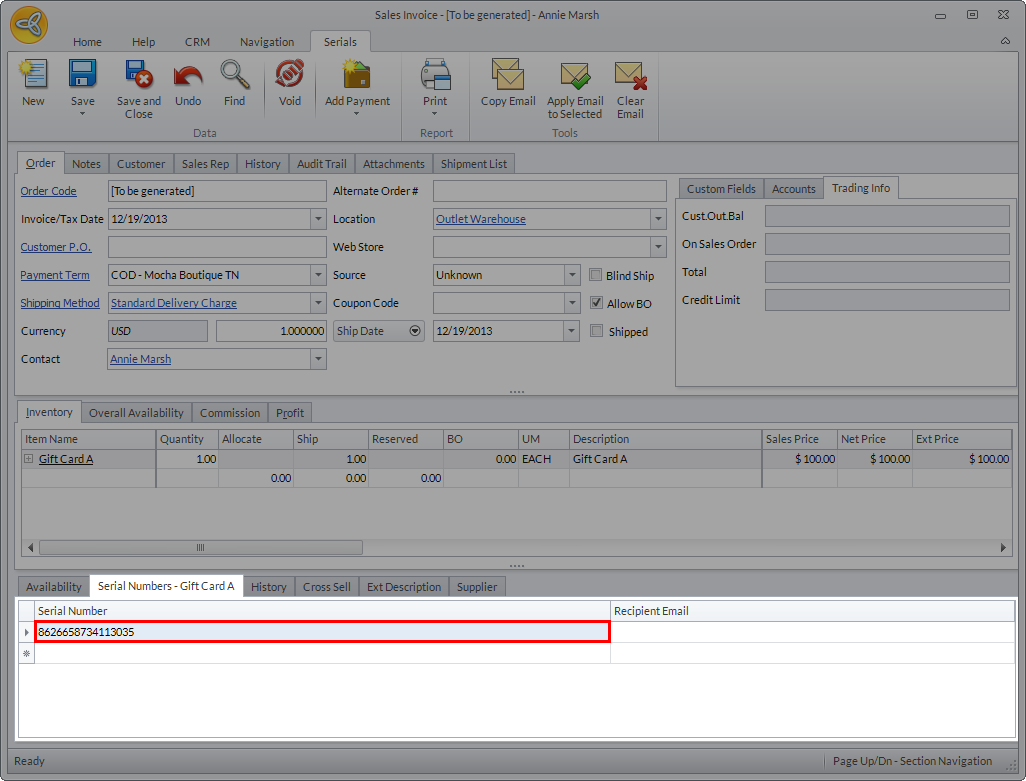
Click Image to Enlarge
If it is set to manually generate the serial numbers, you need to enter the serial number in the Serial Number column. You can enter any preferred or personalized gift card/certificate serial number as needed.
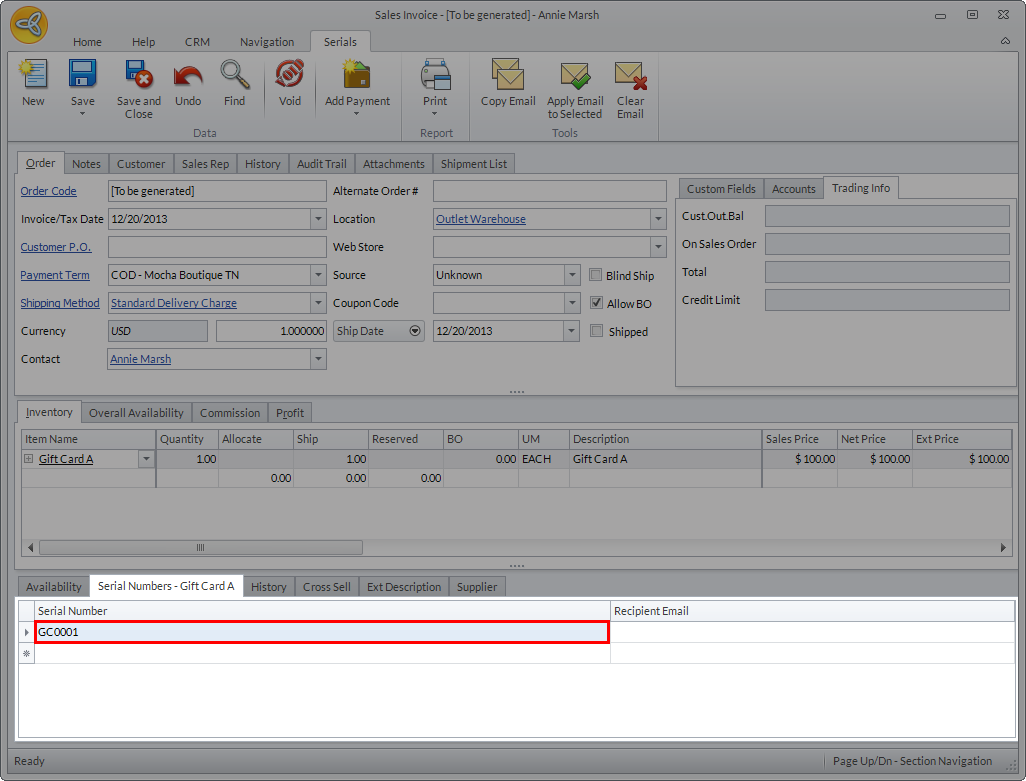
Click Image to Enlarge
The serial numbers should be unique for each gift card/certificate, regardless if it is manually or automatically generated.

Send Gift Card/Certificate
Gift cards/certificates can be sent thru email. It can be sent to the customer’s email account or to another email if preferred. Included in the email are the gift card/certificate serial number, amount, and available balance.
To be able to send/receive emails, make sure that your email account is properly set up in Connected Business. Refer to Manage Emails.
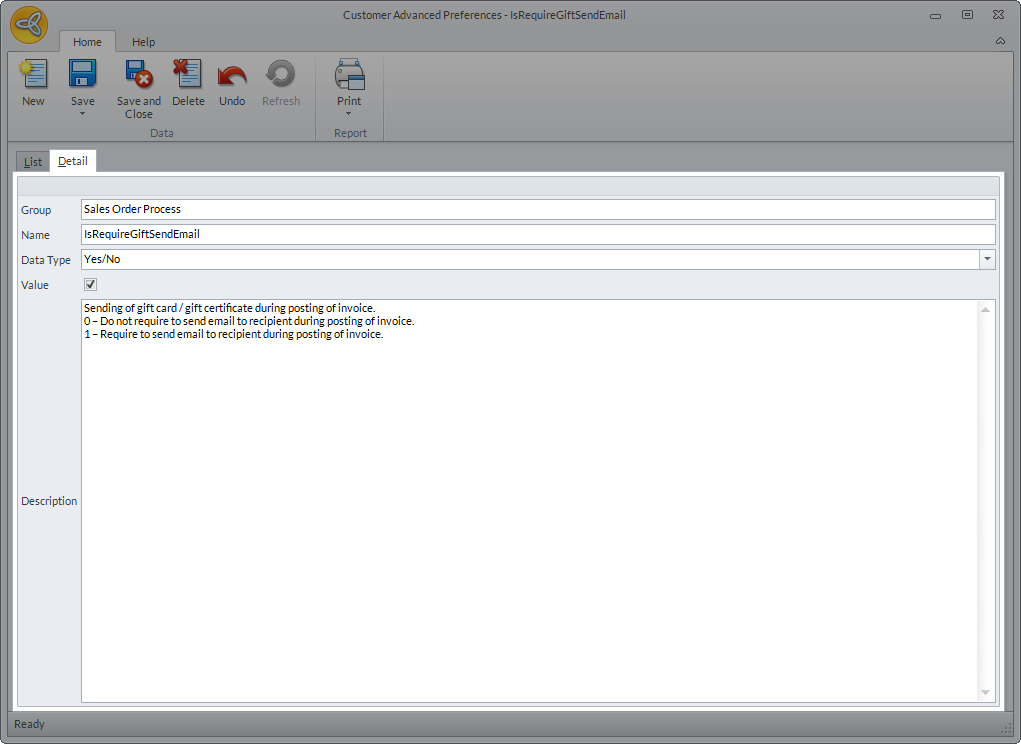
To be able to send gift cards/certificates thru email, make sure that the email preference is enabled. To do this,
- Go to Customer module > Setup > Preferences > Advance Preferences. The Customer Advanced Preferences form will be displayed.
- Search for the IsRequireGiftSendEmail preference. The preference details will be displayed.
- Set the Data Type to Yes /No and tick the Value checkbox.
Click Image to Enlarge
- Click Save and Close.
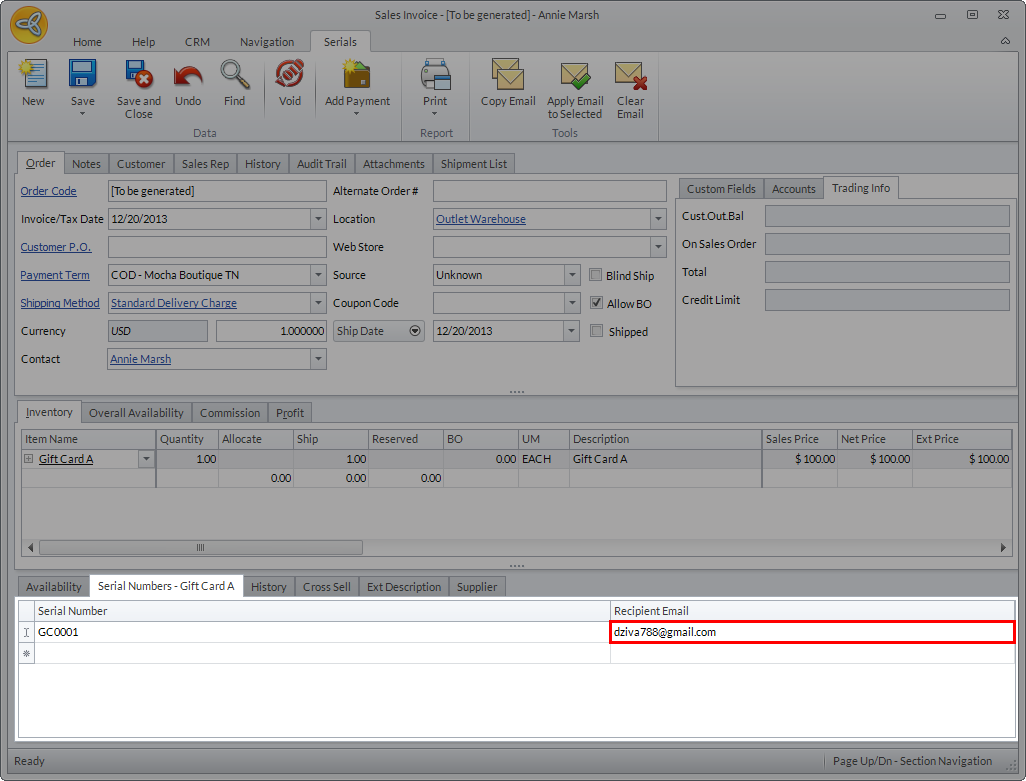
To send the gift card/certificate via email, simply indicate the recipients email address in the recipient email column of the Serial Numbers tab in the sales invoice. If there’s an email address associated with the customer or customer contact, it will be automatically entered by the system.
Click Image to Enlarge
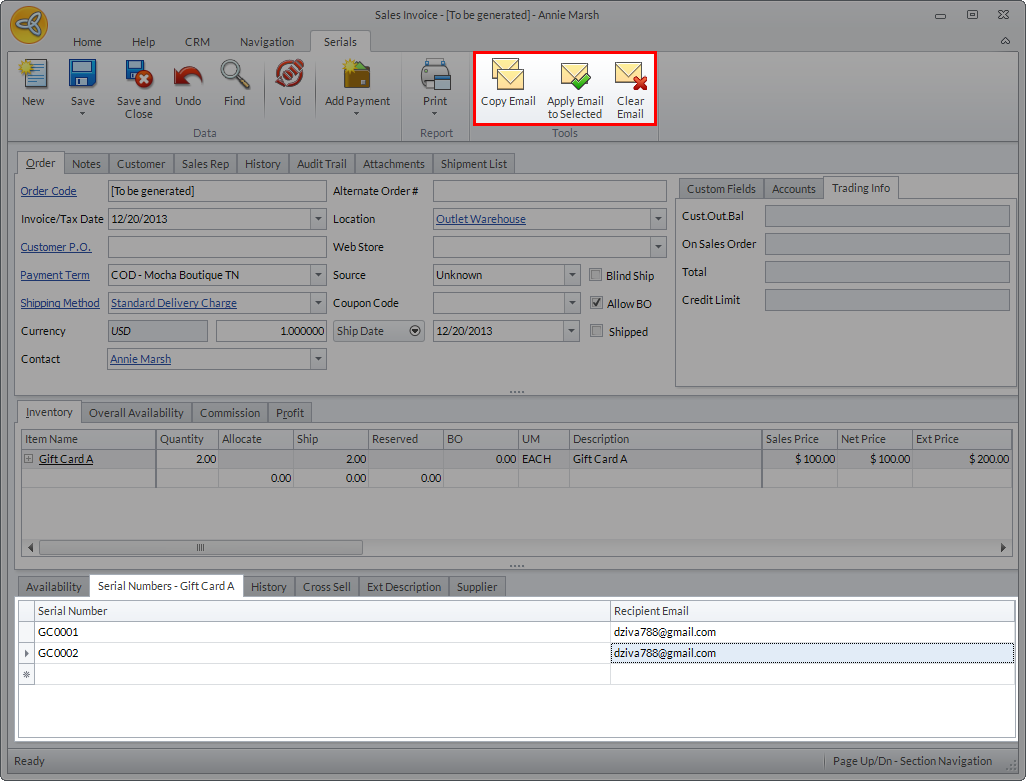
If you want to send multiple gift cards/certificates to the same email account, simply enter the email address for the first gift card/certificate then click the Copy Email button. Select the second gift card/certificate and click Apply Email to Selected to paste the same email address and so on. If you want to change the email address indicated, simply select the email address and click the Clear Email button.
Click Image to Enlarge
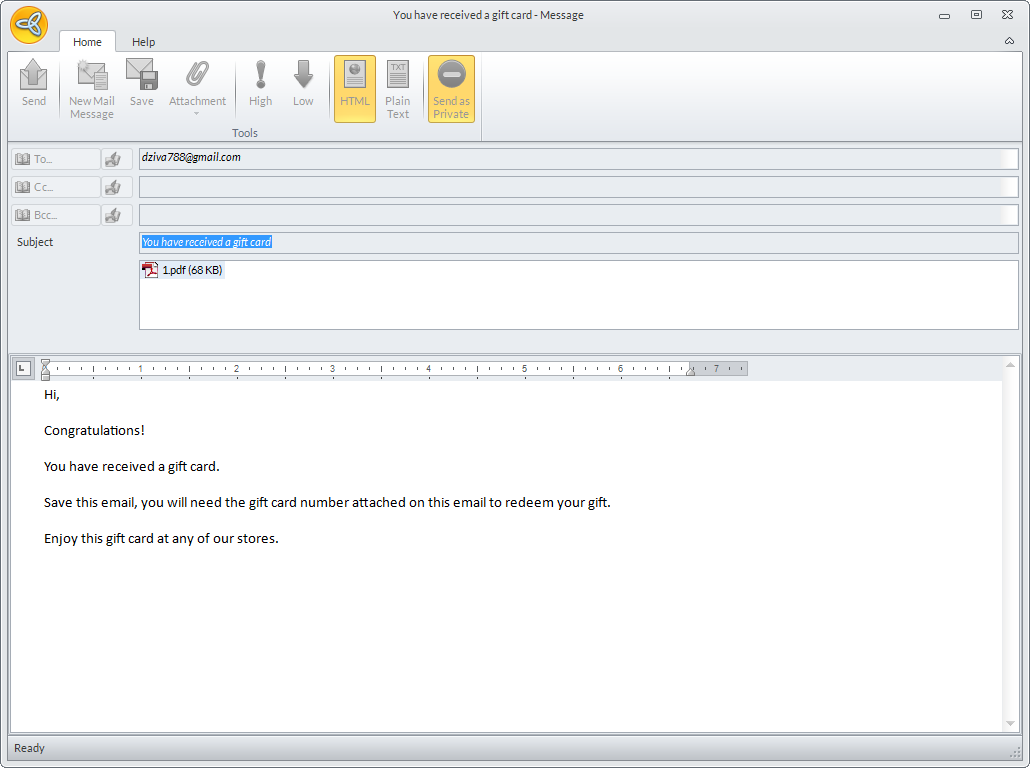
Once the invoice is posted, the gift card/certificate details will be sent as an attachment thru email.
Click Image to Enlarge
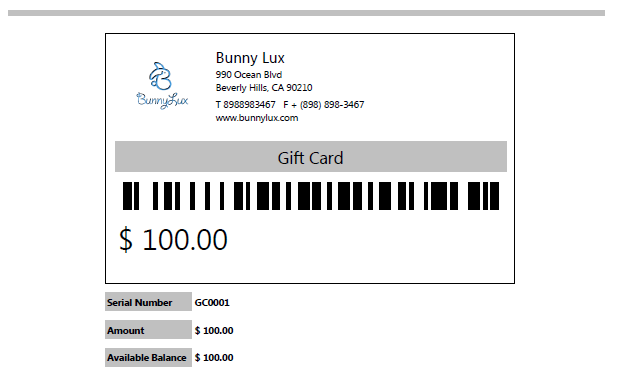
Click Image to Enlarge
You can edit the body of the email as well as the layout design of the attachment if preferred. Refer to Modify Existing Reports.
If you want to set a default report for sending gift cards/certificates via email, you can set it from Customer module > Setup> Preference > Preferences. In the Sales Order Process section of the Customer Preference form, select the default report for the gift card/certificate from the Gift Card Report dropdown list.
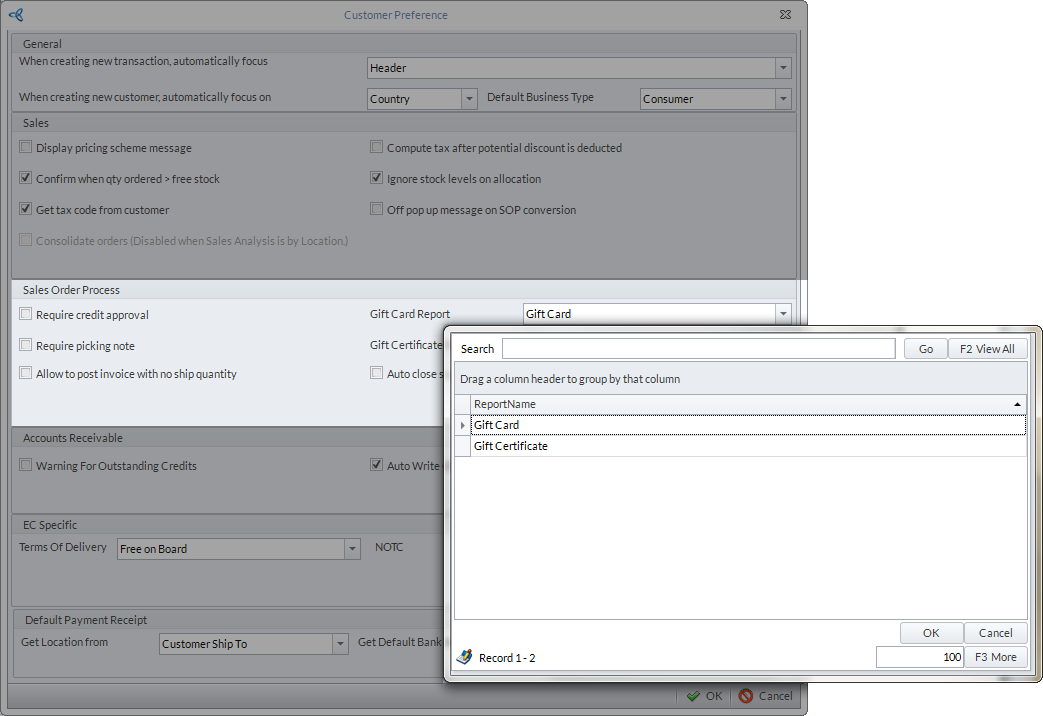
Click Image to Enlarge
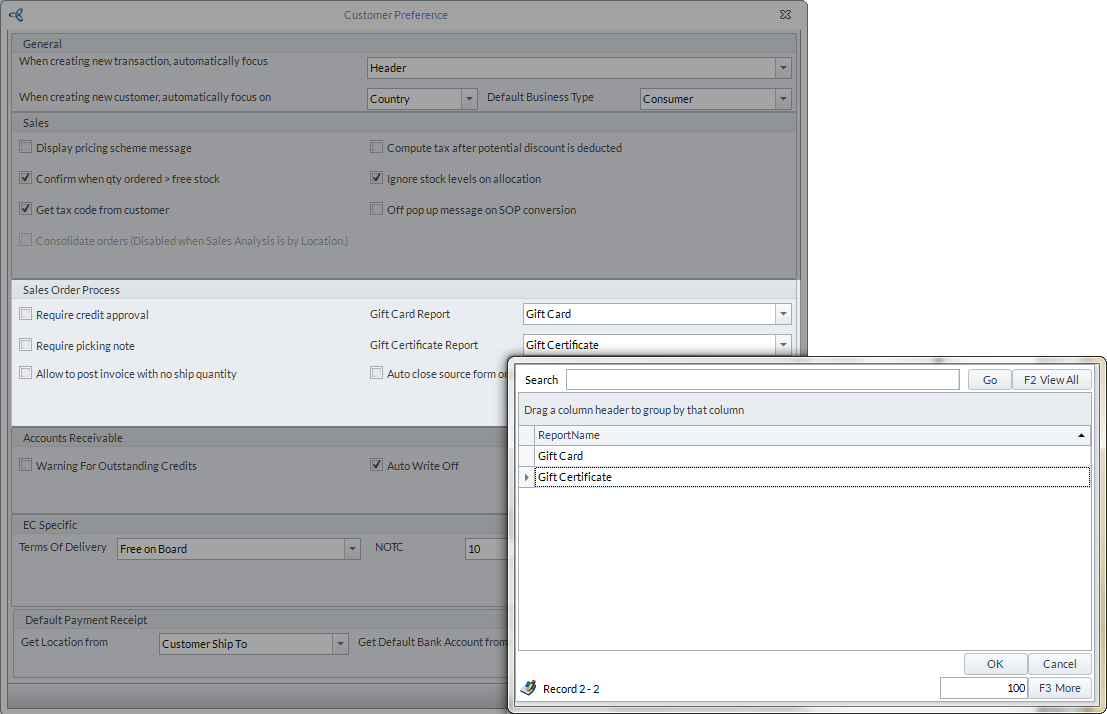
Click Image to Enlarge
Activate Gift Card/Certificate
The gift card/certificate can be activated upon initially redeeming it or using it as a payment. To do this,
- Create a sales invoice. Go to Customer module > Invoice > New Invoice. The list of sales orders ready for invoicing, as well as Ship To and Bill To Customers will be displayed.
- Select sales order or customer from the list. The Sales Invoice will be displayed.
- Add items to the sales invoice (if applicable).
- Click the Add Payment button. A message prompt will be displayed confirming the creation of payment. Click Yes to proceed. The Payment form will be displayed.
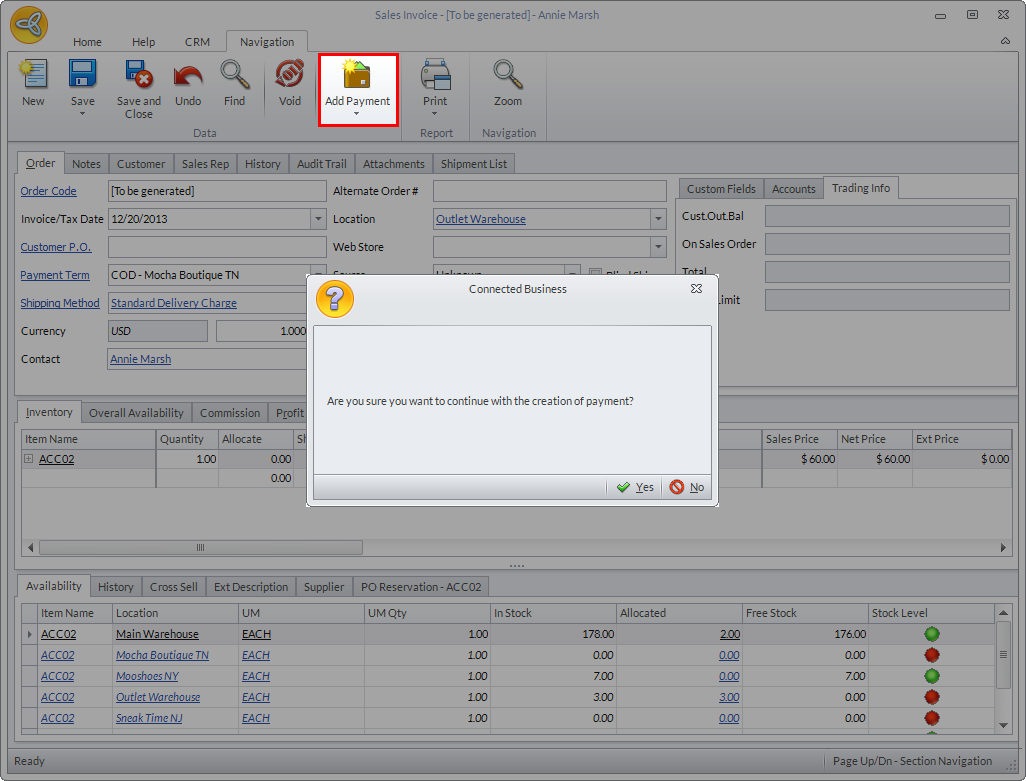
Click Image to Enlarge
Confirming the creation of payment automatically saves the invoice.
- In the Payment form, click the Apply Gift Card/Certificate button. The Apply Gift Card/Certificate dialog box will be displayed.
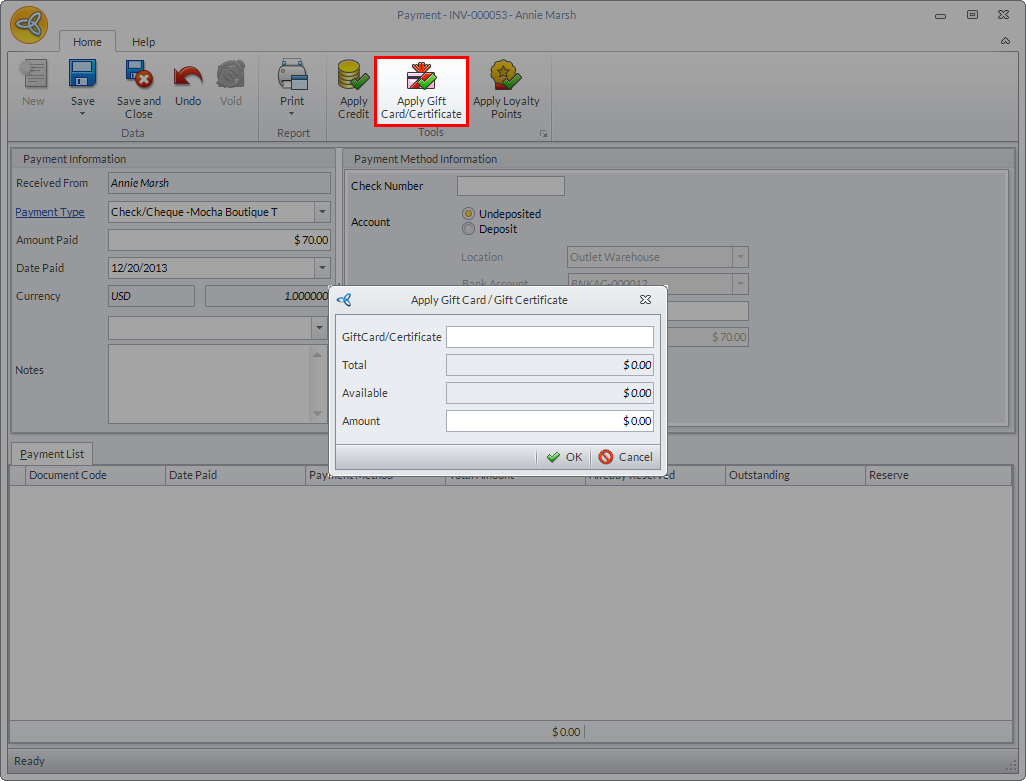
Click Image to Enlarge
- Enter the gift card/certificate serial number in the Gift Card/Certificate field. Upon entering the serial number, the gift card/certificate total, available balance, as well as the total amount to be deducted, will be displayed.
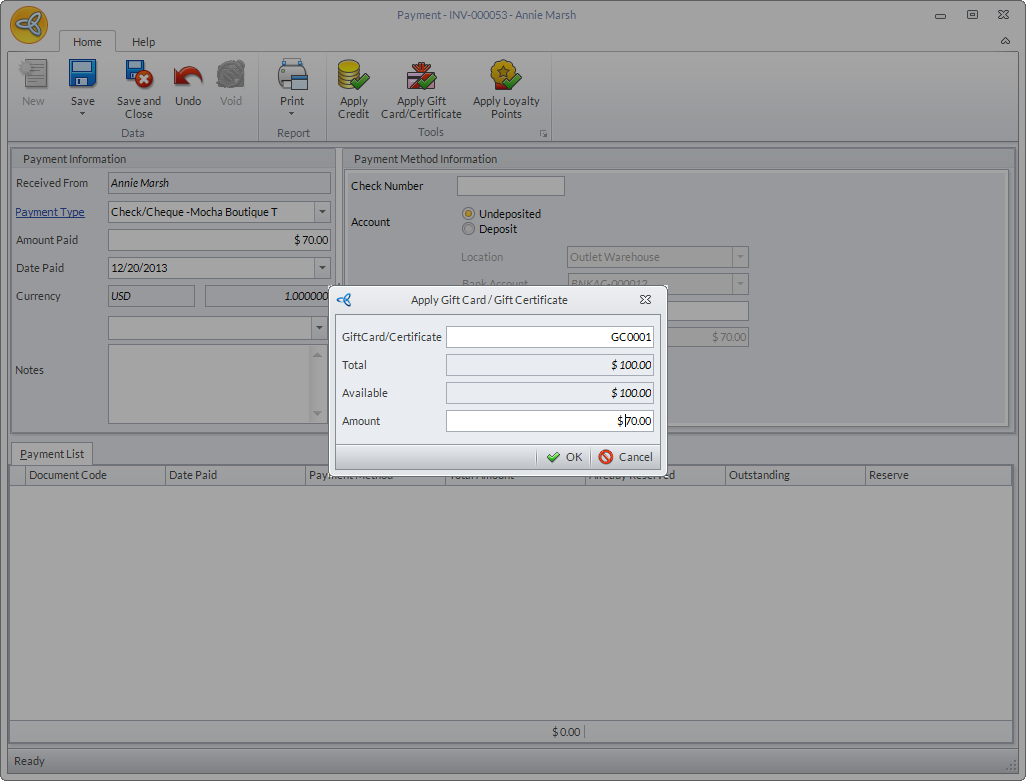
Click Image to Enlarge
- Modify the total amount to be deducted from the gift card/certificate as needed then click OK.
- In the Payment List section of the Payment form, the details of the payment transaction will be displayed. The total amount to be applied to the invoice is indicated in the Reserve column.
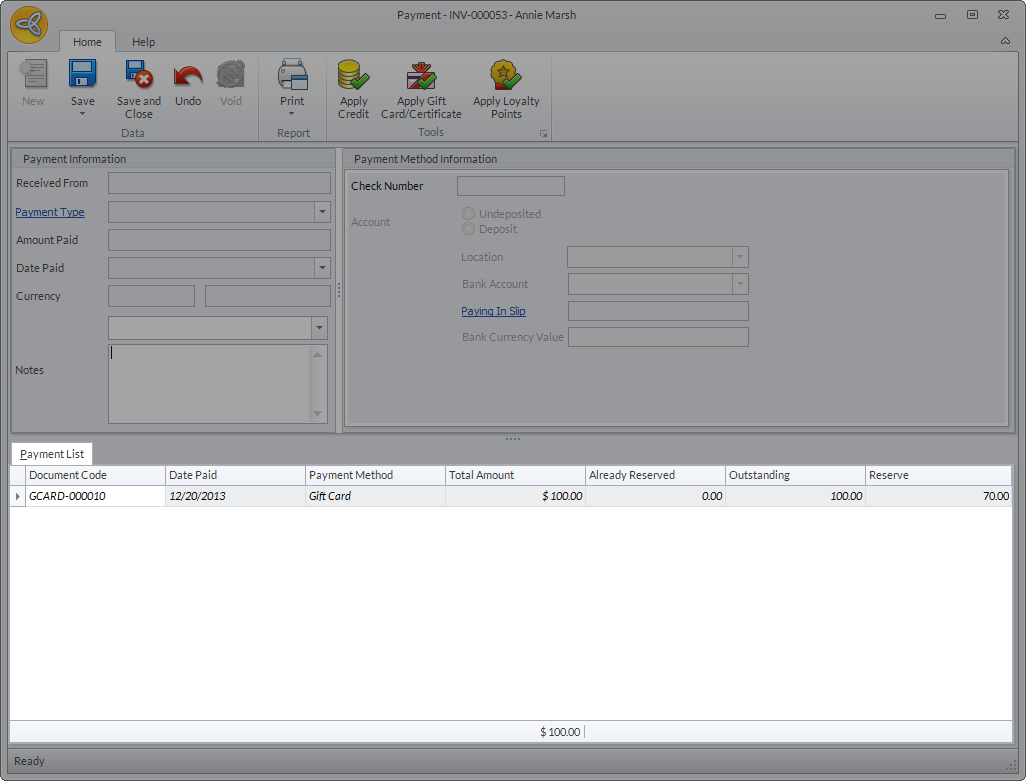
Click Image to Enlarge
- Click Save and Close to apply the payment.
- In the sales invoice, click Save and Post to post the invoice.
If the gift card/certificate used has been purchased in one customer account but activated in another account, a message prompt will be displayed that the gift card/certificate is under a different customer account. Click Yes if you want to proceed with the gift card/certificate activation, otherwise, click No.
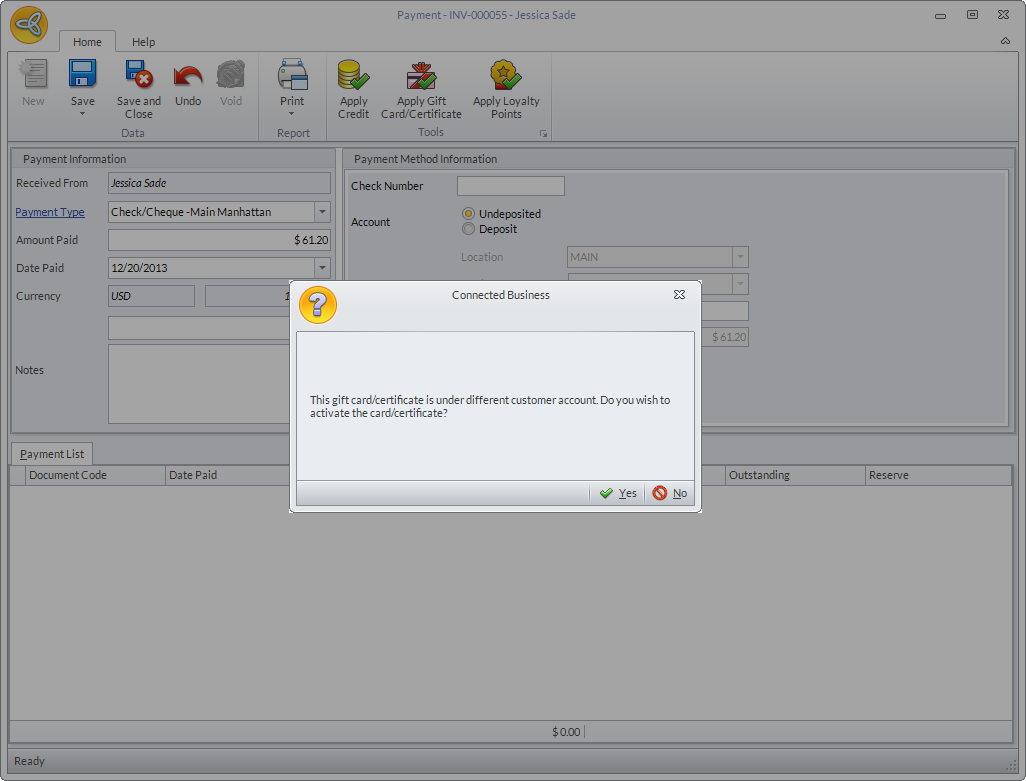
Click Image to Enlarge
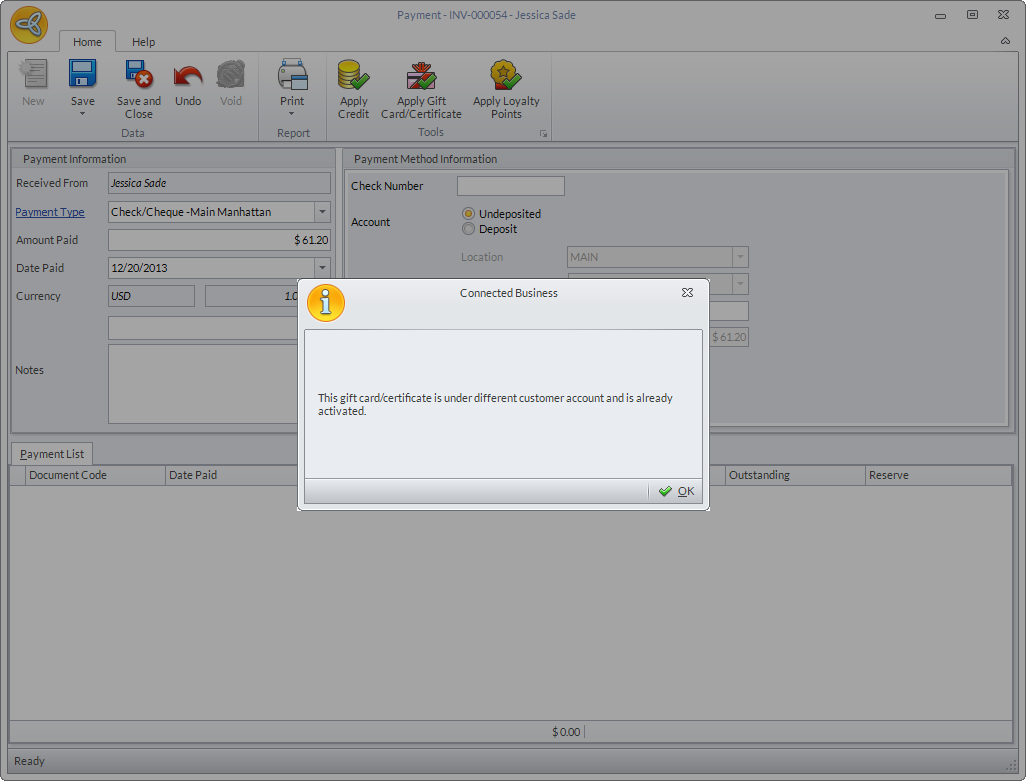
Once activated, the gift card/certificate cannot be used for transactions using another account. In cases where the gift card/certificate associated with one account has been used in another account, the system will not allow you to complete the payment transaction and a message prompt will be displayed indicating that the gift card/certificate is under a different customer account and is already activated. You can use another payment type to process the transaction.
Click Image to Enlarge
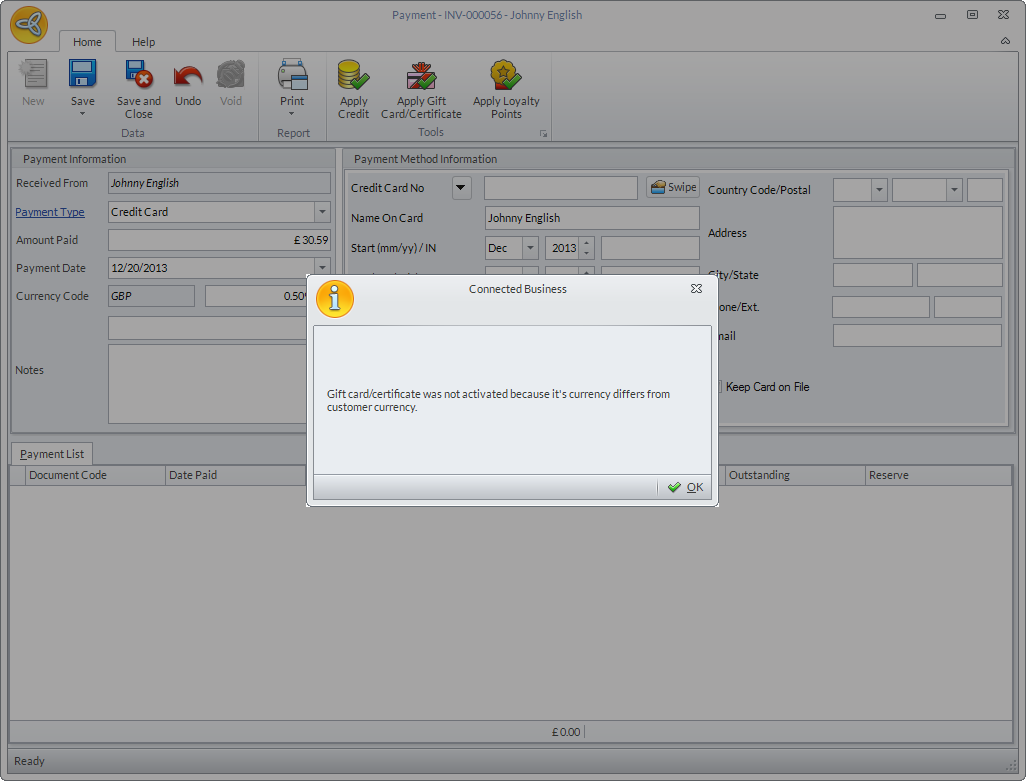
Since the system does not support multicurrency for gift card/certificate transactions, the currency of the gift card/certificate must match the default currency of the customer. If the gift card/certificate used does not match the customer’s currency, a message prompt will be displayed indicating that the gift card/certificate cannot be activated since the gift card/certificate currency differs from the customer’s currency.
Click Image to Enlarge
View Gift Card/Certificate Allocation
To view the gift card/certificate allocation details,
- Open the Customer Detail form. Go to Customer module > Customer > Find Customer then select customer from the list of active customers. Alternatively, you can click on the Customer Detail button from the Sales Invoice form to open the Customer Detail form.
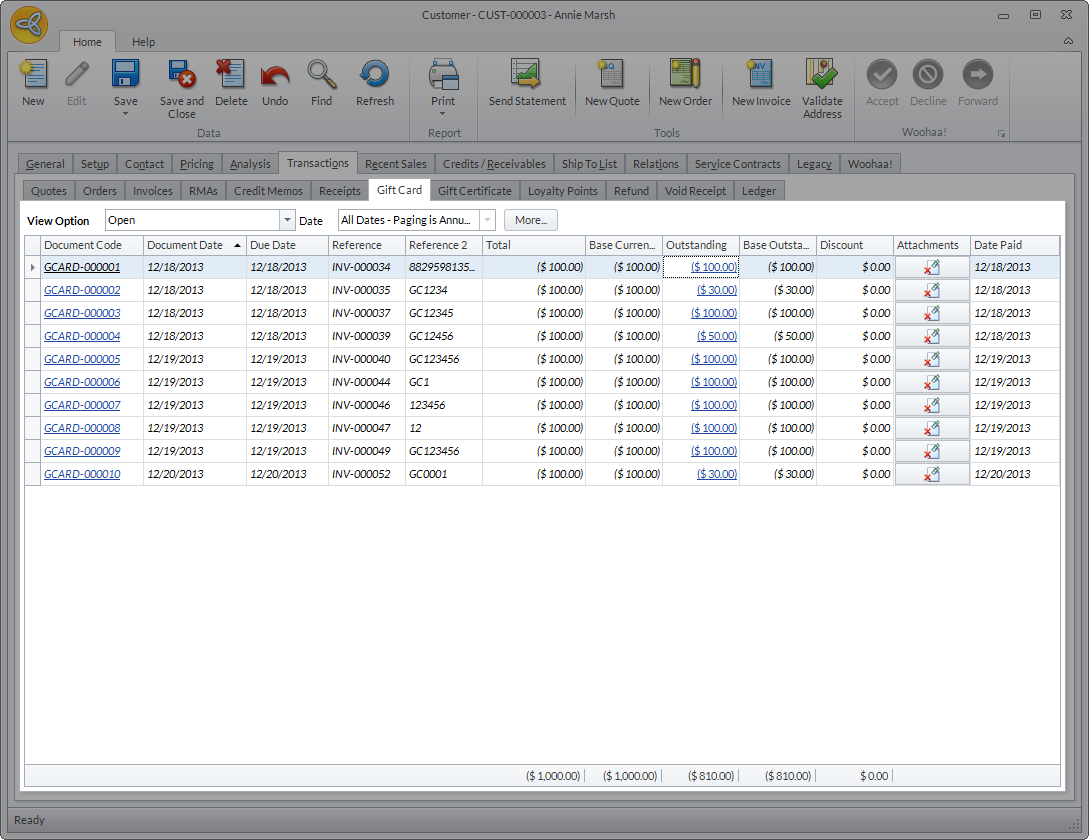
- Go to Transactions tab > Gift Card or Gift Certificate. All gift card/certificate transactions for the customer will be displayed.
Click Image to Enlarge
You can see the related invoice and the gift card serial number in the Reference and Reference 2 fields, respectively.
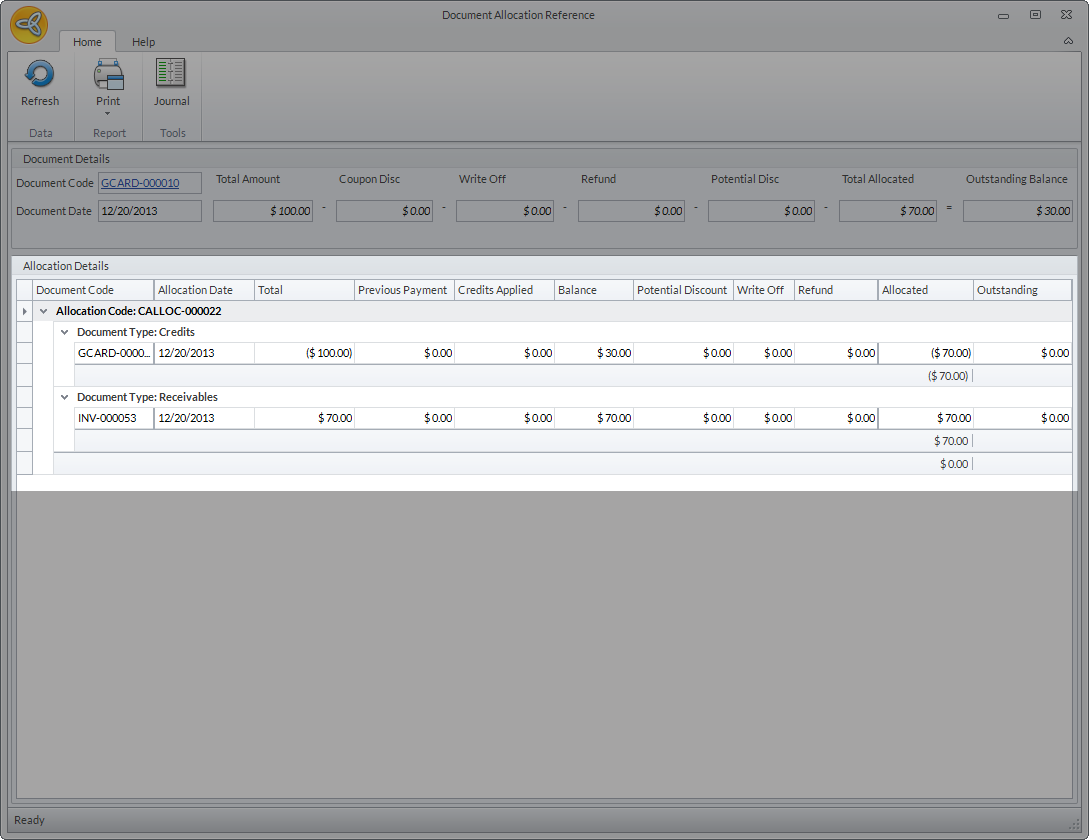
- Click the gift card/certificate balance link in the Outstanding column. The Document Allocation Reference form will be displayed with the gift card/certificate allocation details.
Click Image to Enlarge
Apply Gift Card/Certificate As Credit
You can apply gift cards/certificates to invoices as credits. To do this,
- Go to Customer module > Receipt > New Receipt. The list of Bill To Customers will be displayed.
- Select customer from the list. The Receipt form will be displayed.
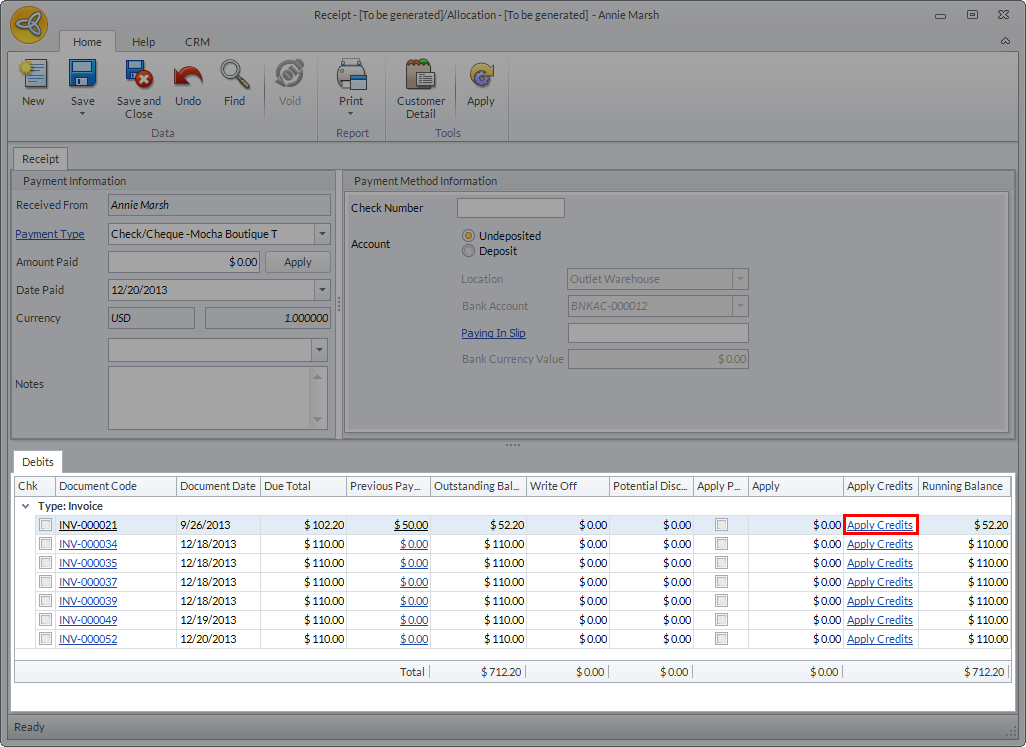
- In the Debits section, select the invoice where the credit will be applied.
- Click the Apply Credits link for the selected invoice.
Click Image to Enlarge
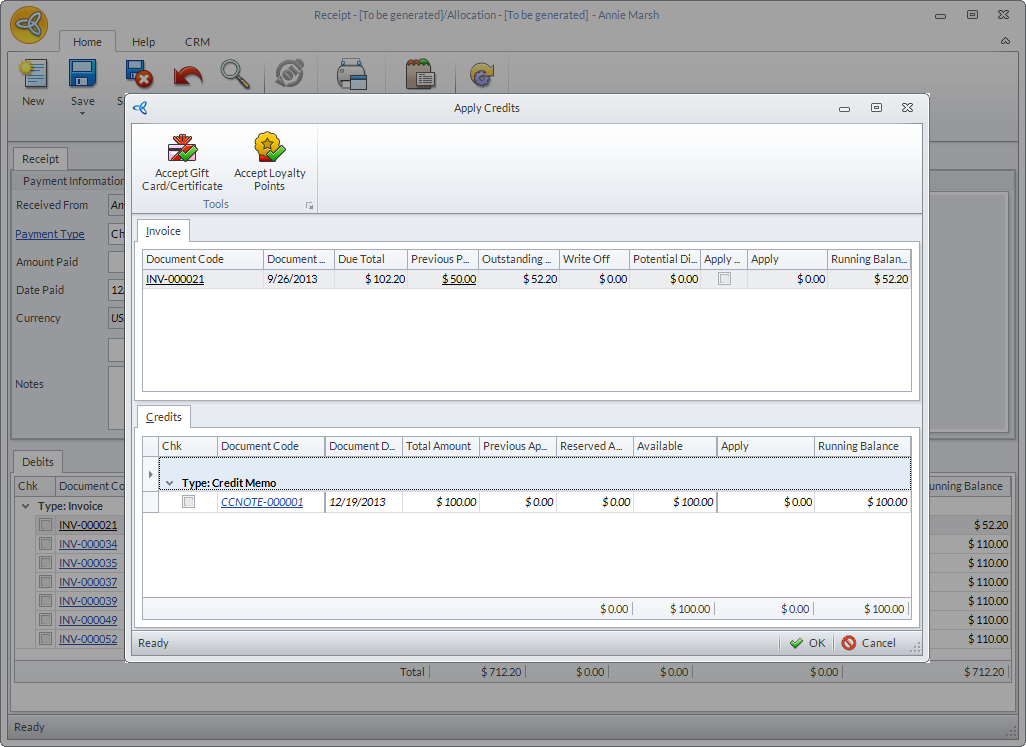
The Apply Credits form will be displayed.
Click Image to Enlarge
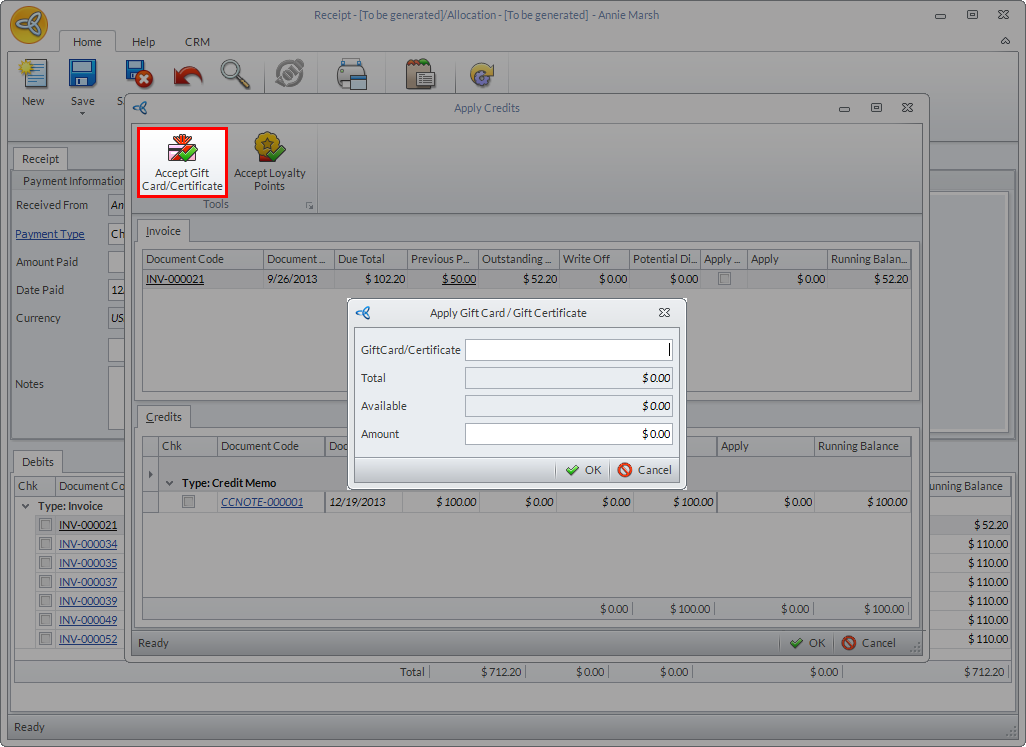
- Click the Accept Gift Card/Certificate button. The Apply Gift Card/Gift Certificate dialog box will be displayed.
Click Image to Enlarge
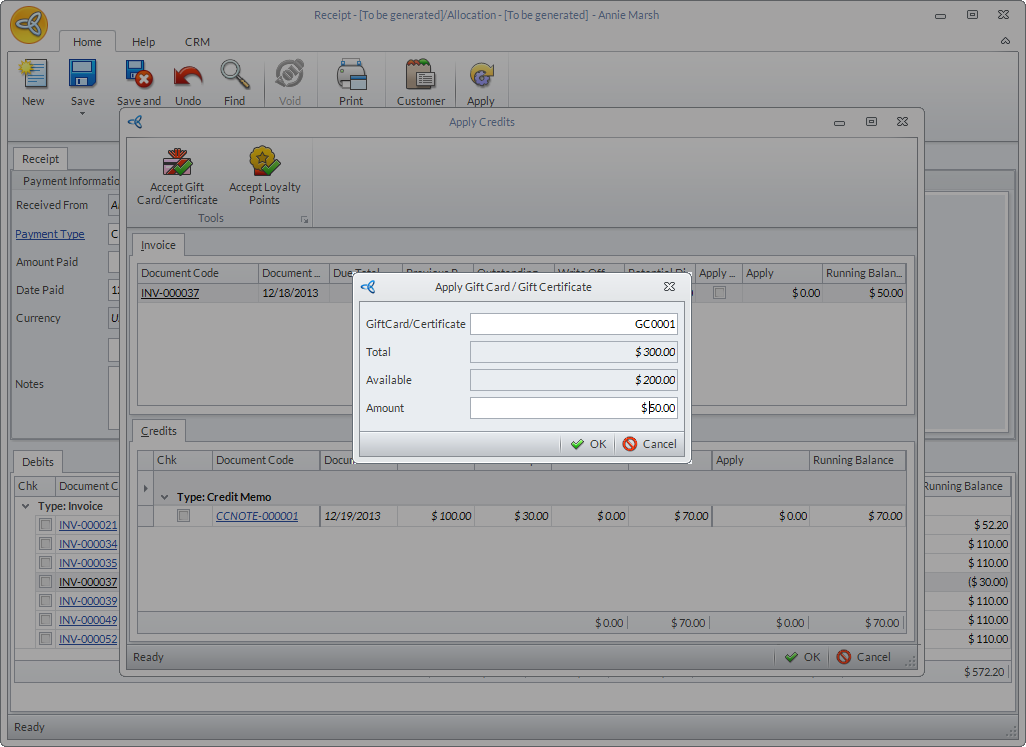
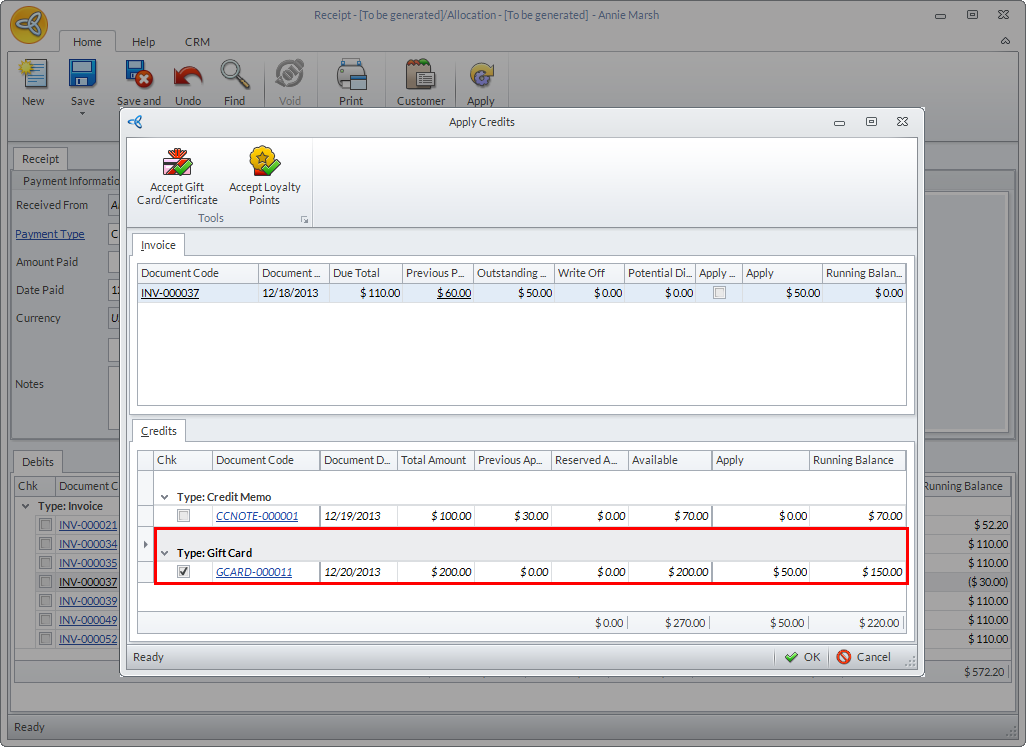
- Enter the gift card/certificate serial number in the Gift Card/Certificate field. Upon entering the serial number, the total and available balance of the gift card/certificate, as well as the total amount to be deducted from the gift card/certificate, will be displayed.
Click Image to Enlarge
- Modify the total amount to be applied against the invoice as needed then click OK.
- In the Credits section, the credit transaction will be displayed. You can see the total amount to be applied to the invoice in the Apply column and the gift card/certificate balance, after applying the credit, in the Running Balance column.
Click Image to Enlarge
- Click OK to apply the credits then close the Receipt form.
Recharge Gift Card
To recharge a gift card,
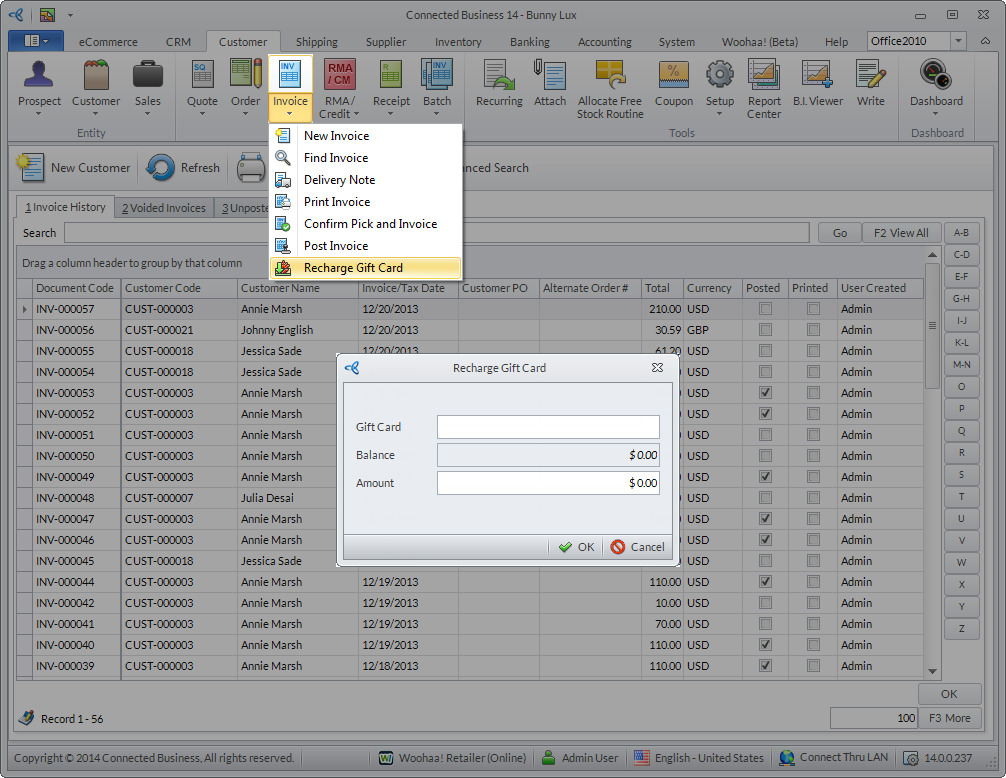
- Go to Customer module > Invoice > Recharge Gift Card. The Recharge Gift Card dialog box will be displayed.
Click Image to Enlarge
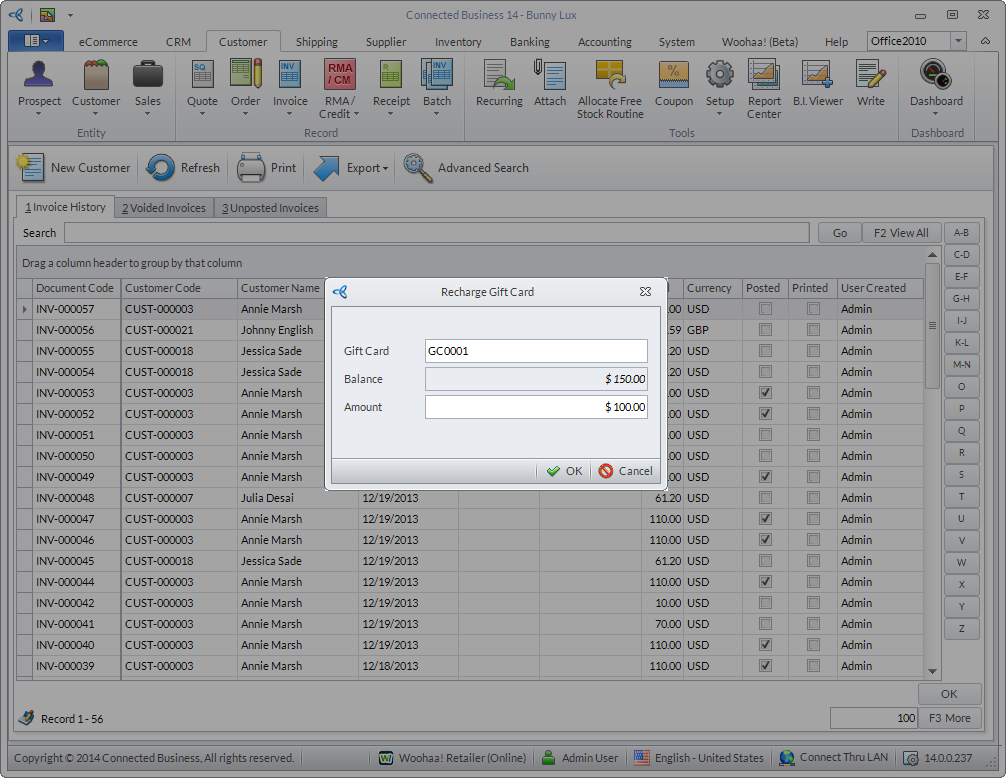
- Enter the gift card serial number in the Gift Card field. Upon entering the serial number, the balance of the gift will be displayed.
- Enter the amount to be reloaded in the Amount field then click OK. The sales invoice and Payment form will be displayed.
Click Image to Enlarge
- Select the payment type to be used for the transaction from the Payment Type dropdown list and enter the total amount to be paid in the Amount Paid field. You can also apply credits if the customer has existing credits, or use loyalty points or gift card/certificate as payments.
- Click Save and Close after applying the payment.
- In the sales invoice, click Save and Post to post the invoice.
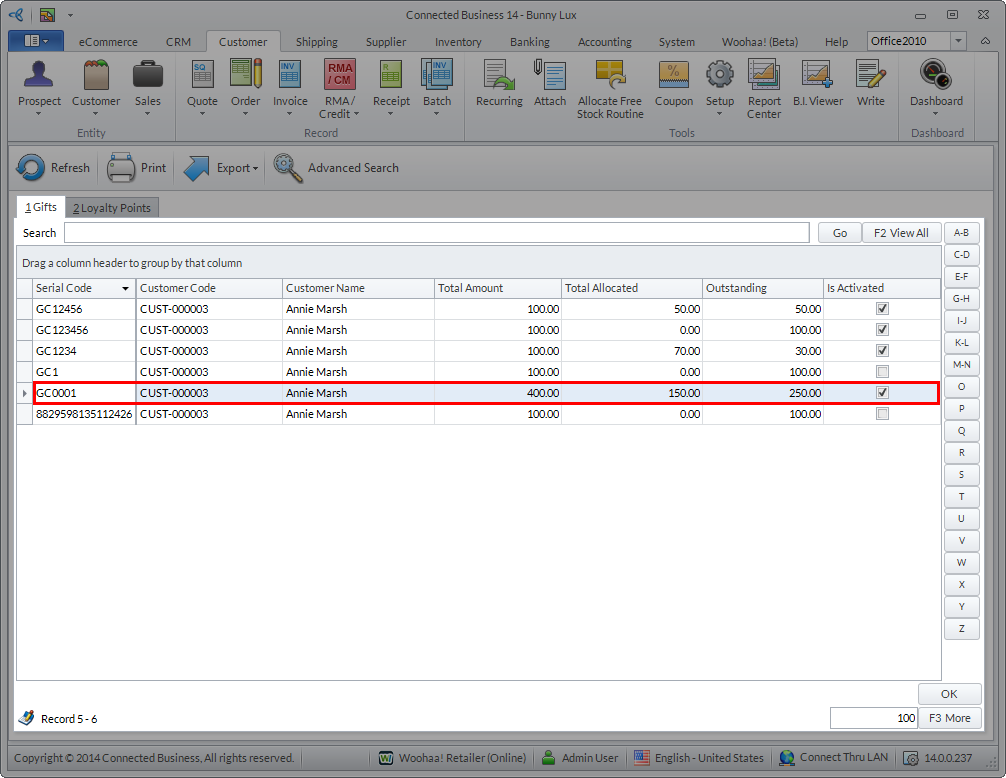
- You can check the available balance of the gift card from Customer module > RMA/Credit > Gifts > Gifts tab > Outstanding Balance column.
Click Image to Enlarge
Return Gift Card/Certificate
Gift cards/certificates can be returned so long as it is not activated yet. You can check if the gift card/certificate has been activated or not by going to Customer module > RMA/Credit > Gifts > Gifts tab. The gift card/certificate is not activated if the Is Activated checkbox for the gift card is not ticked, otherwise, it has been activated.
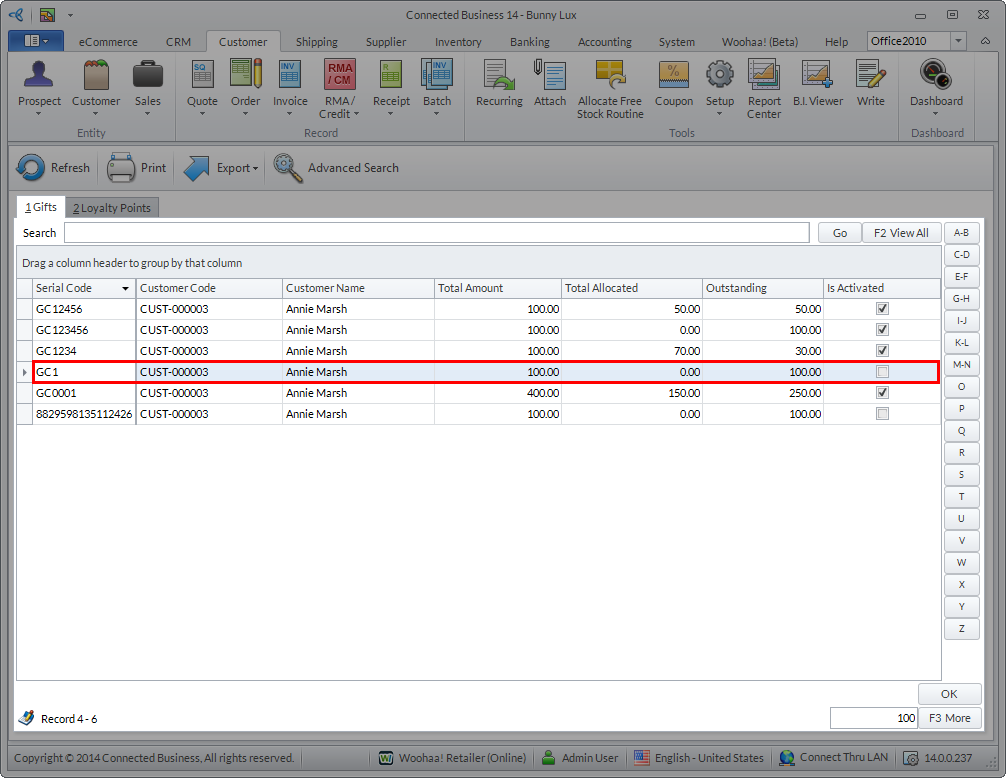
Click Image to Enlarge
To process returns for gift cards/certificates,
- Open the related sales invoice of the gift card/certificate to be returned. Go to Customer module > Invoice > Find Invoice. The list of all posted and unposted invoices will be displayed.
You can also check the invoice code form the Customer Detail form > Transactions tab > Gift Card or Gift Certificate tab > Reference column. Just cross reference the serial number to the invoice code.
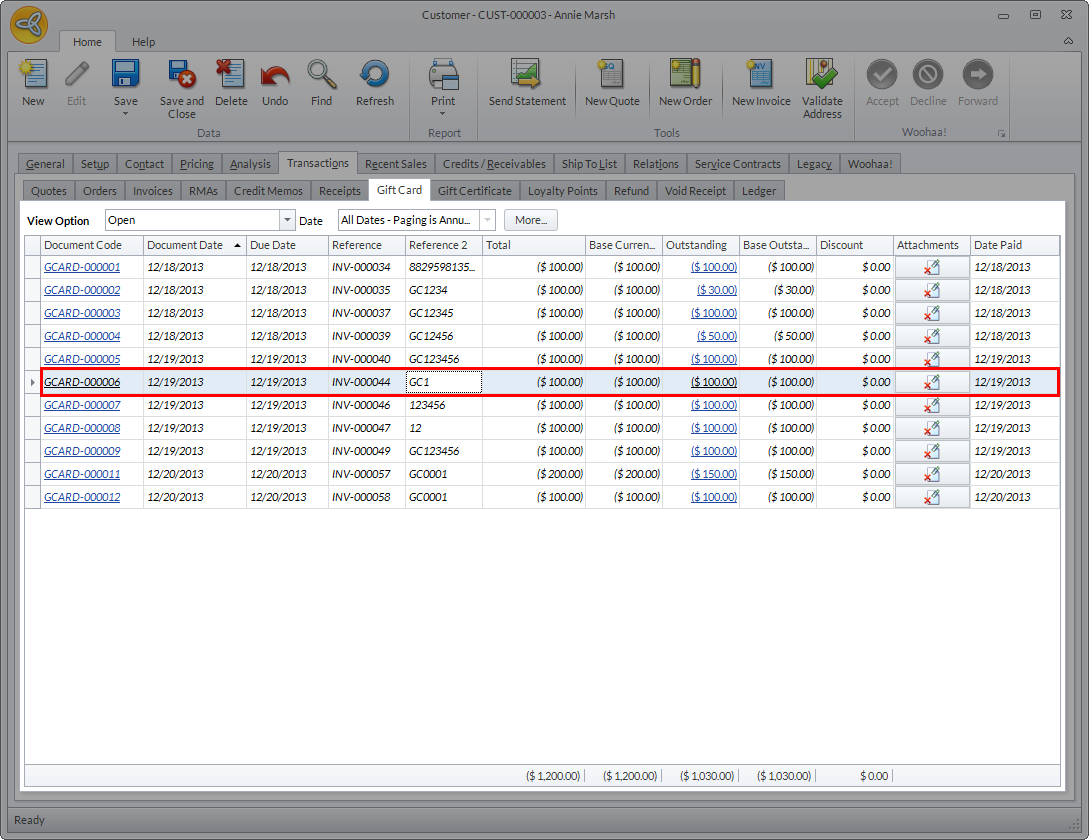
Click Image to Enlarge
- In the Sales Invoice form, click Convert to RMA. A message prompt will be displayed confirming if you want to convert the invoice to RMA. Click Yes to proceed. Another message prompt will be displayed indicating that the invoice has been converted to RMA. Click Yes to view the RMA form.
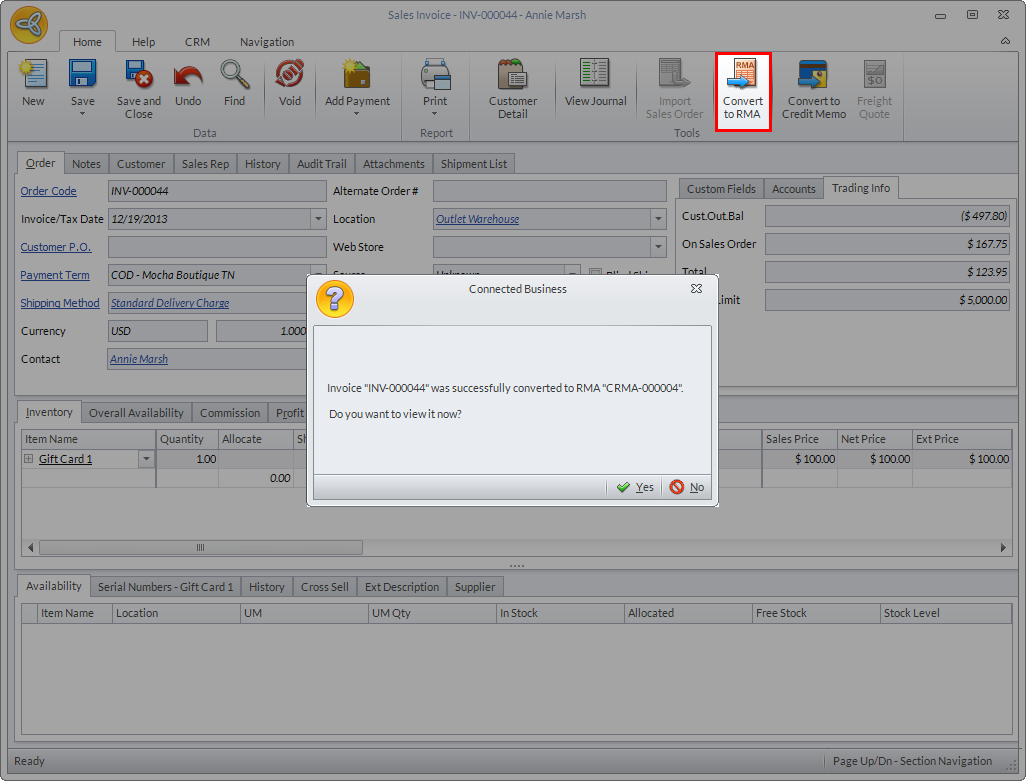
Click Image to Enlarge
- In the Serial Number section of the RMA form, tick the serial number of the gift card/certificate to be returned.
- Click Convert To Credit Memo. A message prompt will be displayed confirming if you want to convert the RMA to credit memo. Click Yes to proceed. The Credit Memo form will be displayed.
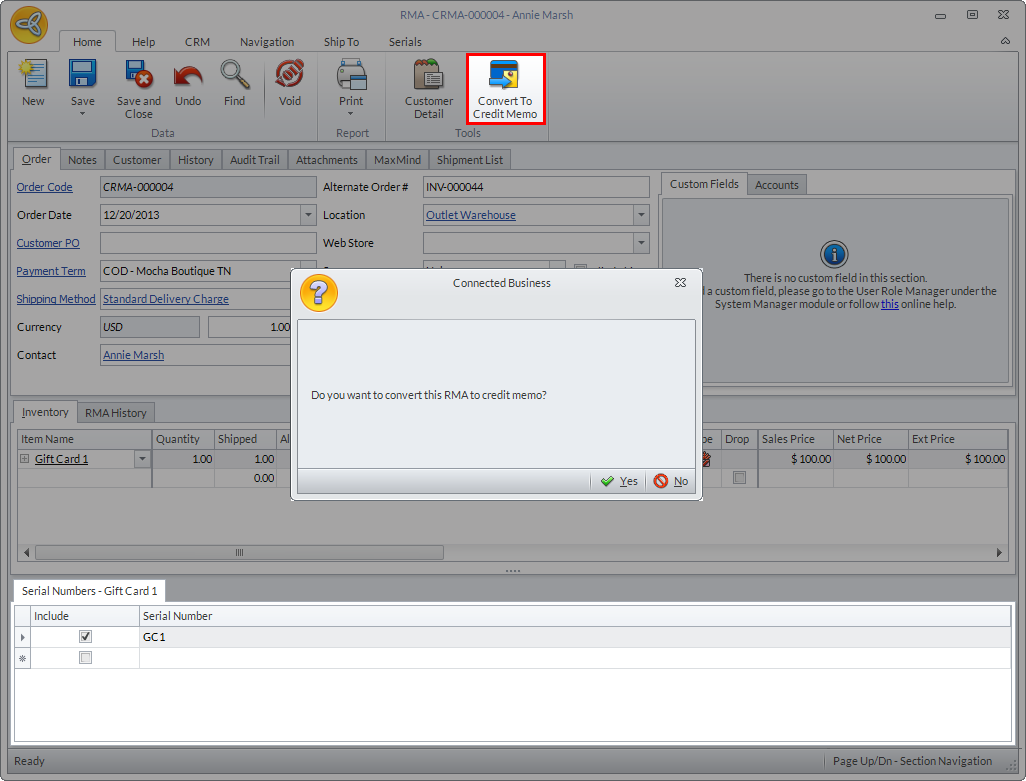
Click Image to Enlarge
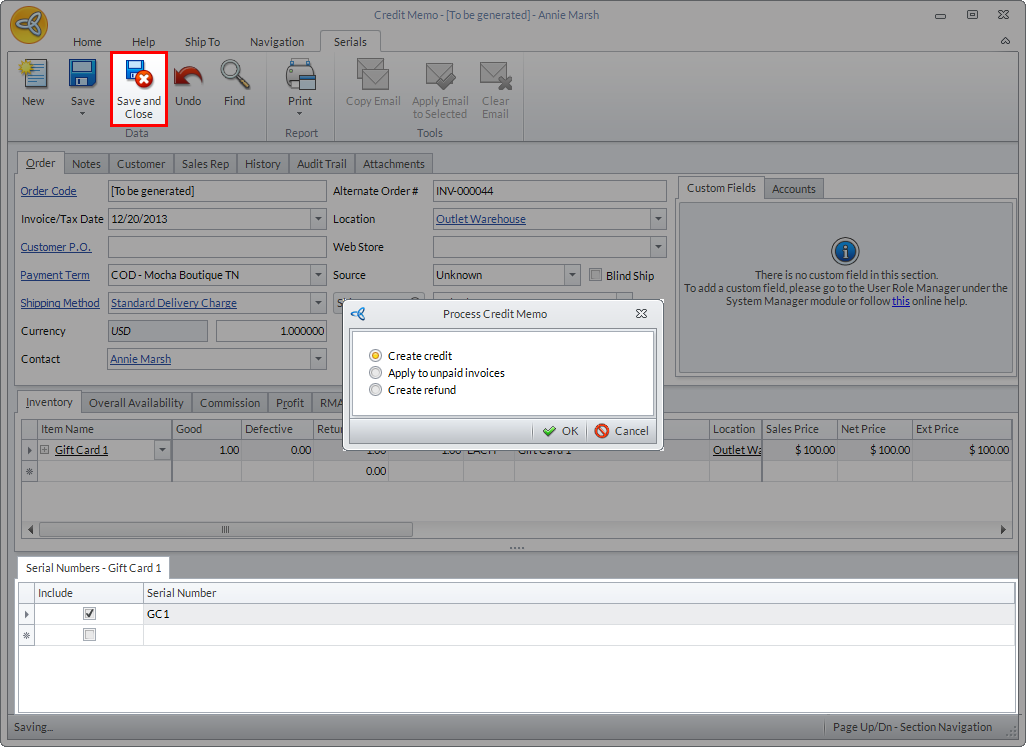
- In the Serial Number section of the Credit Memo form, tick the serial number of the gift card/certificate to be returned.
- Click Save and Close. The Process Credit Memo dialog box will be displayed.
Click Image to Enlarge
- Select how you want to apply the credit then click OK.
View Gift Card/Certificate History
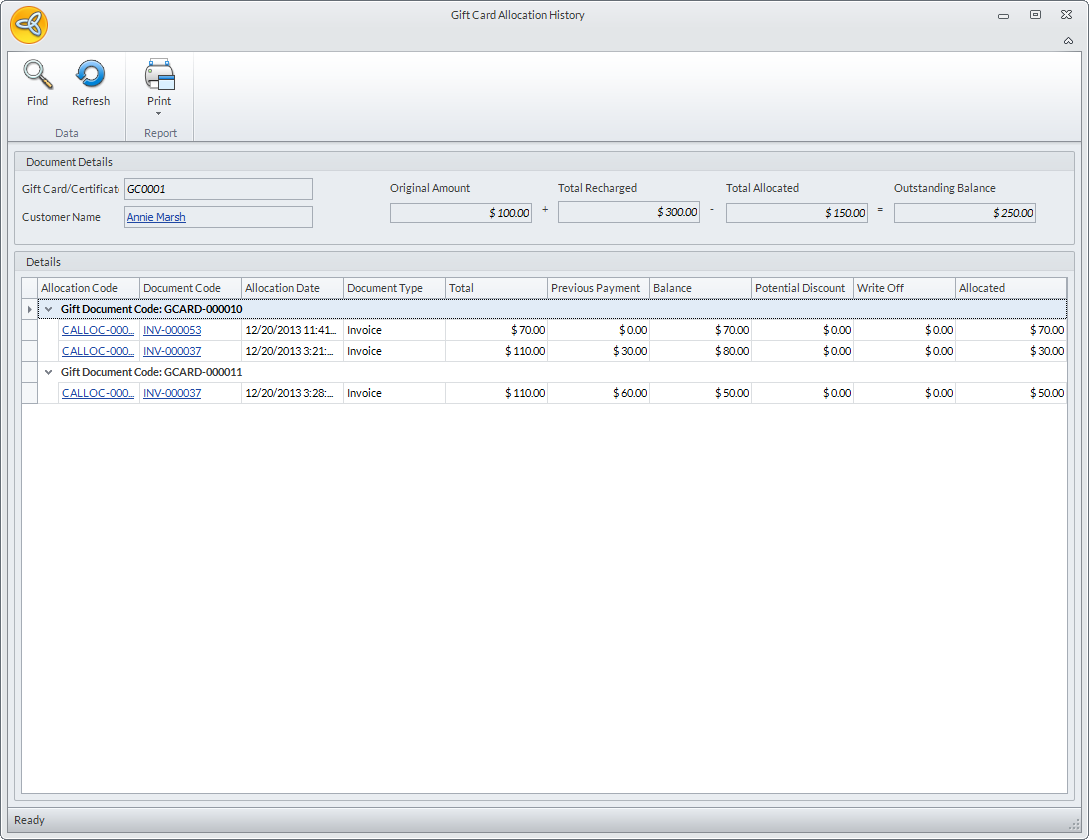
To view the gift card/certificate history, go to Customer module > RMA / Credit > Gifts > Gift tab. Select the gift card/certificate serial number from the list and the Gift Card Allocation History form will be displayed.
Click Image to Enlarge