 Connected Business Community
Let's Connect
Connected Business Community
Let's Connect
Enable or Disable Ribbon Menu Items
|
Content
|
|---|
Learn how to enable or disable a ribbon menu, show or hide or even delete ribbon menu items. Follow the steps below to learn how:
ENABLE/DISABLE RIBBON MENU ITEMS
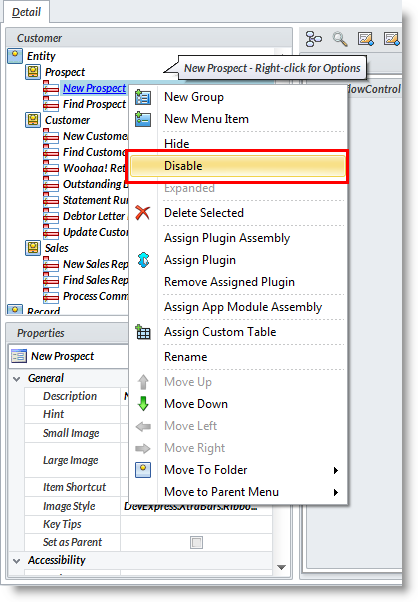
- In the User Role form, select the folder or menu item you want to enable or disable.
- In the ribbon menu, select enable or disable button to enable or disable a ribbon menu item. You may also use right click to enable or disable a menu item.

SHOW/HIDE RIBBON MENU ITEMS
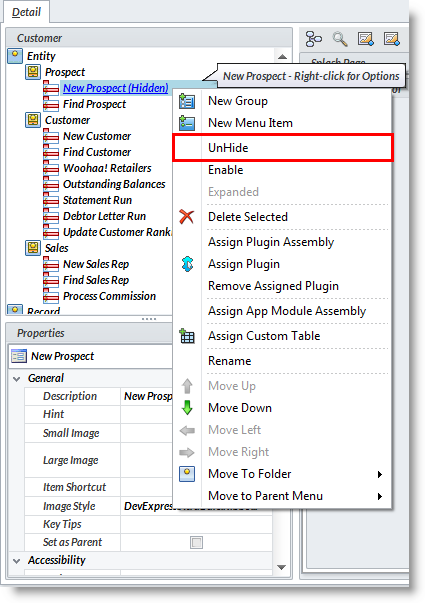
- In the User Role form, select the folder or menu item you want to show or hide.
- In the ribbon menu, select Show or Hide button to show or hide a ribbon menu item. You may also use right click to show or hide a ribbon menu item.
DELETE RIBBON MENU ITEMS
- Select the folder or menu item you want to delete.
- In the ribbon menu, select Delete button to delete a ribbon menu item. You may also use right click to show or hide a ribbon menu item.
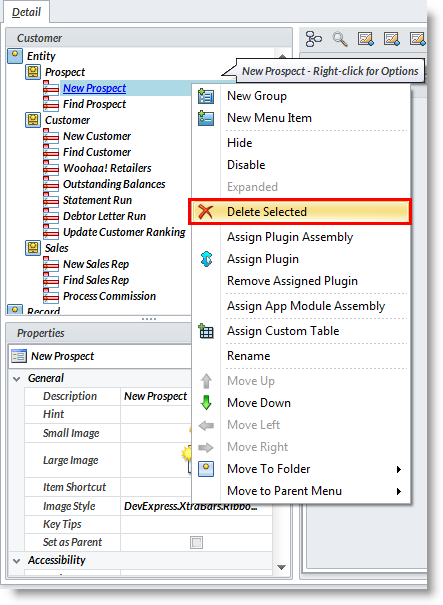
- A confirmation form will display, click Yes to delete the ribbon menu item.
ENABLE ALL/DISABLE ALL RIBBON MENU ITEMS
- To disable all menu items, click Enable None from the ribbon menu.
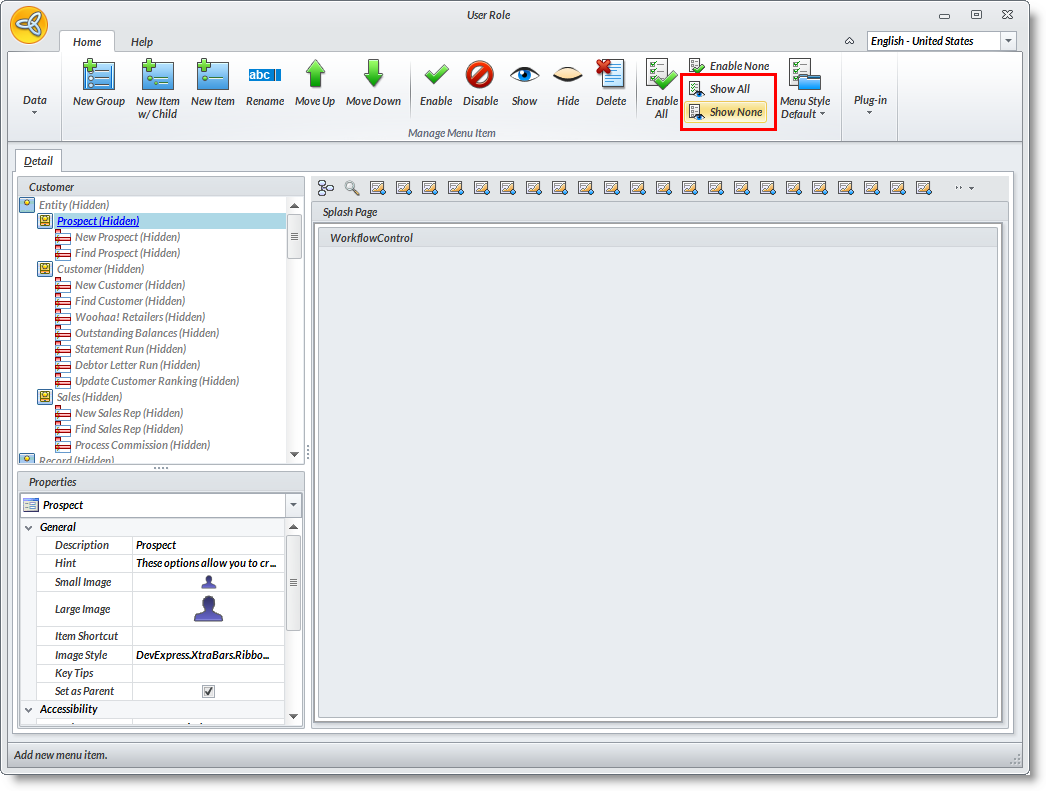
- To enable all menu items, click Enable All from ribbon menu.
SHOW ALL/HIDE ALL RIBBON MENU ITEMS
- To show all or hide all menu items, click Show All or Show None button from the ribbon menu.