 Connected Business Community
Let's Connect
Connected Business Community
Let's Connect
Add Custom Field To Existing Business Intelligence
In Connected Business, you are given the ability to add new custom fields in your existing business intelligence. To do this,
- Click on the BI Viewer menu from the module you selected. The Business Intelligence Viewer window will be displayed.
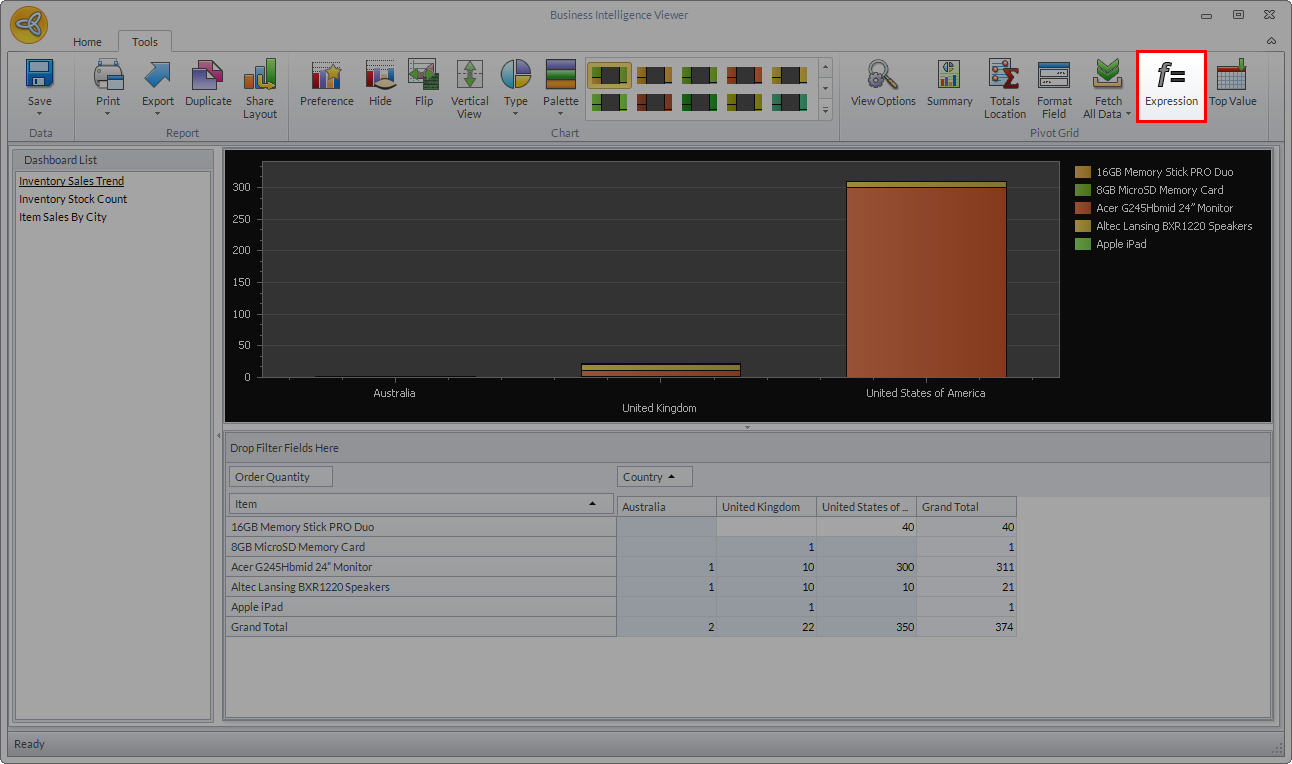
- In the Pivot Grid section, click on the Expression menu. The Unbound Expression form will be displayed.
Click Image to Enlarge
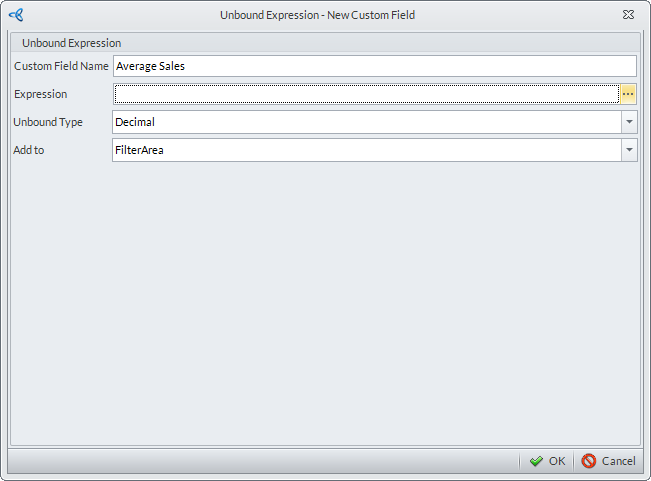
- In the Custom Field Name field, specify the name for the new custom field (e.g. Average Sales).
Click Image to Enlarge
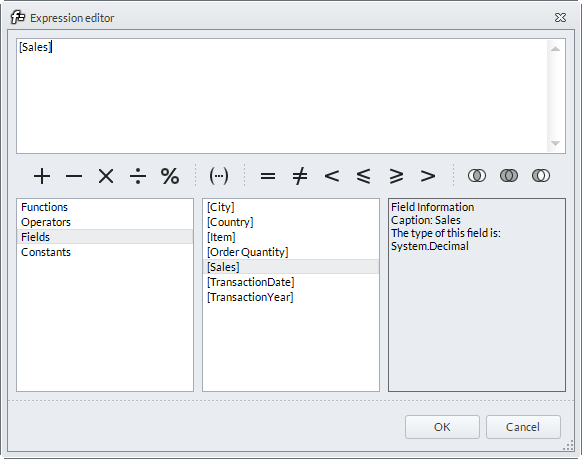
- Set the function for the new custom. Click on the ellipsis button in the Expression field and the Expression Editor will be displayed.
Click Image to Enlarge
Set the specific function for the custom field from the options below and click OK.
- Functions - consists of built-in functions that can perform a specific task applicable for quantity, dates and other values.
- Operators - consists of syntax that enables the user to do simple mathematical arithmetic.
- Fields - consists of the current fields within the Business Intelligence layout.
- Constants - consists of the true, false and null values for constants.
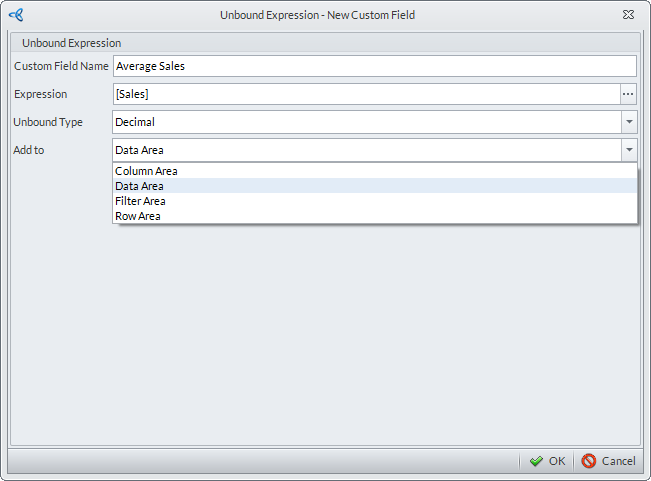
- After setting the function for the custom field, specify the details for the Unbound Type (e.g. Decimal) and Add To fields (e.g. Data Area).Click OK.
Click Image to Enlarge
The new custom field is now added in the Data Area of the Business Intelligence Viewer.
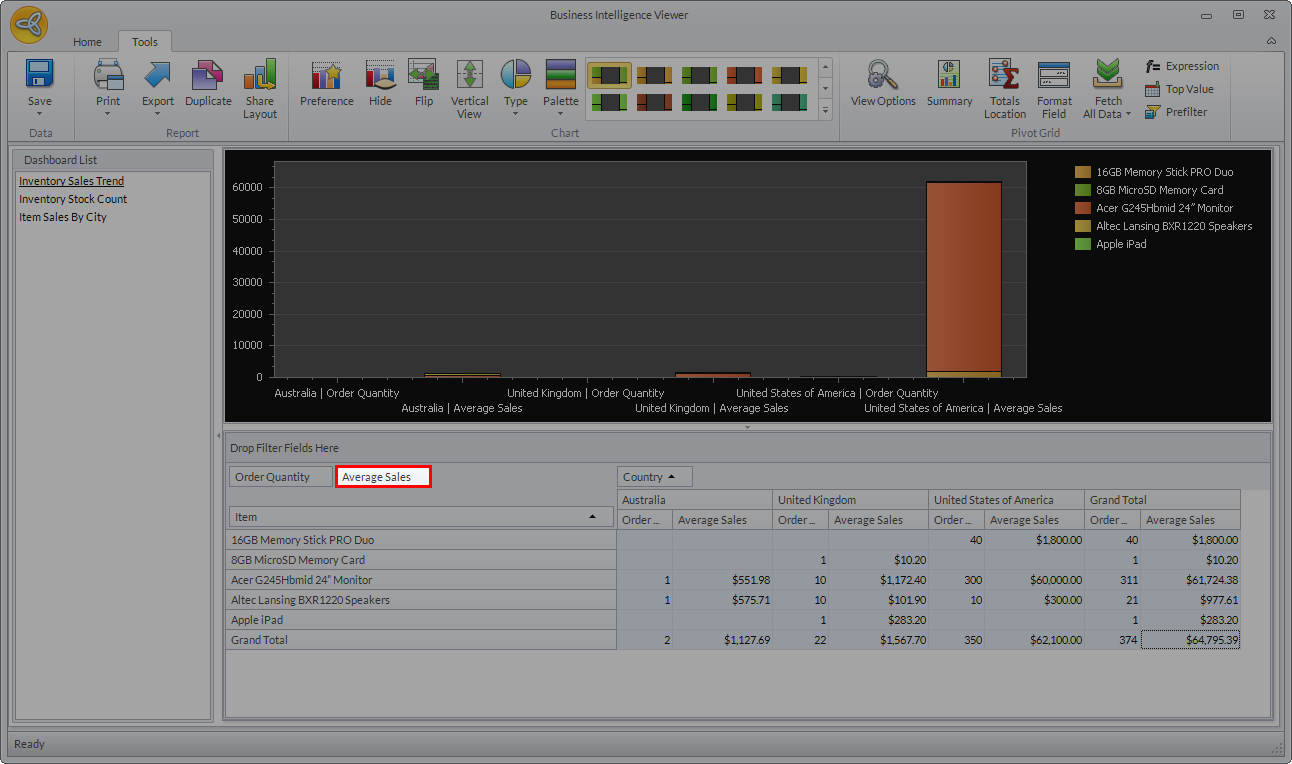
Click Image to Enlarge