
Process Purchase Orders
Purchase orders can become regular sales order once the customer decides to continue the purchase. In this way the customer saves unnecessary effort to reorder again. The following procedure discusses the part of the store admin in processing this.
Auto Generate Purchase Order
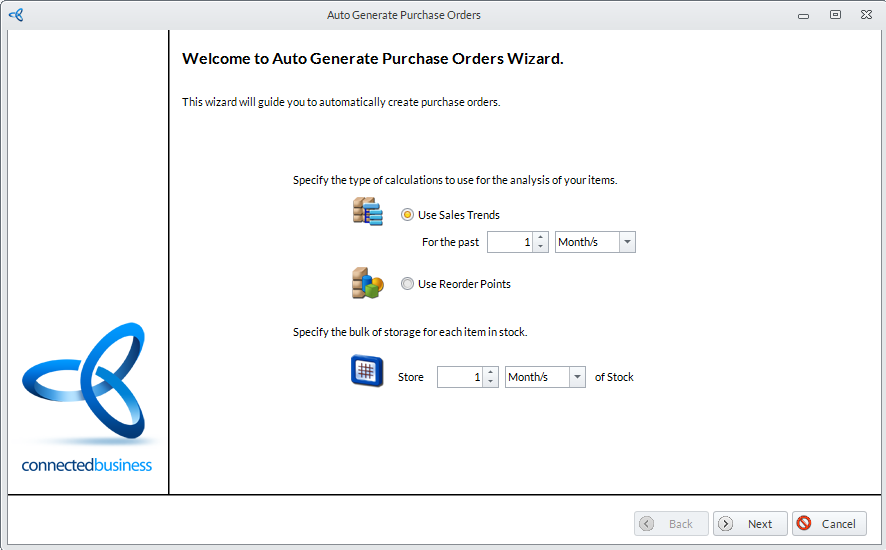
- From the Supplier Module > Purchases > Auto Generate Purchase Order. The Auto Generate Purchase Order Wizard will be displayed. Select the necessary options from the intro page and click Next to continue. The Locations form will be displayed.
Click Image to Enlarge
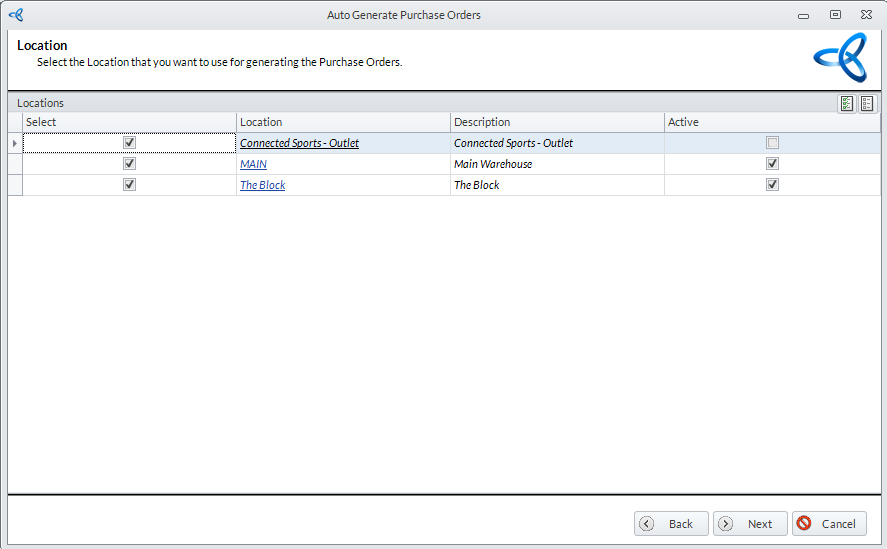
- Select the appropriate location/s from the list and click Next. The Supplier form will be displayed.
Click Image to Enlarge
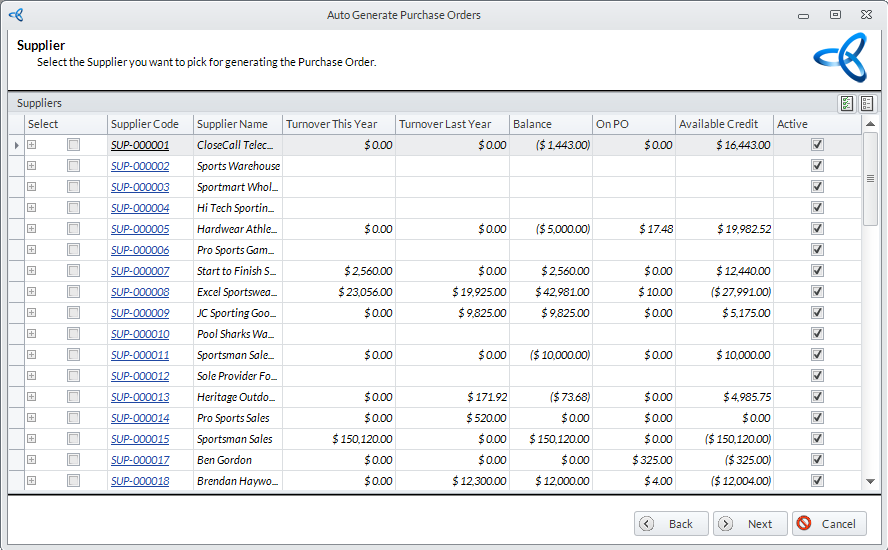
- Select from the list of Suppliers then click Next.
Click Image to Enlarge
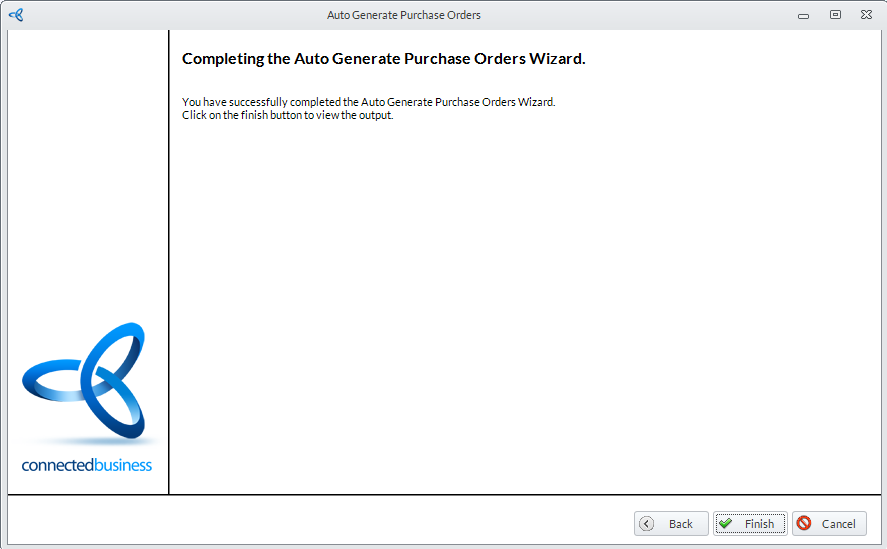
- The Confirmation Page of the wizard will be displayed. Click Finish then OK to complete the processing.
Click Image to Enlarge

To view the processed purchased orders, go to Customer Module > Order > Find Order.
Create Purchase Order from Converted Sales Order
You may process converted sales orders from the Auto Generate Purchase Order Wizard by accessing the Customer Module.
- From the Customer Module > Order > Find Order. The Find Order list screen will be displayed. Select the customer you want the sales order from by double-clicking on the entry.
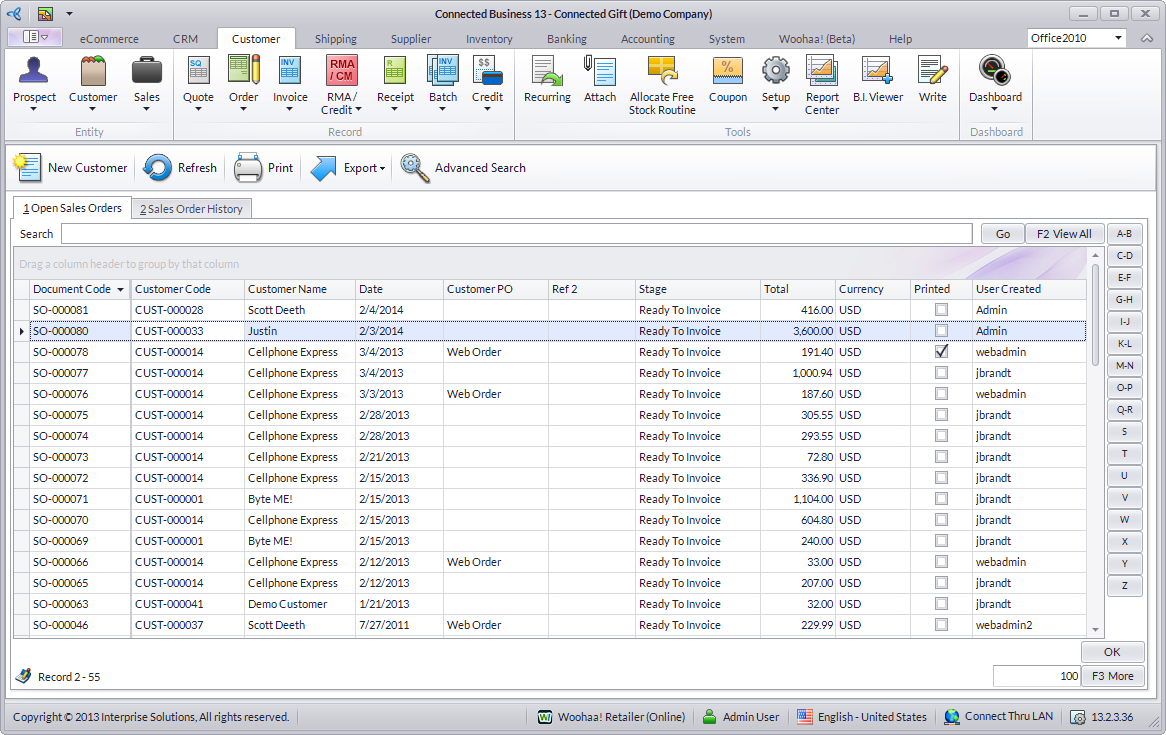
Click Image to Enlarge
- From the Sales Order form, click the Create Purchase Order from the menu bar. The Special Order form will be displayed.
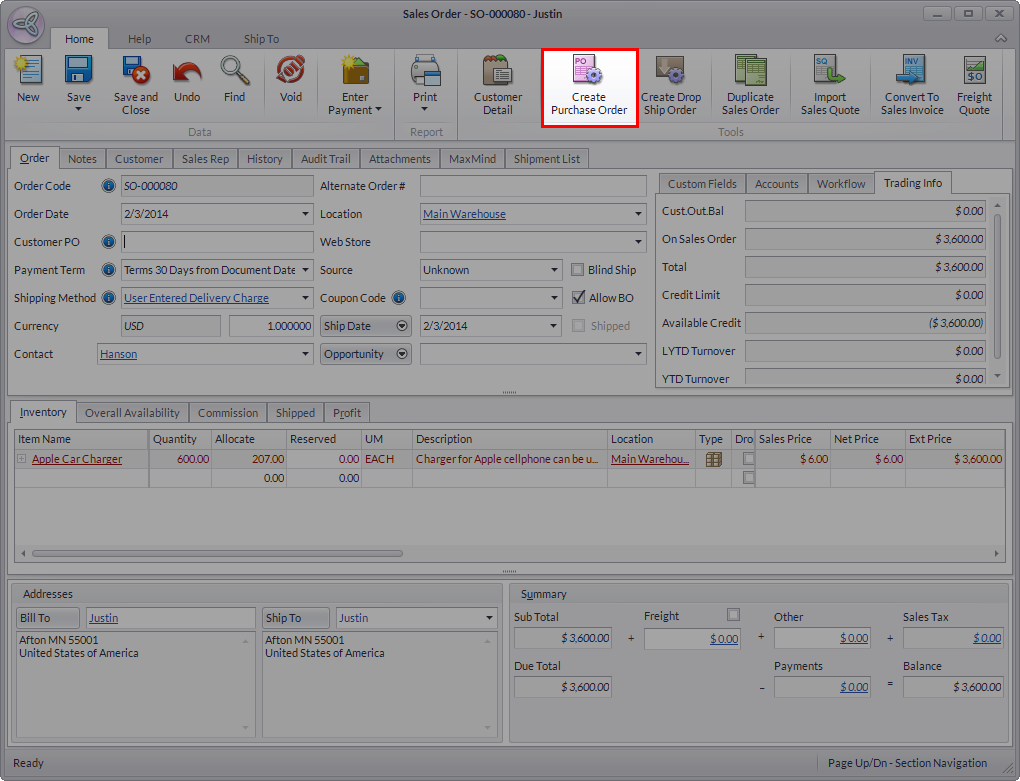
Click Image to Enlarge
- Tick the checkbox of the Sales Order then click Create Special Order.
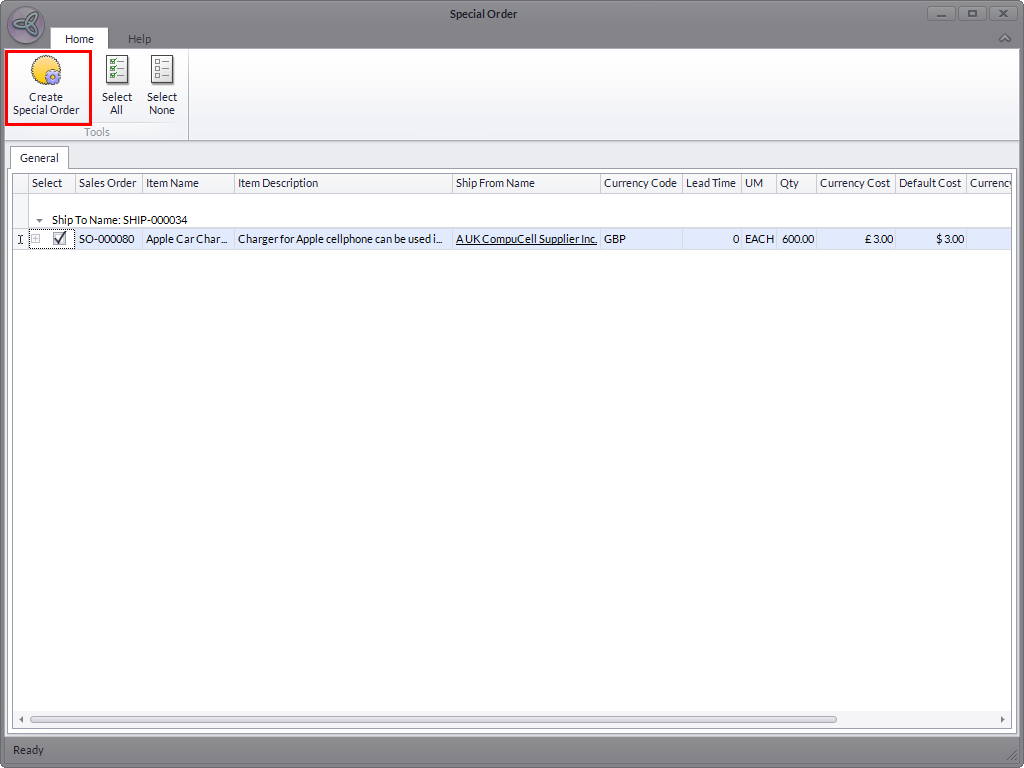
Click Image to Enlarge
- Click Yes on the prompt to view the Purchase Order.
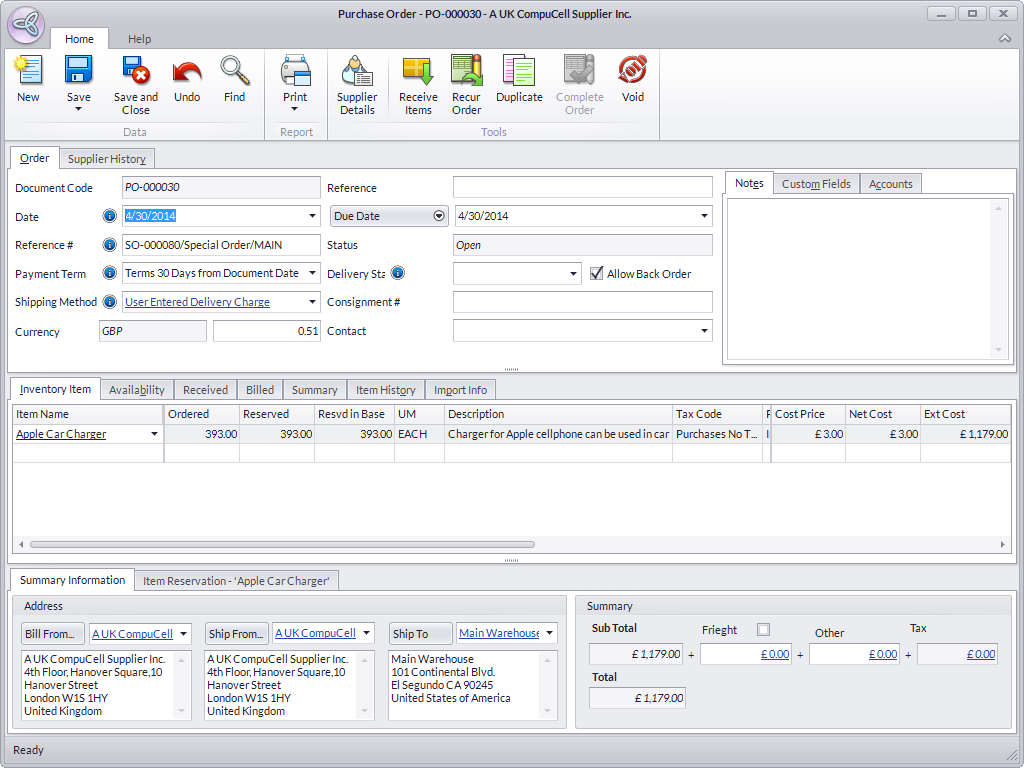
Click Image to Enlarge
For additional related information, please see the Maintain Sales Orders and Maintain Purchase Orders online documentations.