
Maintain Purchase Orders
|
Content
|
|---|
You can organize and maintain purchase orders efficiently and effectively using Connected Business' Supplier module. If you have items already received or items left out by the supplier, these can be monitored by just clicking the Receive button on the Purchase Order form.
Connected Business' Purchase Order system will help and guide you on your day to day operations with the current ordering activities. You can view open purchase orders as well as orders that are called off or cancelled. Not only that, duplicating a purchase order is easy enough to help create a new purchase order.
This section will discuss details on how to maintain your purchasing activities.
Steps
Note that only open or partial purchase orders may be amended.
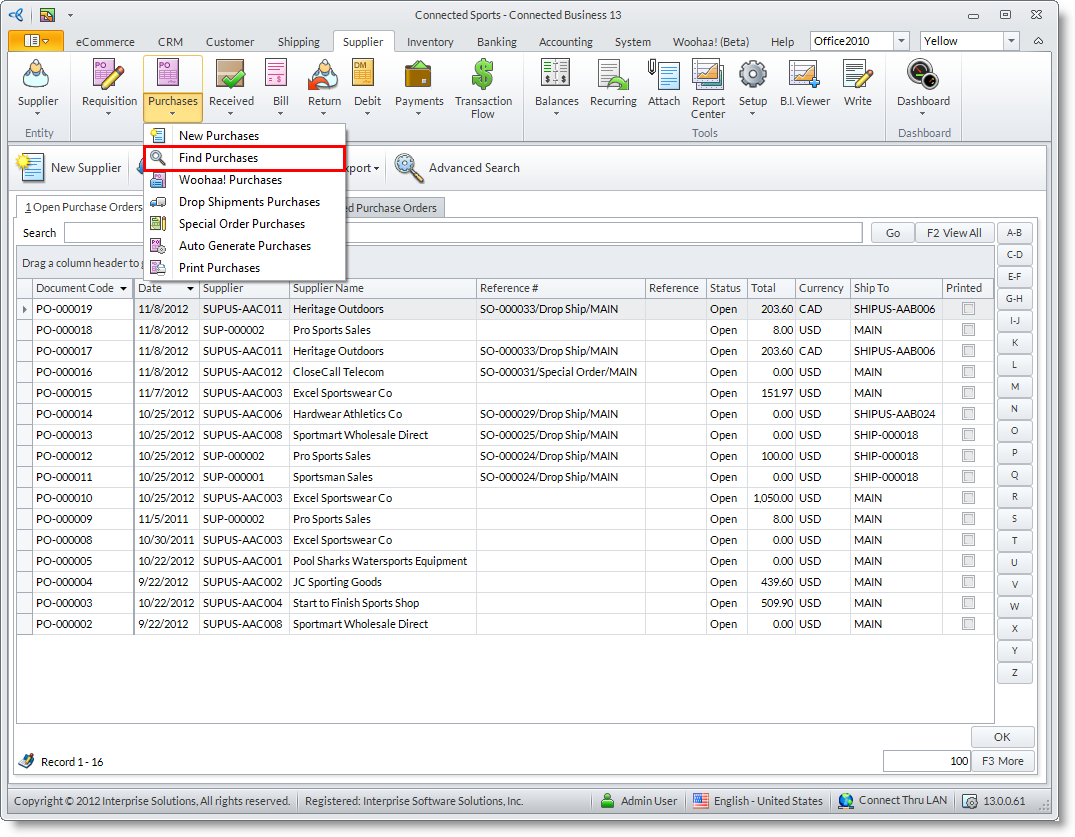
- From the Supplier module, select Purchases > Find Purchases. A search list of open and closed purchase orders is displayed.
- Select a purchase order in the list to display the Purchase Order form.
- Edit the necessary details and save again before closing.

RECEIVE ITEMS IN THE PURCHASE ORDER
- From the options menu of the Purchase Order form, click on the Receive Items option to convert the purchase order into a goods received document.
- Choose Yes in the prompt to create the Goods Received document to display the Goods Received form.
DUPLICATE THE PURCHASE ORDER
Make a duplicate of the purchase order document An option is available to instantly duplicate a purchase record and generate a new purchase order with the same details. You can duplicate open, closed or cancelled purchase orders.
- From the options menu of the Purchase Order form, click on the Duplicate button to generate a purchase order document reflecting the details of the purchase order.
- Take note of the default current dates in the duplicated document and amend if necessary before saving.
CALL OFF THE PURCHASE ORDER
Note that you can only void open purchase orders.
- Select Find Purchase Order under the Purchase Order drop down list menu of the Supplier module. A search list of open, closed and cancelled purchase orders is displayed.
- Select the purchase order from the Open Purchase Orders tab to display the Purchase Order form.
- Click on the Void button from the options menu.
- Choose Yes in the prompt to void the purchase order.
See Also:
Recur The Purchase Order | Receive Items