
Navigate the Admin Site
Creating an admin page is essential for handling your webstore - wherever you may be. Being mobile is one of the advantages of doing business online, and better take advantage of Connected Business eCommerce by first creating an admin site.
- Type the admin site for your webstore site in the address bar of your browser. Use this format:
http://localhost/virtualdirectory/admin
For example, if the assigned virtual directory of the webstore is ConnectedBusiness, the admin site URL will be:
http://localhost/ConnectedBusiness/admin
Run the webstore admin URL to continue.
- Once in the login page, enter the following information in the username and password fields:
- Username: [name of the Connected Business user]
- Password: [Connected Business password]
Then click the Log In button.

Any Connected Business user may access the mini admin site as long as he was given access through the User Account tab in the Webstore window. Note also that the Admin Site URL, Username and Password are case sensitive.
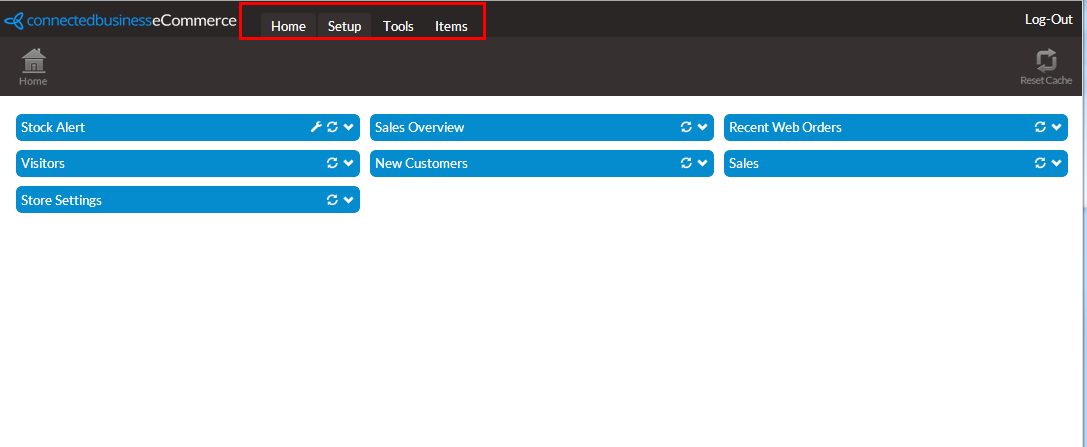
For more information, please refer to the: Set up the WebStore online documentation. - The Admin Site Home Page will be displayed. All the necessary links you need to manage the webstore are accessible from each item in the menu:
Click Image to Enlarge
The menu items are as follows:
- Home - Makes the Home button available, which transports you directly to the homepage of your admin site.
- Setup - Makes the AppConfig button available, which opens up another page that lets you edit AppConfig values.
- Tools - Makes a set of function buttons available for use:
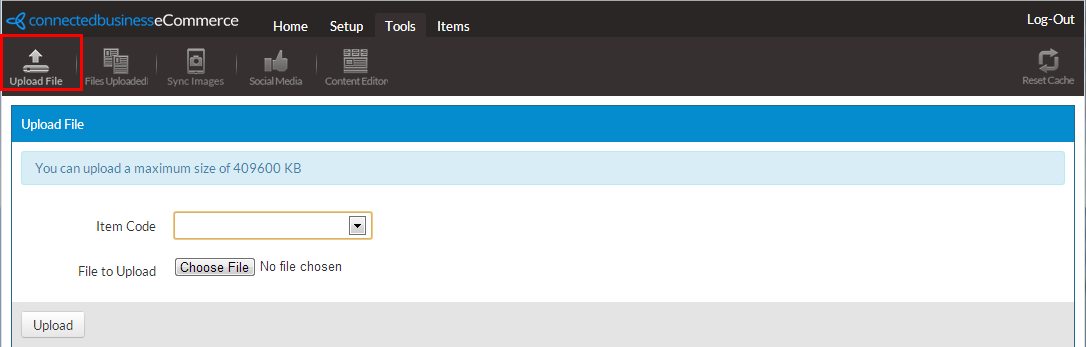
- Upload File - Opens up a page that lets you upload a file for electronic download on your webstore. The maximum file size for uploads is 4.1mb.
Click Image to Enlarge
To select a file, click Choose File and a dialog lets you search your computer for uploadable files. To upload the file, click the Upload button.
For more information, please refer to the Create Electronic Download Items online documentation.
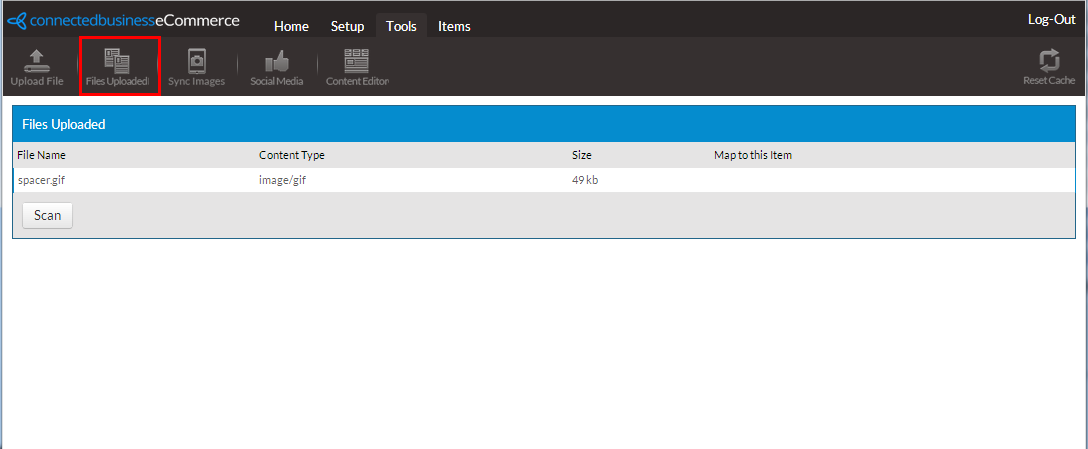
- Files Uploaded - Opens up a page that lists all your uploaded files and lets you map each item to existing electronic download items.
Click Image to Enlarge
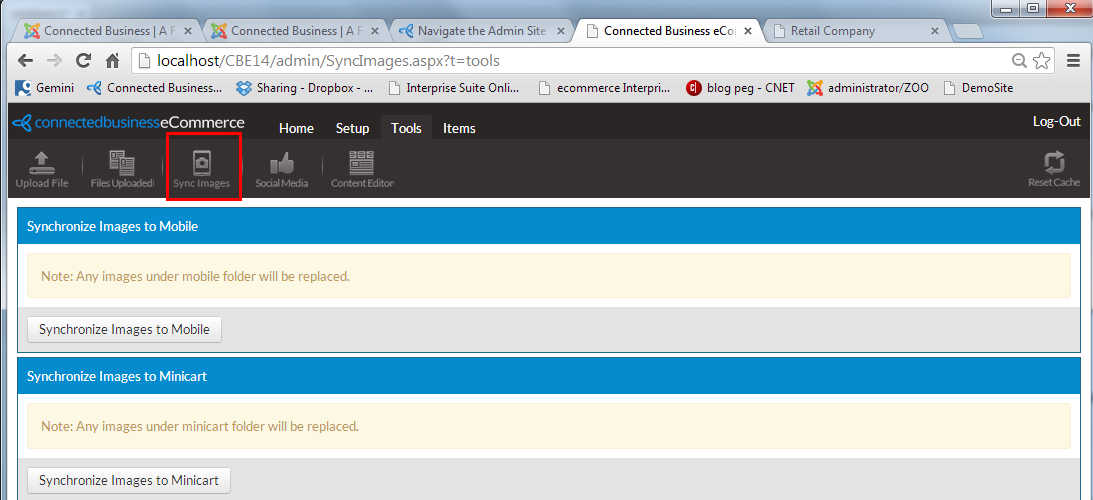
- Sync Images - Opens up a page that lets you synchronize images to Mobile and/or Minicart for users viewing the site through mobile devices.
Click Image to Enlarge
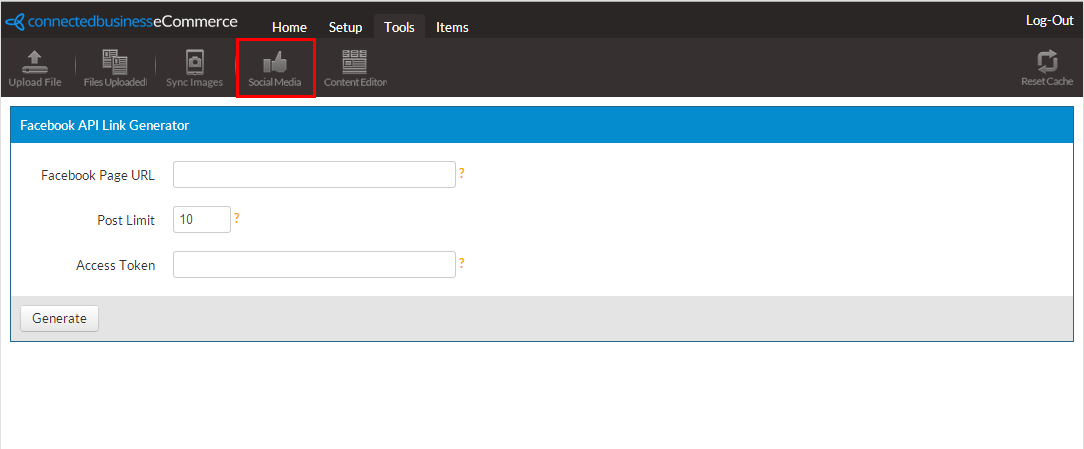
- Social Media - Opens up the Facebook API Link Generator that lets you link a Facebook page URL to your webstore, showing your most recent updates from that URL.
Click Image to Enlarge
You may hover over the question marks on the right side of each entry field to view more details about each field's function.
Admin Site
Menu Item
Description
Facebook Page URL Determines where the Facebook API Link Generator will get the social media updates
Post Limit Defines how many posts will be displayed at a time
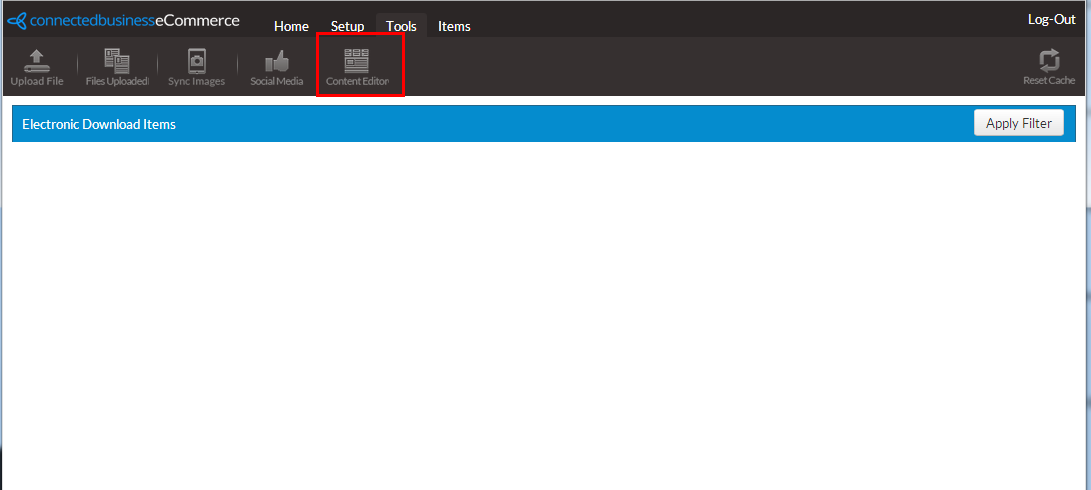
Access Token For more information about Facebook tokens, see more through this link. - Content Editor- Opens up your webstore with a function that lets you edit the content of your webstore from its actual published layout. For more information, please refer to the Set Up The Website and Shopping Cart online documentation.
Click Image to Enlarge
- Upload File - Opens up a page that lets you upload a file for electronic download on your webstore. The maximum file size for uploads is 4.1mb.
- Home - Makes the Home button available, which transports you directly to the homepage of your admin site.
If it is necessary for you to reset the Internet Information Service (IIS) please close the web store site window first.