
Create Electronic Download Items
Electronic Downloads can be any form of downloadable content (electronic files). You will need to upload these files through the web admin console of your website. These can be set upthrough the Inventory Module's New Item Wizard.
To do so,
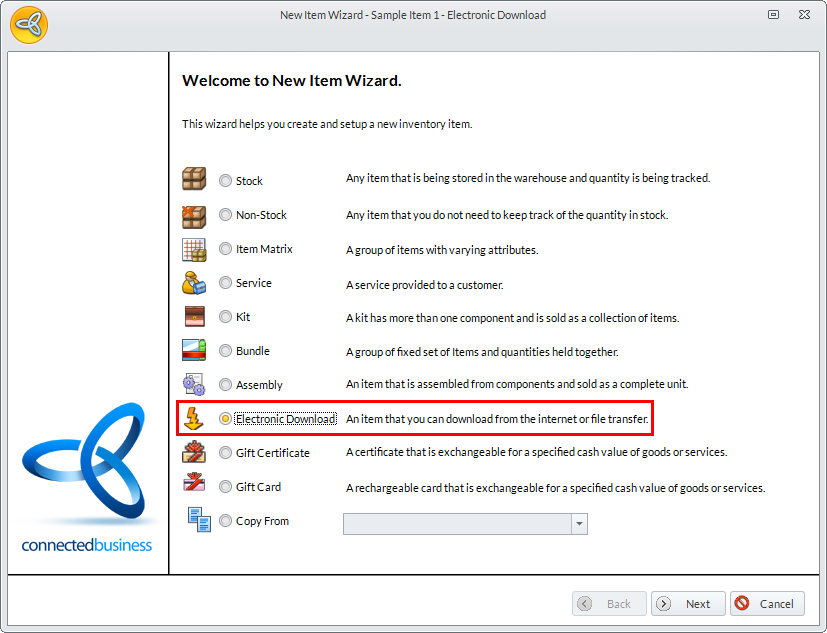
- From the Inventory Module > Item > New Item. The New Item Wizard will be displayed.
Click Image to Enlarge
- Select the Electronic Download item type and click Next.The General Information form will be displayed.
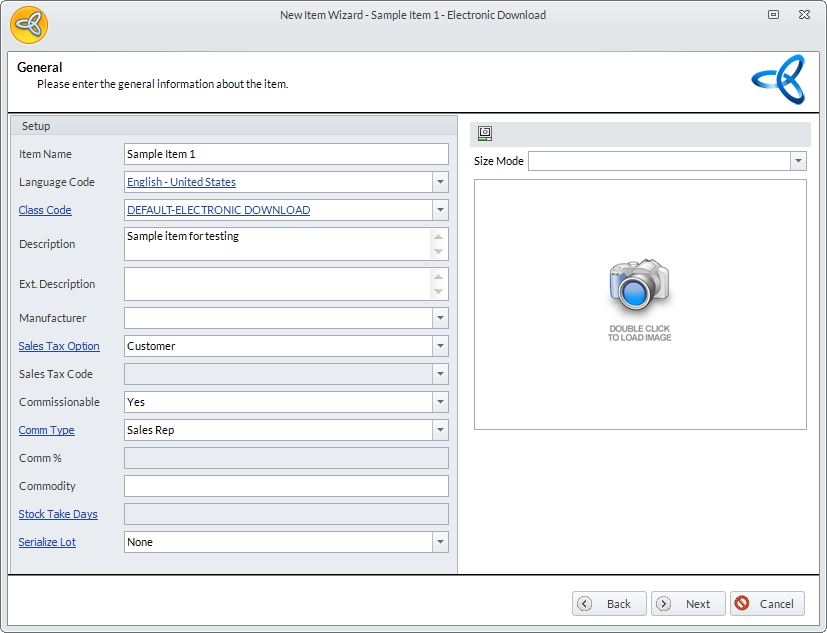
- Provide the Item Name, Description, and all other pertinent details then click Next. The Unit Measure and Category form will be displayed.
Click Image to Enlarge
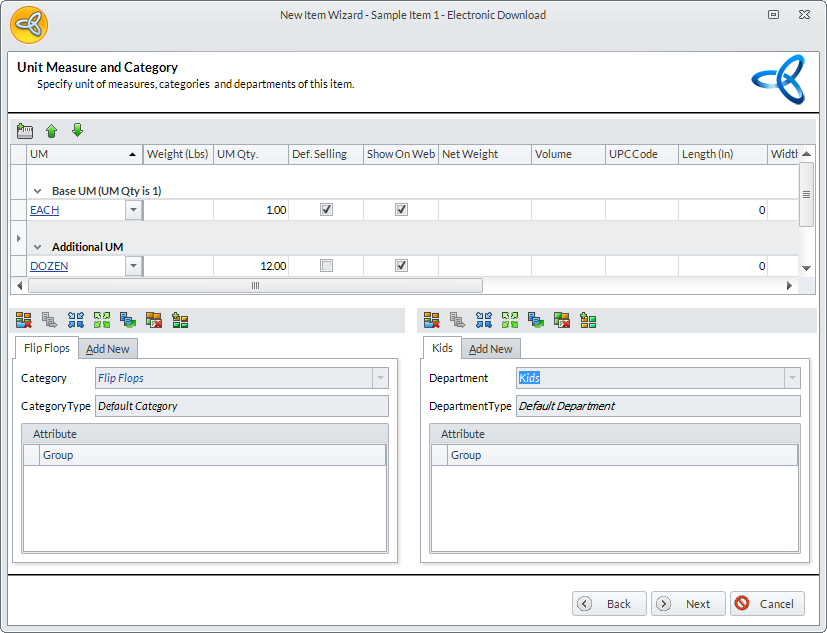
- A default or base Unit Measure (i.e. Each) will be present. Change or add to the unit measures, then select the item's category and department.
Click Image to Enlarge
Click Next. The Costing form will be displayed.
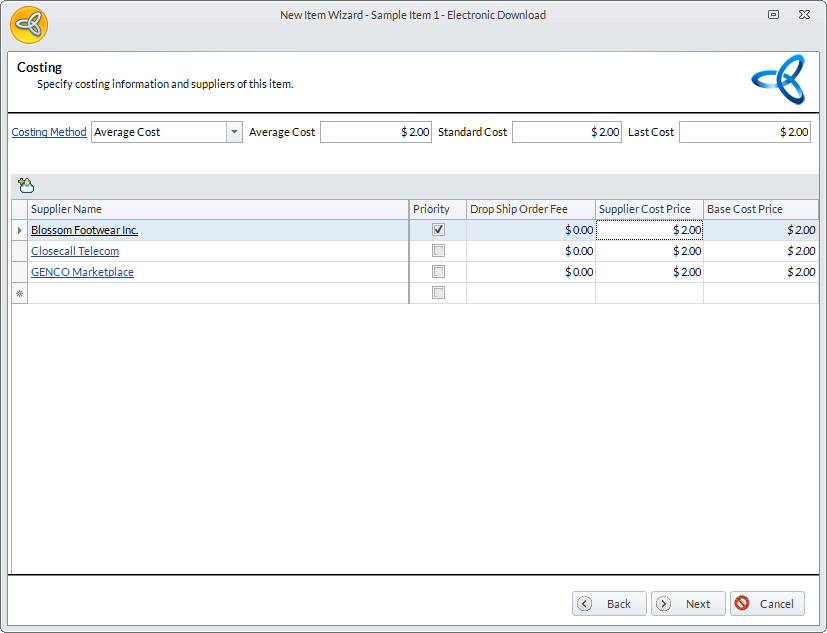
- Set the following:
- Costing Methods and default cost value
- Item Suppliers and each Supplier’s Cost Price
- One priority supplier
Click Image to Enlarge
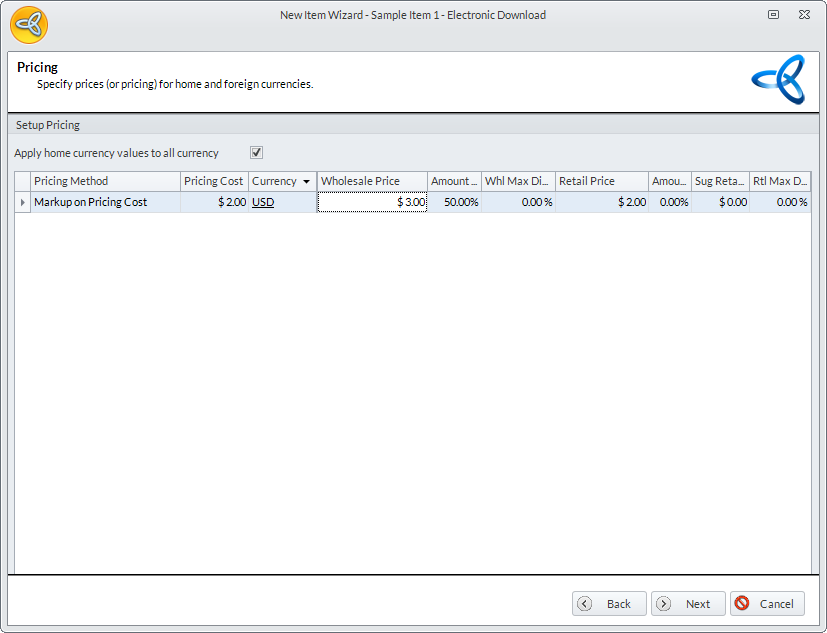
Click Next. The Pricing form will be displayed.
- Set the pricing method and markup percent or value to add to the cost.
Click Image to Enlarge
- Click Next, then Finish to exit the wizard.

For steps on how to upload Electronic Download items, please refer to the documentations about using the FTP Upload Option and File Upload Option.