
Set Up the Web Store
The Webstore form holds important information necessary to run your webstore smoothly. You can access the Web Store by navigating to the eCommerce module ►Tools ► Web Store. Click on the New button to create a new website/webstore.
Below are the steps on how create a new webstore and the details you need to know on each of these fields.
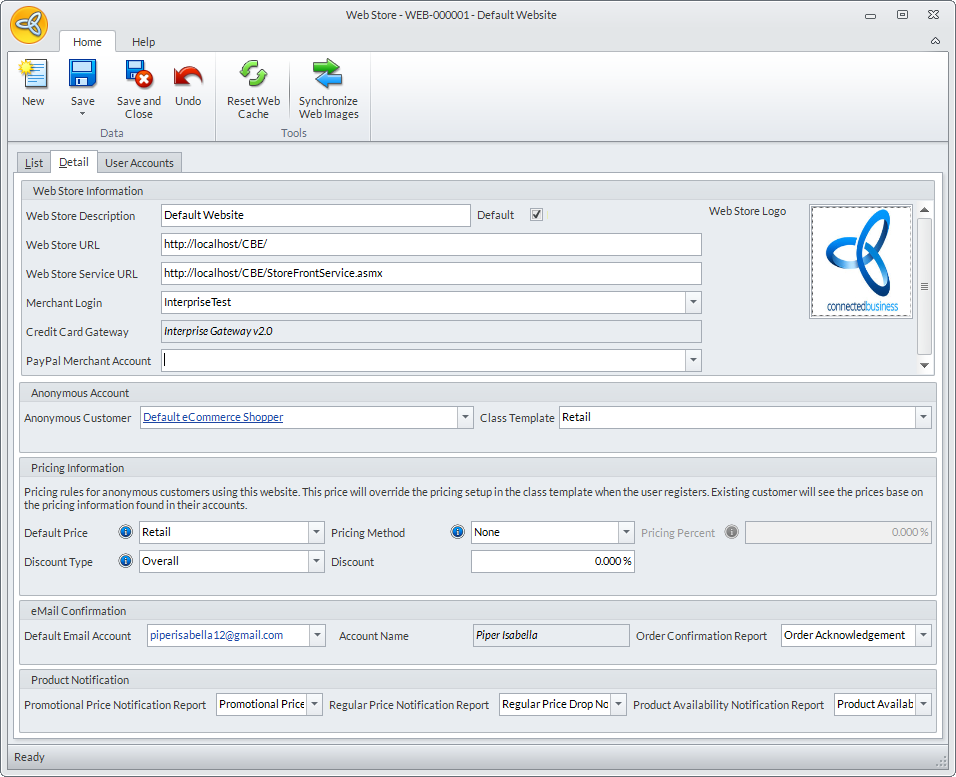
Click Image to Enlarge
Specify Web Store Information
The Web Store Information section allows you to setup webstore URL, service URL as well as the credit card gateways which are vital to run a webstore.
| Field Name | Description |
| Web Store Description | The description of the website. |
| Web Store URL | The address of your website (Universal Resource Locator). |
| Web Store Service URL | The storefront service that contains the operations supported for your website. |
| Merchant Login / Credit Card Gateway |
Select the available merchant login from the list. Once a merchant is selected, the Credit Card Gateway field will be automatically filled with the corresponding gateway of the merchant. Credit Card Gateways can be defined by navigating to Customer ► Tools ► Setup ► Credit Card ► Credit Card Gateway. |
| Paypal Merchant Account | The account applicable to transactions that uses Paypal gateway. |
| Default Checkbox | Tick this checkbox if you want to set it as the default website. |
| Web Store Logo | Double click to set a logo for the webstore. |
Specify Anonymous Accounts
Set up anonymous accounts through this section.
| Fields | Description |
| Anonymous Customer | This is where the customer entity to use as Anonymous Customer (non-registered customer) is indicated. |
| Class Template |
The class template that will be used for the anonymous customer. Class Template includes setup for payment terms, shipping methods and tax schemes used for the anonymous customer transactions. You may select between Retail and Wholesale options. |
Specify Pricing Information
The Pricing Information section contains fields that let you determine pricing schemes for your webstore transactions:
| Fields | Description |
| Default Price | This is where the original price of the product is entered. |
| Pricing Method | The pricing method used for any anonymous customer transactions. |
| Pricing Percent | If using Mark Up On The Last Cost Price option on the Pricing Method, this is where the amount in percent to use as a mark up rate for the original price is entered. |
| Discount Type | This is where the discount type to use for this website is indicated. |
| Discount | This is where the discount amount in percent to use for this website is entered. |
Specify Reports for Email Confirmation
The Email Confirmation section lets you define your email contact information.
| Fields | Description |
| Default Email Account | This is where you input a default email address that will be used for any confirmed orders in the webstore. |
| Account Name | The account name of the email account provided from the default email account field. |
| Order Confirmation Report |
The type of order confirmation report by which the provided email account will receive. These are the Order Confirmation Reports available in the Webstore:
|
Specify Reports for Product Notification
The Product Notification section is where promotional and regular prices and product availability notification details are configured.
| Fields | Description |
| Promotional Price Notification Report | This is where the product notification report of this website is specified. |
| Regular Price Notification Report | This is where the regular price notification report is specified. |
| Product Availability Notification Report | This is where the product availability notification report are indicated. |
Click Save and Close button once done with the necessary information.