
Edit and Maintain Supplier Information
Overview
General types of suppliers may be set up in Connected Business. You may set up suppliers whom you buy merchandise, acquire services, acquire assets, or lease space and equipments.
From the Supplier Module, you may select Supplier > Find Supplier button from the menu. Select any supplier record in the list to display the Supplier detail form. You may browse over the tabs to know more details about the Supplier. You may also want to inactivate the supplier or delete a supplier record by clicking the Active checkbox or clicking on the Delete button, respectively.
Maintain General Information
The General tab shows the general supplier information you have set up in the New Supplier Wizard. Here you may view recent histories, notes and related contacts to the supplier.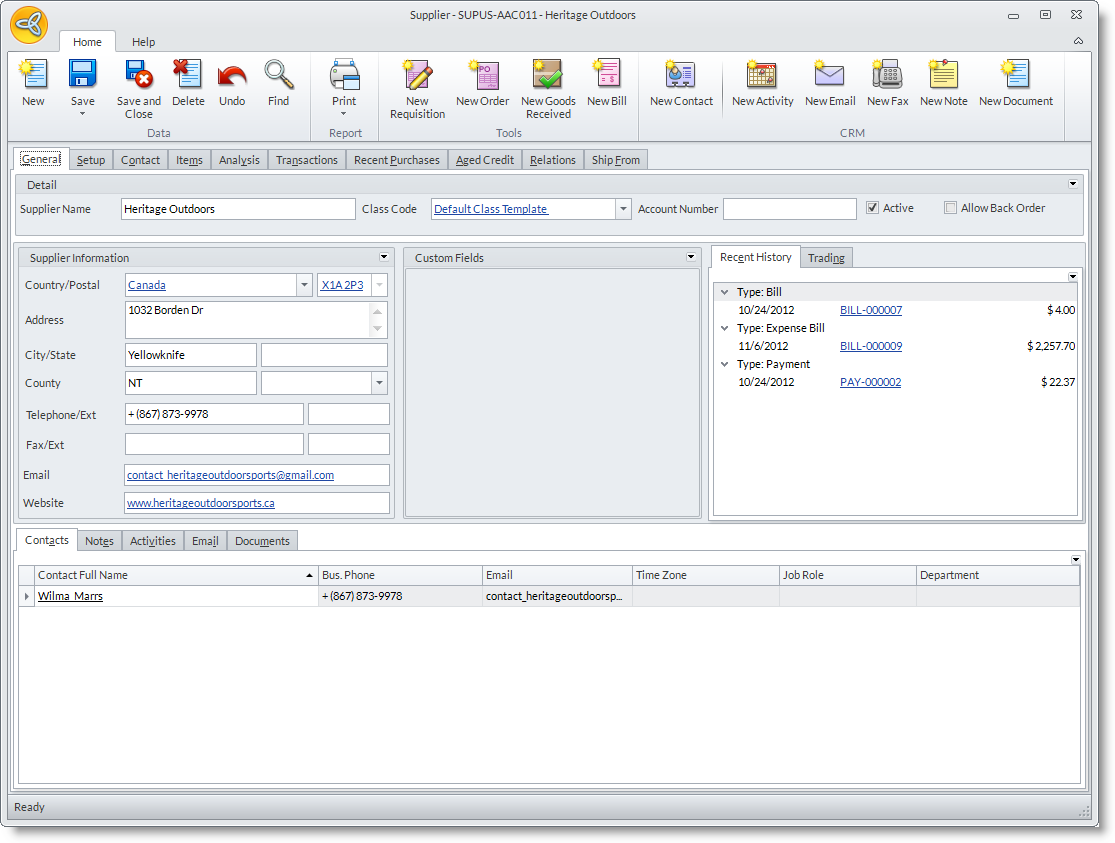
The Detail section shows the supplier name, your account number and the supplier status.
The fields in this section are as follows:
- The Supplier Name shows the legal name of the supplier. This is usually the supplier business name.
- The Class Code field shows the supplier class template used when the supplier information was set up.
- The Account Number field shows your account number in the supplier’s file (if provided in the setup).
- The Active checkbox indicates if the supplier is active. Unchecking this checkbox would place the supplier record in the Inactive Supplier list.
The Supplier Information section shows the address and primary contact information of the supplier.
The fields in this section are as follows:
- The Country field shows the Country where the supplier is located. The fields in the Address section may vary according to country.
- The Address field shows the street address of the supplier.
- The City/State/Postal Code field shows the city, state and postal code of the supplier.
- The Telephone/Ext field shows the primary business telephone number of the supplier.
- The Fax/Ext field shows the primary business fax number of the supplier.
- The Email field shows the primary email address and website address of the supplier.
- Click on the arrow button beside the Email field to display the Website field that shows the supplier's website url.
The Custom Field section is allotted for custom fields you may want to add to the Supplier detail form.
The Recent History tab will list all the recent transactions of the supplier grouped by transaction type. Drill down on the document code to view the record.
The Trading tab shows the latest figures from the supplier trading.

Maintain Setup Information
The Setup tab shows account-related and other setup information. Most of the fields here are already filled in with the values from the supplier class template set. You may further refine the account information for the supplier in this tab.
Here are the different fields of the Setup tab by section:
The Setup section shows the setup information you provided from the supplier setup. You may change the setup information in this section as needed.
- The Currency field shows the currency setup for the supplier. You may change the default currency setup.
- The Payment Term field shows the payment term setup for the supplier. You may change the default payment term setup for the supplier.
- The Tax Code field shows the default purchase tax setup for the supplier. You may select another tax scheme for the supplier.
- The Shipping Method field shows the default shipping method setup for the supplier. You may change the default shipping method setup for the supplier.
- The Warehouse field shows the default warehouse that the supplier usually ships his merchandise. Note that you can set up suppliers to ship across warehouses in the Supplier Preferences. The Credit Limit field shows the credit limit that the supplier allowed. The value in this field should be based on the supplier’s currency.
- The Source field shows the resource on how you have come to know of the supplier.
- The Payment Group shows the common payment type used in the supplier payment. You may change the default payment method setup for the supplier.
- The Bank Account Number, Bank Account Name, Bank Payment Reference are filled if there is a supplier factor setup in the Factor field.
- The Factor field shows the factor assigned to the supplier that processes the supplier’s remittances in behalf of the supplier. You may create new factors from the Factor option in the Setup menu of the Supplier module. The Default Contact Name field shows the default contact for the supplier.
- Click on the arrow button beside the Default Contact Name field to display the Accounts Contact Name field so you could assign a supplier contact as the accounts contact.
- The Sales Contact field shows the sales contact for the supplier. Click on the pulldown arrow button to select a supplier contact to assign as the supplier’s sales contact.
- The Landed Cost Percent field shows the percent of the cost that is set for landed costs.
- The 1099 Supplier checkbox indicates that the supplier is eligible for 1099.
Manage Supplier Contact Information
The Contacts tab displays a list of contacts to the supplier. The Contact tab is used to add, view and edit the details of a customer contact. The Contact Information tab shows that the general contact information.
- You may view details to the contact by clicking on the link of the contact name. This switches the General tab into the Contact tab that displays the contact details.
- You may add a new contact by clicking on the New Contact icon included in the row of menu options. This switches to the Contact tab of this form.
The fields in the Contact Information section are as follows:
|
Contact Information Section |
Description |
|
Contact Full Name |
Shows the of the customer contact name. Click the Contact Full Name button to separate the salutation and prefix from the name. |
|
Entity Code |
This field shows the entity (customer, supplier, sales rep etc) related to the contact. |
| Country | This field shows the country of the customer billing address. |
| Address | This field shows the address of the customer. |
| City/State/Postal Code | These fields show the city, state and postal code information. These fields may vary according to the selected country. |
| Bus. Telephone/Ext | This field show the contact’s business telephone number. |
| Bus. Fax/Ext | This field show the contact’s business fax number. |
| This field show the contact’s email address. | |
| Mobile /Ext | This field show the contact’s mobile number. |
| Pager / Ext | This field show the contact’s pager number. |
| TimeZone | This field displays the contact time zone. By default, this is set to the system time zone of the machine where the Customer customer was set up unless otherwise specified from the Customer customer creation. |
| Active Checkbox | This field is the Contact Type field that indicates if the customer is a customer contact, supplier contact, etc. |
The Additional Information tab provides space for more information about the contact.
|
Additional Information Section |
Description |
| Business Title | This field shows business title of the contact. |
| Job Role | This field shows the job role of the contact. |
| Department | This field shows the department where the contact belongs. The departments you see in the pulldown are the ones that you use in your company. |
| Home Phone / Ext | This field shows the alternate telephone numberof the customer. |
| Home Fax / Ext | This field shows an alternate fax number. |
| Assigned To | This field shows the user assigned to the contact; usually this is the user that creates the contact information. You may select another user in the field drop down to assign the contact to. |
| Manager | This field shows the contact’s superior or manager. You may assign an existing contact in the pulldown list as the contact manager. The contacts that you will see in the list are contacts related to the entity. |
| Asst Full Name | This field allows you to put in the assistant name of the assistant to the manager or the contact. |
| Asst Phone / Ext | This field allows you to put in the assistant's phone number. |
| Language Code | Defines the language used for the system. |
The Web Option Tab is intended for the online customers that trade with you through your eCommerce website. When the customer registers an account in your website, a customer record is created when this option enabled.
|
Web Option Section |
Description |
| Email Address | Specify the email address of the customer. |
| Password | Allows you to create a password for the specific customer contact. |
| Allow Web Access Checkbox | When clicked, indicates that the customer is or is not allowed access into your eCommerce store. |
| Web Store Tab | This tab lists all the active websites, the description of the site and the subscription expiration date. You may select one or more websites that a user can have access to. |
| Login History Tab | This tab contains the login history. |
| Purge Option |
There are two options to choose from:
|
Manage Emails, Notes, Documents
Manage Notes
The Notes tab displays a list of notes of the contact.
- You may create a new note by clicking on the New Note icon included in the row of CRM tool buttons. The Note form will appear and enter the needed details.
Manage Emails
The Email tab will list all email/fax messages sent.
- You may compose and sent email messages by clicking on the New > Mail Message option or clicking the New Email () icon included in the row of CRM tool buttons.
Manage Documents
The Documents tab displays a list of documents that pertains to the contact.
- You may add a new document by clicking on the Attach Document icon included in the row of CRM tool buttons.
Manage Supplier Products, Part Codes and Special Pricing
When you set up new items, you can easily set up the suppliers and purchase details for each. Concurrently, the product list for that supplier is updated in the Products tab of the Supplier detail form.
Shown in the Supplier Part Codes tab are the items that were set up for the supplier. From here, you can set up the supplier’s part code and description.
- Select the items in the Part Code column.
- In the Supplier Part Code column, enter the supplier part code.
- In the Supplier Description field, enter the supplier's description for the product.
Maintain Supplier Special / Promotional Pricing
In the Supplier Special / Promotional Pricing tab, you may set up special pricing of the supplier’s items. Verify the information with your supplier before setting up the supplier promotional pricing.
Setup Promotional Pricing for Supplier Products
- Select the unit measure(s) in the Unit Measure column.
- Indicate the purchase quantity in the Min Quantity and Max Quantity columns.
- Indicate the special price throughout the promotional pricing in the Supplier Cost Price column. This supplier cost price will replace the default cost setup for the supplier’s products.
Delete Expired Promotional Pricing
To delete expired promotional pricing,
- In the Supplier Special / Promotional Pricing tab, right click on the promotional pricing setup and select Delete or Delete All to delete all promotional pricing setup.
- Choose Yes in the prompt to delete.
View Supplier Transaction Analysis
- The Analysis tab shows the evaluation of monthly transactions of a selected supplier per year.
- The Monthly Trading tab shows a chart detailing the supplier’s monthly trading.
- The Turnover tab shows a chart and details of turnovers from the supplier transactions. You may modify the chart properties by right-clicking on the chart area for the options.
Manage Supplier Activities
The Activities tab displays an activity calendar that displays the activity set on the date and time.
- You may use the New Activity button or double-click on the date in the calendar and the Activity form will be displayed which you can use to add, schedule and change an activity on your calendar.
- You may also add new activities (schedule a call, meeting, to-do and other tasks) by clicking on their respective buttons included in the row of CRM tools.
Manage Supplier Posting Accounts
The GL Class section shows the default GL class set from the Class template and its details. The GL Class is a group of accounts to use when posting the transactions for this entity. By default, the GL Class template uses the same account as in the Default Accounts unless otherwise specified in the Supplier GL Class Templates. You can amend the account codes for each posting account as needed.
Get the System to Base the Account Analysis on the Customer Accounts
The Accounting Preferences allows you to specify where the account analysis will be based upon. You can specify to get the account analysis based on the customers through the Customer GL Class Templates. It is recommended to have your basis in the Accounting Preferences before you create your chart of accounts of before you create new transactions in Connected Business and that you select once to keep a consistent record in accounting.
Create Customer GL Class Templates
See Also: Customer GL Class Templates
Custom Printed Forms and Messages
The Custom Printed Forms and Messages section allows you to select custom forms and add custom messages to the forms you print for the supplier. When you make a custom report using the Report Wizard or Report Designer, you can assign it to a specific supplier so that when you print a report for that supplier, it will use the layout you made for the custom report.
Here are the descriptions of the columns:
- The Report Type Description column allows you to select the form type that will use the custom form report
- The Custom Form column allows you to the custom report to use in printing from the transaction form. You may create a new custom form using the Report Designer or the Report Wizard.
- The Custom Form Description shows additional information about the custom form.
- The Custom Message column allows you to enter custom messages to print along with the custom form report.
View Transaction History
The Transactions tab shows all the transactions made with the supplier.
All the tabs contain the View Option section which filters the records to be displayed.
- Open – shows all open items
- Closed - shows all closed items
- All – shows all items
- The Date field filters the date or date range of the records. Clicking the down arrow displays the Date form which contains various options in filtering the records.
- The More buttons refreshes the display and gathers more data.
Here are the different fields of the Transactions tab by section:
Requisitions / Purchase Order / Goods Received and Returns
The Requisitions, Purchase Order, Goods Received and Returns tabs show the requisitions, purchase orders, goods received and returns connected to the supplier. They have similar columns and here are their descriptions:
|
Requisitions, Purchase Order, Goods Received and Returns tabs |
Description |
| Document Code | displays the unique code generated for the document. Double-click this to bring up the form and view full details to the transaction. |
| Supplier Reference | displays the reference you put in the Reference # field, it will display as the main reference. However, if the record is related to another document e.g. the Goods Received is created from a Purchase Order; the Document Code of the related record is shown instead. |
| Reference | shows the reference you put in the Reference field if any. |
| Document Date | shows the date that the record was created. |
| Due Date | shows the overall due date of the transaction. |
| Currency Code | shows the currency of the supplier used in the transaction. |
| Total | displays the total amount of the transaction. Note that for requisitions, purchase orders, goods received and return transactions, this value does not include tax. |
| Base Currency | shows the total of the transaction based on your home currency. |
| Attachment | shows if there are file attachments to the document. If the Attachment button icon appears with an X mark, it means there are no attachments. Clicking on the Attachment button would bring up the Attach Document form allowing you to attach a file to the record. Note that you can also attach documents from the transaction form. If there are documents attached to the record the Attachment button icon appears without an X mark. |
Bills / Purchase Invoice / Ledger
The Bills, Purchase Invoice and Ledger tabs show bill and ledger details connected to the supplier. They have similar columns and here are their descriptions:
|
Bills, Purchase Invoice and Ledger tabs |
Description |
| Document Code | displays the unique code generated for the document. Double-click this to bring up the form and view full details to the transaction. |
| Type | describes the transaction type, if e.g. opening balance transaction, bill for expense etc. |
| Document Date | Reflects the dates that the record was created |
| Due Date | Reflects the overall due date of the transaction |
| References 1 | displays the reference you put in the Invoice field. |
| Reference 2 | displays the reference you put in the Reference field. However, if the record is related to another document e.g. the Bill/Invoice document is created from the Goods Received document, the Document Code of the related record is shown instead. |
| Total | shows the total amount of the transaction in the supplier’s currency. The total amount includes purchase taxes and other charges. |
| Base Total | shows the total amount based on your home currency. |
| Outstanding Amount | shows the remaining outstanding balance. Double click on the value inside this field to view the Document Allocation Reference window and review the allocations made to the transaction. |
| Base Outstanding Amount | the outstanding balance based on your home currency. |
| Discount Taken | shows the discount from early payment, if set in the settlement term. |
| Attachment | shows if there are file attachments to the document. If the Attachment button icon appears with an X mark, it means there are no attachments. Clicking on the Attachment button would bring up the Attach Document form allowing you to attach a file to the record. Note that you can also attach documents from the transaction form. If there are documents attached to the record the Attachment button icon appears without an X mark. |
| On Hold | shows if the transaction is currently on hold and any disputed matter may be looked into. Specify the reason in the Reason column so you or the user assigned can make corrective measures. |
| Date Paid | Shows the latest date that the document was paid. e.g. bill, debit/credit memo |
Debit Notes / Credit Notes / Payment / Refund and Void Payment
The Debit Notes, Credit Notes, Payments, Refunds and Void Payment tabs show debit notes, credit notes, payments, refunds and voided payments connected to the supplier. Both have similar columns and here are their descriptions:
|
Debit Notes, Credit Notes, Payments, Refunds and Void Payment tabs |
Description |
| Document Code | displays the unique code generated for the document. Double-click this to bring up the form and view full details to the transaction. |
| Type | describes the transaction type, if e.g. opening balance transaction, bill for expense etc. |
| Document Date | Reflects the dates that the record was created |
| Due Date | Reflects the overall due date of the transaction |
| References 1 | displays the reference you put in the Invoice field. |
| Reference 2 | displays the reference you put in the Reference field. However, if the record is related to another document e.g. the Bill/Invoice document is created from the Goods Received document, the Document Code of the related record is shown instead. |
| Total | shows the total amount of the transaction in the supplier’s currency. The total amount includes purchase taxes and other charges. |
| Base Total | shows the total amount based on your home currency. |
| Outstanding Amount | shows the remaining outstanding balance. Double click on the value inside this field to view the Document Allocation Reference window and review the allocations made to the transaction. |
| Base Outstanding Amount | the outstanding balance based on your home currency. |
| Discount Taken | shows the discount from early payment, if set in the settlement term. |
| Attachment | shows if there are file attachments to the document. If the Attachment button icon appears with an X mark, it means there are no attachments. Clicking on the Attachment button would bring up the Attach Document form allowing you to attach a file to the record. Note that you can also attach documents from the transaction form. If there are documents attached to the record the Attachment button icon appears without an X mark. |
| On Hold | shows if the transaction is currently on hold and any disputed matter may be looked into. Specify the reason in the Reason column so you or the user assigned can make corrective measures. |
| Date Paid | Shows the latest date that the document was paid. e.g. bill, debit/credit memo |
View Recent Purchases
The Recent Purchases tab shows your purchase history concerning the supplier. It shows the purchase orders for the supplier and its details. The records can be filtered according to its status (Open, Closed or All).
Review Debts and Payments to Suppliers
The Aged Credit tab shows the supplier’s aged credit and other credit information such as highest balances and NSF Checks.
Here are the fields of the Aged Credit tab:
|
Aged Debt tab |
Description |
| AR Contact | shows the default AR Contact of the supplier. This is usually the default contact of the supplier unless otherwise specified in the Setup tab of the Supplier detail form. Next to the AR Contact field is the supplier contact’s Business Telephone Number. |
| Credit Limit | shows the credit limit allowed by the supplier |
| Available Credit | shows your remaining credit from the supplier. |
| Last Payable Code | shows the last payable transaction made by the supplier. |
| Last Payment Amount | shows the amount of the last payment to the supplier. The Last Payment Date field shows the last date that a payment was made to the supplier. |
| Last Check Number | shows the check number of the last payment made to the supplier. |
| Highest Bill | shows the highest bill made the supplier. The Highest Bill Date shows the date that the highest bill/invoice was created. |
| Oldest Open Bill | shows the largest open bill by the supplier. The Oldest Open Bill Amount field shows the amount of the oldest open bill/invoice. |
| Days Past Due Date | shows the number of days past due the oldest open bill/invoice. The graph at the right displays an analysis of the aging of the supplier transactions. |
| Outstanding Transaction section | displays the transactions made with the supplier with outstanding balances. You can filter the records according to currency, date and bracket using the fields in the upper right area of the section. You may modify the chart appearance by right-clicking on the chart area for the options. |
Manage Supplier Relations
The Relations tab shows all the supplier’s relations. By default, all the supplier’s contacts are added to the relations. You may add and create a hierarchy of supplier relations (parent, sibling and child) and define the relationship type for each. To do this,
- Right-click on an item in the list to view the options. Here are the descriptions of the right-click options:
- The Add Parent option allows you to enter a relation with other entities related to them. When you use this option, a child entry is created under the entity. An example is adding a new contact in the list of the supplier contacts.
- The Add Sibling option allows you to enter a relation that is the same level as the parent or entity. When you use this option, a relation is created in the same level as the entity. An example is another supplier in your record that is set as the head office of the supplier in your record that trades with your customer.
- The Add Child option allows you to enter a relation under a selected entry. Accordingly, the parent is the supplier and the child relations are the contact that’s why a default relation is created for the supplier with the contacts as child entries.
- The Delete option allows you to remove a relation, select the entity in the list, right-click it and select Delete.
- The Expand Node option allows you to display the child level relations under the parent levels. TheExpand All option allows you to hide all child levels under all parent level relations.
- The Collapse Node option allows you to hide the child level relations under the parent level. The Collapse All option allows you to show all child levels from all parent level relations.
- After selecting an option, select the Relationship Type of the entity to the supplier.
See Also:
Set Up Suppliers | Set Up Supplier List | Set Up Supplier Outstanding Balances