
Upload Electronic Download Items Using FTP Upload Option
| Content |
|---|
This article will demonstrate how to upload electronic download items via the FTP Upload option in Connected Business eCommerce.
Upload Electronic Download Files
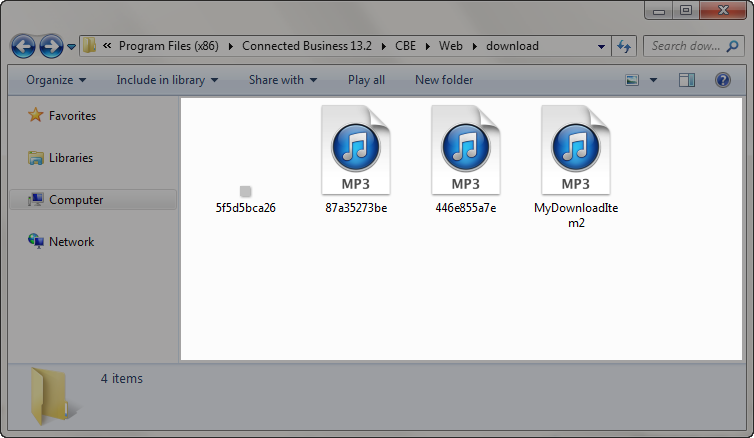
To upload electronic download files to be mapped to the item, manually copy the file to the Download directory of the web folder.
Click Image to Enlarge

View Unmapped Electronic Download Items
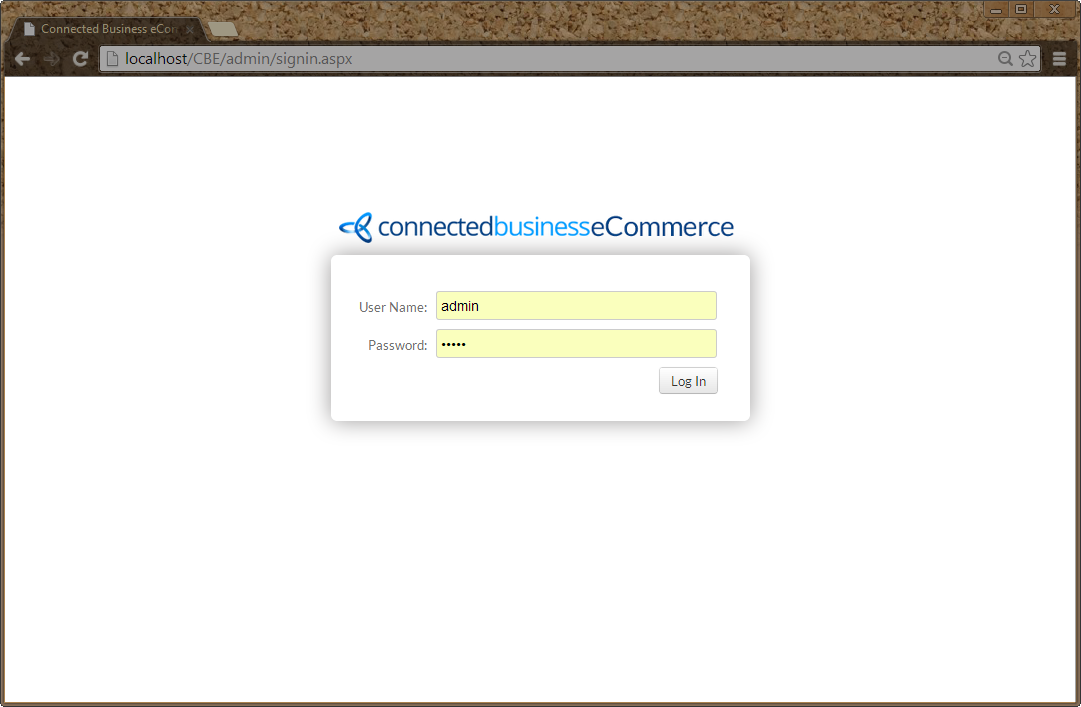
- Login to the webstore admin site. By default, the username is admin and password is ADMIN.
Click Image to Enlarge
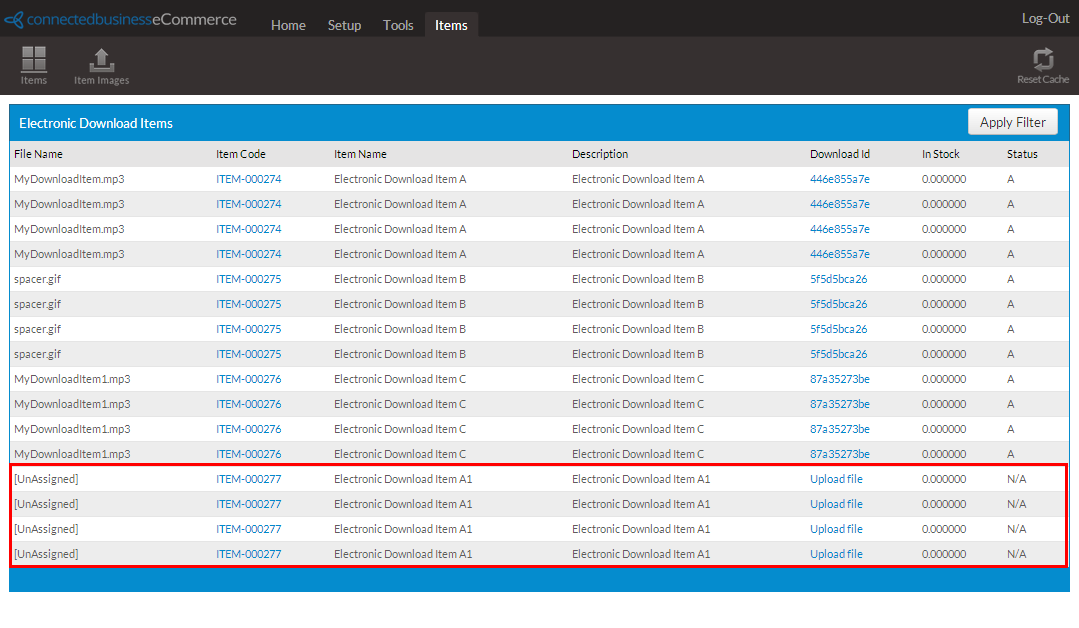
- View unassigned or unmapped electronic download items. Go to Items > Items and the list of mapped as well as unassigned electronic download items will be displayed. By default , the status of unassigned electronic download item is set to N/A (Not Active).
Click Image to Enlarge
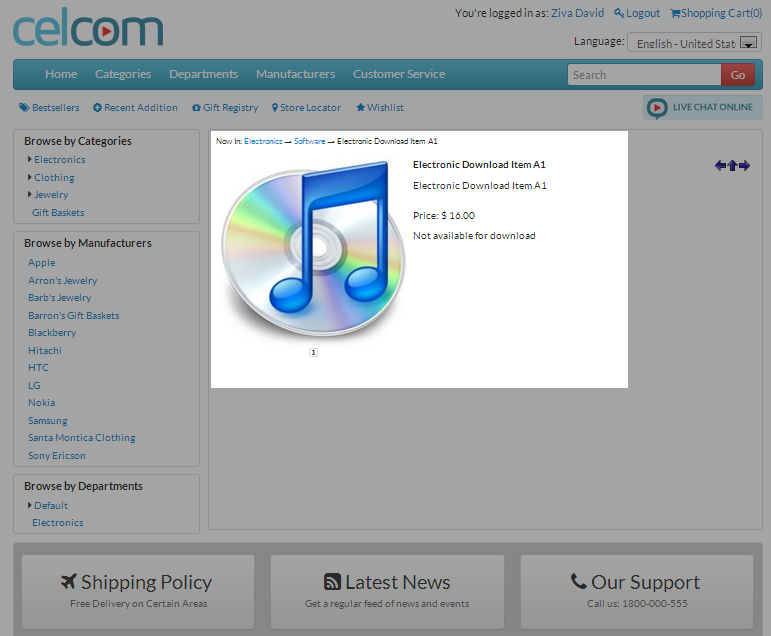
Unmapped electronic download items will be displayed as not available for download in the webstore.
Click Image to Enlarge
Map Electronic Download Items
For the electronic download items to be downloadable, it needs to be mapped to the files in the Download directory of the web folder. To do this,
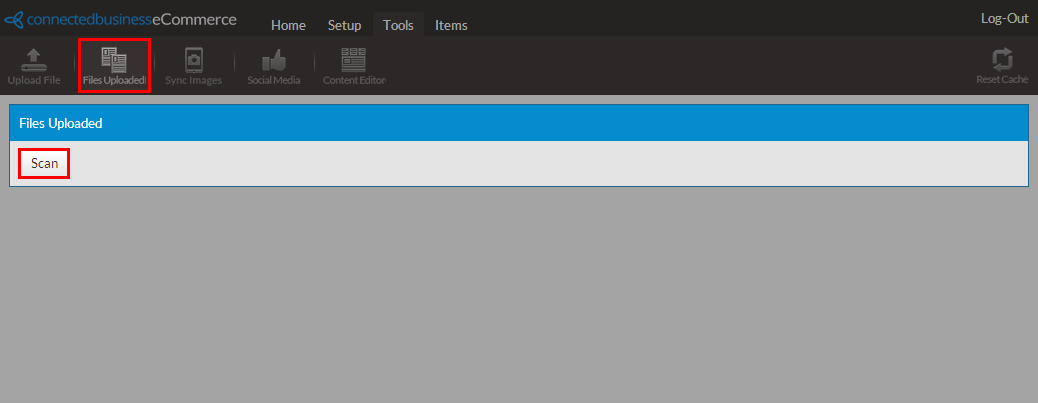
- Go to Tools > Files Uploaded and click Scan.
Click Image to Enlarge
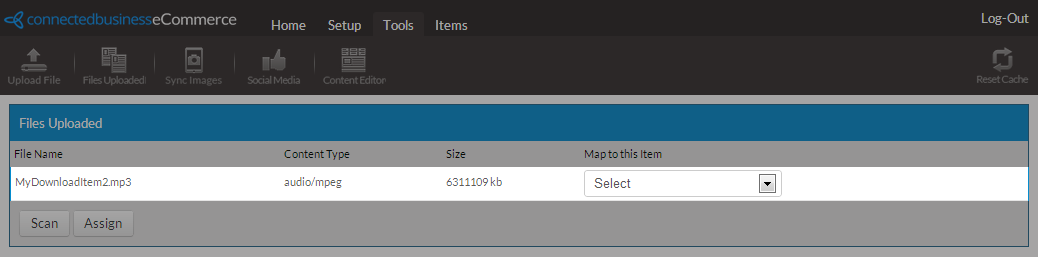
The list of uploaded electronic download files will be displayed.
Click Image to Enlarge
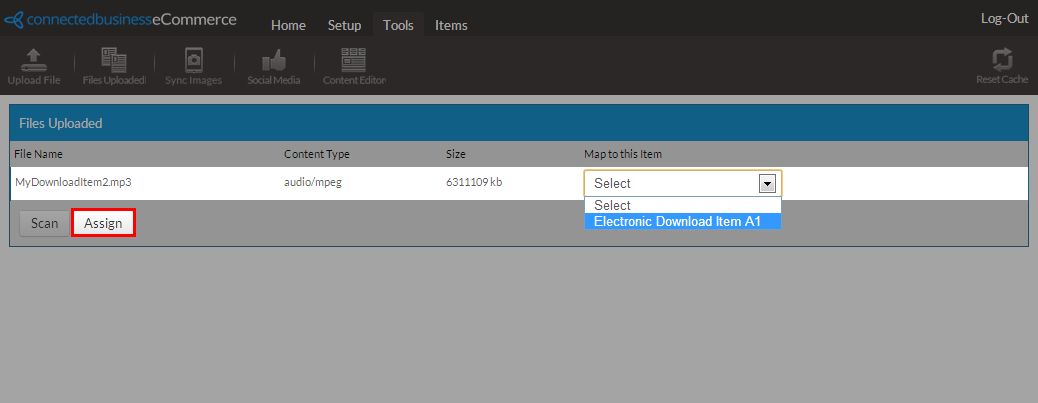
- From the Map To This Item column, select the electronic download item to be mapped to the file and click Assign.
Click Image to Enlarge
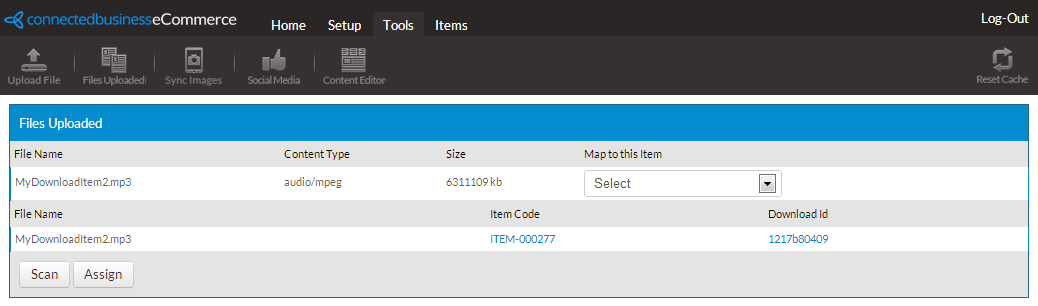
- Once mapped, a download id will be generated and the status of the electronic download item will be set to A (Active).
Click Image to Enlarge
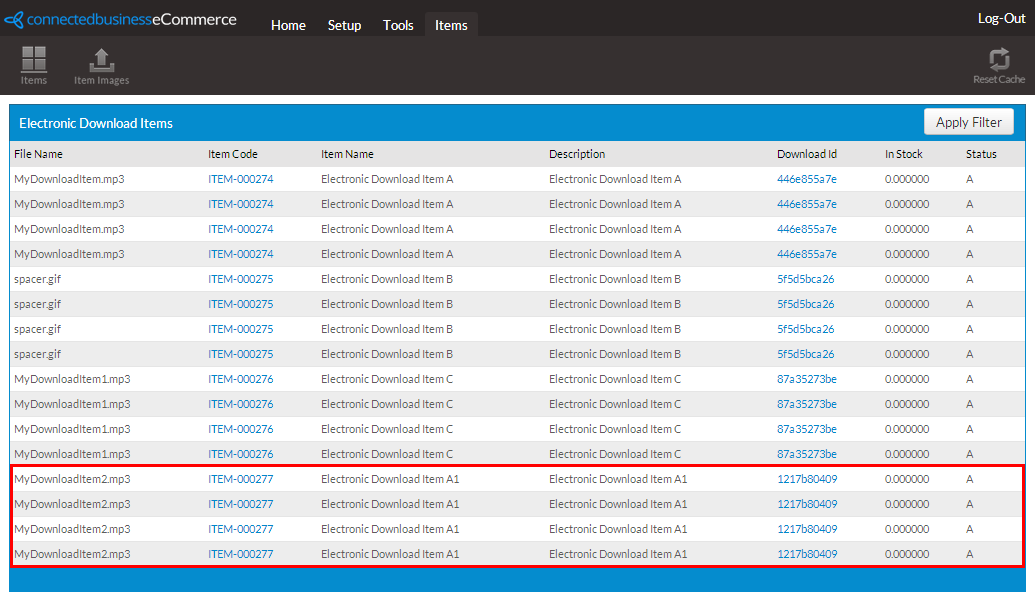
Click Image to Enlarge
In the webstore, the item can now be added to the shopping cart.
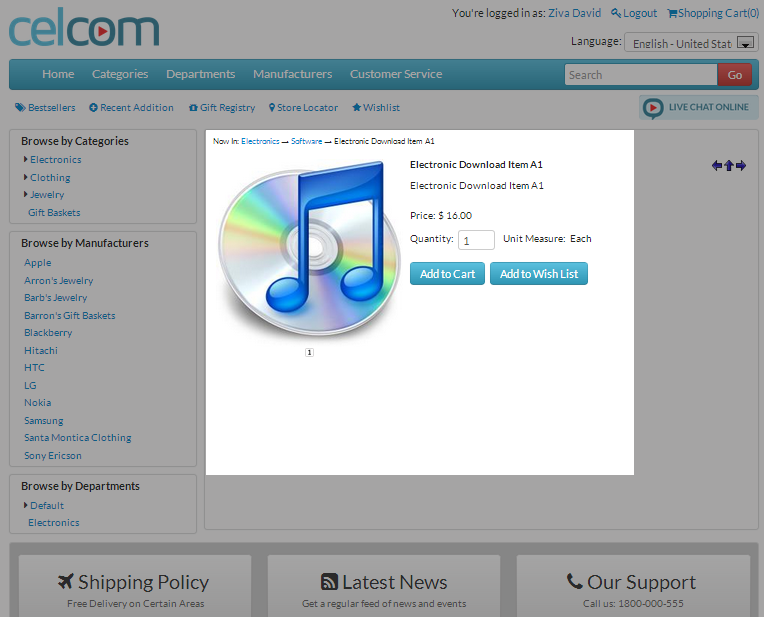
Click Image to Enlarge
Download Electronic Download Item

Electronic download items can only be purchased and processed with credit card payments.
Upon completing the order online, an email will be sent to the customer's email on file containing the SO#.
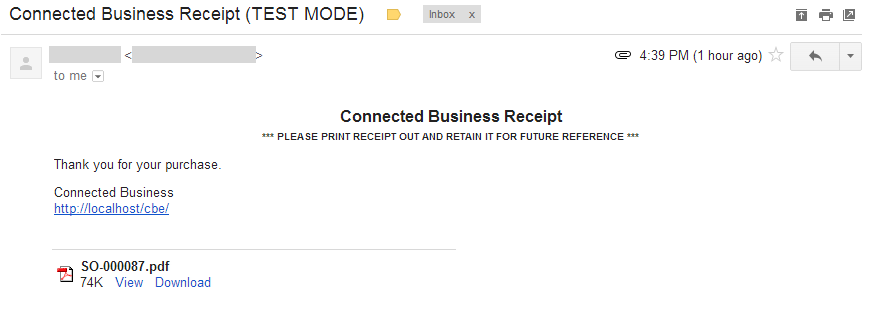
Click Image to Enlarge
Once the payment is captured in the Connected Business backend, an email will be sent to the customer containing the download instructions.
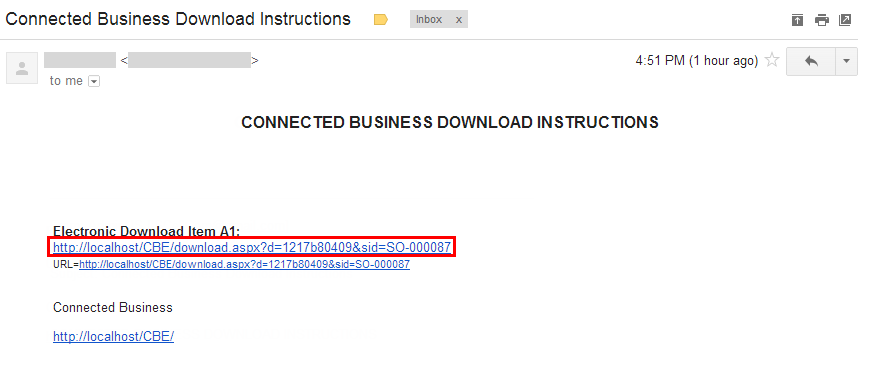
Click Image to Enlarge
In the email, click on the download link and you will be directed to the download site. Enter the CAPTCHA security code to download the item.
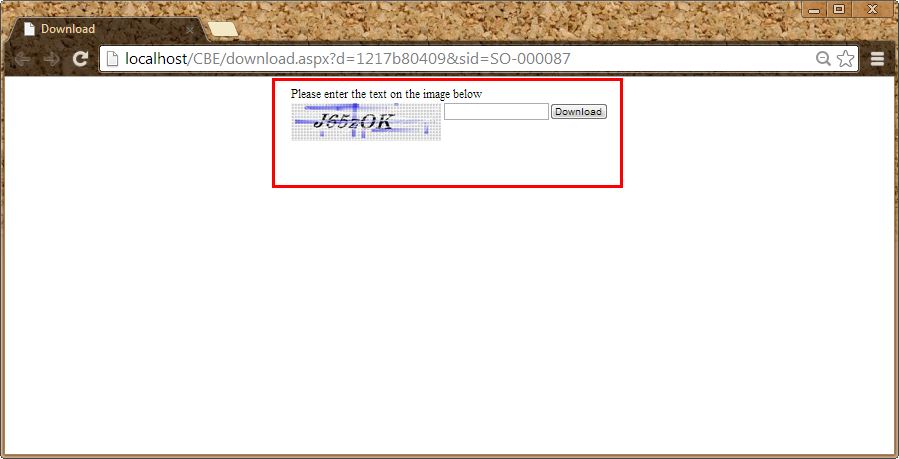
Click Image to Enlarge