
Upload Electronic Download Items Using Upload File Option
You can upload items via the Admin Site through the Upload File Option from the menu.

To read more on how to access the Admin Site and the Electronic Downloads, please refer to the View Electronic Downloads online documentation.
- To upload files via this function, go to the Tools tab of the Admin Site.
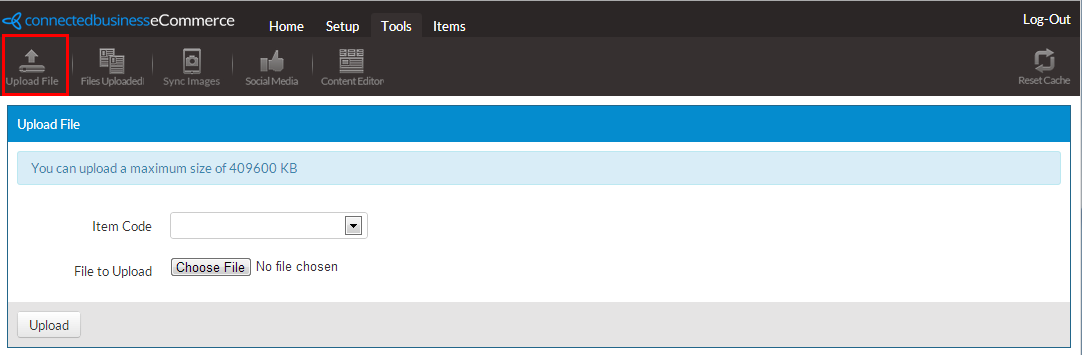
Click the Choose File button to display the file explorer that lets you look for the file you want to set as an electronic download.
- From the menu bar, select Upload File to display the Upload File function.
- Once you have selected an item to be set as an electronic download, click the Upload button to finish the process.