
Confirm Payment With Customer Signature
Connected Sale Mobile now gives you the ability to capture customer’s signature via the Secondary Display. This feature allows customers to enter their signature directly from the POS’ mirror display when completing transactions.

This feature is only available in Connected Business v14 and higher.
Set Permission to Require Signature
Customer’s signature is required mainly for account verification when using check, credit card or open account as their payment method.
To set permissions to require customer’s signature:
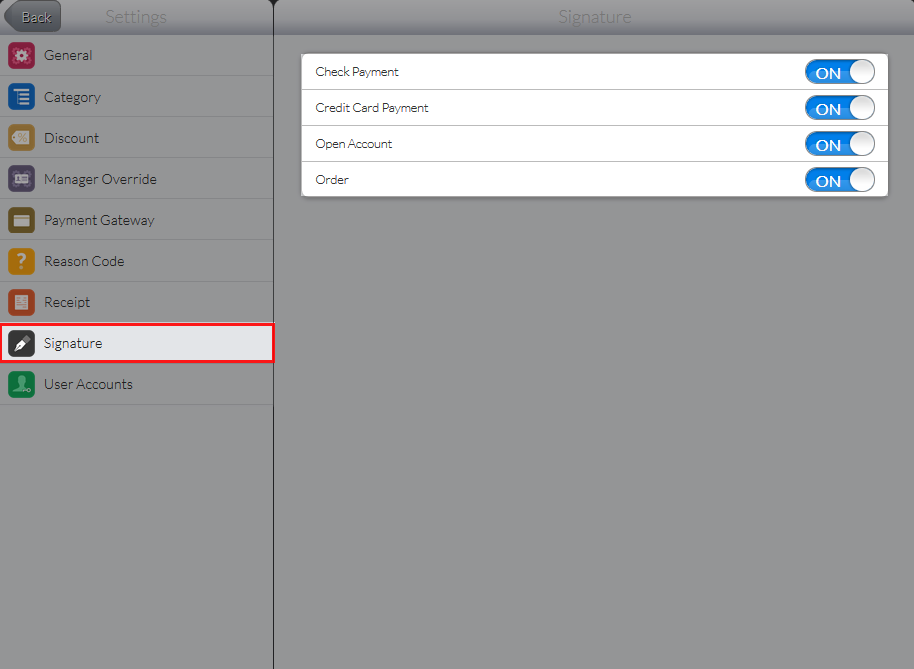
- From the Connected Sale main menu, go to Settings > Signature.
Permission for requiring customer signature can only be set by POS users with Admin roles.
- Select the payment options that you want to require a customer’s signature by tapping the ON slider.
Click Image to Enlarge

This will now require customers to affix their signatures to complete the transactions using the selected payment options. Refer to Manage Payments for details on payment options in POS.

Capture Customer Signature
To use the POS Secondary Display for capturing customer’s signature:
Users can use the POS primary workstation as well, if the secondary display is not available.
- Create a sales/order transaction from the Mobile POS and select the payment method (e.g. Check).
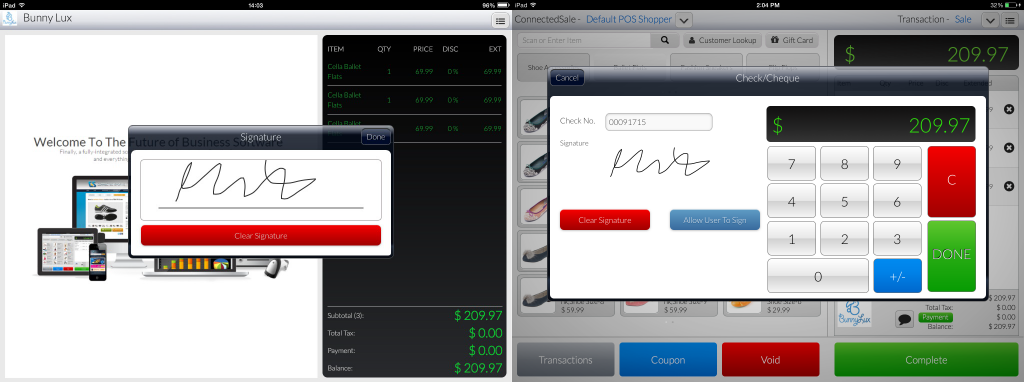
- After entering the check number, tap the Allow User to Sign Button to show the Signature Field from the secondary display.

Click Image to Enlarge
- Advise the customer to sign, then tap the Done button. The signature will now reflect on the primary POS workstation for the completion of transaction.
Click Image to Enlarge


You can also apply the same procedure for Credit Card and Open Account payment methods.

Click Image to Enlarge

Click Image to Enlarge
To configure and use another iPad for your Secondary Display, refer to Enable Secondary Display.