
Manage Payments
|
Content
|
|---|
This section will discuss on how to create payments in Connected Sale that is either made through cash, check or even credit card. With Connected Sale, this lets you easily apply customer payments or even create refunds to your customers.
Creating Payments
There are three ways to enter a payment transaction through Connected Sale iPad App:
CASH PAYMENT
In this process, you will be using Cash as payment on Connected Sale.
- Create a regular Sale transaction. See: Creating Sale or Invoice Transaction
- Tap on Complete button and then tap the Cash button from the payment options window.
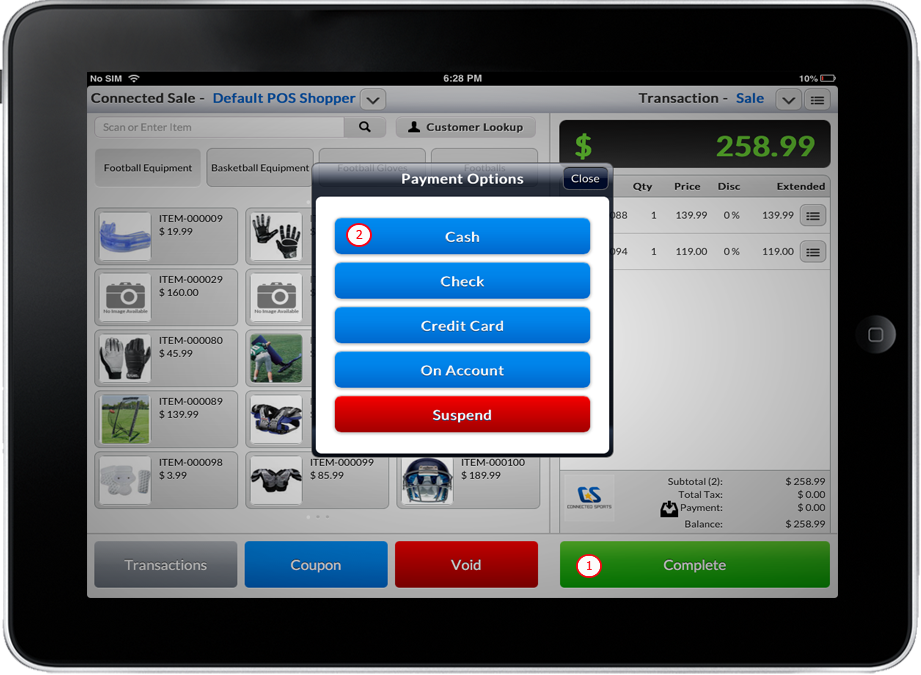
Click Image to Enlarge
- Input the amount on the numeric keypad.
- Tap the DONE button.

CHECK PAYMENT
In this process, you will be using Check as payment on Connected Sale.
- Create a regular Sale transaction. See: Creating Sale or Invoice Transaction
- Tap on Complete button and then tap the Check button from the payment options window.
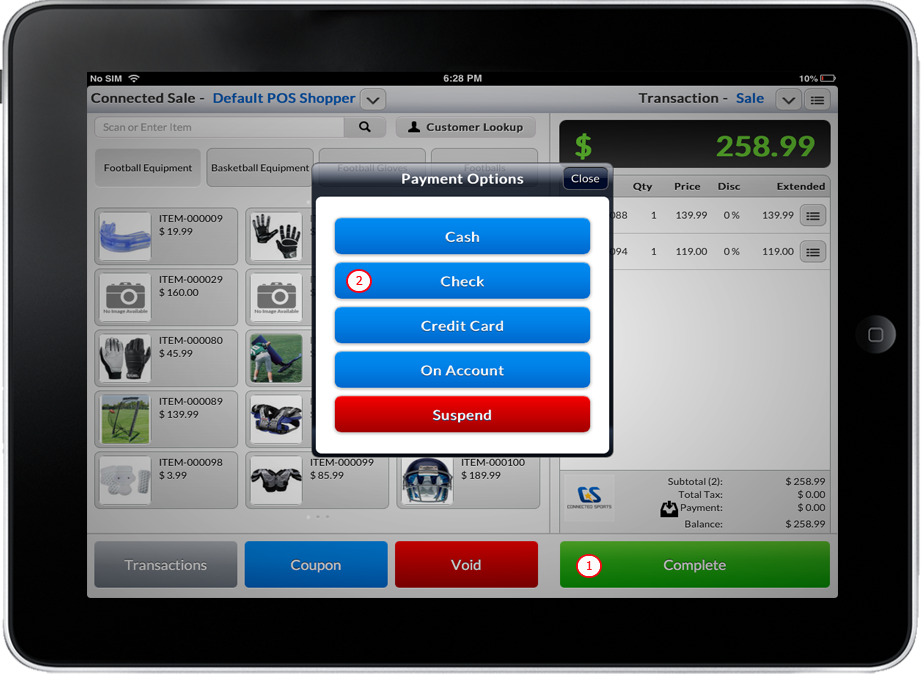
Click Image to Enlarge
- Input the Check No.
- Input the amount.
- Draw signature on the signature box then tap the Save button.

If the signature is not correct just tap Clear Signature button then draw signature on the box then tap the Done button.
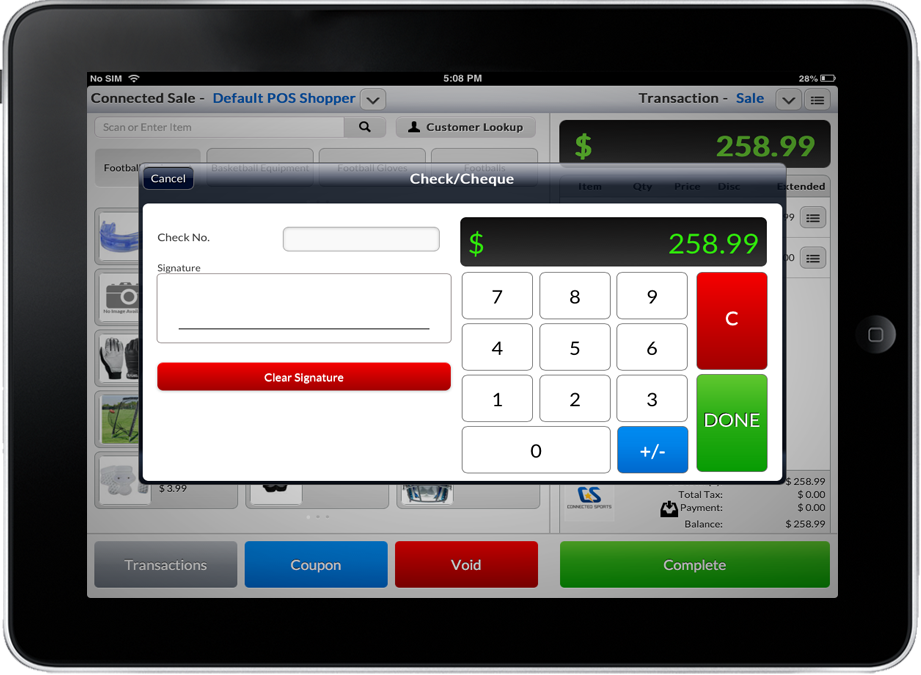
Click Image to Enlarge
CREDIT CARD PAYMENT
In this process, you will be using Credit Card as payment on Connected Sale.
- Create a regular Sale transaction. See: Creating Sale or Invoice Transaction.
- Tap on Complete button and then tap the Credit Card button from the payment options window.
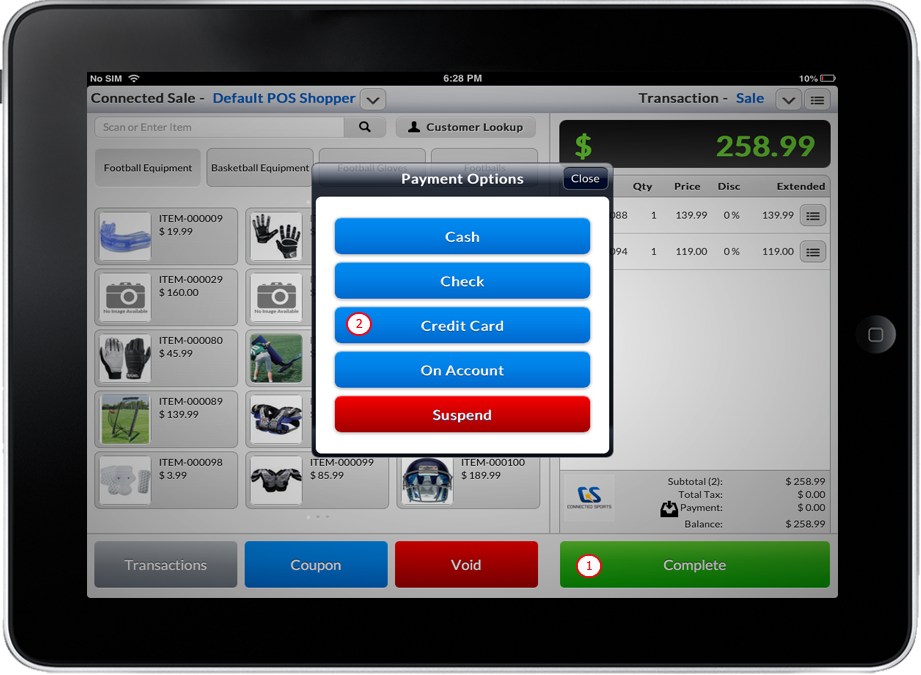
Click Image to Enlarge
- There are three ways to populate the fields present in Credit Card Payment.
- Draw signature on the Signature Box then tap the “DONE” button.
Click Image to Enlarge
If the signature is not correct just tap “Clear Signature” button then draw signature on the box then tap the DONE button.
The table below shows the instructions on how to create payments with different type of credit card payments:
| Credit Card Payment | Process |
|
Manual Entry of Credit Card Information |
|
|
Swipe a Credit Card |
|
|
Voice Authorization |
|
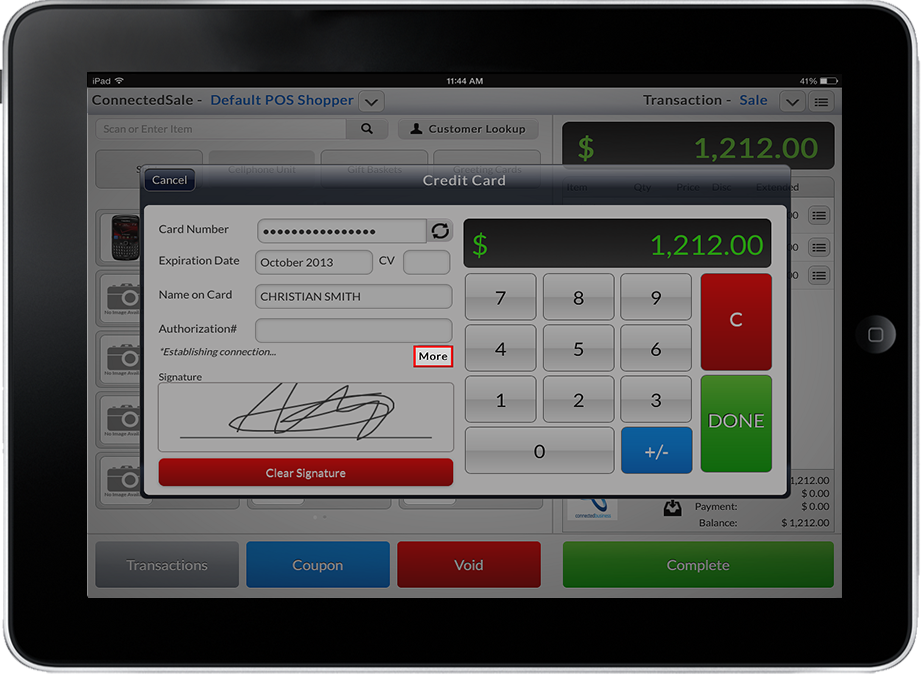
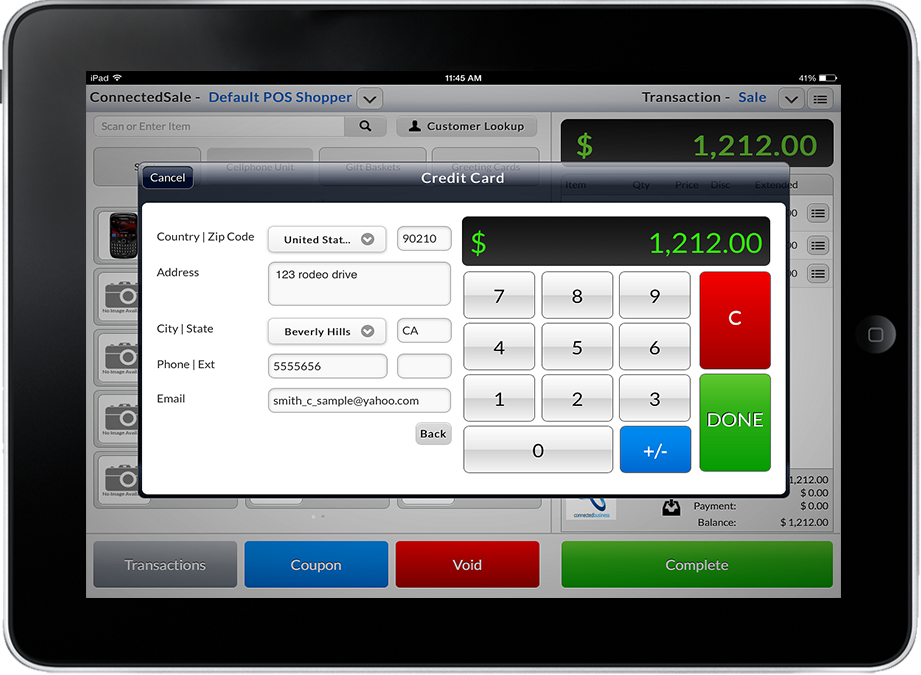
Additional credit card fields have been added in Connected Sale Mobile to accommodate secondary details such as address, telephone number and email address when manually creating order/sales transactions using credit cards. Moreover, these fields are essential as some credit card gateways are requiring these information to authorize the transaction.
To access the additional fields:
- Create a sale/order transaction using Credit Card as your payment option, and fill out the necessary credit card information.
- From the Credit Card form, click the More button to display the Additional Credit Card Information Fields.
Click Image to Enlarge
- Fill out the necessary credit card details for further transaction reference.
Click Image to Enlarge
- Click Done to complete the transaction.


Apply Payment to Sale
To apply a payment to invoice, make sure to select a posted sales invoice.
-
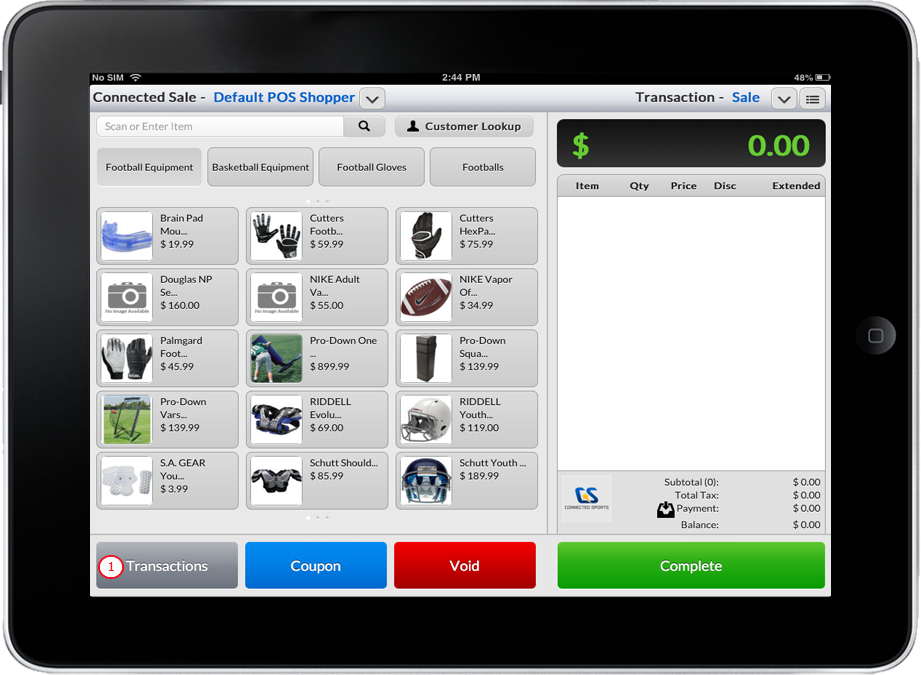
Tap on Transactions button. A pop up form will be displayed on the screen for reviewing the transaction.
Click Image to Enlarge
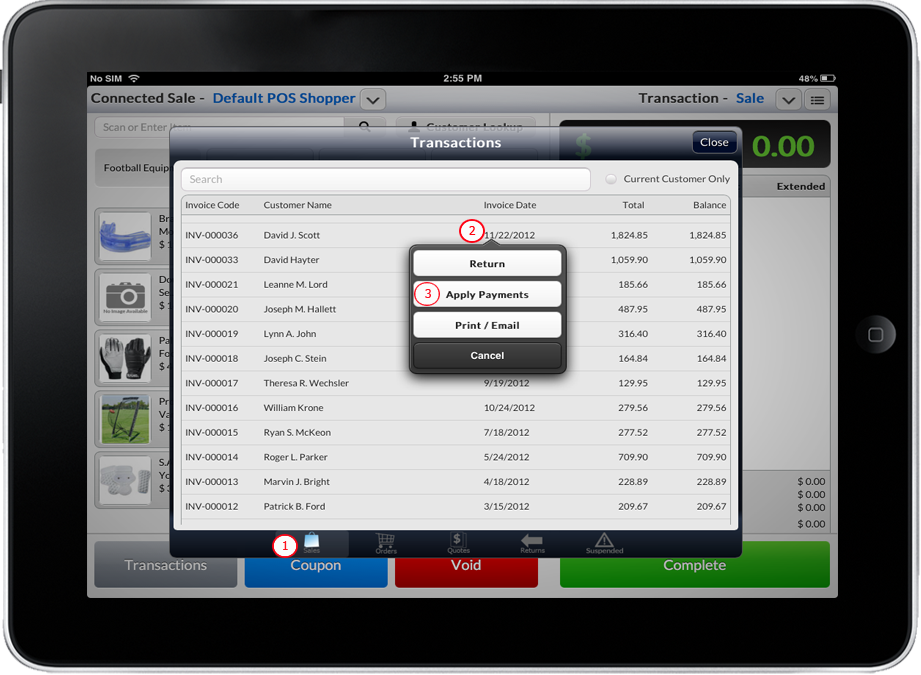
- Select Sales button located at the bottom of the form. List of sales invoice will be displayed.
- Select an invoice from the list with an outstanding balance or key in the search textbox field the order detail to be searched and tap a specific item.
- Select and Tap Apply Payments.
Click Image to Enlarge
If there is a balance in the particular invoice, it will be loaded in Connected Sale, otherwise a message box will be displayed informing you that the invoice is already paid in full.
- You may now apply the payment in cash, check or credit card. Refer to: Creating Payment.
Payment on Account
- Create a regular Sale transaction. See: Creating Sale or Invoice Transaction
- Tap on Complete button and then tap the On Account button from the payment options window.
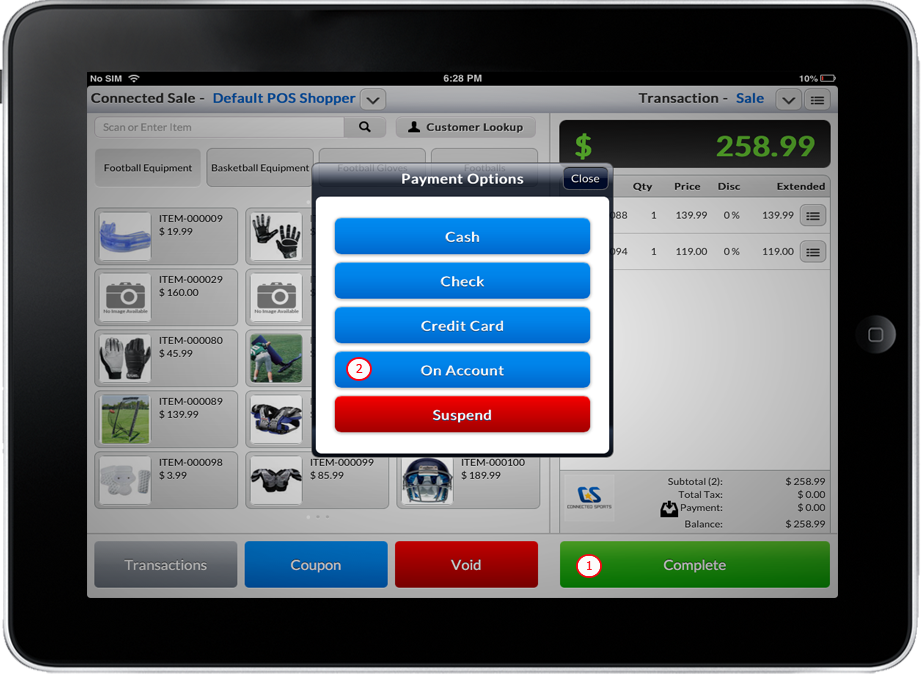
Click Image to Enlarge