
Enable Secondary Display
Secondary Display in Connected Sale is basically a mirror image of the POS workstation when connected to the same web service using another Apple iPad device. When enabled, all transaction activities made from the main POS workstation will be integrated and shown on the connected Secondary Display.
However, keep in mind that the Secondary Display will only show the cart/tape section of the POS, while the main section of the POS display is for the web store’s flash ads and other preferred image sets that will be assigned by the POS user. It is only intended for monitoring transactions coming from the primary workstation, thus cannot be utilized for applying changes to any seen transaction.
To enable the Secondary Display:
- Install Connected Sale to the iPad that will be used as secondary display. Refer to Install Connected Sale App for iPad.

Please note that currently, Connected Sale Mobile app is available for iPad only, and can be installed via the AppStore.
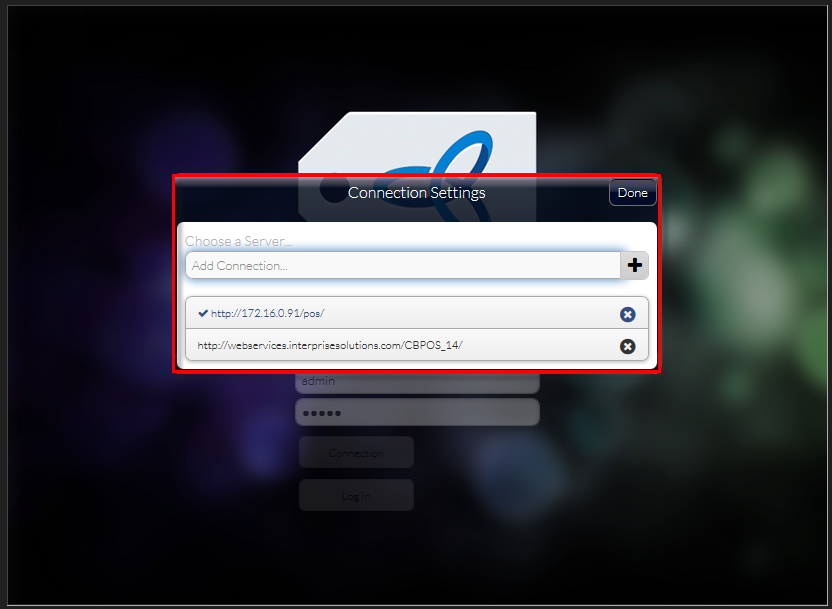
- Configure the POS connection. Make sure that the secondary device is using the same web service address as the primary POS device.
Click Image to Enlarge
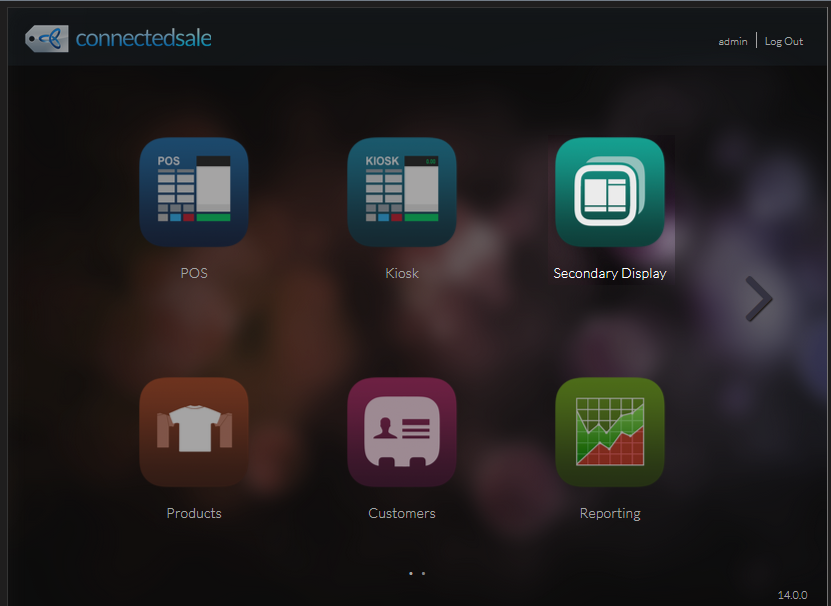
- Once logged in, tap the Secondary Display icon from the main menu.
Click Image to Enlarge
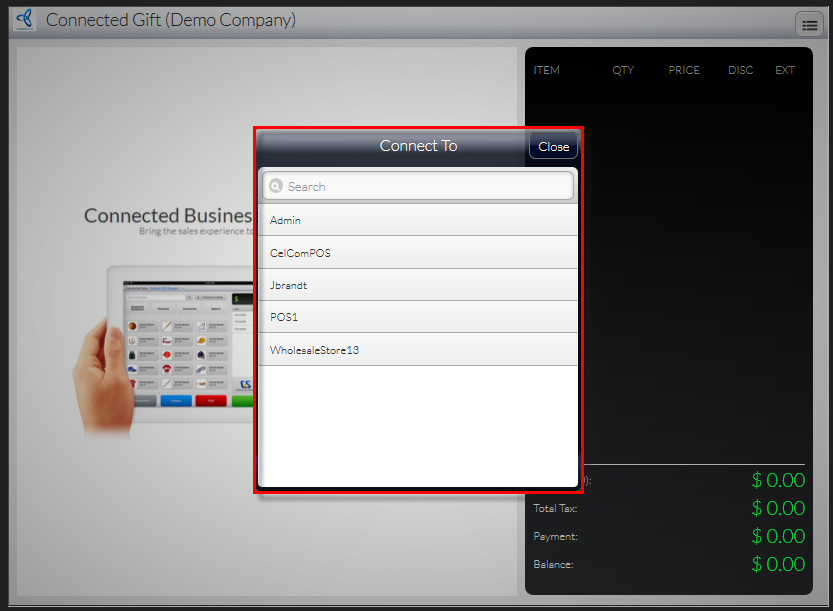
- From the Connect To list, select the Primary POS’ workstation ID that you want to connect to.
Click Image to Enlarge
- The POS will launch the Secondary Display. All transaction-related activities from the primary POS, including applying discounts, voiding transaction, adding quantity, will be integrated and shown on the second POS display.


To compare, the image on the left shows the main POS , while the image on the right is the Secondary Display, mirroring the actions made from the main POS.

Click Image to Enlarge
The Secondary Display feature can only be configured and enabled directly from the device that will be used as the secondary display for the main POS.