
Woohaa! Supplier Enrollment
For you to use the full functionality of Woohaa!, you need to enroll and be approved as a Woohaa Supplier. Once approved, you can upload products directly through the Woohaa! Network and expand your network throughout all Woohaa! retailers.

All applications for enrollment are sent to the Woohaa admin for review and approval.
Before you can enroll to the Woohaa! Network, you need to have the following applications set up first:
- Connected Business Application
- Woohaa! Service URL
This is optional; however, this is useful if you want to automate the processing of Woohaa transactions. See Woohaa! Service URL.
Enroll for a Woohaa! Supplier Account
The steps below demonstrates how to enroll for a Woohaa! Supplier account.
- Open the Connected Business application. Go to System module ►Woohaa! Enrollment menu. The Woohaa! Enrollment Wizard will be displayed. Alternately, you can also go to www.woohaa.com to enroll.
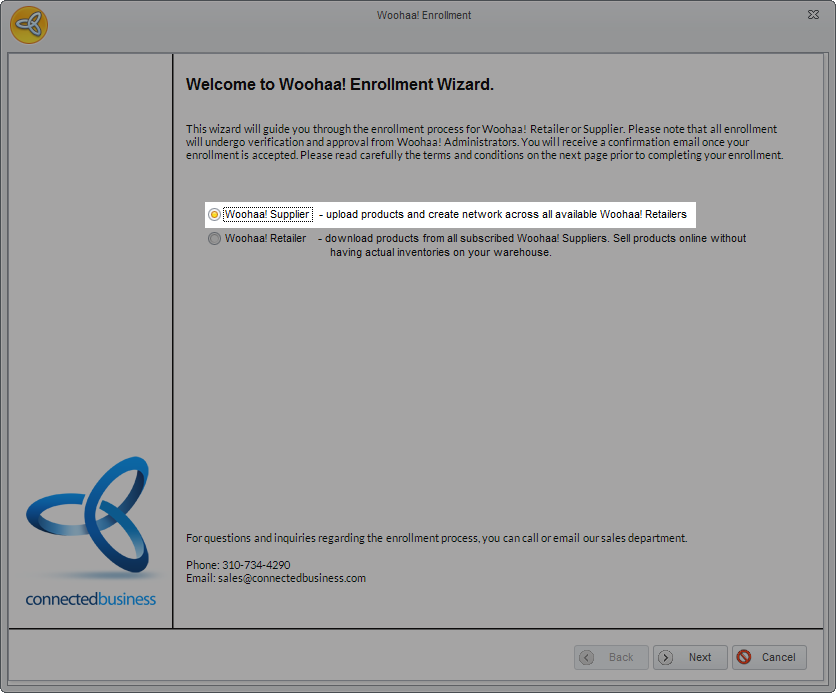
- Select Woohaa!Supplier for the enrollment account type and click Next to proceed.
Click Image to Enlarge
- In the Terms and Conditions page, read carefully the terms and conditions for the enrollment. If you agree and accept the terms, tick the checkbox right next to the “I accept the Terms in the License Agreement” and click Next to proceed.
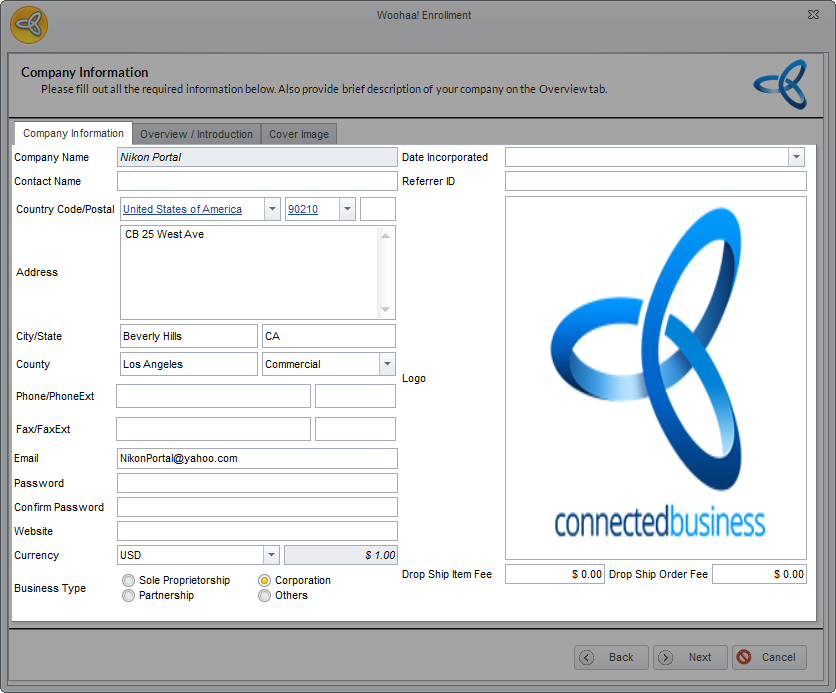
- In the Company Informationpage, enter all the details required for the enrollment.The following are the tabs found in the Company Information page and its corresponding functions.
- Company Information - This is where you enter all company-related information such as the company name, address, etc.
Click Image to Enlarge
The following table shows the fields found in the Company information tab.
Field Description Company Name The name of the company to be enrolled in Woohaa!. Contact Name The person that represents the company in the Woohaa! network. Country / Postal The country and postal code of the company. Address The exact location, street, block, etc. where the company can be found. City / State The city and state where the company is located. County / Address Type The country and address type (residential or commercial) of the company. Phone / Phone Ext. The company’s telephone and extension number (if any). Fax / Fax Ext. The company’s fax and extension number (if any). Email The email address where the Woohaa enrollment confirmation and approval will be sent .This is a required field. This will also serve your access for logging in to Woohaa! Web Console (Merchant Page) Password The password used in accessing your Woohaa account online.. Confirm Password Website The official website of the company enrolled in Woohaa. Currency / Exchange Rate The default currency of the company and the current exchange rate for the selected currency. Business Type The company ownership type. Date Incorporated The date your company was established. Referrer ID Also known as Private Network ID. A Private Network is a network created to isolate retailers from suppliers in the Woohaa public network. This type of network is useful for suppliers who want to retain their existing retailers. The PN ID is given by suppliers to selected retailers they want to include in their private network. Suppliers can make a request to set up a private network and retailers can opt to join a private network. The referrer ID can be an ID or a complete URL provided by the sales team or the supplier. The system will automatically parse the ID. To set up a private network, refer to Woohaa! Private Network. Company Logo Select an image or logo to represent your company in the Woohaa! Network. Double-click on the image preview field to upload your company logo. Once uploaded, your company logo will be visible in your supplier profile. Drop Ship Order Fee The amount charged to the retailer for all drop ship order transactions. Drop Ship Item Fee The amount charged to all drop shipped items.
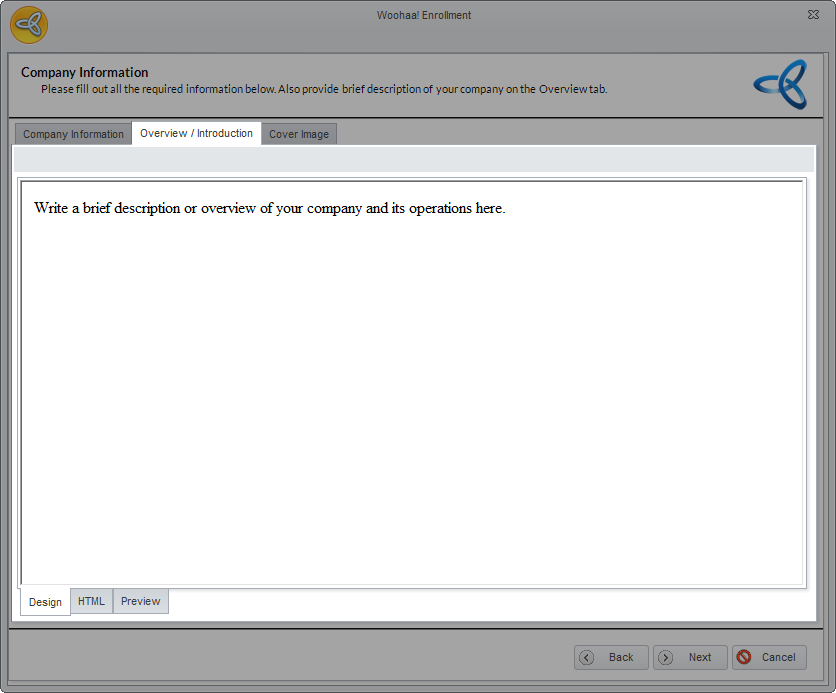
- Overview / Introduction - This is where you can write a brief description of your company. Your company overview or description will be visible to all retailers once your cover image is published.
Click Image to Enlarge
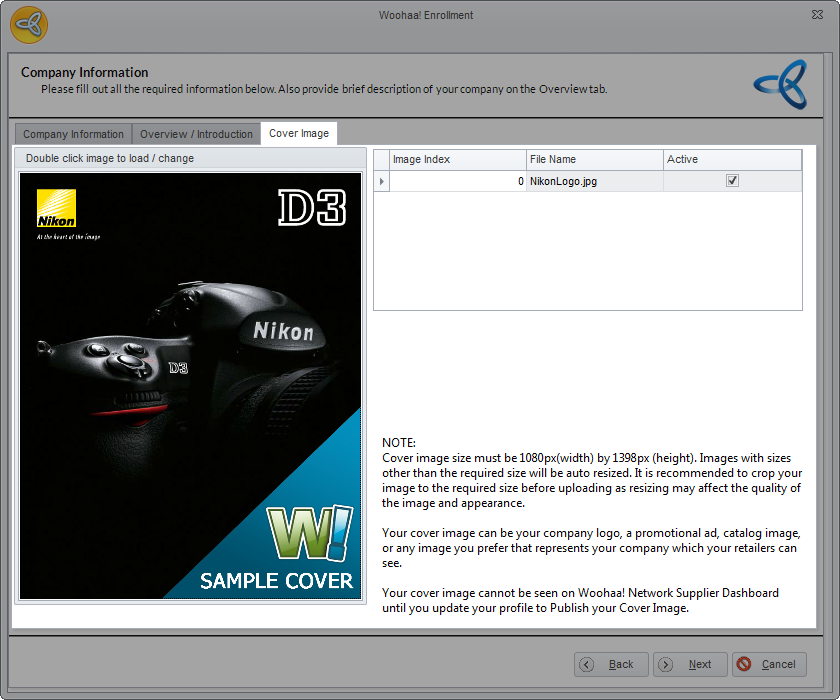
- Cover Image - This is where you can set your supplier cover image. To add an image, just double-click on the image preview field or right-click on the field then select Load.Your cover image can be your company logo, a promotional ad, catalog image or any image that represents your company. The cover image must be 1080px (w) by 1398px(h). Images with sizes other than the required size will be auto resized. it is recommended to crop your image according to the required size prior to uploading as resizing may affect the quality and appearance of the image.
Your cover image will not be visible inthe Woohaa! Supplier Dashboard unless the option to publish your cover image is enabled in your supplier profile. See Supplier Profile.
Click Image to Enlarge
- Company Information - This is where you enter all company-related information such as the company name, address, etc.
- After entering all the details for enrollment, click Next and Finish to close the enrollment wizard. A prompt message will be displayed confirming that your enrollment is successfully submitted for review and approval.
- Once reviewed, you will receive an email confirming the status of your enrollment.