
Woohaa! Product Download
This article talks about downloading items from newly-approved supplier subscriptions in the Woohaa! network.
Downloading items from the Woohaa! Network allows you to expand your inventory and increase your sales by selling products online even without having the actual item in your warehouse. This gives you the opportunity to sell a wide array of products from all suppliers in the Woohaa! Network without the need of storing the items physically.
Before you can download items from the Woohaa! network, you must have the following set up and configured:
- Download options must be configured correctly. See Download Preferences

If Include Product Image is enabled, makes sure that the UseImageResize appconfig in Connected Business is set to TRUE. You can go to eCommerce module ► Setup ► Application Configuration and search for UseImageResize appconfig.
- Unit measures for items to be downloaded must be mapped. See Woohaa! Mapping
Download Items from Woohaa!
To download items from the Woohaa! network,
- Go to Woohaa! module ► My Suppliers ► Download Supplier Catalog. The Woohaa! Download Supplier Catalog Wizard will be displayed. Click Next to proceed.

Click Image to Enlarge
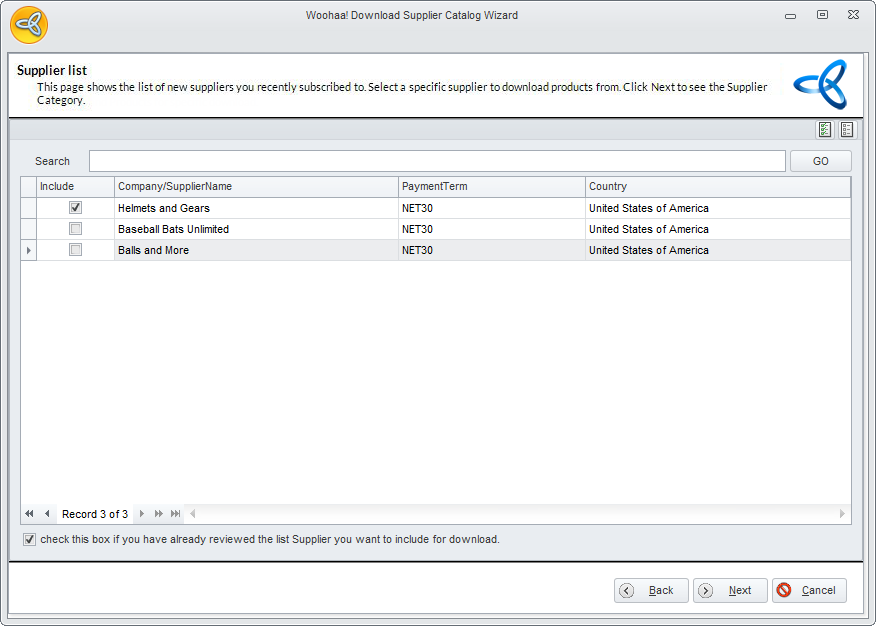
- In the Supplier List page, select the supplier you want to download products from. This page shows the list of new suppliers you recently subscribed with. You can also see the supplier’s preferred payment term and the country where the supplier is located.
Click Image to Enlarge
After selecting the supplier, tick the checkbox right next to “Check this box if you have already reviewed the list of supplier you want to include in the download” to confirm that you have reviewed your selections and to enable the Next button. Click Next to proceed.
- In the Category List page, select the categories for the items you want to download. This page shows the categories for the supplier selected from the Supplier List. The categories are listed by supplier.

Click Image to Enlarge
After selecting the categories to download, tick the checkbox right next to “Check this box if you have already reviewed the list of categories you want to include in the download” and click Next to proceed.
- In the Product List page, select the items you want to download. The items are listed by category per supplier. You can also see the base price and promotional price for the items (if there is any) in the list. After selecting the items, tick the checkbox right next to Check this box if you have already reviewed the list of products you want to download”.

Click Image to Enlarge
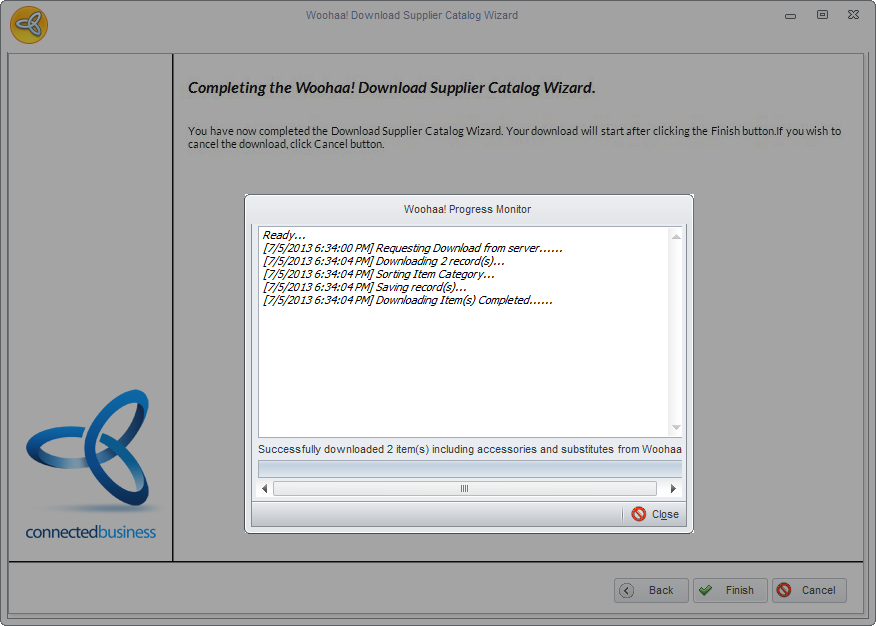
- Click Next and Finish to start downloading. The Woohaa! Progress Monitor will be displayed showing the details of what has been downloaded.
Click Image to Enlarge
Check Downloaded Items
You can check if the item is successfully downloaded from the Woohaa module ► My Items ► Find Item. Alternately, you can also go to Inventory ► Item ► Find Item ► Woohaa Items.

Click Image to Enlarge