
View the Chart of Accounts
|
Content
|
|---|
Overview
The Chart of Accounts can bew easily viewed through the Financial Center in the Accounting module. This page discusses on the details about the chart of accounts, cash flow statements as well as the account code transactions.
View the Chart of Accounts
Steps
- From the Accounting module, select Financial > Financial Center. The Chart of Account will display.

- The General tab displays the account codes and the arrangement of these accounts in the trial balance, balance sheet and profit and loss statement. The fields in the Financial Statement section are as follows:

- The Filter field has many default options to compare different time periods, like the budget this period against the variance of the year to date so far, for example. The Filter field allows you to set the date periods for the values of the account codes to be compared e.g. this month (current period) VS this financial year to date (period). Interprise Suite includes several options to compare the current period against the budget in this period and variance of the year to date so far. We can compare last fiscal year or any accounting period chosen.
- The View field allows you to shift the view of the grid below from trial balance view to any of the available financial statement layouts.
- The Period From field allows you to filter account values starting from this period; enabled only when the Filter value is Period Actual VS Period Budget or period Budget VS Period Last Year to Date.
- The Period To field allows you to filter the account values ending in this period; enabled only when the Filter Value is Period Actual VS Period Budget or Period Actual VS Period Last Year to Date.
- The Include Unposted checkbox sums up the account values and includes the values in the Unposted File.
- The Refresh button refreshes the chart of account view and updates the values and repopulates the grid based on the filtering you have set or changes made in the system.

- The Filter field has many default options to compare different time periods, like the budget this period against the variance of the year to date so far, for example. The Filter field allows you to set the date periods for the values of the account codes to be compared e.g. this month (current period) VS this financial year to date (period). Interprise Suite includes several options to compare the current period against the budget in this period and variance of the year to date so far. We can compare last fiscal year or any accounting period chosen.
View the Cash Flow Statement from Chart of Account
- From the Accounting module, select Financial > Financial Center. The Chart of Account will display.
- On the General tab, select Cash Flow under the View drop down list. The Cash Flow Statement will then display.
View the Account Code Details
The Account Detail tab allows you to view details of a specific account code selected in the General tab such as balances and fiscal year analysis. Apart from general account details, the Account Details tab displays the following details for each account: 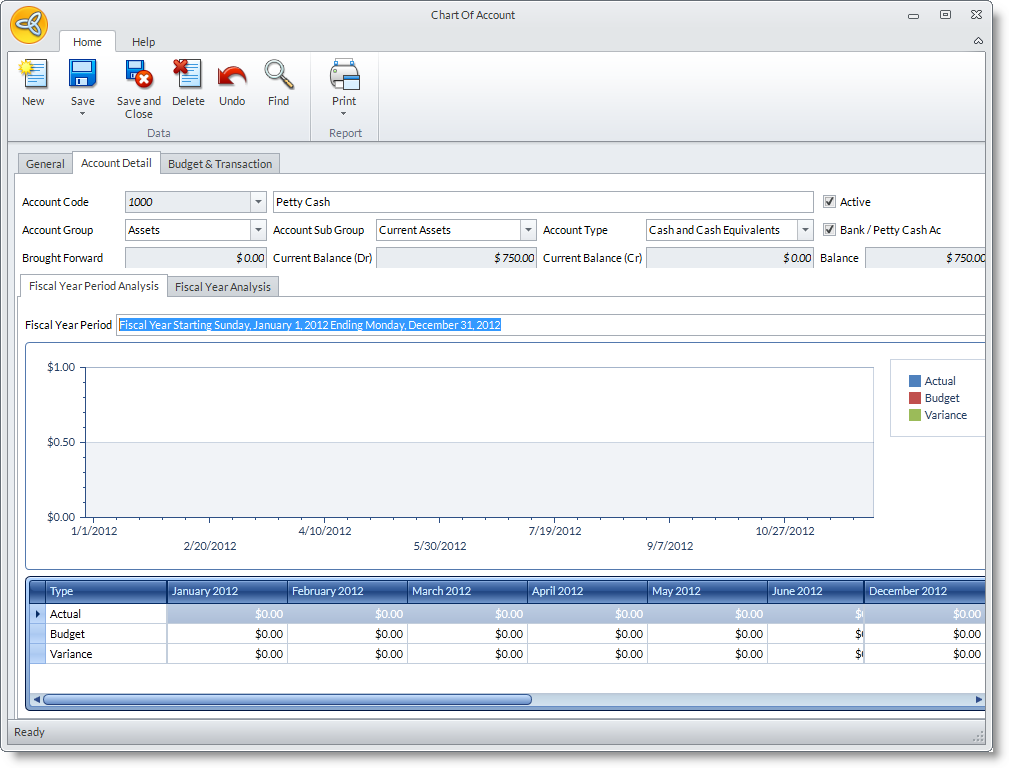
The Account Details section contains the general account details.
- The Account Code field shows the unique identifier for the account. You may not change the the account code.
- The Account Description shows the given description for the account.
- The Account Group and Account Sub Group fields shows the account group that this account belongs.
- The Account Type field shows the account type of this account. Note that changing the account type will not update in the financial layouts.
- The Brought Forward field shows the amount brought forward from the closed fiscal year.
- The Current Balance (Dr) shows the current balance of the account (in Debit)
- The Current Balance (Cr) shows the current balance of the account (in Credit)
- The Balance field shows the actual balance of the account for the current fiscal year.
The Graphical Analysis section displays the Fiscal Year Period Analysis and Fiscal Year Analysis tabs.
- The Fiscal Period Analysis tab shows the comparative analysis for budget, actual and variance values.
- The Fiscal Year Analysis tab shows the comparative analysis of accounts year on year. You may filter the analysis from a range of fiscal years by selecting the starting fiscal year in the From field and the ending fiscal year in the To field. The fiscal year analysis compares the budget, actual and variance values in the inclusive fiscal years.
View the Account Code Transaction History
- Drill down on the account code from the General tab and switch the view to the Transaction History tab.
- The documents are arranged by journal code. You can view full details to the journal transactions as well as the source documents by drilling down on the Document Code.
- You can filter the records according to the fiscal year and period range using the Filter options on top of the Transaction History section.
See Also:
Construct New Financial Statement Layouts | Add to Budget Information | Create New Chart of Account