
Set Up and Maintain Account Budgets
|
Content
|
|---|
The Budget tab of the Chart of Accounts form allows you to view and add budget details to an account code selected in the General tab. You can add budget details to an account in a number of ways:
Apportion Whole Budget Amount Across Periods
Steps
- Select an account from the account list in the General tab and switch to the Budget and Transaction tab.
- Select the Fiscal Year to which the budget will apply. You can create budget details for the current and future fiscal year.
- Enter the total budget amount in the Total Budget To Allocate field and click on the Apply button. The total amount is divided equally across periods.

- Save the details before closing the form.

Apply Incremental Values Across All Periods
- Select an account from the account list in the General tab and switch to the Budget and Transaction tab.
- Select the Fiscal Year to which the budget will apply. You can create budget details for the current and future fiscal year.
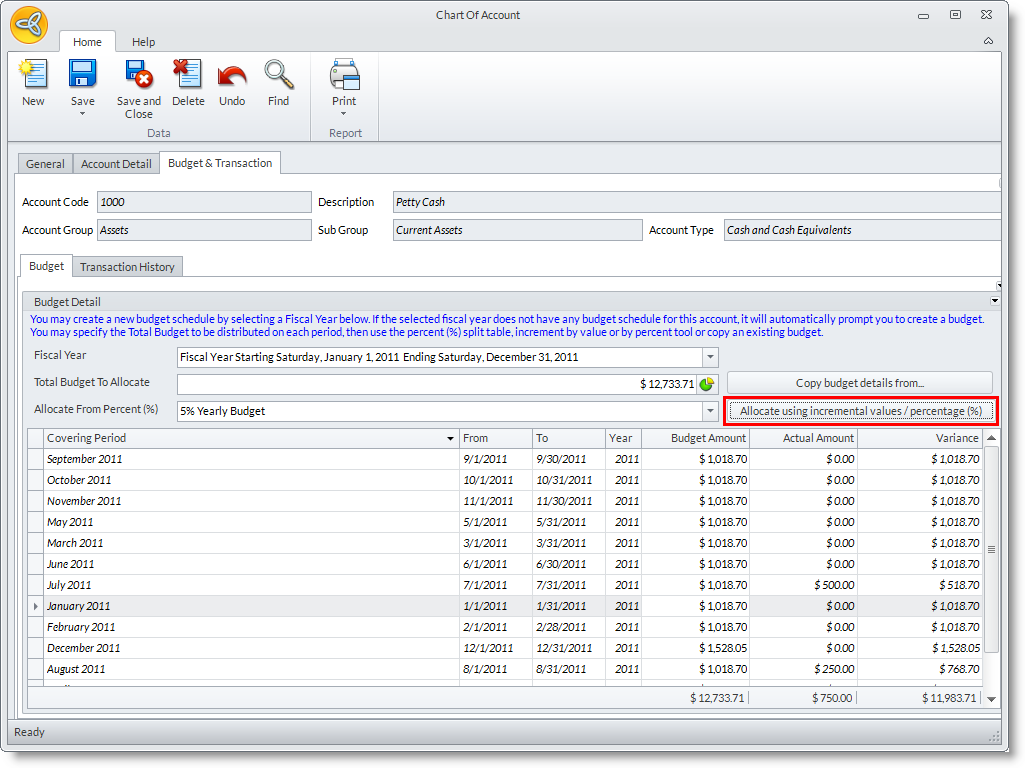
- Click on the Allocate using incremental values / percentage (%) button on the right. The Fill down Budget window will appear.
- Enter the budgeted amount per period in the Budget to Allocate Period field and the value or percent to increment in the Increase by Value / Percent field.

Add a percent sign for the value to increment if it is meant to be a percentage (e.g., 12%)
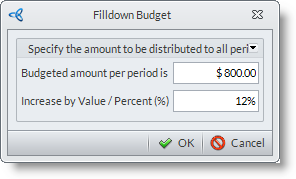
- Click OK button to apply and close the Fill Down Budget window.
- Save the details before closing the form.
Copy Budget Details from Other Account Codes
- Select an account from the account list in the General tab and switch to the Budget and Transaction tab.
- Select the Fiscal Year to which the budget will apply. You can create budget details for the current and future fiscal year.
- Click on the Copy budget details from... option. You will be prompted to overwrite the existing budget setup for the account code. Choose Yes to overwrite. The Copy Budget window will display.
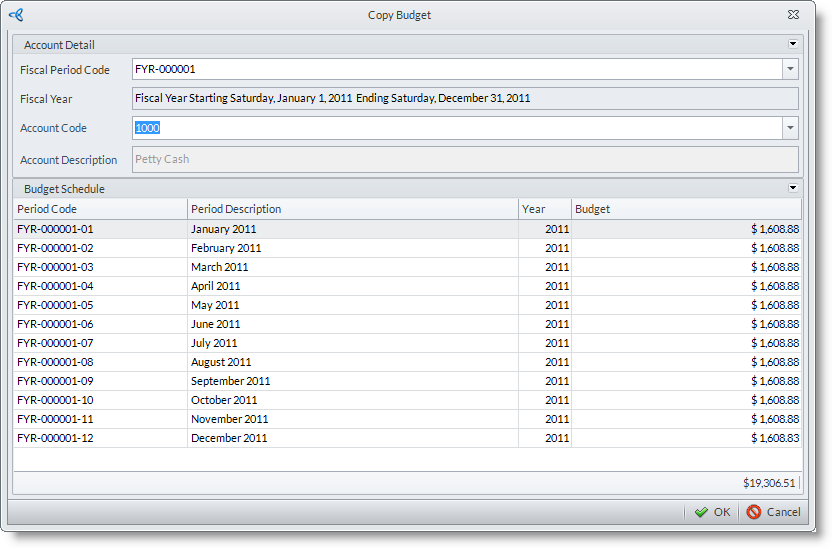
- Choose from a list of accounts with budget schedules. Select the fiscal year in the Fiscal Period Code field. Click OK button to apply the budget and close the Copy Budget window.
- You may adjust the budget amounts per period.
- Save the details before closing the form.
Apply a Budget Split Table
Budget split tables can be set up for each fiscal year through the Budget Percent Split option under the Setup menu of the Accounting Module.
- Select an account from the account list in the General tab and switch to the Budget and Transaction tab.
- Select the Fiscal Year to which the budget will apply. You can create budget details for the current and future fiscal year.
- Enter the total budget amount in the Total Budget To Allocate field. The Allocate From Percent field will be enabled.
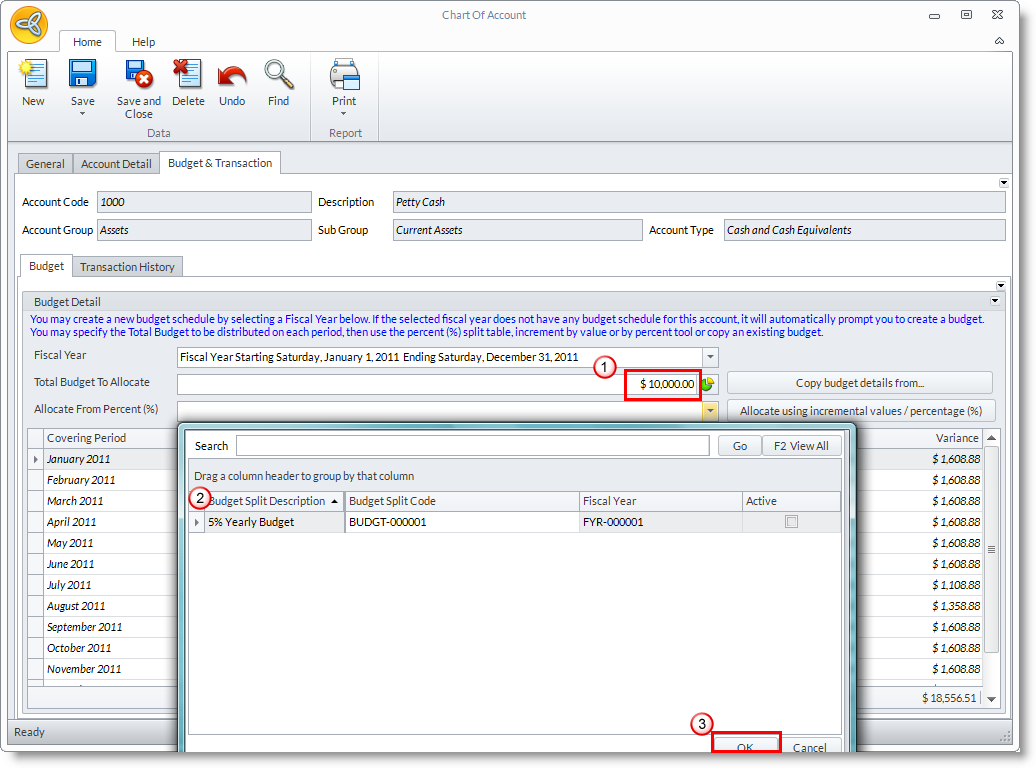
- Select the budget split table in the Allocate From Percent field pulldown.
- Save the details before closing the form.