
Update Transactions
| Content |
|---|
There are three kinds of transactions in Connected Business POS - Sale, Quote, and Order. While a sale is final once processed, quotes and orders can be updated when needed to reflect any changes coming from the customer or store owner. The procedure is simple, as will be shown here, allowing updates to be applied quickly.
Update Quote

This feature is only available in Connected Business v14 and higher.
A Quote (also known as Quoted Price) is a quotation giving the estimated cost of a specific item. To update a quote,
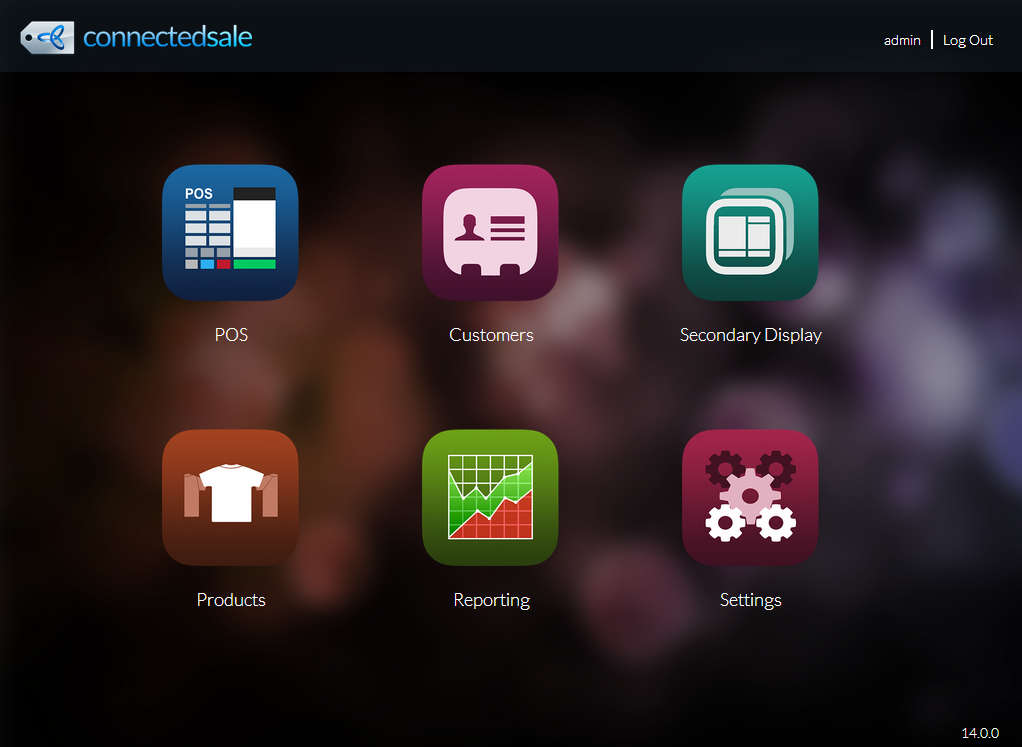
- From the POS Dashboard, go to the POS module.
Click Image to Enlarge
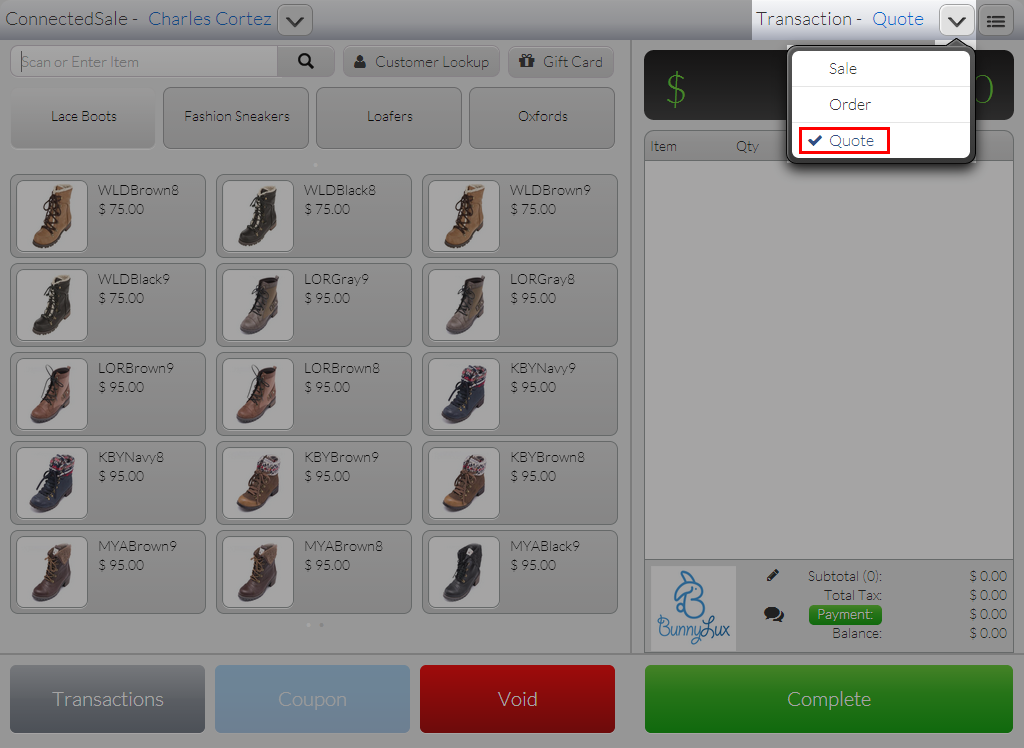
- Tap the (
 ) next to Transaction and set the Transaction Type to Quote.
Click Image to Enlarge
- Select an item/s to purchase.
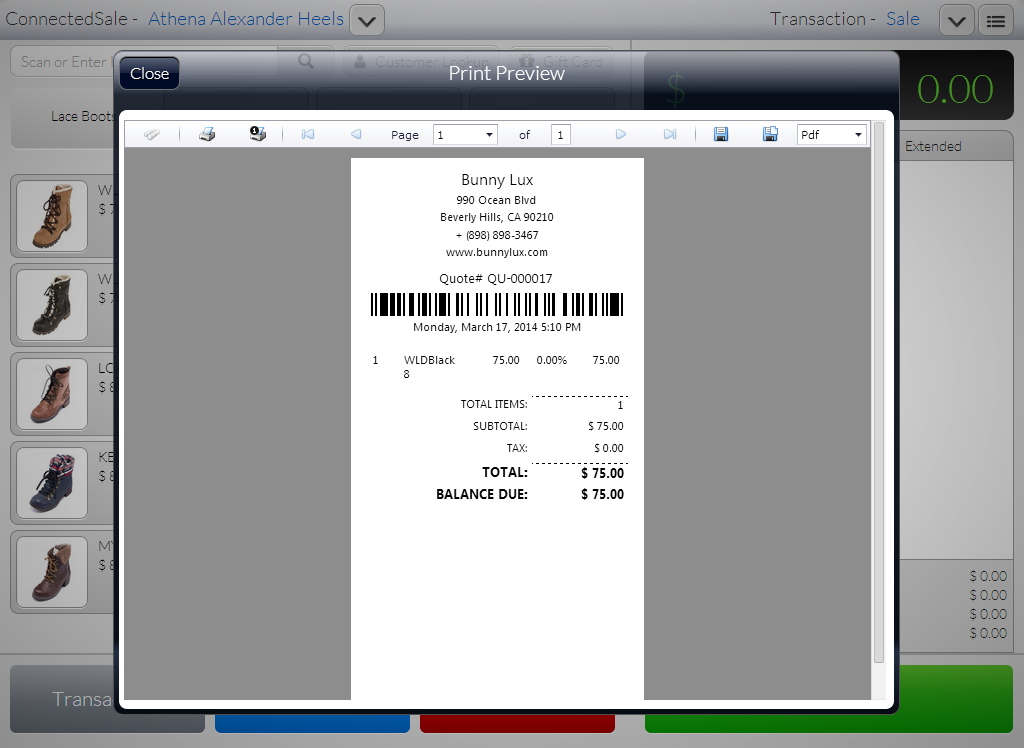
- Tap Complete. A Print Preview of the transaction receipt will be displayed. Tap Close to go back to the POS screen.
Click Image to Enlarge
For updating existing quotes, skip steps 2-4.
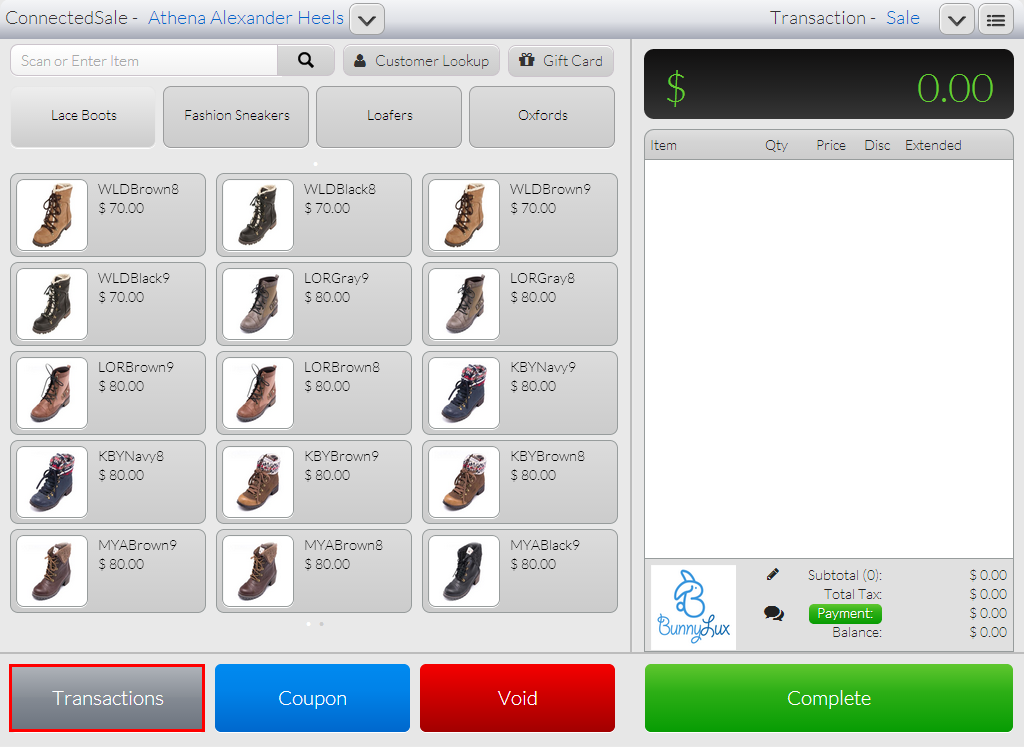
- On the POS screen, tap Transactions. The Transactions list will be displayed.
Click Image to Enlarge
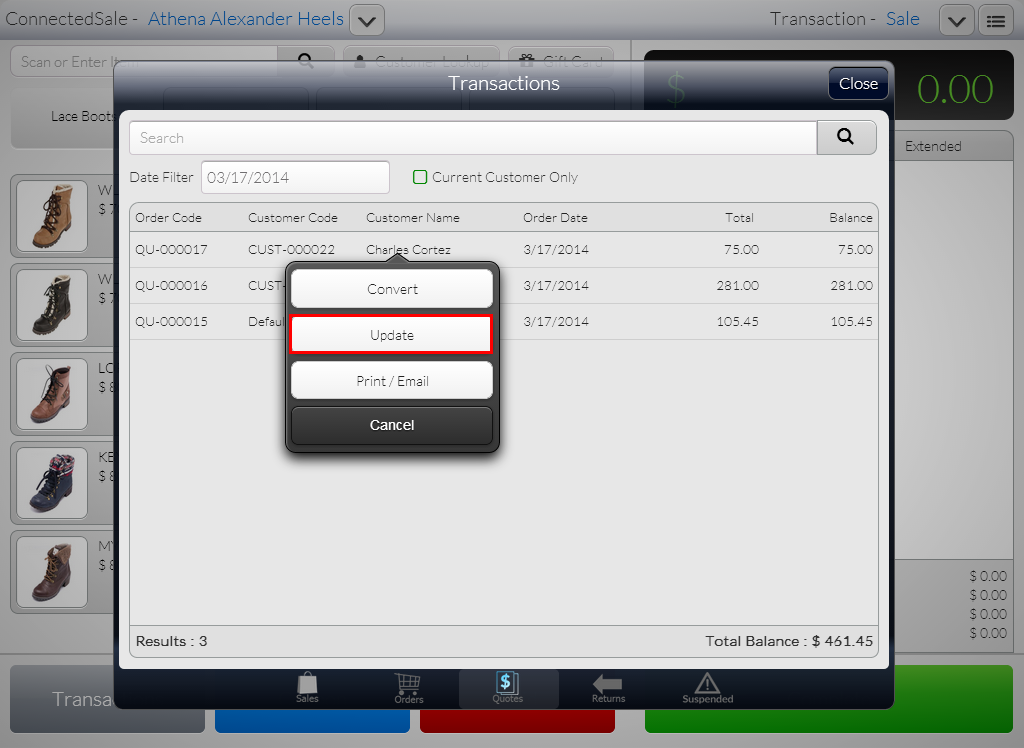
- Go to the Quotes section, tap a transaction, and select Update. The quote will be loaded onto the Tape.
Click Image to Enlarge
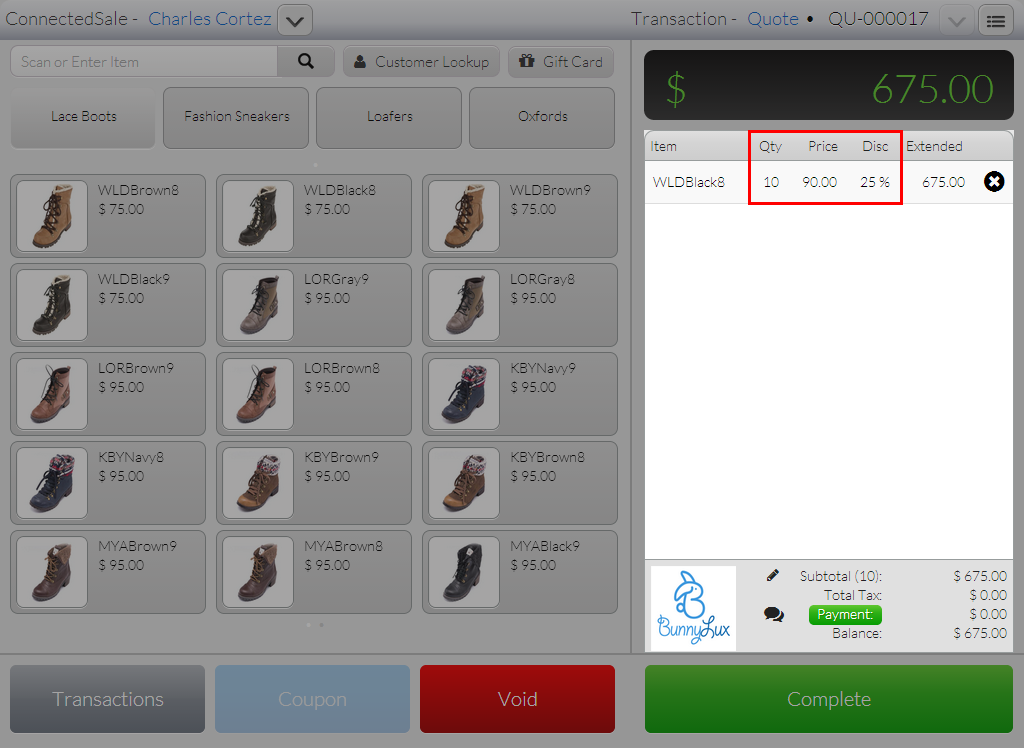
- Update or modify the transaction details as necessary.
Click Image to Enlarge
The following columns can be updated:
- Quantity (QTY)
- Price
- Discount (Disc)
- Tap Complete to save changes.

Update Order
To update an order,
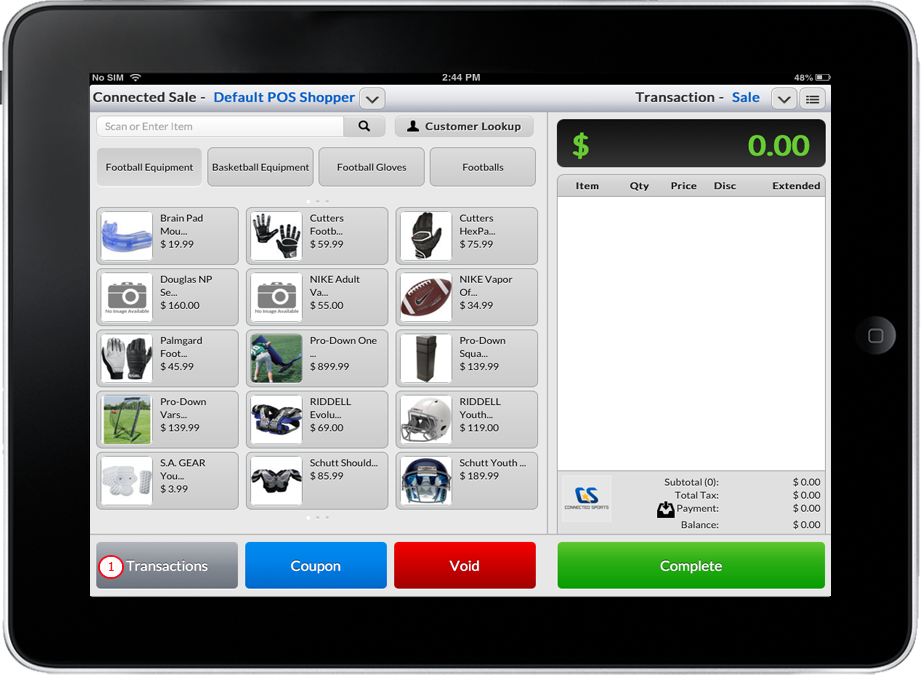
- Tap on “Transaction" button. A pop up form will be displayed on the screen for reviewing the transaction.
Click Image to Enlarge
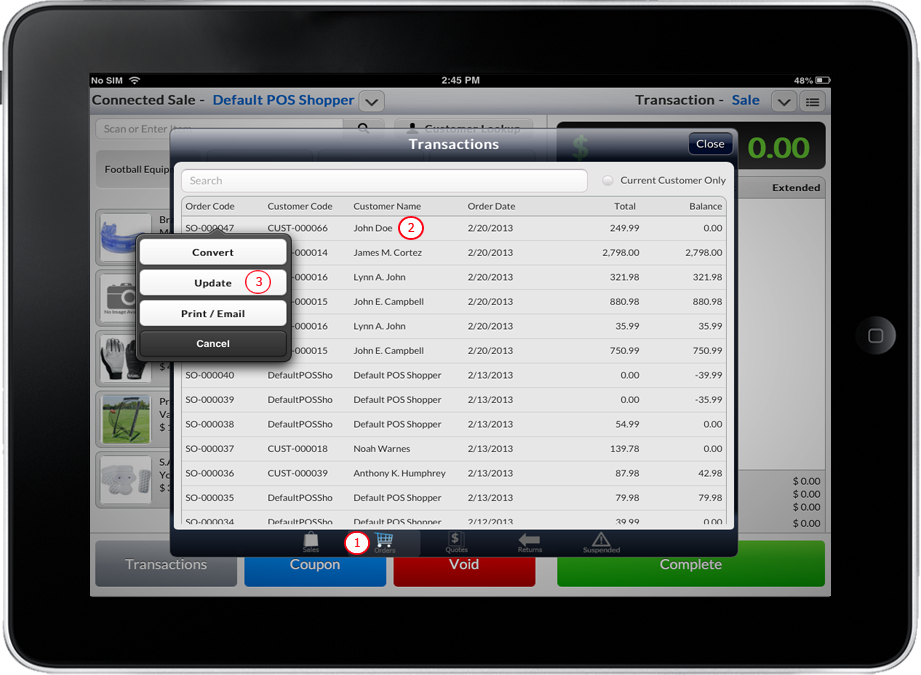
- Select Orders button that is located at the bottom of the form. A list of Open Sales Order will be displayed.
- Select an order from the list or key in the order detail to be searched in the search textbox field and Tap a specific item.
- Select and Tap “Update”.
Click Image to Enlarge
- The products in the order will be loaded in ConnectedSale Mobile Order List; user can either change the quantity, price, discount of an item or even add products to the order.
- After modifying the order, user can now apply partial or full payment and/or just Tap “Complete” button to finish updating the order.
See Also:
Creating Payment | Printing Receipt