
Supplier Dashboard
| Content |
|---|
This article talks about the options and functionalities in the Woohaa! Supplier Dashboard.
The Woohaa! Supplier Dashboard shows the list of all suppliers enrolled in the Woohaa Network. This is where you can search for prospect suppliers and apply for a subscription.
View Supplier Dashboard
The Supplier Dashboard is available in both Connected Business application and the Woohaa Retailer Web Console (Woohaa online account for enrolled retailers).
To load the supplier dashboard from Connected Business, go to Woohaa! module ► Find Suppliers.
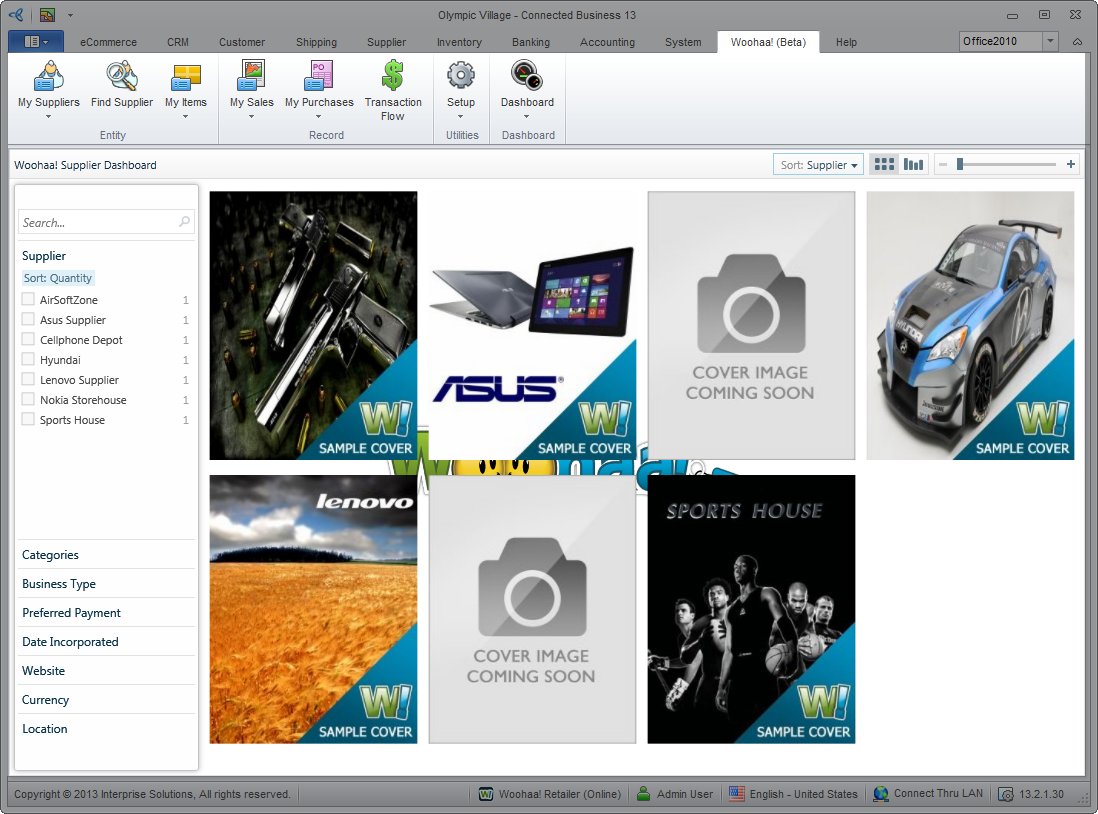
Click Image to Enlarge
To load the supplier from the Woohaa! web console, log in to your Woohaa! account online and go to Find Suppliers menu.

If you are connected to a private network, a selection window will appear which requires you to select a network to view its supplier dashboard.

Dashboard Search Options
You can browse through the list of all Woohaa suppliers and their respective products by using predefined search criteria in the Supplier Dashboard. You can use the Filter panel or the Sorting panel to group supplier results. Each supplier is represented by a cover image for easy recognition when displayed in the dashboard.
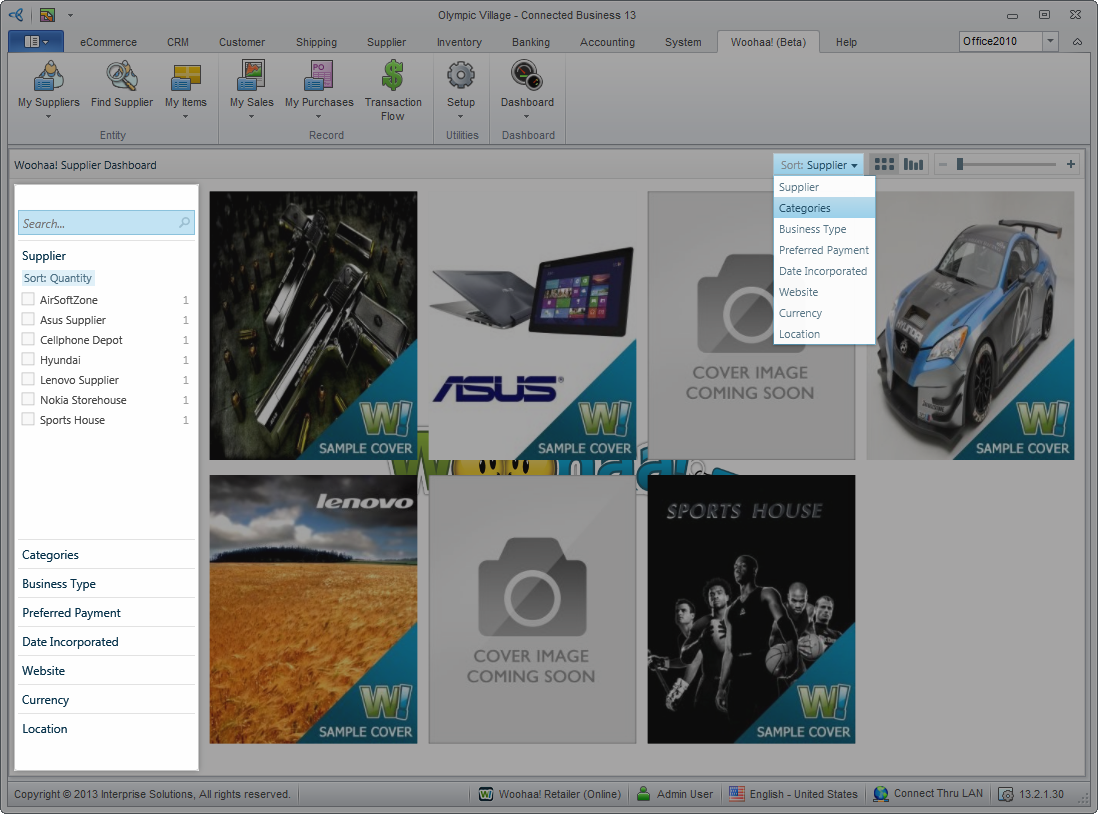
Click Image to Enlarge
For the supplier catalog to be displayed in the dashboard, suppliers must set the Cover Image Option to Published. This can be done either from the Woohaa! Console or from the Connected Business backend application.
To set this option from the Woohaa Console, you need to login to your woohaa supplier account. From the Woohaa Homepage > Profile, click Edit to display the Edit Profile form. From the Edit Profile form, go to Company Info tab > Cover Image Option and tick the Published checkbox.
To set this option from the Connected Business backend application, go to Woohaa module > Setup > My Profile. The Woohaa Profile form will be displayed. From the form, go to General tab (selected by default) then tick the Publish Cover Image to Woohaa! Supplier Site. Only check this when your cover image is ready for public display checkbox.
The following are the search criteria you can use to group supplier cover images:
| Criteria | Descrption |
| Suppliers | Use this criterion if you want to filter search results by supplier name. |
| Categories | Use this criterion if you want to filter search results by product categories. |
| Business Type | Use this criterion if you want to filter search results by suppliers’ business ownership type. |
| Preferred Payment | Use this criterion if you want to filter search results by terms of preferred payments set by the supplier. |
| Date Incorporated | Use this criterion if you want to filter search results by the date the supplier company was established. |
| Website | Use this criterion if you want to filter search results by supplier’s website URL. |
| Currency | Use this criterion if you want to filter search results by country where the supplier warehouse/address is located. |
| Location | Use this criterion if you want to filter search results by suppliers’ business address. |
In defining your search for possible suppliers, you can select multiple search criteria in the Filter panel (e.g. Select one or more supplier in the Supplier criterion, then select a category in the Category criterion, then select a type for the Business type, etc). To select a search item (e.g. Supplier Name, Category name etc.) just tick the checkbox right next to the search item name. The system will narrow down the search results based on the selected search criteria. You can sort the cover images result for each search criteria either by Name from A-Z or by Quantity. You can also enter the name of the supplier, category, etc. directly in the search control field.
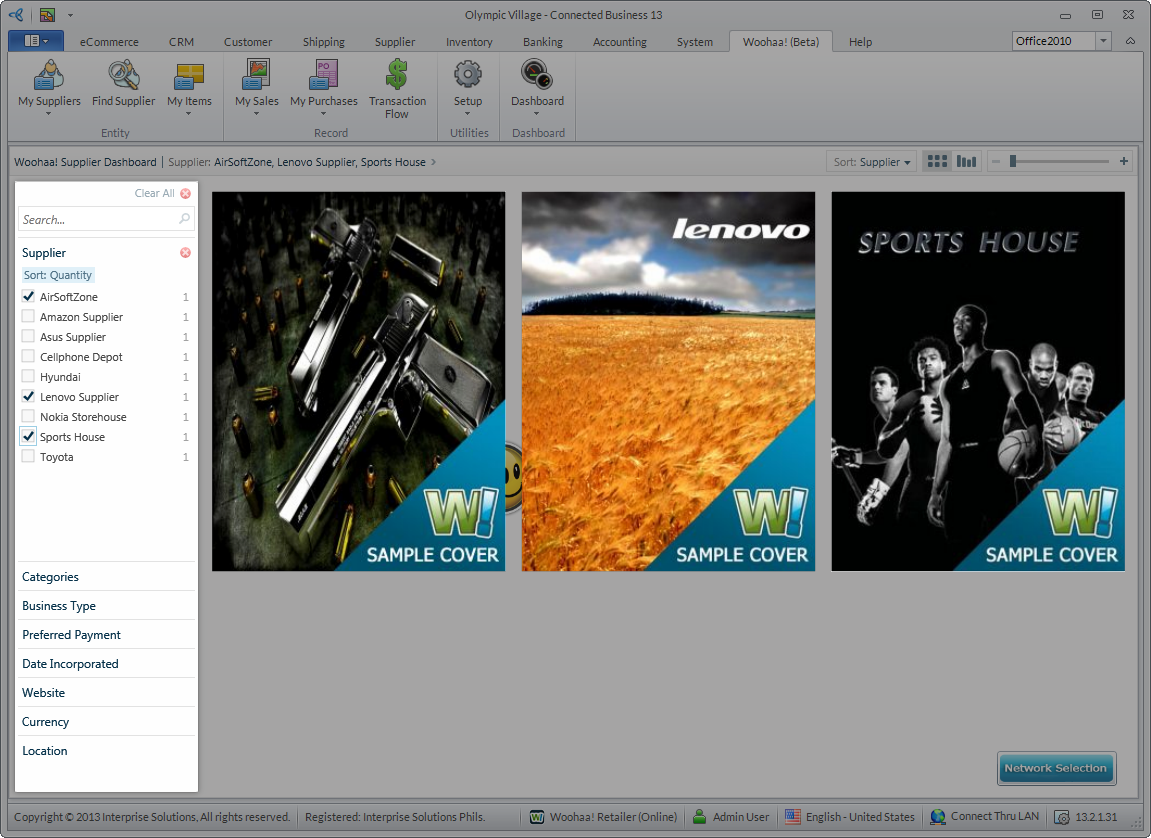
Click Image to Enlarge
To reset or clear your selections in all the search criteria, you can click on the Clear All icon ( ) to or click on the (
 ) icon in the search criteria name to clear selections for the specific search criterion.
Dashboard Views
Aside from the search options, you can also customize the way the cover images are viewed in the dashboard (based on the search criteria selected). You can set how the cover images are displayed by selecting from the following views:
- Grid View – this type of view allows you to sort supplier cover images in a grid based on the search criteria selected. This is the default view for the supplier dashboard.
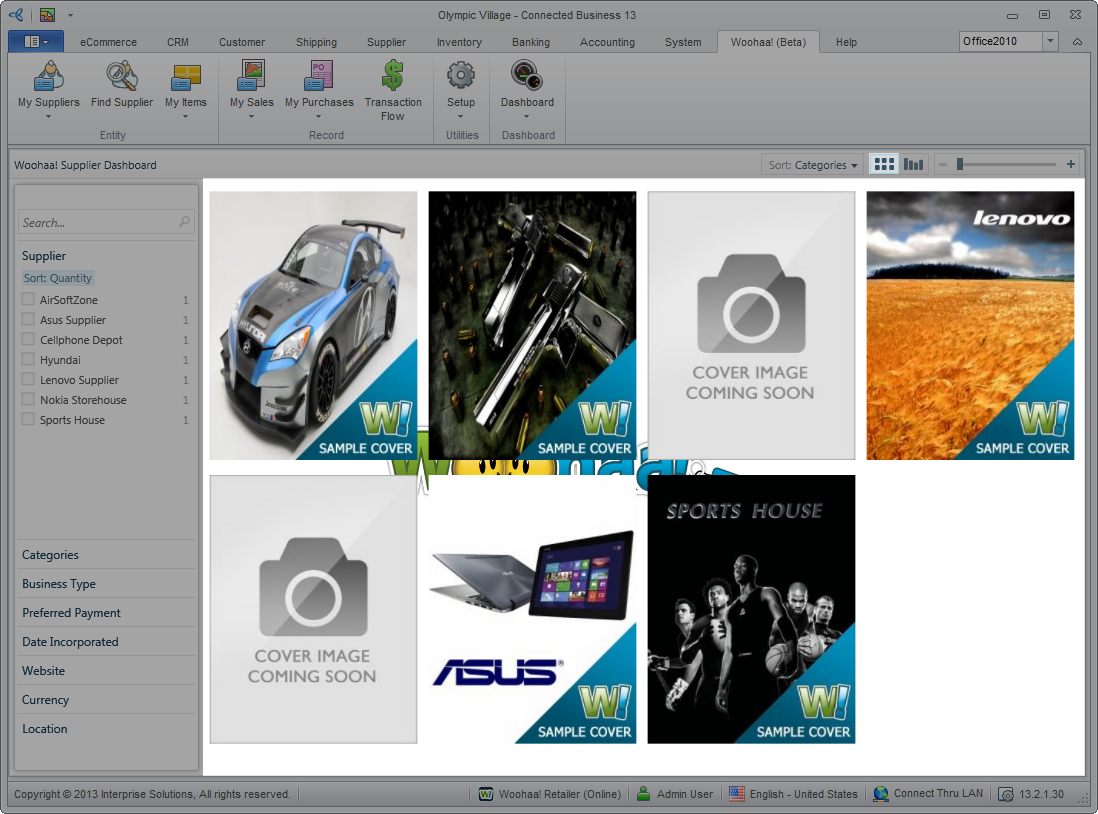
Click Image to Enlarge
- Graph View – this type of view allows you to group related supplier cover images in a line which are sorted based on the search criteria selected..
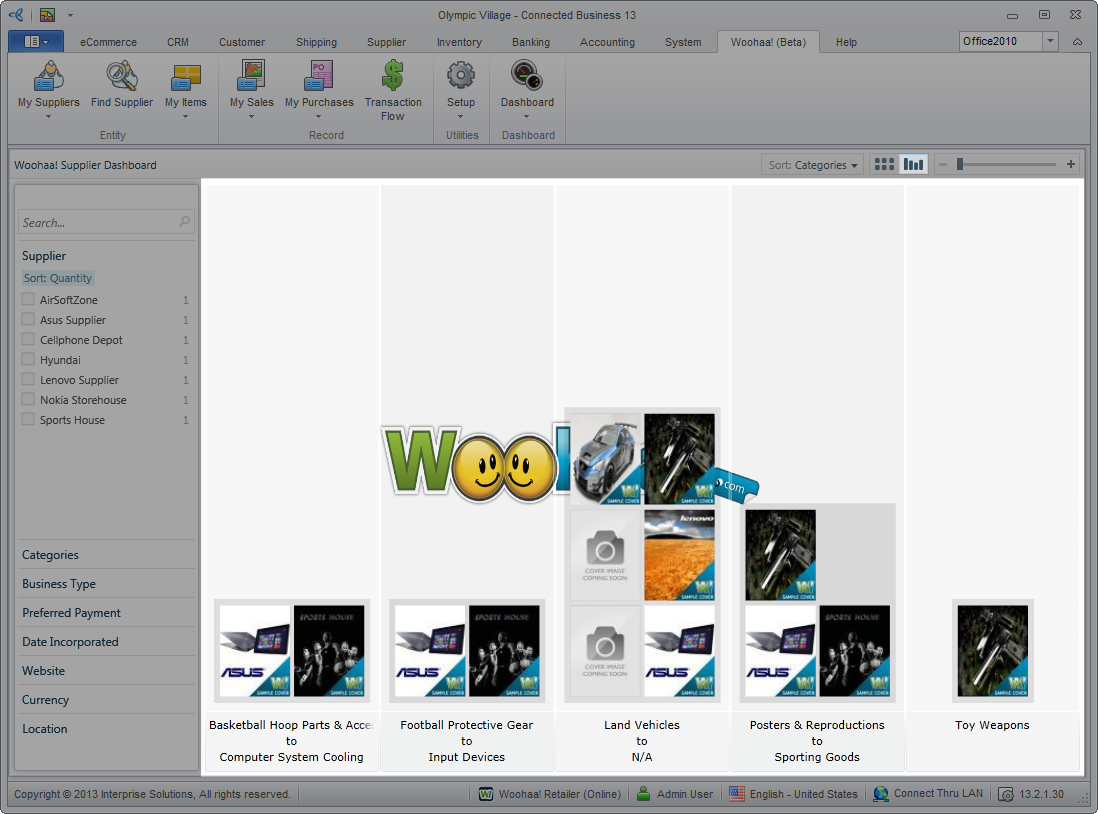
Click Image to Enlarge
- Zoom-In – To get a closer look on the supplier’s cover image, you can click on the image to zoom-in or double click the image to be directed to the suppliers’ catalog website.
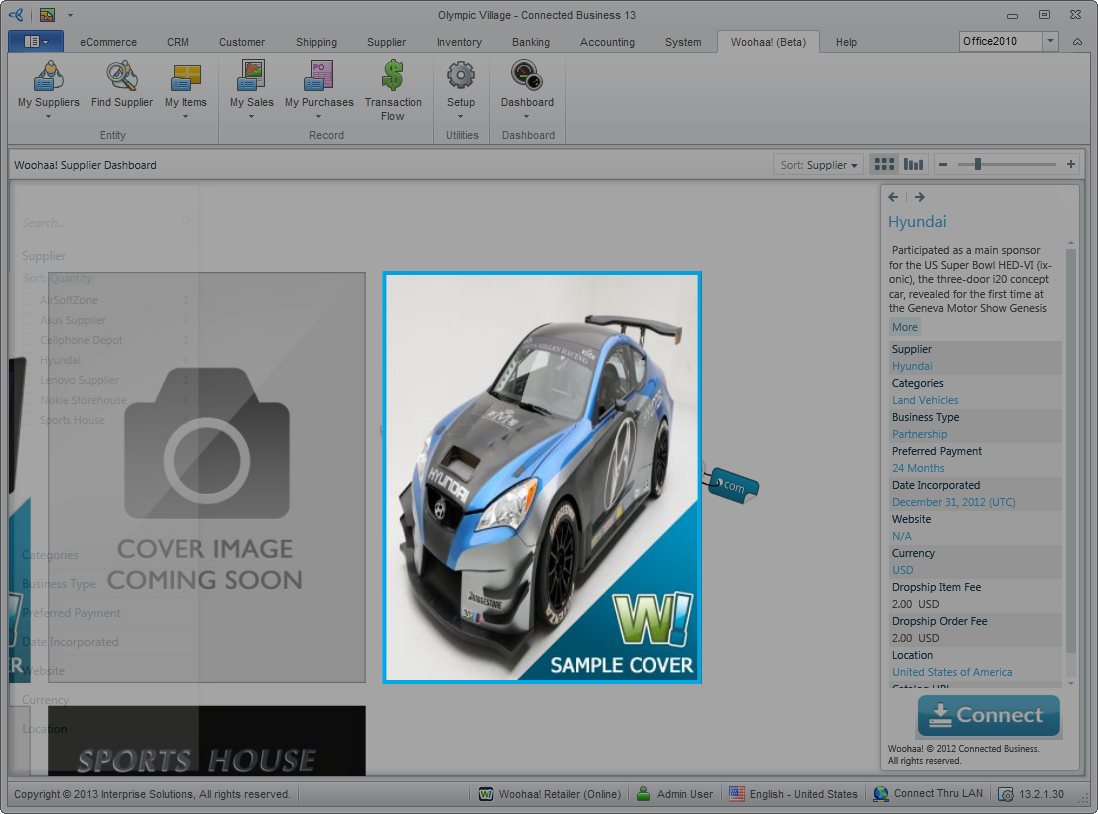
Click Image to Enlarge
View Supplier Details
You can also click on the supplier cover image to view the Supplier Details. Upon clicking the supplier cover image, the Supplier Info panel will be displayed showing the supplier’s business information.
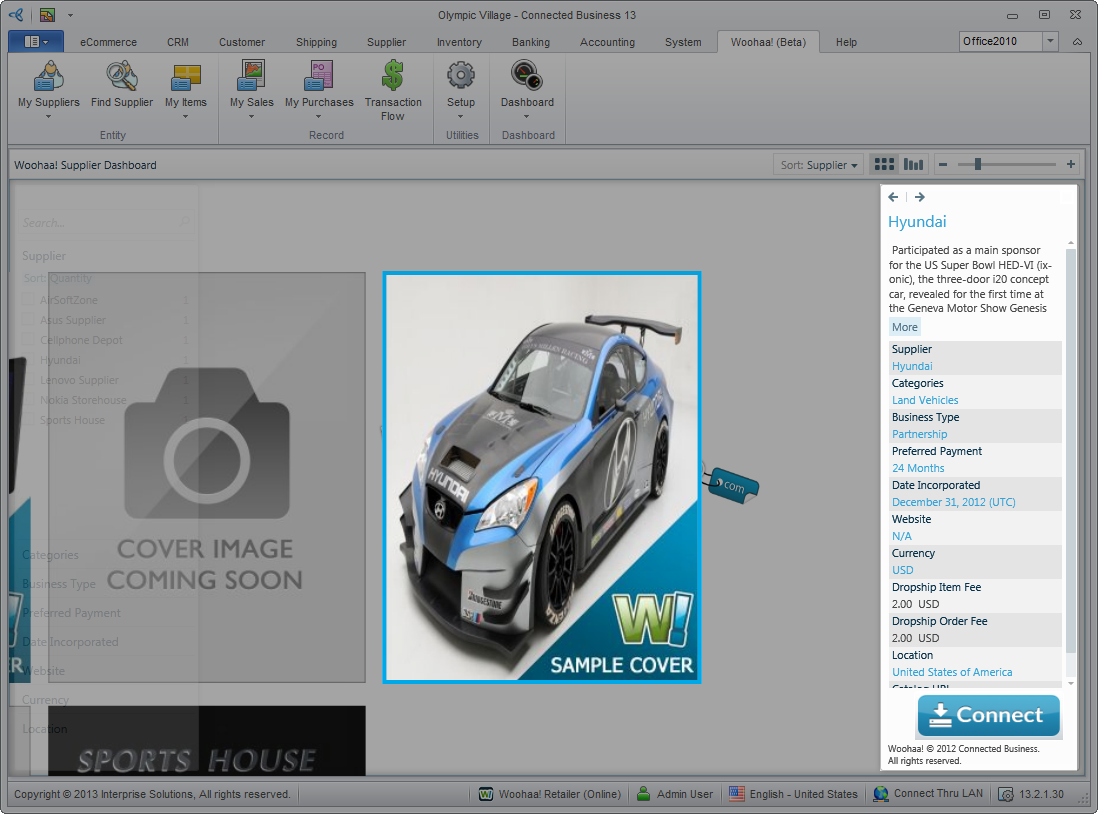
Click Image to Enlarge
The following table shows the supplier information found in the Info panel.
| Section | Description |
| Overview | This section gives a brief description of the supplier’s company and its operations. |
| Categories | This section shows the list of the supplier’s product categories. |
| Business Type | The supplier’s company ownership type. |
| Preferred Payment | The preferred payment term set by the supplier for all woohaa transactions. |
| Date Incorporated | The date when the supplier’s company was established. |
| Website | The supplier’s official webpage. |
| Currency | The preferred currency set by the supplier for all Woohaa transactions. |
| Drop Ship Item Fee | The amount charged for all drop shipped items. |
| Drop Ship Order Fee | The amount charged for all drop ship order transactions. |
| Location | The country where the supplier warehouse/address is located. |
| Catalog URL | The CBE website or any other website used as a catalog website by the supplier (if applicable). |
If you want to apply for a subscription to the supplier, click on Connect button. For more info on supplier subscription, refer to Subscribe to Supplier.
Switch Between Networks
If you are subscribed to multiple private networks, you can switch between networks using the Network Selection button.
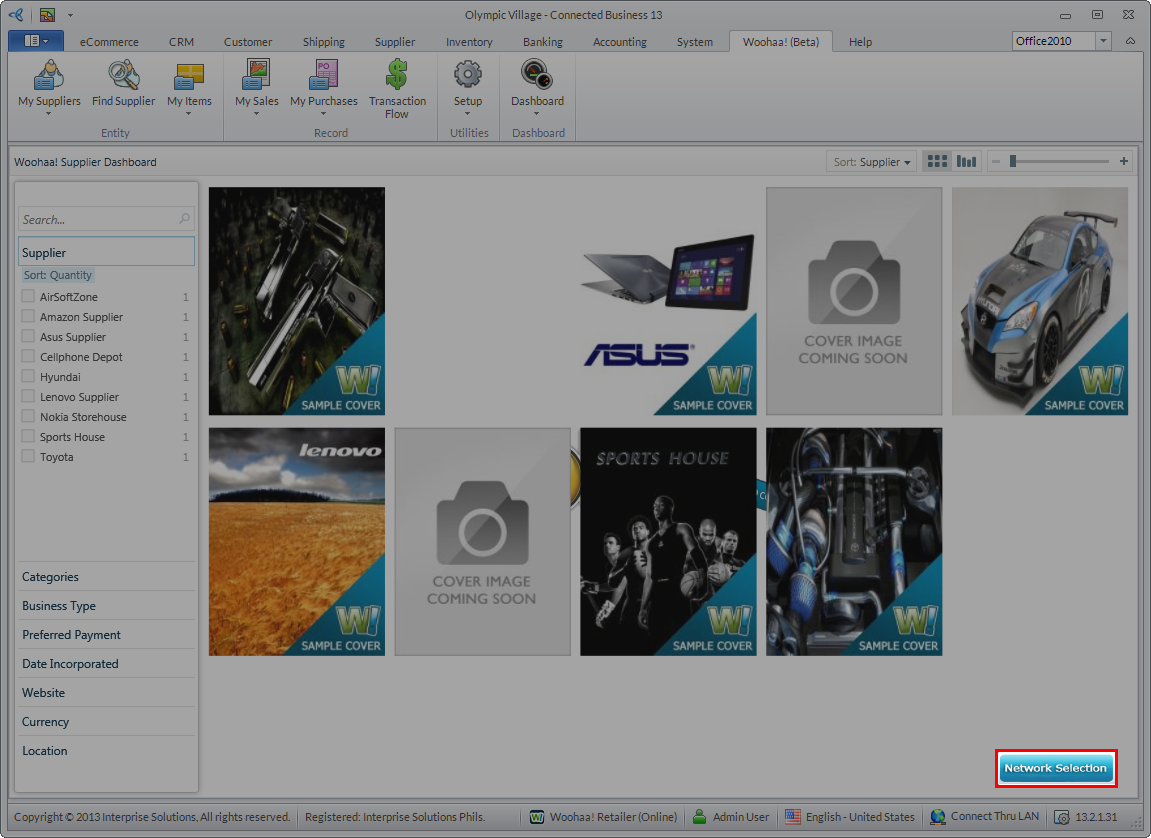
Click Image to Enlarge
Upon clicking the Network Selection button, a selection window will be displayed. Select the network you want to view and click Proceed to view the network supplier dashboard.

Click Image to Enlarge
Being subscribed to a private network gives you exclusive access to suppliers that are not visible in the Woohaa Public Network. To know more about private network, please refer to Woohaa! Private Network.