
Set Up Store for Live Production
The following discussion summarizes how to set your store site for live production.
To accomplish the set up,
- Obtain an SSL Certificate and install it in the web server. If this is your first time to do this, we recommend that you try StartCom’s Free SSL service. SSL certificate in this site is provided free of charge to anyone who wants to enable an online business. See also: Get an SSL Certification
- Open the Application Configuration. Go to eCommerce module > Setup and select Application Configuration option.The Application Configuration will be displayed.
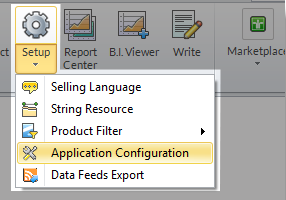
- Set the following appconfig parameters:
- UseSSL = true
This invokes the SSL security to work in the website and runs the website in a secured internet protocol (https).
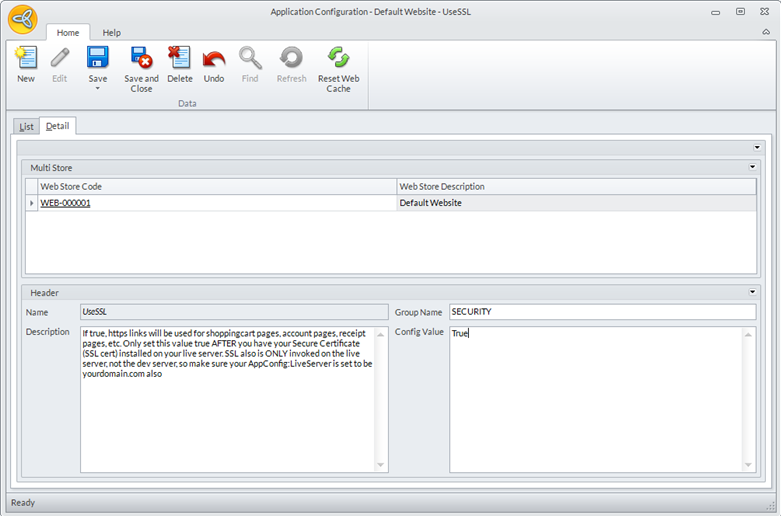
Click Image to Enlarge

Make sure that you have the SSL certificate installed in the server before enabling the UseSSL appconfig. You will know if the SSL certificate is installed if you are able to open your webstore page using the https protocol (https://yourdomain.com).
- RedirectLiveToWWW = true
If set to true, whenever users type in http://yourdomain.com or yourdomain.com, the default page will redirect to http://www.yourdomain.com. This help prevent users from bookmarking the site without www if you enabled.
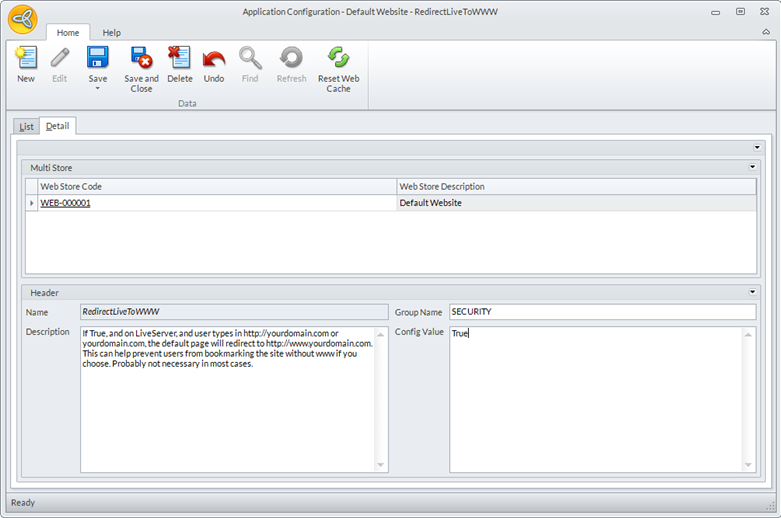
Click Image to Enlarge
- LiveServer = < site’s domain name >
This specifies the domain of the live site being created. Just indicate the specifications for yourdomain.com. (e.g. InterpriseSuiteECommerce.com)
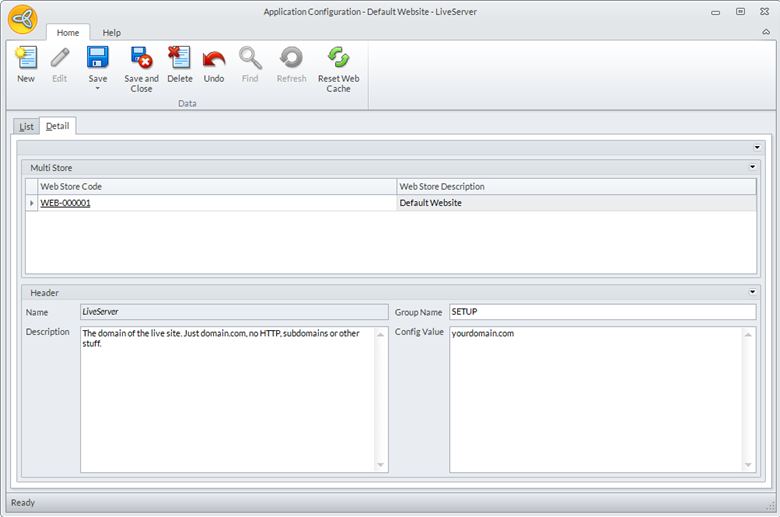
Click Image to Enlarge
- UseLiveTransactions= true
If true, transactions will use your live merchant account for gateway payment processing, otherwise, it will use your gateway test account.
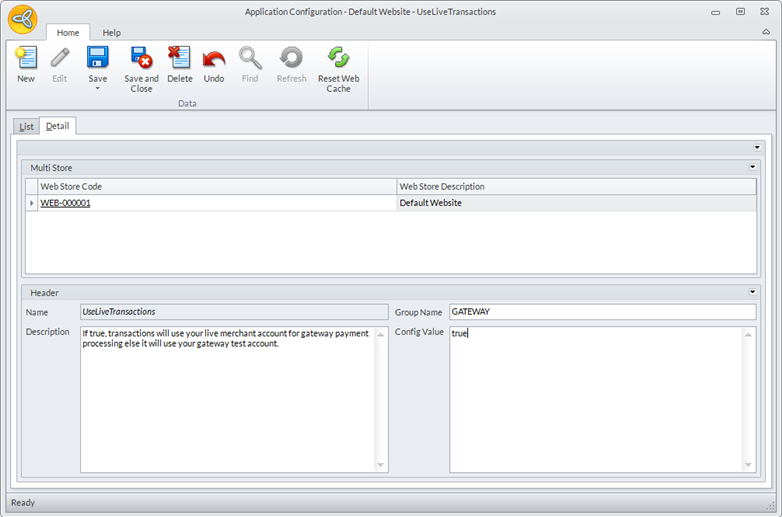
Click Image to Enlarge
- UseSSL = true
- Enable the payment gateway to use. Go to Banking module > Setup and select Credit Card Gateway option. The Credit Card Gateway form will be displayed with the list of all existing payment gateways.
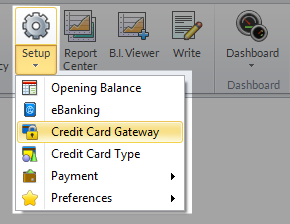
- Select the payment gateway to use and uncheck the Test mode e.g. Authorize.Net. Click Save and Close.
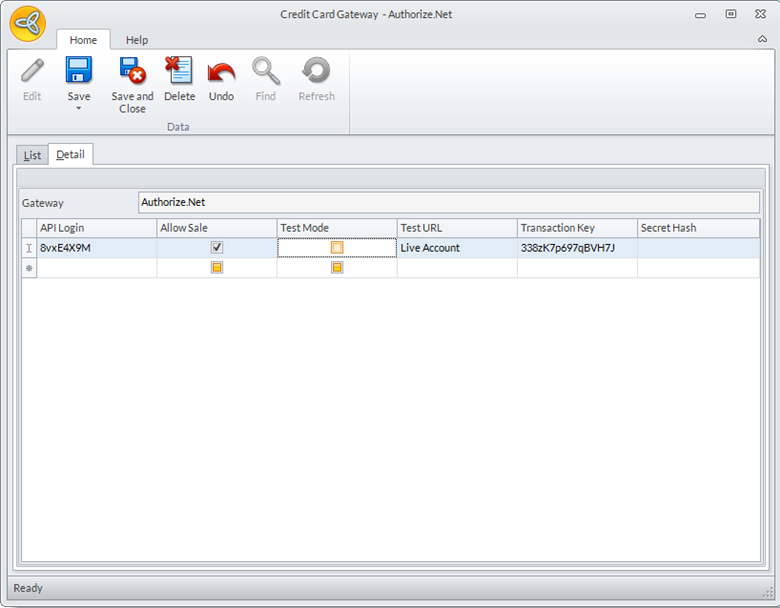
Click Image to Enlarge
By unchecking the Test mode, the gateway is set to work in live mode where actual credit card transcatiions can be made and charges may be incurred for services done through the paymennt gateway.
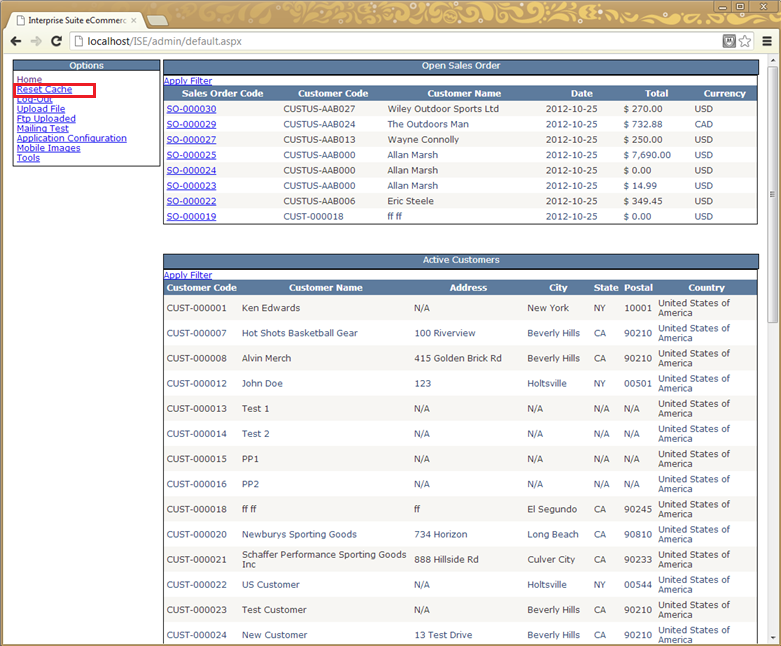
- After activating the payment gateway to use, reset the web cache for the updates to be applied. You can go to eCommerce module > Webstore and click Reset Web Cache button or log on to the store admin site and click Reset Cache option.
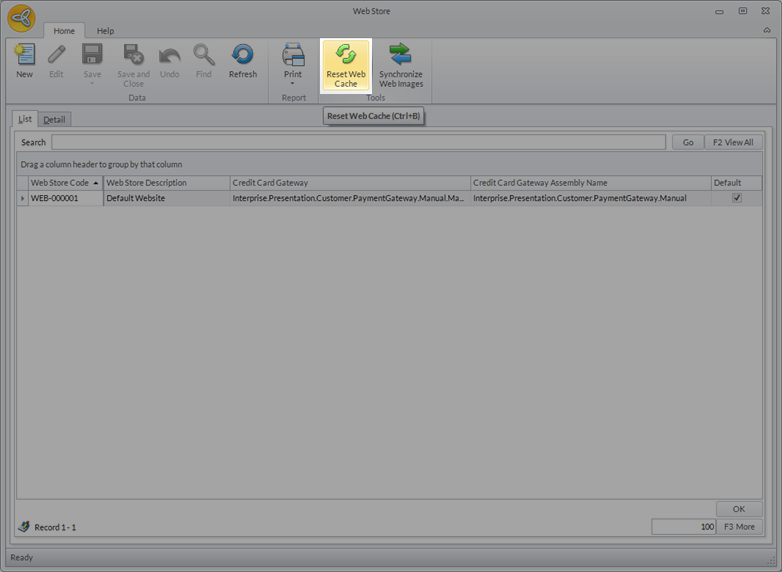
Click Image to Enlarge
or
Click Image to Enlarge