
Retailer Profile
You can find your retailer account information in your Woohaa Profile. This is where you can add or update details in your account such as your company information, transaction options, and trade and bank references.
Once your enrollment is approved, you can start updating your account information. If you are not enrolled yet, refer to Woohaa! Retailer Enrollment.
View Retailer Profile
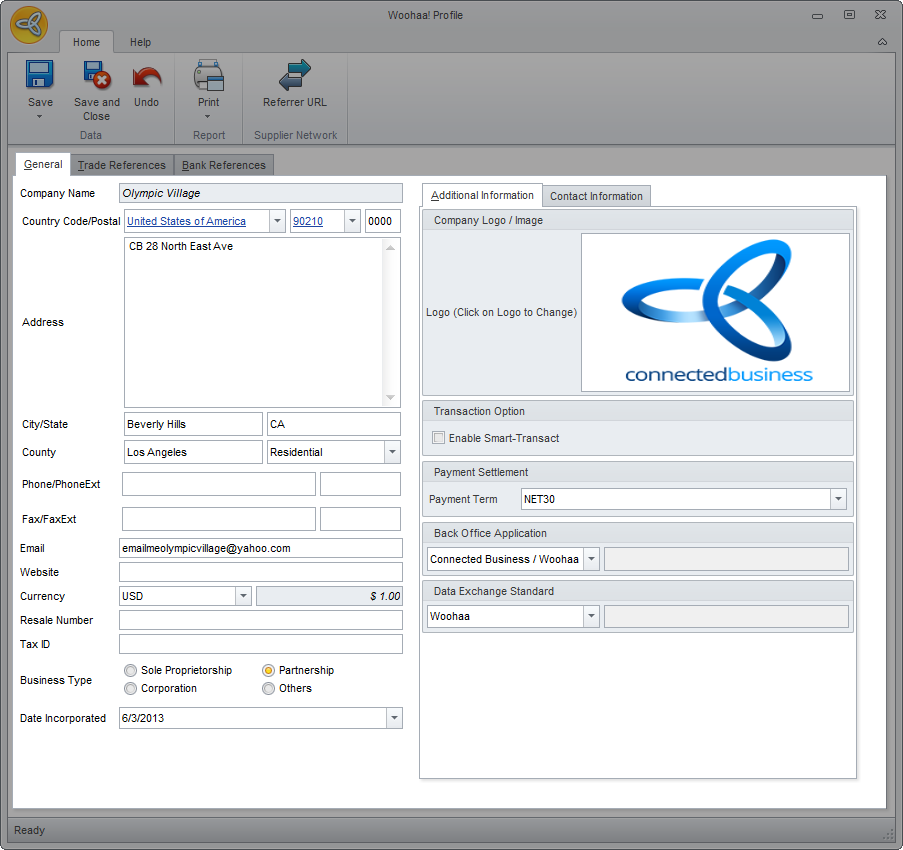
To access your Woohaa! profile, go to Woohaa! Module ► Setup ► My Profile. The Woohaa! Profile form will be displayed. The following are the tabs and fields found in the Woohaa Profile form and its corresponding functions and descriptions.
- General Information - This section shows the information provided during the enrollment process in the Woohaa Network. This is also where you can add more information and set additional options for your Woohaa transactions.
Click Image to Enlarge
Aside from the basic company information, you can also indicate the details for the following:
Field Description ADDITIONAL INFORMATION Enable Smart-Transact If enabled, the Woohaa system will automatically reprocess all failed Woohaa transactions (PO and Invoices) for a specified increasing time interval unless the process is cancelled by the user. Payment Term The preferred payment term of the Retailer. Back Office Application The back end application used by the retailer for connecting to Woohaa! e.g. Connected Business Data Exchange Standard The data exchange format used for communicating with the Woohaa! server. Default format is Woohaa.
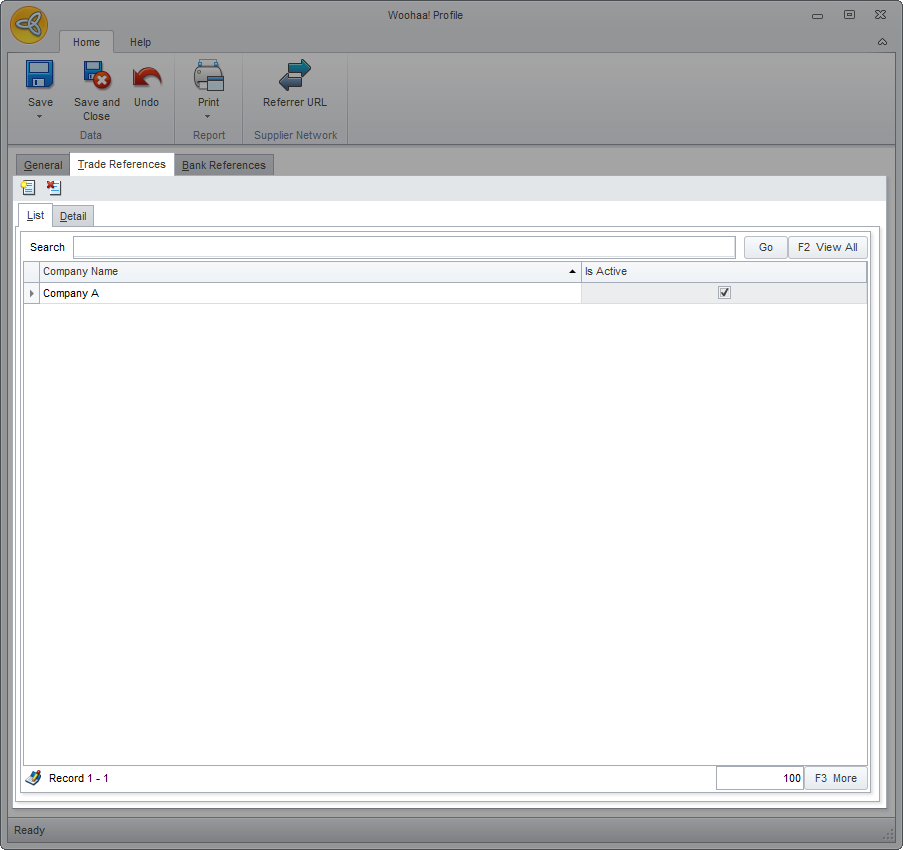
- Trade Reference - This section shows the list of all companies you had business with. This is not required but may help you establish your credibility when your suppliers review your application for subscription. Your suppliers may opt to contact any of the companies listed (if there are any) to check your creditworthiness.
Click Image to Enlarge
To create a new trade reference, click on the New ( ) button and fill out the required fields in the Detail tab. If you want to delete a trade reference, simply click on the Delete (
 ) button. Make sure to click Save and Close to apply changes.
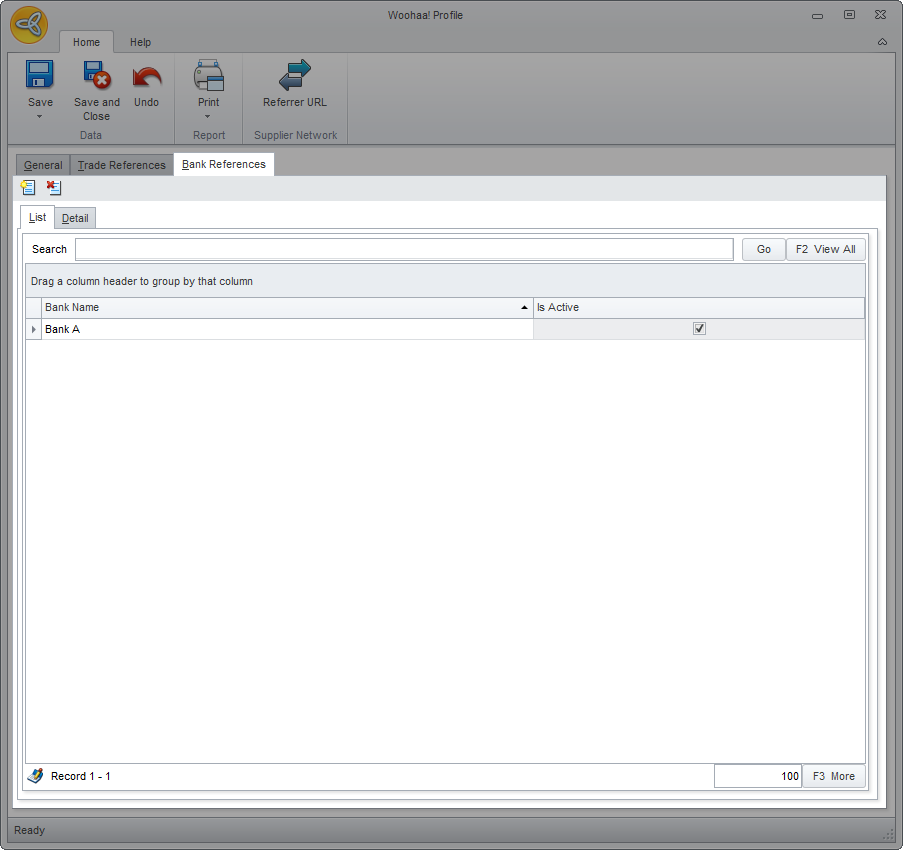
- Bank Reference - This section shows the list of all banks you have accounts with. This is not required but may help you establish your credibility when your suppliers review your application for. Your suppliers may check any related bank information such as how long have you been banking with your banks, if there are any existing loans, what the average balances are, etc.
Click Image to Enlarge
To create a new bank reference, click on the New () button and fill out the required fields in the Detail tab. If you want to delete a bank reference, simply click on the Delete () button. Make sure to click Save and Close to apply changes.