
Process New Shipment Transaction
| Content |
|---|
A Shipment Transaction is a record that shows what items are being shipped from the warehouse. Processing a shipment transaction includes generating and printing the shipping labels to be packed together with the items for shipment. In Connected Business, you can process a shipment transaction from the Shipping module or directly from the Sales Order or Invoice form.
Process Shipment from Open Sales Order
To process a shipment transaction from open sales order,
- Go to the Shipping module > From SO and the list of open sales orders will be displayed.

Click Image to Enlarge
- Select the sales order to be processed from the list and the Shipment form will be displayed.
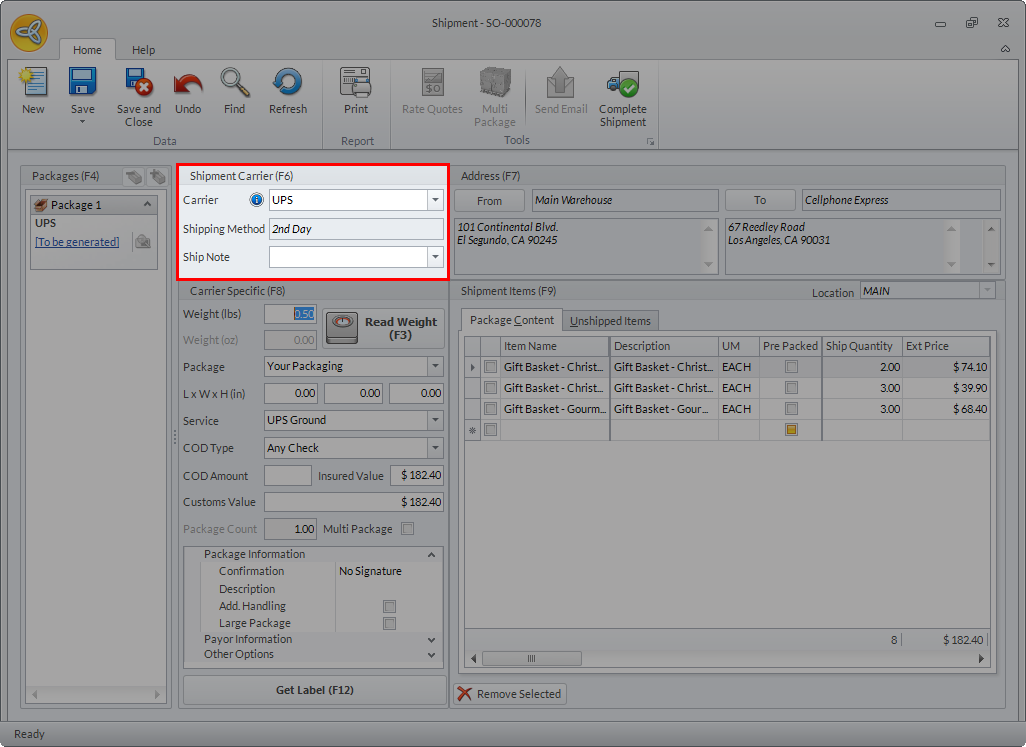
- In the Shipment Carrier section, by default, the details are already filled out. You can change the details as needed.
Click Image to Enlarge
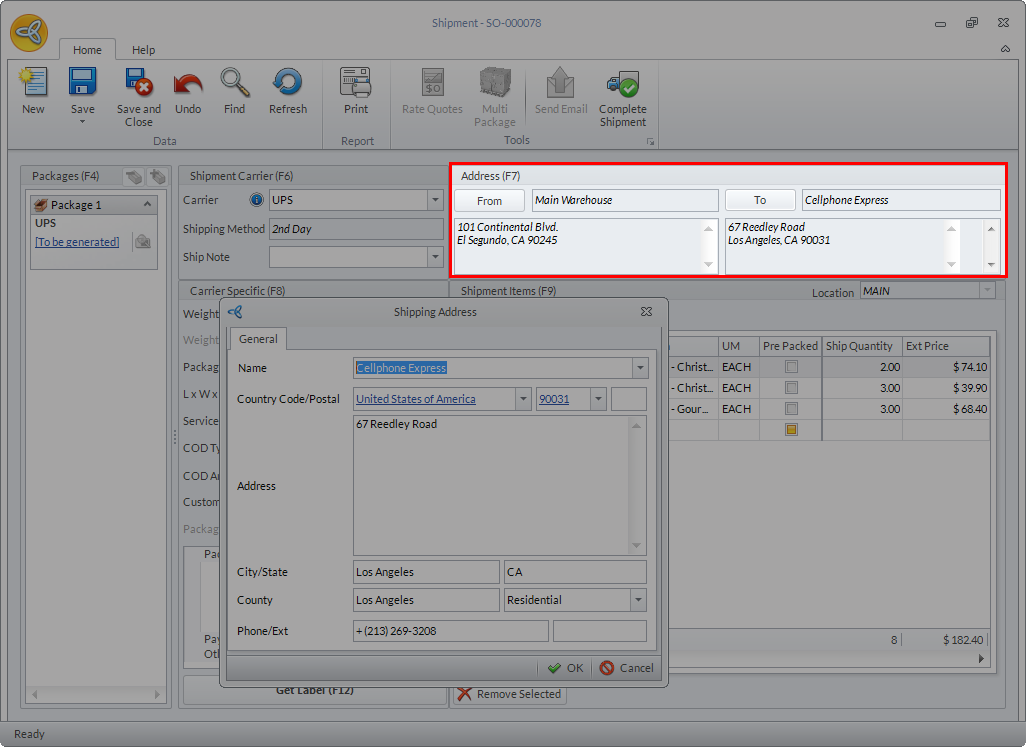
- In the Address section, you can change the default warehouse and/or Customer Ship To details by clicking the From and/or To button. Clicking the From or To button will load the Shipping Address form where you can modify the warehouse or the recipient details as needed.
Click Image to Enlarge
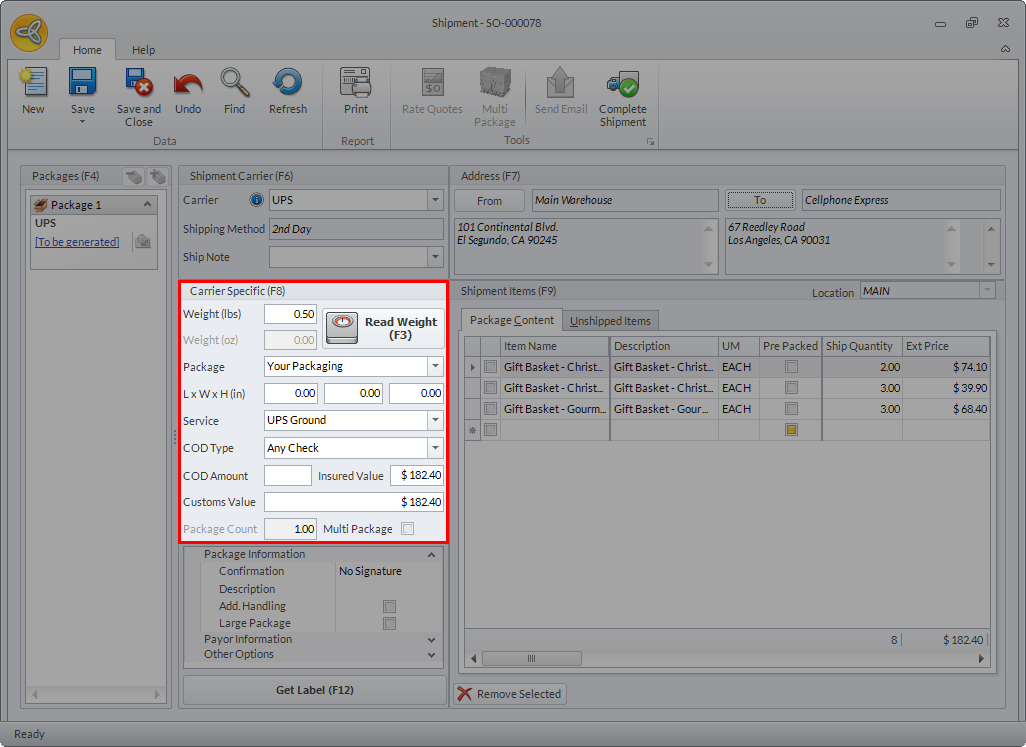
- In the Carrier Specific section, you can enter or modify the details for the following as needed.
Click Image to Enlarge
The following table shows the fields found in the Carrier Specific section and its function/description.
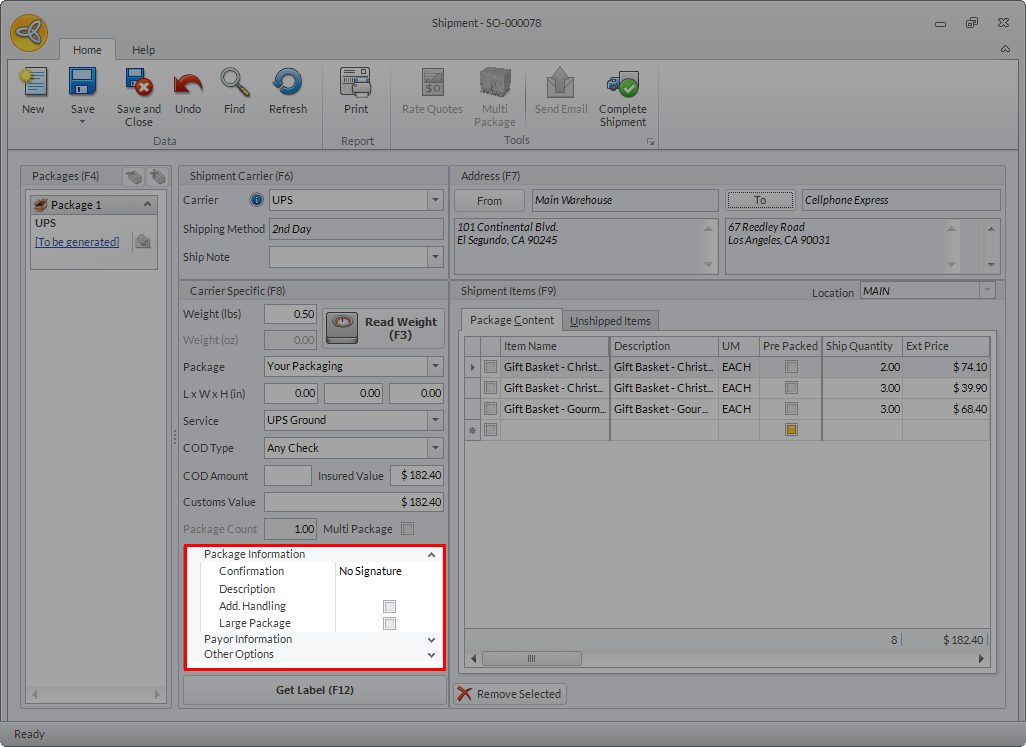
Field Description Weight (lbs) This field indicates the weight of the item as read from the weighing device connected to the workstation. To know more about integrating weighing scale in processing shipment transactions, see Weighing Scale Integration. Weight (oz) Weight of the items included in the order will be automatically calculated (in ounce) if supported by the carrier. Package Select the preferred package type from the list. To set a default value for this field, see Shipping Configuration List > Carrier Specific Defaults. Package Dimension (L x W x H) Define the package dimension (Length, Width and Height of the package). To know more on how to set up custom packaging, see Set Up Custom Packaging. Service Select your preferred service from the list of available freight services offered by the selected carrier. You can also set a default value for this field. See Shipping Configuration List > Carrier Specific Defaults. COD Type Select the COD (Cash on Delivery) type from the dropdown list. You can also set a default value for this field. See Shipping Configuration List > Carrier Specific Defaults. COD Amount The amount to be paid upon delivery of the shipment. Insured Value Type in the insured amount of the package. If you want to set the insured amount equal to the total amount of the package, set the shipping config Default.UsePackageAmtForInsurace to True. Package Count The number of packages in the shipment. Multi Package When this is ticked, you can set the number of multiple boxes to be included in the shipment for a single delivery. See Multi Package Shipment. - In the Vertical Grid section, the details may vary depending on the carrier selected.
Click Image to Enlarge
The following table shows the fields found in the vertical grid section and its functions/descriptions.
Field Description Fedex Package Information Drop Off Type Identifies the service or method by which the package is delivered to FedEx. Available options are: Regular Pickup, Request Courier, Drop Box, Business Service Center, Station. Description The details of the drop off type selected. Payment Information Payor Type Method of payment for shipment, or duties and taxes. Options available are: Sender, Recipient, 3rd Party, Collect (Only supported in FedEx Ground services)Method of payment for shipment, or duties and taxes. Options available are: Sender, Recipient, 3rd Party, Collect (Only supported in FedEx Ground services) Account Number The account number of the payor. Payor Country The country code for the payor of the shipment, or duties and taxes (ISOcode - official two-letter country codes). Other Options COD Indicates that the shipment is Cash on Delivery. Home Delivery Premium Indicates that the Home Delivery Premium special service is requested. This is applicable for residential delivery only. Inside Pickup Indicates that inside pickup service is requested. Inside Delivery Indicates that inside delivery service is requested. Dry Ice Indicates that the shipment contains dry ice. Hold Saturday Indicates that the FedEx shipment is to be held on Saturday. Saturday Delivery Indicates that the shipment will delivered on a Saturday. Saturday delivery service is available for an additional charge depending on the package service type and origin/destination pair.
This service is available for: FedEx Priority Overnight, FedEx 2day, FedEx International Priority, FedEx 1Day Freight, and FedEx 2Day Freight.Saturday Pickup Indicates that the shipment will be picked up on a Saturday. Saturday pickup service is available for an additional charge depending on the package service type and origin/destination pair.
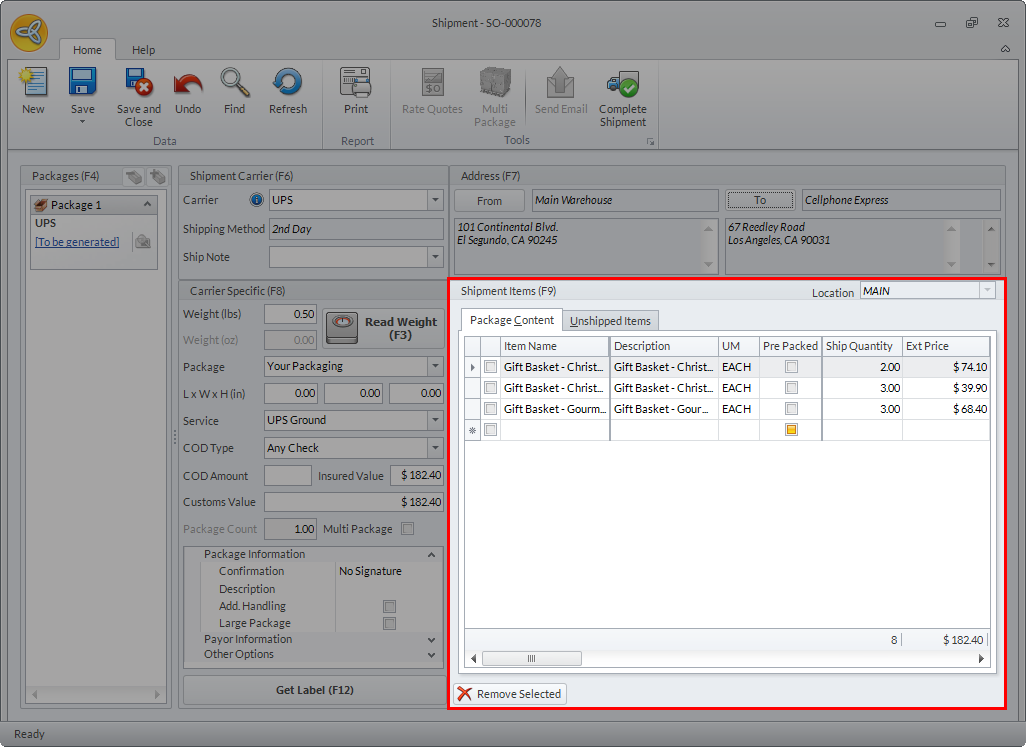
This service is available for: FedEx Priority Overnight, FedEx 2day, FedEx International Priority, FedEx 1Day Freight, and FedEx 2Day Freight.UPS Package Information Confirmation Delivery confirmation requested for a package. Available options are: No Signature, Signature Required, Adult Signature Required Description Additional information about the package. Add. Handling Indicates that additional handling special service is requested for this package. This might affect the shipping rates and/or service availability. Large Package This indicates that the package is considered to be a large package. Payor Information Transportation Payor Type Identifies the payor of transportation charges for the requested shipment. Options available are: Sender, Recipient, 3rd Party Account No. The account number of the payor. Zip Code Payor's postal code (if applicable). Country The country code for the payor (ISOcode - official two-letter country codes). Duties and Taxes Payor Type Identifies the payor of transportation charges for the requested shipment. Options available are: Sender, Recipient, 3rd Party Account No. The account number of the payor. Zip Code Payor's postal code (if applicable). Country The country code for the payor (ISOcode - official two-letter country codes). Other Options Saturday Pickup Indicates that the shipment will be picked up on a Saturday. Saturday pickup service is available for an additional charge depending on the package service type and origin/destination pair. The rates and service availability depend on the ship date. This service is not available for return shipments. Saturday Delivery Indicates that the shipment will be delivered on a Saturday. Saturday delivery service is available for an additional charge depending on the package service type and origin/destination pair. This service is not available for return shipments. USPS Confirmation Available options are: Delivery and Signature Image Type The label image type. Available options are: GIF, JPG, TIF (This image type is not supported when using Endicia). - In the Shipment Items section > Package Content tab, all the items to be shipped are displayed. To exclude an item from the shipment, tick the checkbox right next to the item and click Remove Selected button or press Delete key in your keyboard.
Click Image to Enlarge
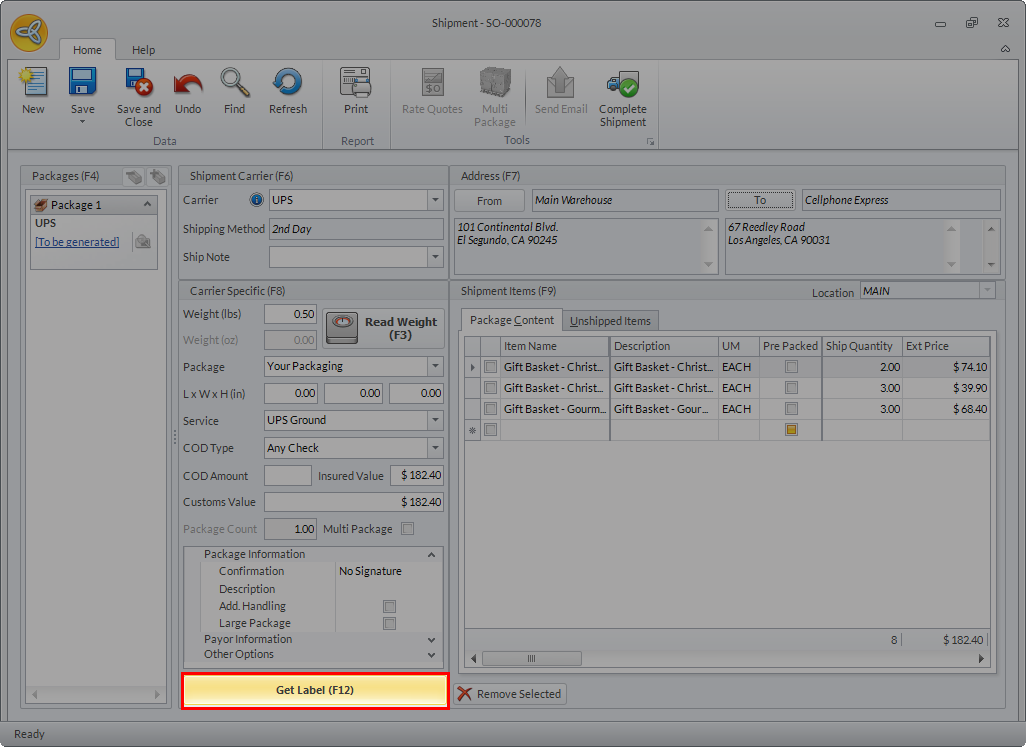
- Click the Get Label (F12) button to generate the label for the shipment. The tracking number will be indicated in the Packages panel of the Shipment form. In case the rate displayed is Zero ($0), click the Refresh button to request for the actual rate. You can also set the default value on Get Label in the Default.ActionsOnGetLabel shipping config. See Shipping Configuration List > Shipping Defaults.
Click Image to Enlarge
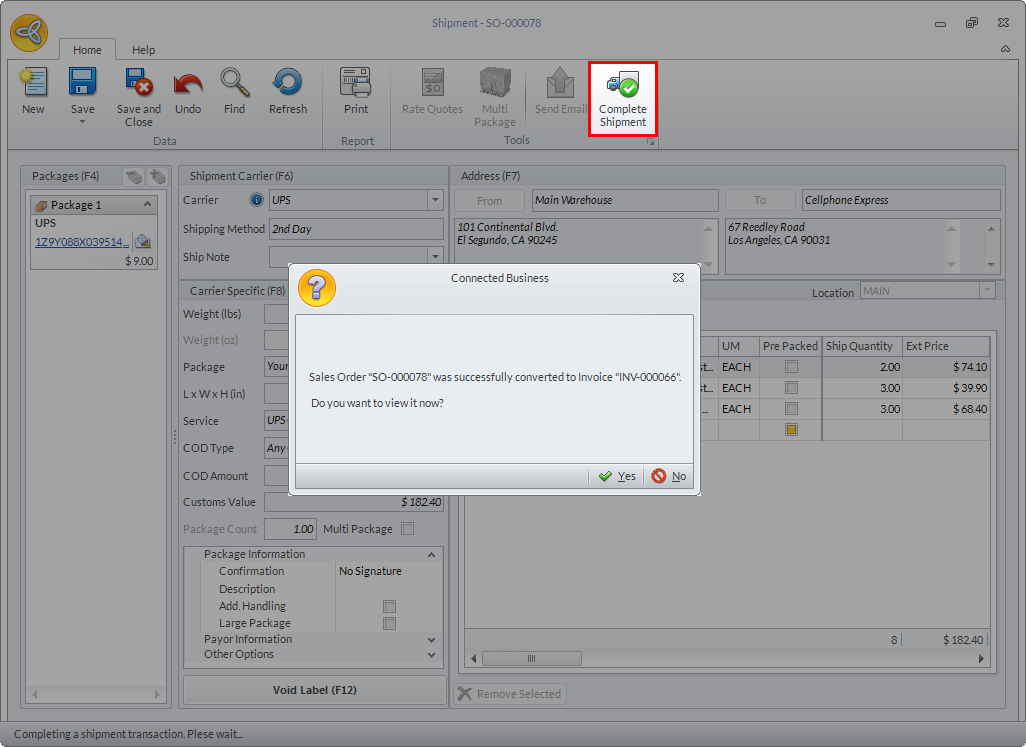
- After generating the label, click Complete Shipment. Completing the shipment automatically converts the order to invoice. Click Yes if you want to view the invoice or No if you want to process another shipment transaction.
Click Image to Enlarge

Process Shipment from Open Sales Invoice
To process a shipment from sales invoice,
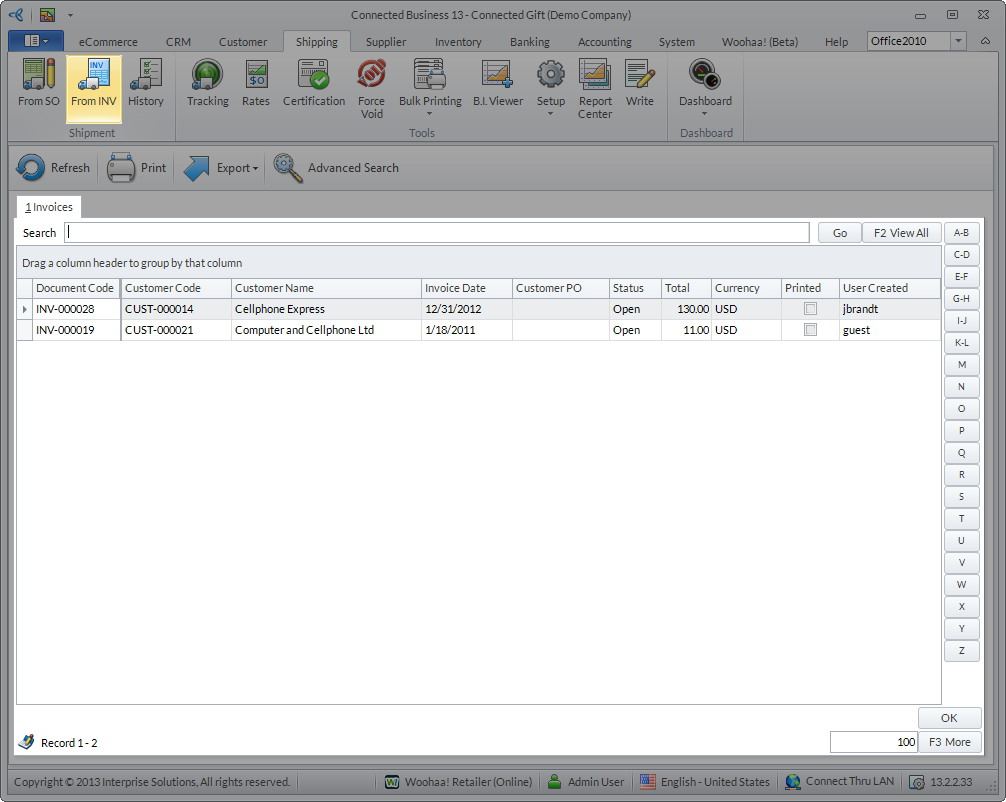
- Go to the Shipping module > From INV and the list of open sales invoices will be displayed.
Click Image to Enlarge
- Select the sales invoice to be processed from the list and the Shipment form will be displayed.
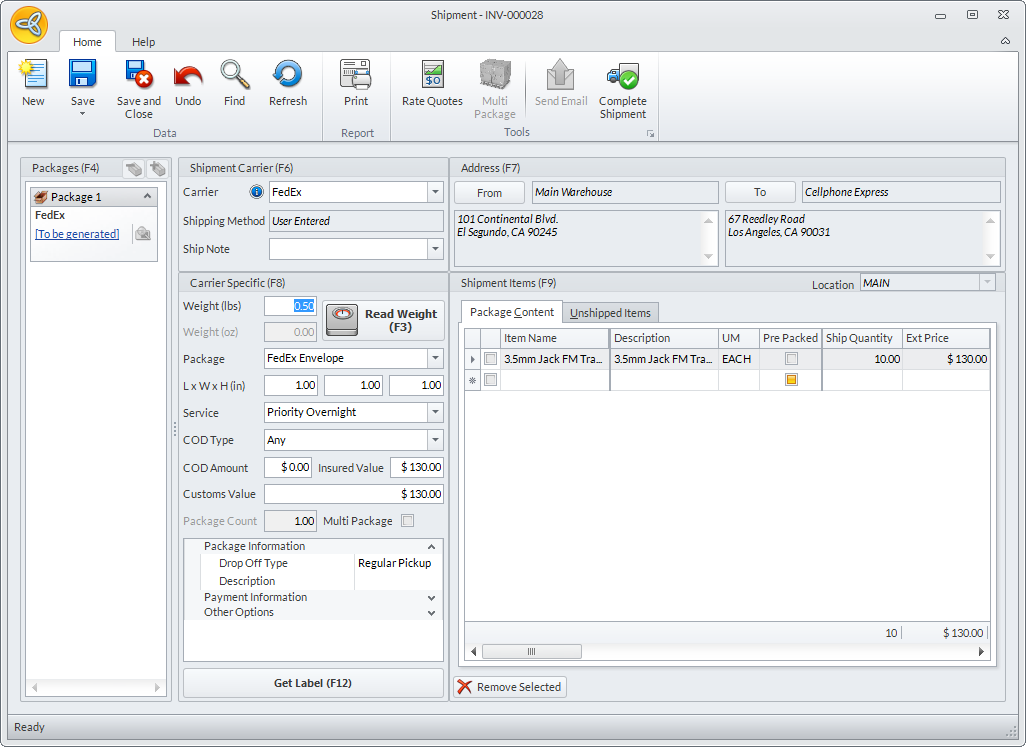
Click Image to Enlarge
- Process the shipment for the invoice the same procedure as processing shipment from sales orders.
Process Shipment from the Sales Order Form
You can also process the shipment directly from the Sales Order form. To do this,
- Go to the Customer module > Order and select New or Find Order.
- In the Sales Order form, go to the Shipment List tab. A message prompt will be displayed indicating “No shipment found for this Record. Create one now?”. Click Yes to display the Shipment form and proceed with processing the shipment or No to cancel.
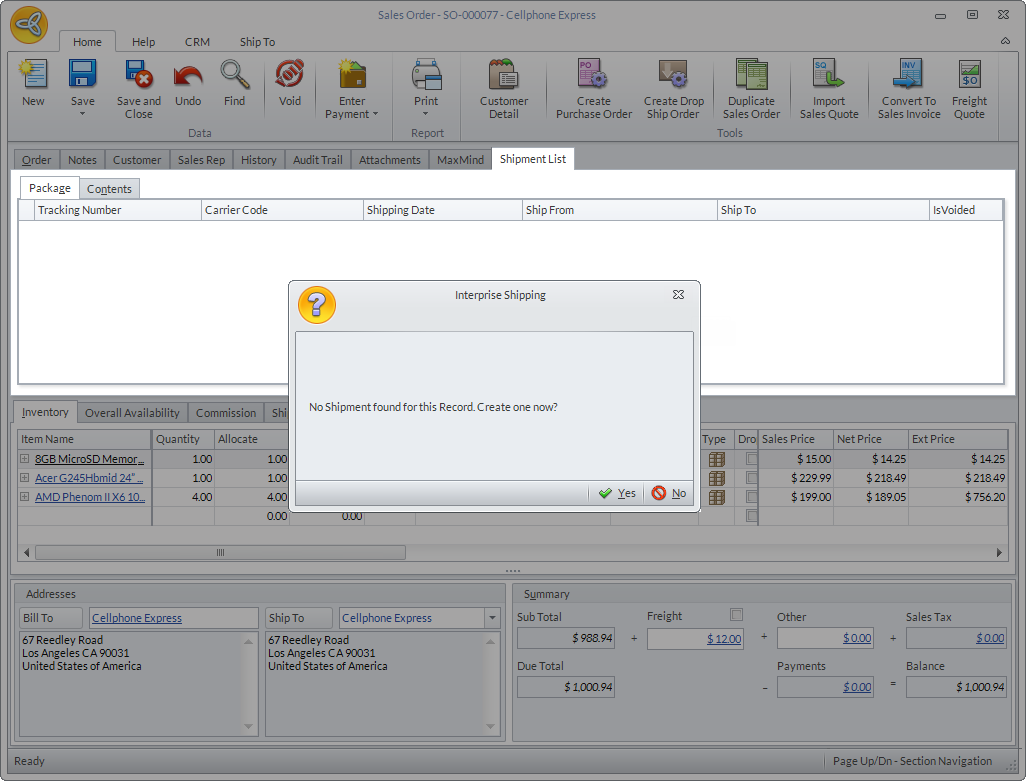
Click Image to Enlarge

Only sales orders that are ready for invoicing can be processed for shipment. Check the workflow status of the order and make sure that it is set to Ready to Invoice. If not, a message will be displayed indicating “Order not qualified for shipment, please check workflow or order status.”
Process Shipment from the Sales Invoice Form
To process a shipment directly from the Sales Invoice form,
- Go to the Customer module > Invoice and select New or Find Invoice.
- In the Sales Invoice form, go to the Shipment List tab. A message prompt will be displayed indicating “No shipment found for this Record. Create one now?”. Click Yes to display the Shipment form and proceed with processing the shipment or No to cancel.
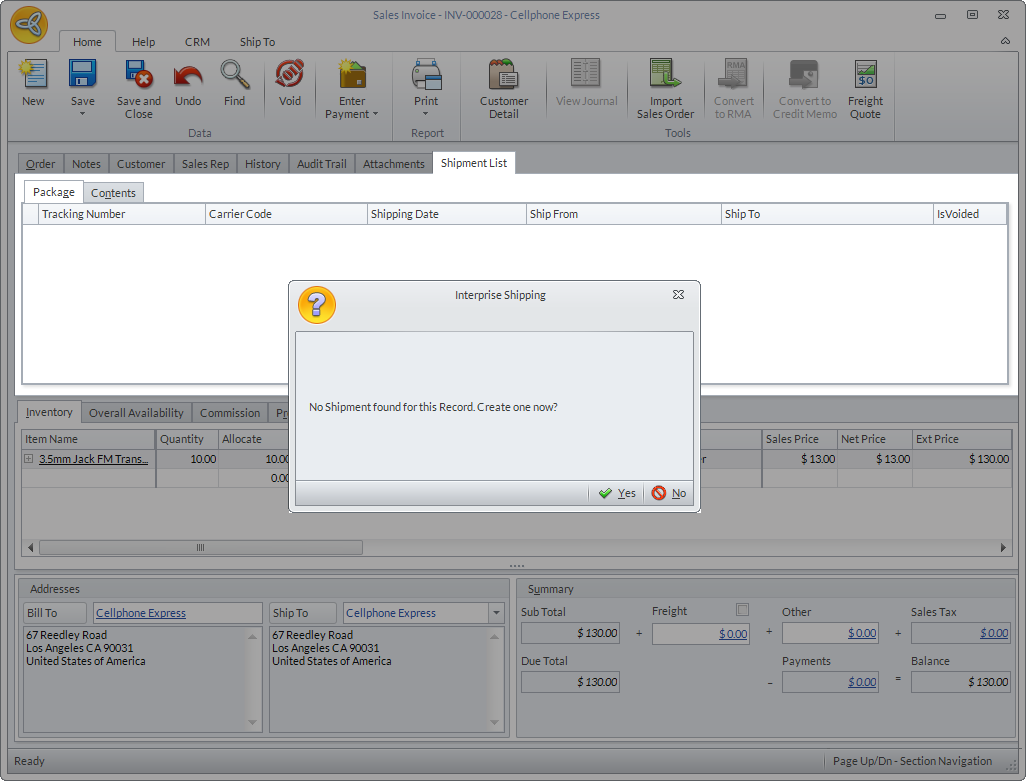
Click Image to Enlarge
Only open sales invoices or invoices that are not posted or voided can be processed for shipment. If not, a message prompt will be displayed indicating “Order not qualified for shipment, please check workflow or order status.”