
Process Loyalty Points in the Webstore
Loyalty Points are the number of points a customer earns upon making a purchase. The amount of which, is set by the store owner and is based on the value of the item itself.
In Connected Business, Loyalty Points can be enabled, displayed or hidden by the store owner.
This article will detail how to do as such, as well as how the customer can redeem or use Loyalty Points on the online store.
You can also refer to Loyalty Points for more information on how loyalty points are processed in the Connected Business backend.

This feature is only available in Connected Business v14 and higher
Configure Loyalty Points
To enable a customer to earn Loyalty Points,
- Go to the eCommerce module > Setup > Application Configuration. The Application Configuration form will be displayed.
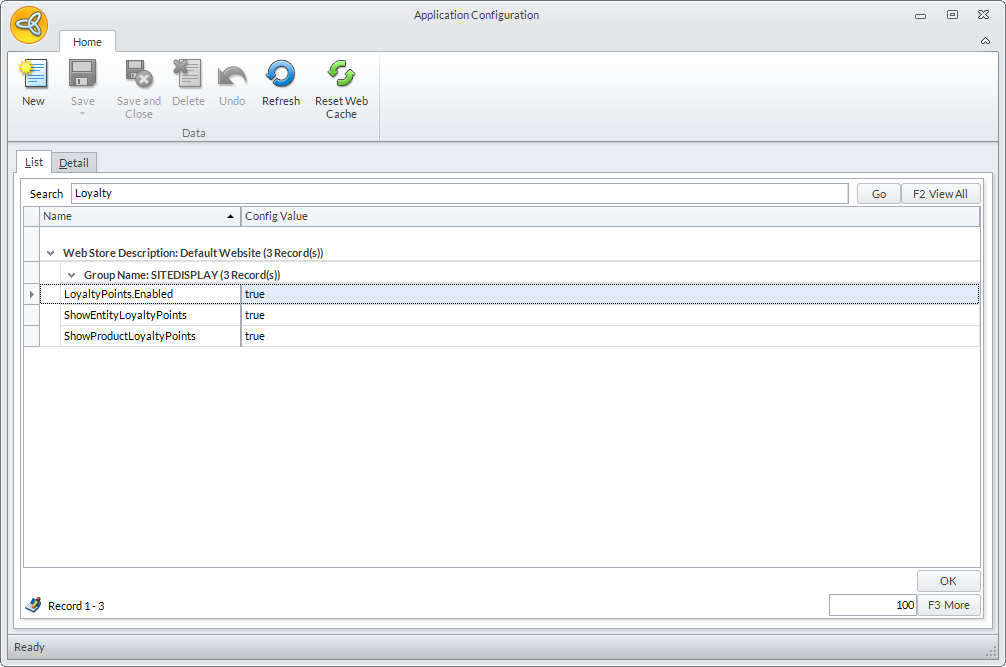
- Enter “Loyalty” into the search field. 3 results will be returned. Click on the item/s to be configured.
Click Image to Enlarge
- LoyaltyPoints.Enabled - Set to “True” to enable customers to earn Loyalty Points. Conversely, set to “False” disable the Loyalty Points feature.
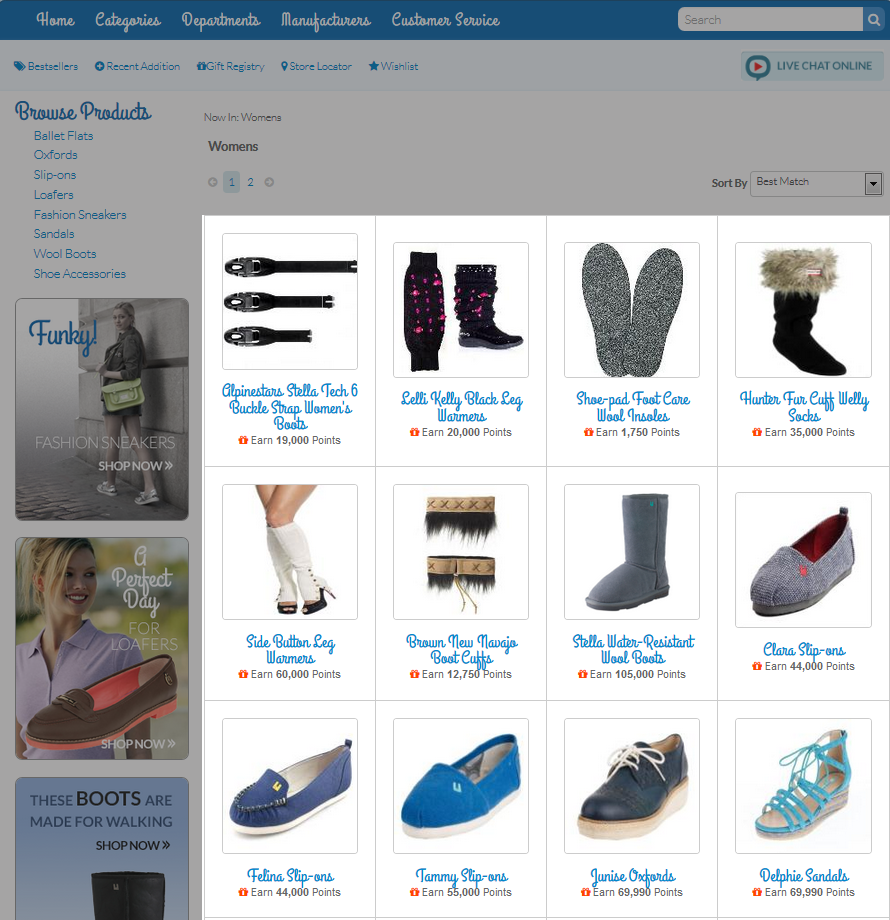
- ShowEntityLoyaltyPoints - Set to “True” to display Loyalty Points to be earned in the Category, Department, and Manufacturer Pages of the store. Conversely, set to “False” to keep Loyalty Points hidden on these pages.
Click Image to Enlarge
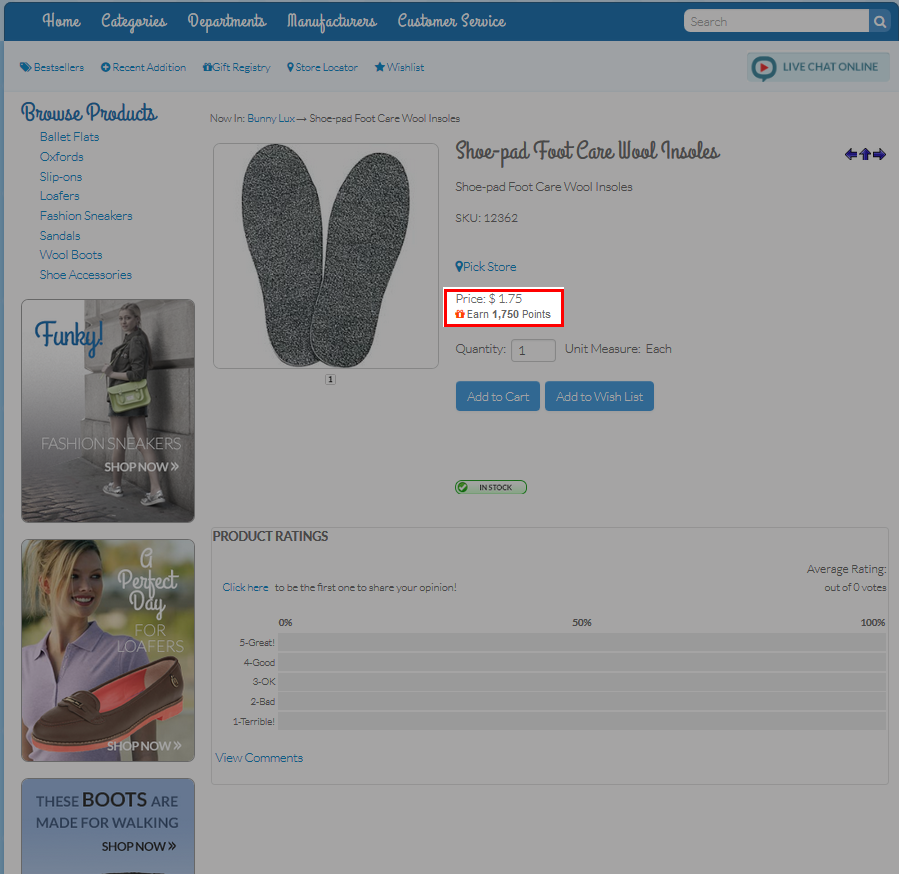
- ShowProductLoyaltyPoints - Set to “True” to display Loyalty Points to be earned on product pages. Conversely, set to “False” to keep Loyalty Points hidden on these pages.
Click Image to Enlarge
- LoyaltyPoints.Enabled - Set to “True” to enable customers to earn Loyalty Points. Conversely, set to “False” disable the Loyalty Points feature.
- Save all Changes and close the Application Configuration Form.

Earn Loyalty Points
- Browse the store website for available products.
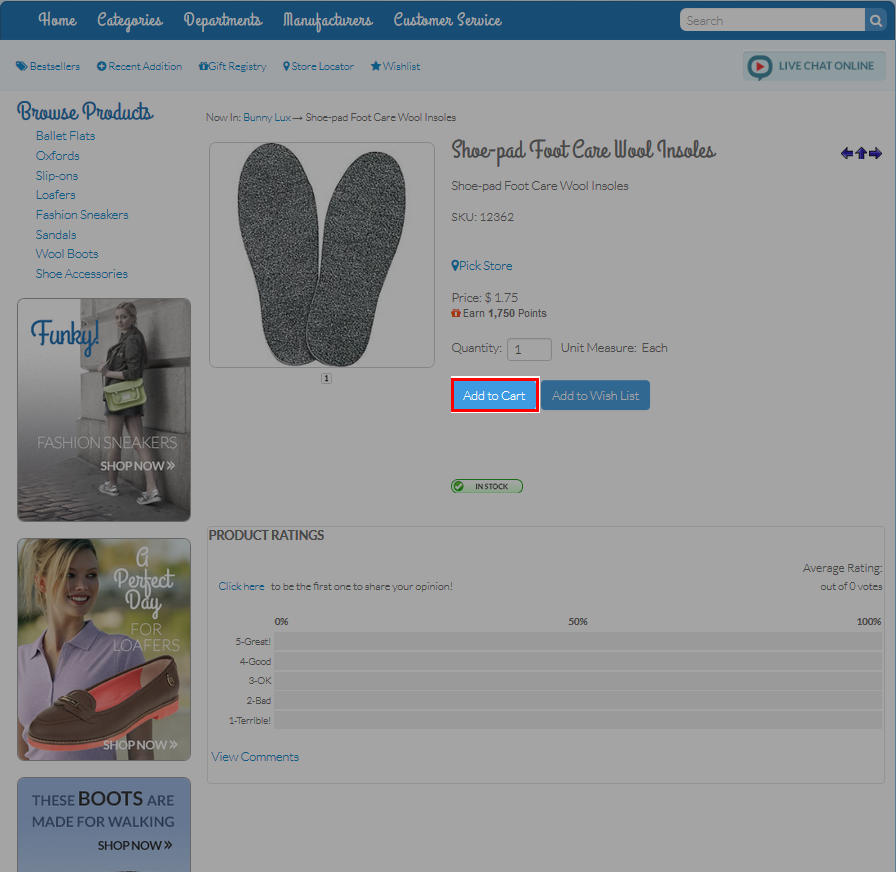
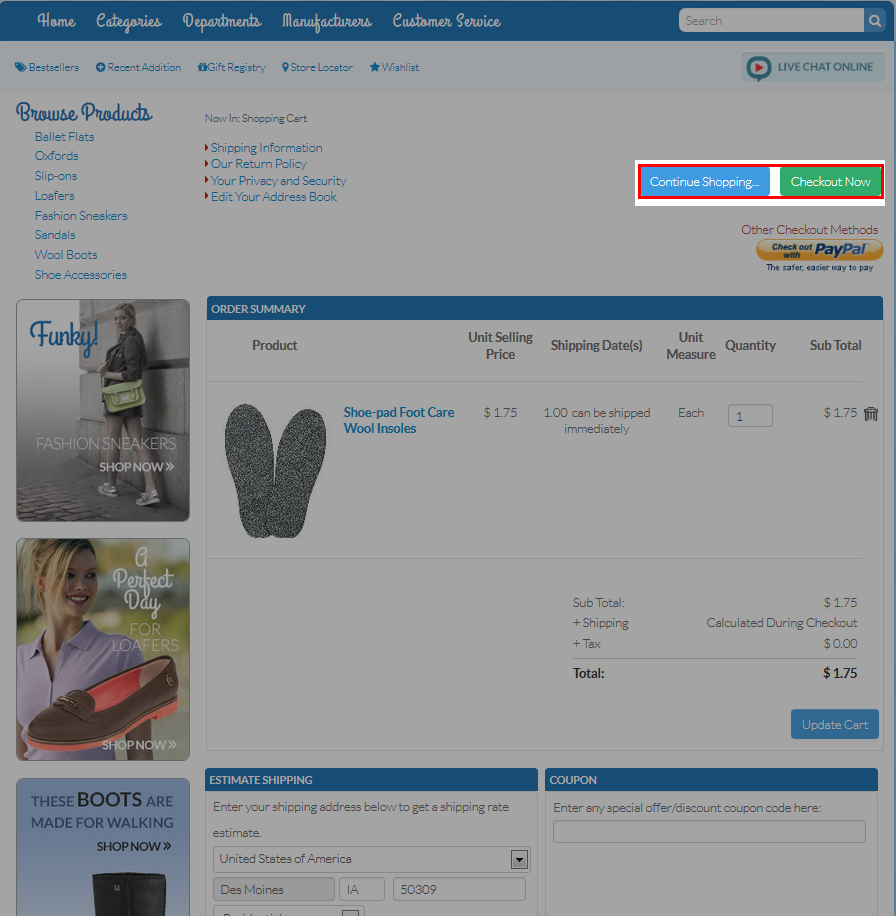
- Click Add to Cart to add items to the Shopping Cart. The Shopping Cart will be displayed.
Click Image to Enlarge
- Click “Checkout Now” to process payment. Alternatively, click Continue Shopping to add more items to the cart before paying.
Click Image to Enlarge
- Select the desired Shipping Method and provide complete Payment Details. Click Continue Checkout to proceed to confirmation.
- On the Order Confirmation page, review the Order Details and click “Place Order” to complete the purchase. Loyalty Points available to be earned for the item will be credited to the user account.
View Loyalty Points
For a customer to view available Loyalty Points,
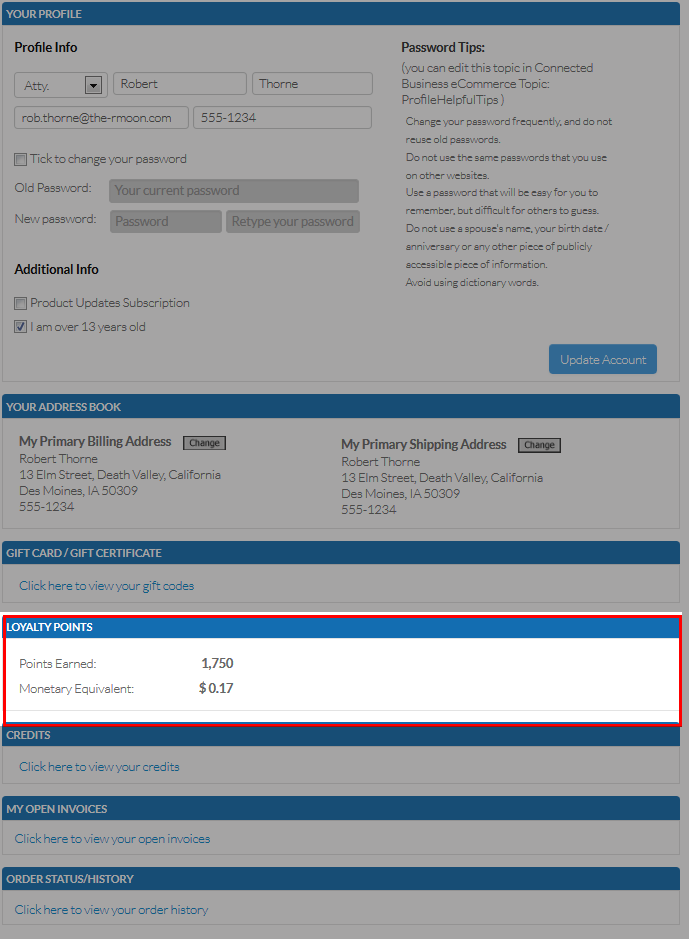
- On the store website, click on the User Name displayed in the upper corner of the store website. The User Profile will be displayed.
- Under the Loyalty Points section, the number of Loyalty Points earned and the corresponding monetary equivalent value will be displayed.
Click Image to Enlarge
Login is required to view User Profile and Loyalty Points.
Redeem Loyalty Points
For a customer to redeem earned Loyalty Points,
- Browse the store website for available products.
- Click Add to Cart to add items to the Shopping Cart. The Shopping Cart will be displayed.
- Click “Checkout Now” to process payment.
- Select the desired Shipping Method.
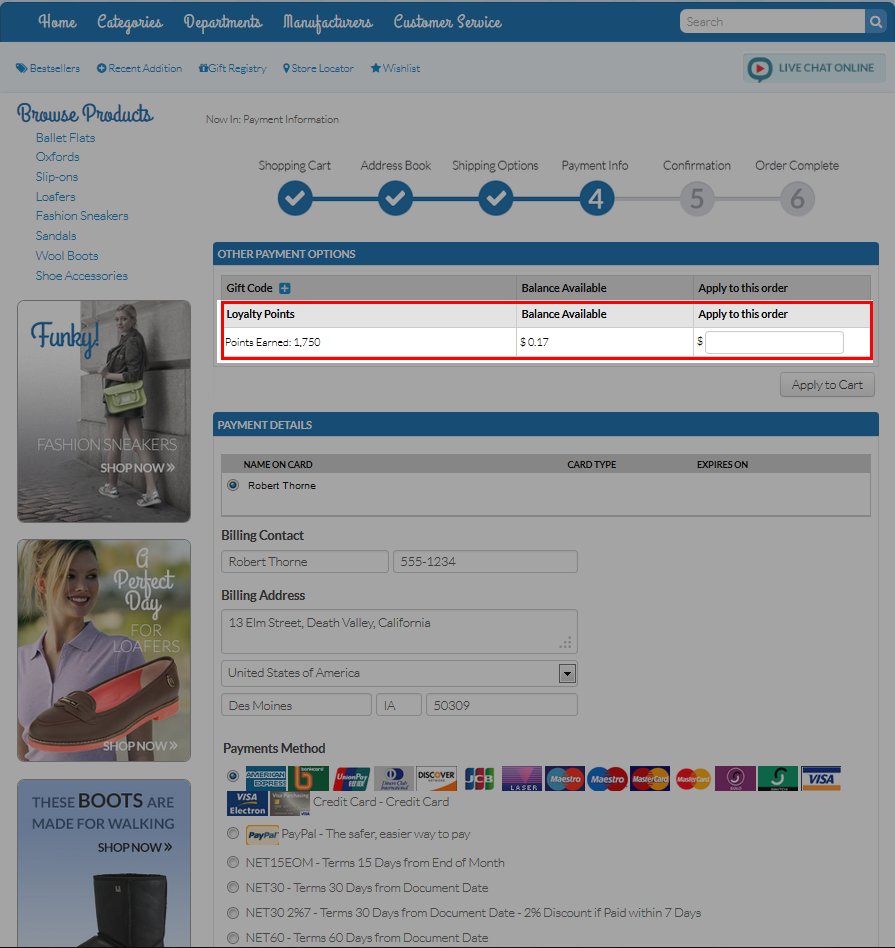
- On the Payment Information page, under the Other Payment Options section, enter the amount of Loyalty Points to be redeemed in the Loyalty Points field. Click Apply to Cart to apply changes.
Click Image to Enlarge
- Complete the remaining Payment Details. Click Continue Checkout to proceed to confirmation.
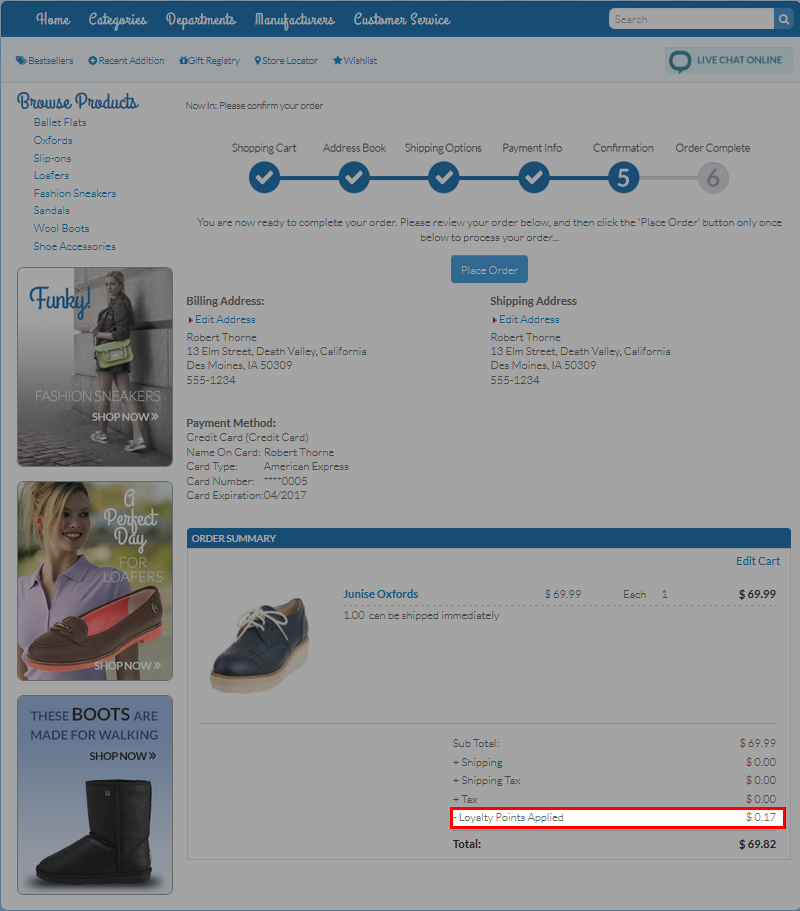
- On the Order Confirmation page, review the Order Details. The amount of redeemed Loyalty Points will be indicated as Loyalty Points Applied. Click “Place Order” to complete the purchase. Loyalty Points redeemed will be deducted from the user account. Loyalty Points available to be earned for the item will be credited to the user account.
Click Image to Enlarge
The amount of Loyalty Points to be redeemed can be entered in decimal form.