
Other Import Manager Functions
|
Content
|
|---|
The Import Manager lets you perform other functions as well, such as export your data to other formats,modify mapping properties for source fields, and more.
Pre-Validation vs. Direct Import
The Import Manager allows the source data to be checked prior to importing. This means that the user will have full visibility as to how much data would be imported or if the source contains invalid data. If the user opts to validate-correct-revalidate data, upon import, if no data was incorrect upon revalidation, the application will no longer validate the source and go directly into data import.
The user can still opt for the simple approach, that is to automatically import the data without pre-validation. However, data found to be incorrect will be left behind and presented to the user for data correction.

Exporting Data
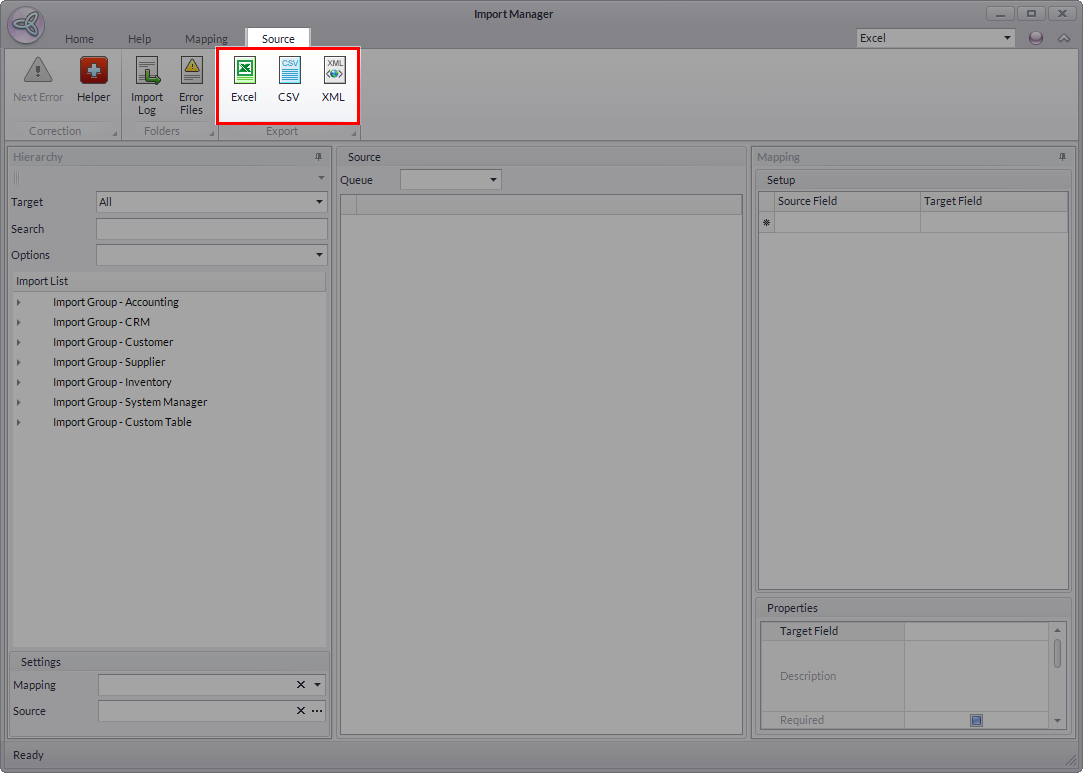
If an import process encountered errors on the source data, a user is given an option to export those rows into an external file to be imported at a later time. To export data, go to Source tab. Select the file type you want your data to be exported. Exported files are limited only to Excel, CSV and XML formats.
Click Image to Enlarge
Re-Mapping Import Data
For source files using the same mapping setup, the user can reuse its mapping data from previous import processes. The system stores all mapping information from any previous import process so that it can be used over and over again, thus, making mapping easier for the user. Follow the steps below on how to remap import data:
- Reuse Mapping Data. From the previous import, you have the option to reuse the previously generated data by making sure that the source and the target files has fields matched to each other in the Mapping area.
- Testing the Validity of the Mapped Source. On the Settings option, you may assign the templates by selecting the list of existing templates in the Mapping field. Once done, click Apply Map.
See More: Import New Data
- Valid. After clicking the Apply Map option, the assigned map source will not reflect any error, thus considered to be a compatible mapping source.
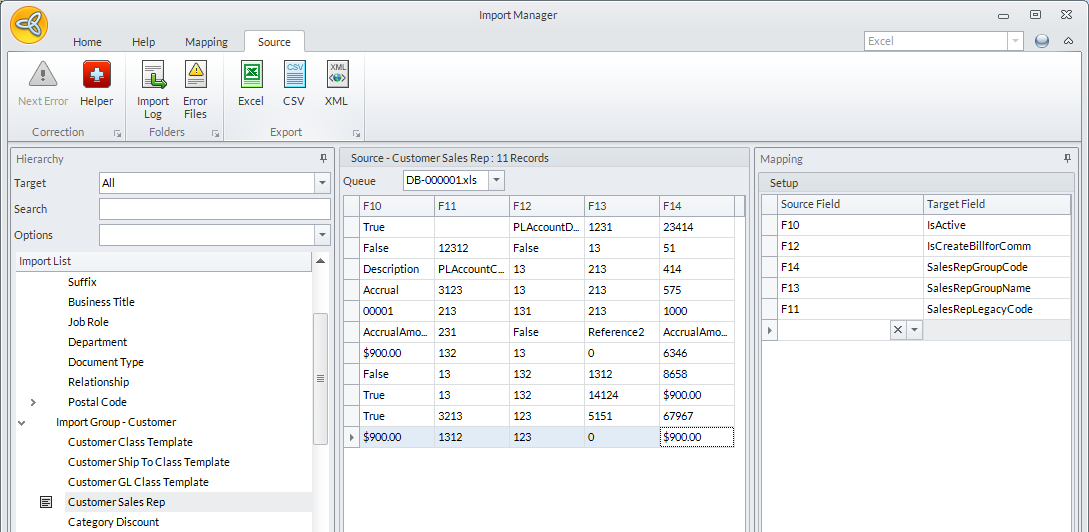
- Invalid. After clicking the Apply Map option, the assigned map source will reflect any error, thus considered to be an incompatible mapping source. You may need to do a recheck of the source and target fields.
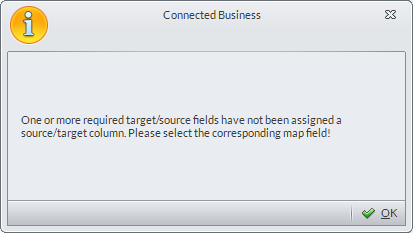

In other words it is required that in order to reuse a mapping file, the source file should contain all the source fields defined in the mapping file to complete the mapping.