
Manage Item Pricing
| CONTENT |
|---|
The Item Price tab allows you to manage and maintain default pricing, price lists and promotional pricing for the selected item.
AMEND DEFAULT PRICING DETAILS
On the Default Pricing section, you may set up the supplier promotional pricing for the item if any. To set up a supplier promotional pricing,
- You can change the default pricing method and the values in the default Retail and Wholesale price.
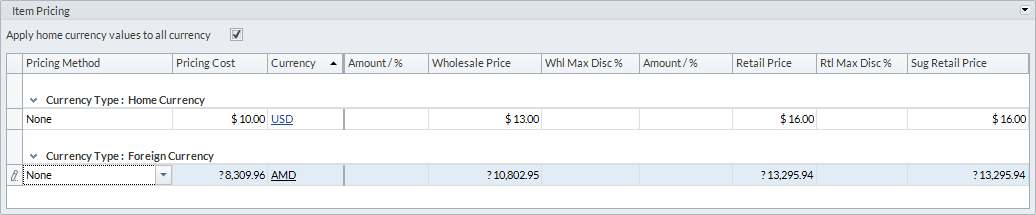

See More: Wholesale and Retail Pricing
- You can also add new selling currencies by activating your preferred currencies through the Banking Module ► Multicurrency
Read more: Multicurrency

SET UP MAXIMUM DISCOUNT
You may set the maximum discount on an item provided that the maximum discount is enabled in the System Manager module. To set a maximum discount on an item,
FOR AN ITEM
- On the selected item form, click Pricing tab.
- On the Item Pricing section, indicate the maximum disocunt for the wholesale or retail discounts on the Whl Max Discount % and Rtl Max Discount % columns, respectively.
STOCK ITEM
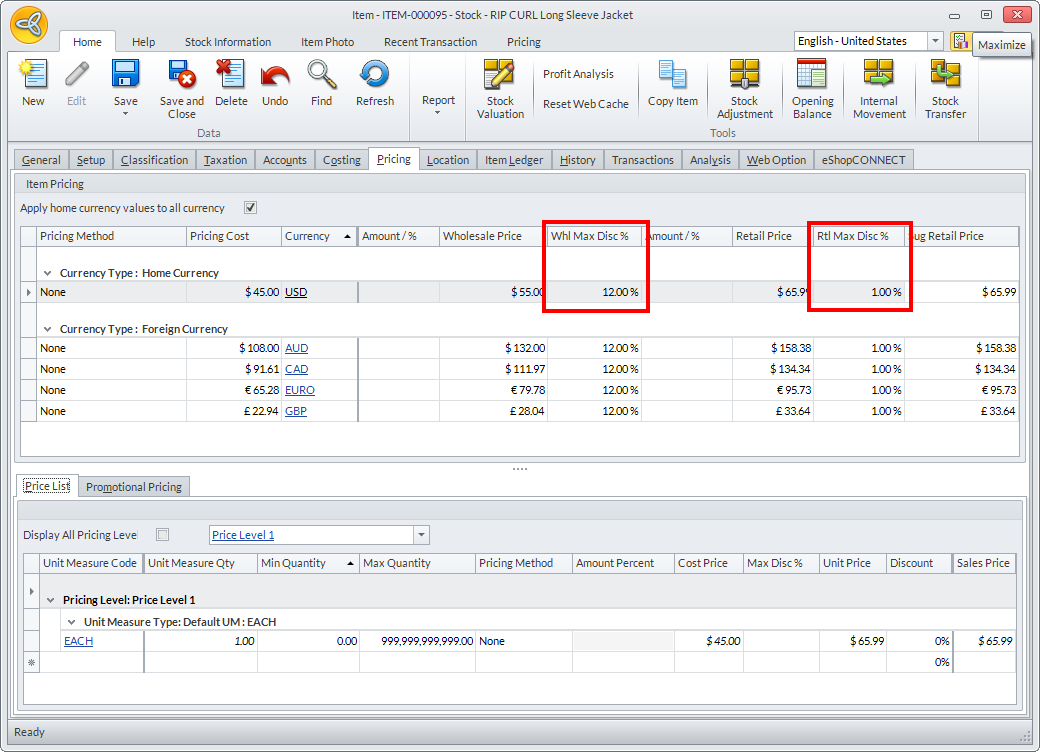
Click Image to Enlarge
KIT ITEM
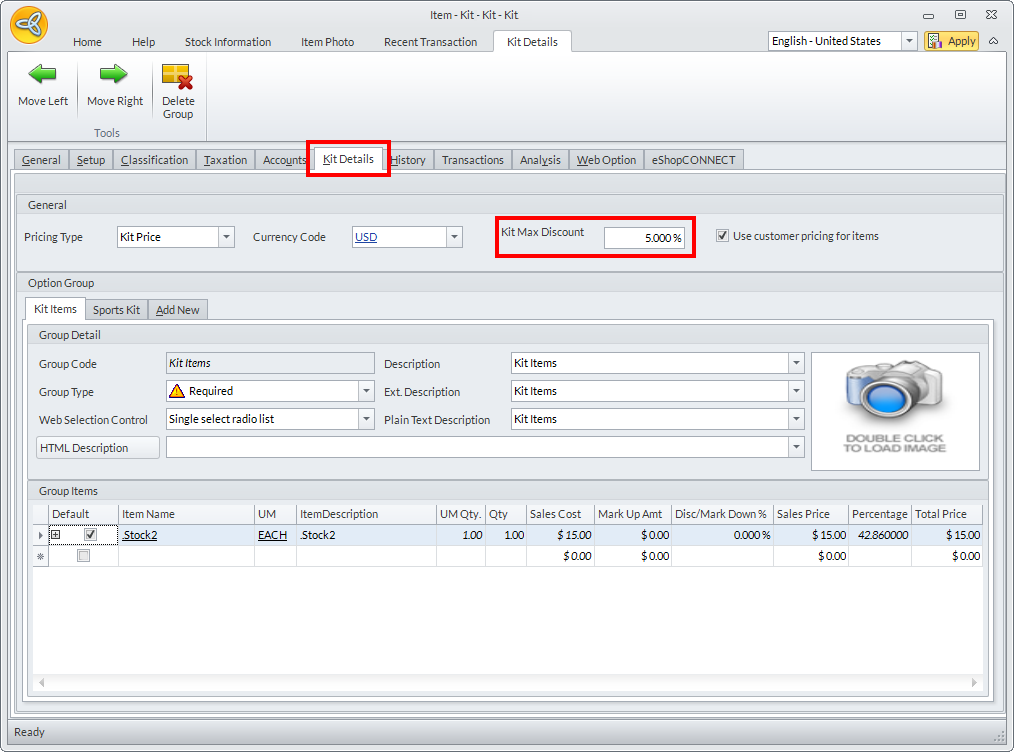
Click Image to Enlarge
BUNDLE ITEM
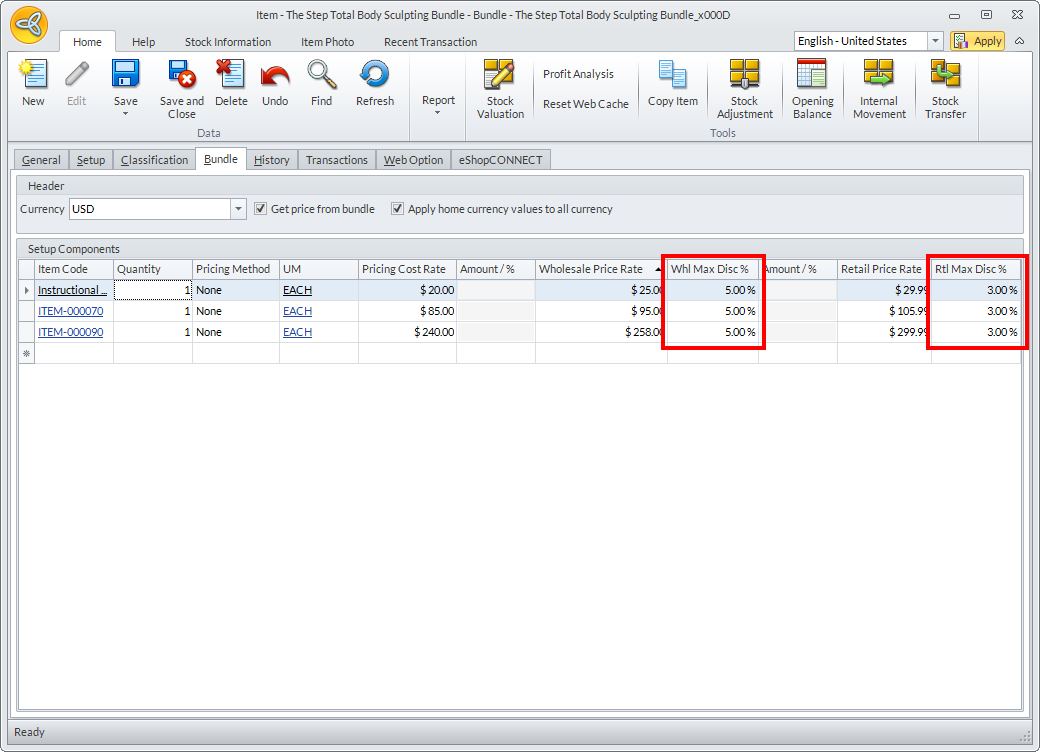
Click Image to Enlarge
- Click Save and Close to apply the changes.
Once you have entered the defined maximum discount percent for both retail and wholesale, the system will automatically apply the discount on all other supported currency types.
FOR AN ITEM PRICE LIST
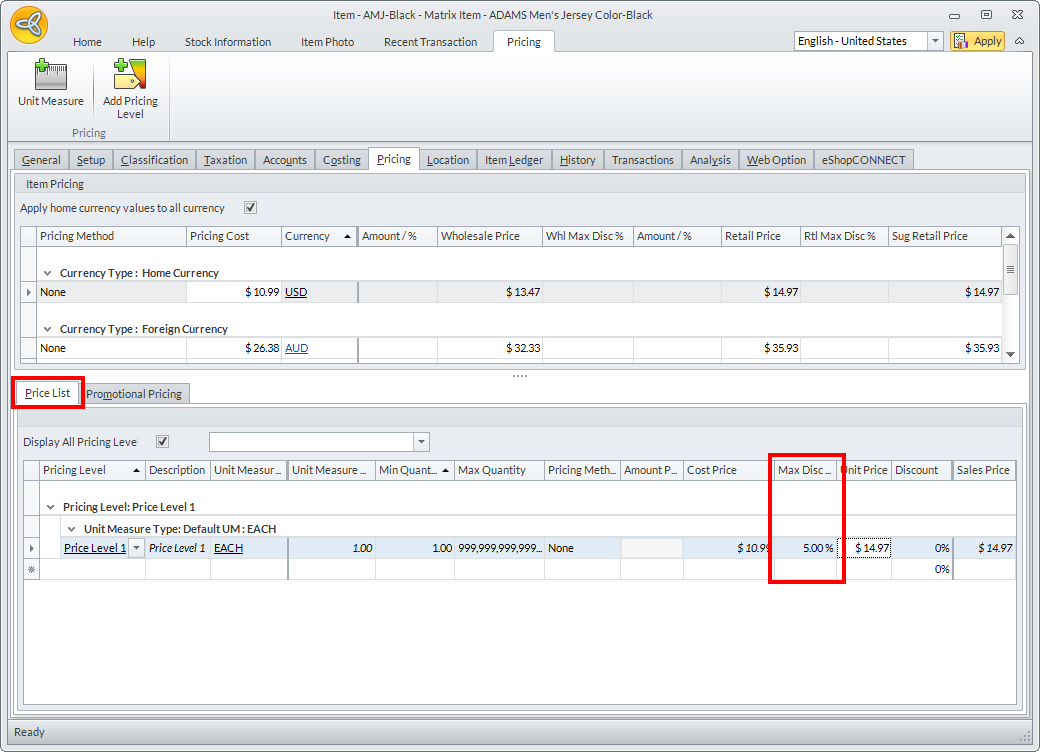
Click Image to Enlarge
FOR THE PROMOTIONAL PRICING OF AN ITEM
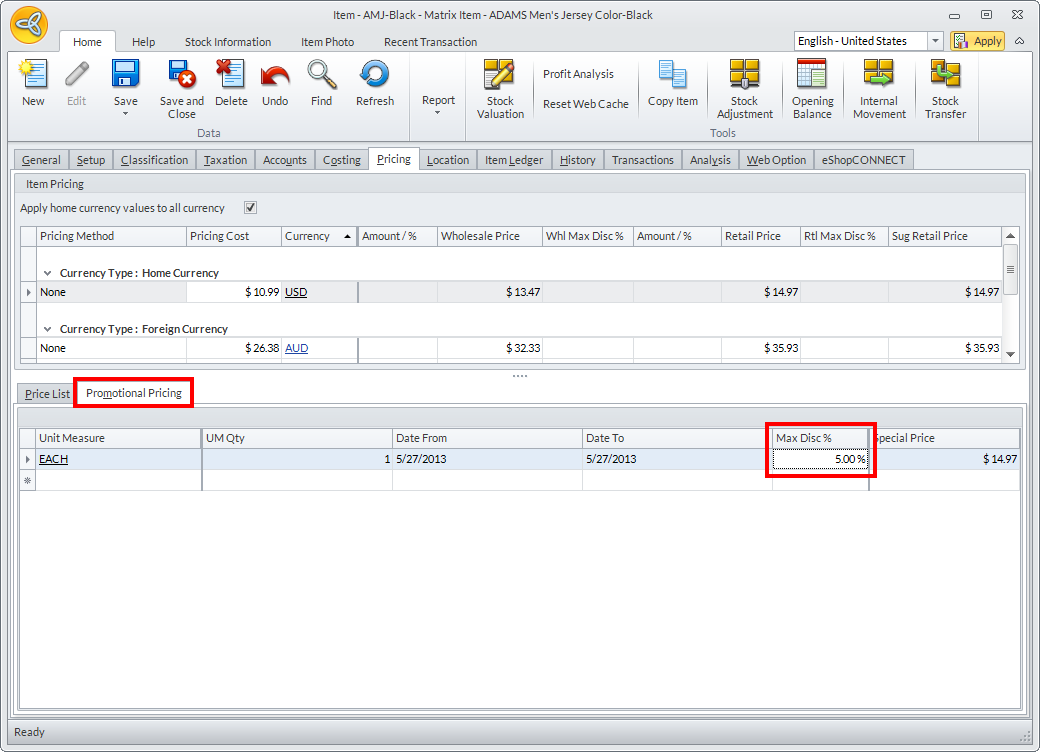
Click Image to Enlarge
APPLYING MAXIMUM DISCOUNTS AND MANAGER OVERRIDE TO LINE ITEMS
To apply discounts to line items,
- Go to the Customer module, select Order/Invoice ► New Order/New Invoice. Select an active customer on the list by navigating on the Ship to Customers or Bill to Customers tab.
- On the Sales Order/Sales Invoice form, select an item(with a defined maximum discount) and add it on the list.
Suppose, a cashier has no rights to give discount to the customer which means that the maximum discount setup for the cashier is 0% and an item ordered by the customer has a defined maximum discount(e.g. 5%)set for retail or wholesale orders. The scenario for applying the maximum discounts and manager override will look like this:
Depending upon the setup Pricing and Discount Schemes for a certain customer, the system will still follow the pricing and discount hierarchy(rules). If an item has no maximum discount defined, the system will use the user's max discount.
Discount is Less than the Item Maximum Discount
When the system detects an amount entered on the Discount column that is lesser than the defined Item Maximum discount, the pop up message will get and indicate the System Maximum Discount on the logged in User Account.
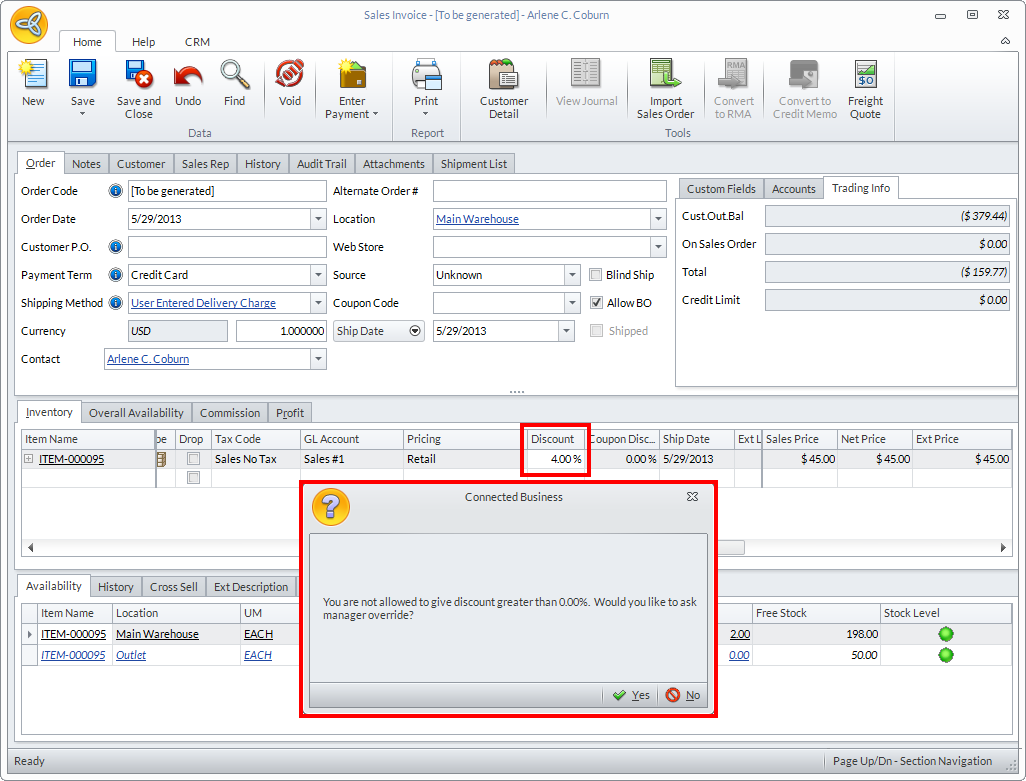
Click Image to Enlarge
Discount is More than the Item Maximum Discount
When the system detects an amount entered on the Discount column that is more than the defined Item Maximum discount, the pop up message will get and indicate the defined Item Maximum Discount on the logged in User Account.
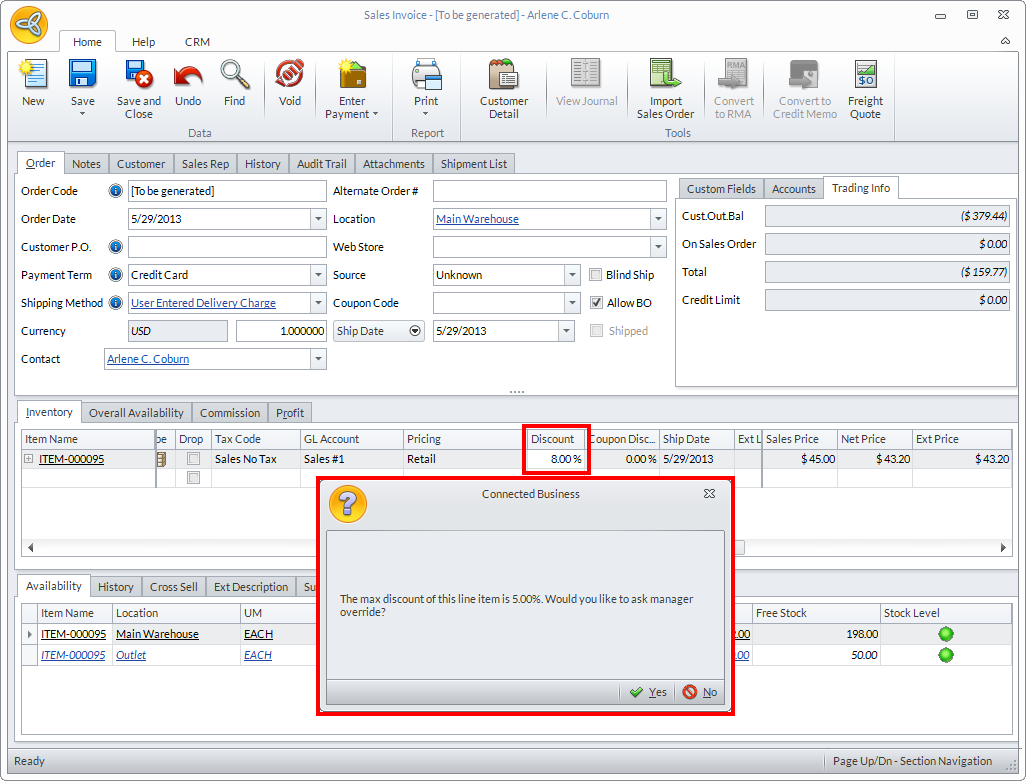
Click Image to Enlarge
- Enter the Username and Password for the manager override. The given discount will then reflect on the order.
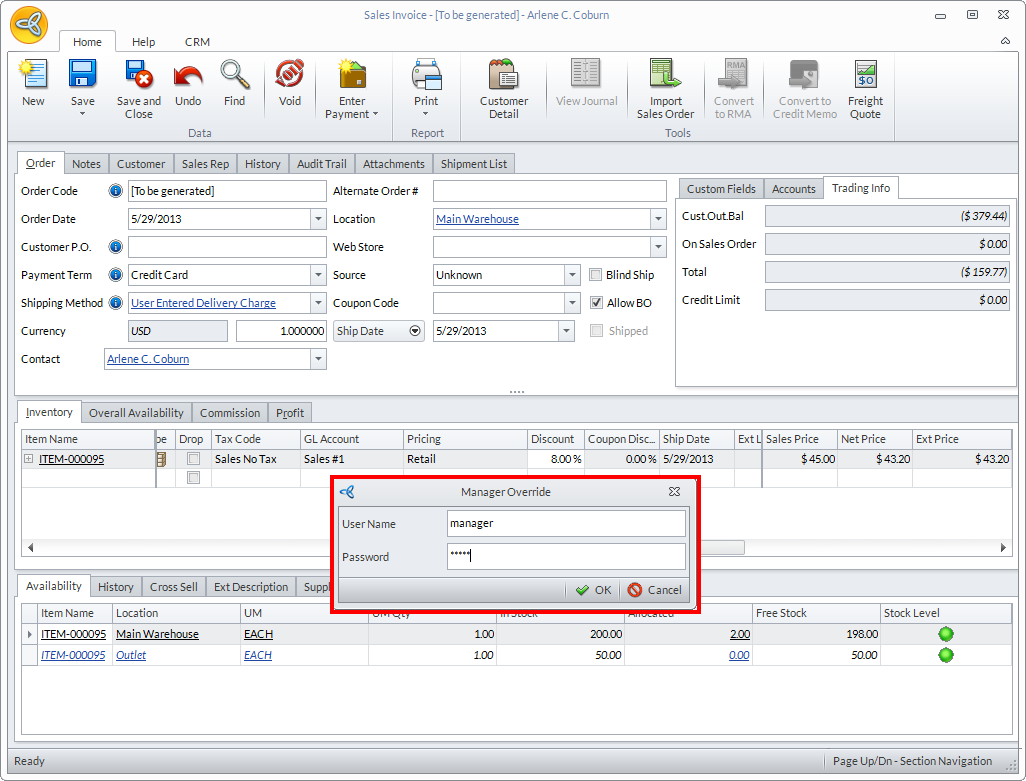
Click Image to Enlarge
- You may now click Save and Close to apply the changes on the Sales Order/Sales Invoice form.
SET UP PRICE LIST
In the Price List tab you may create a bulk order scheme or multiple price levels.
To create multiple-level pricing,
- Check the option Show All Pricing Levels to view all available price levels. Uncheck the option to select a specific price level.
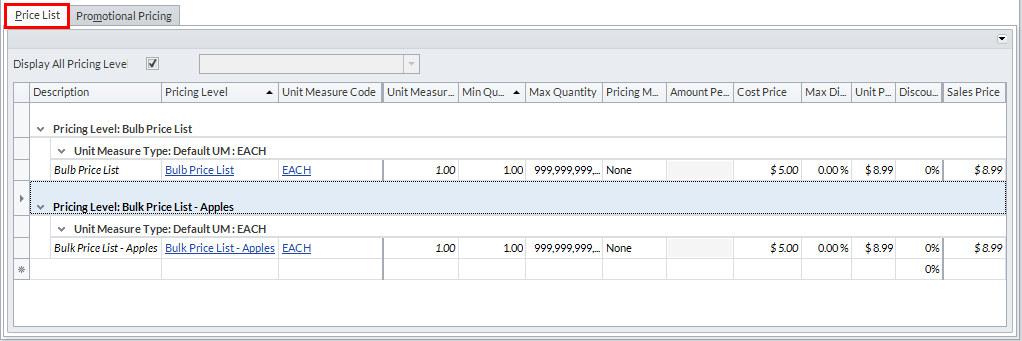
- You can add new price levels with the Add New Price Level button.
SET-UP PROMOTIONAL PRICING
The Promotional Pricing tab allows you to implement a special or promotional pricing for your items per currency or per unit measure.
To create special/promotional pricing,
- Select the Unit Measure of the Item e.g. EACH
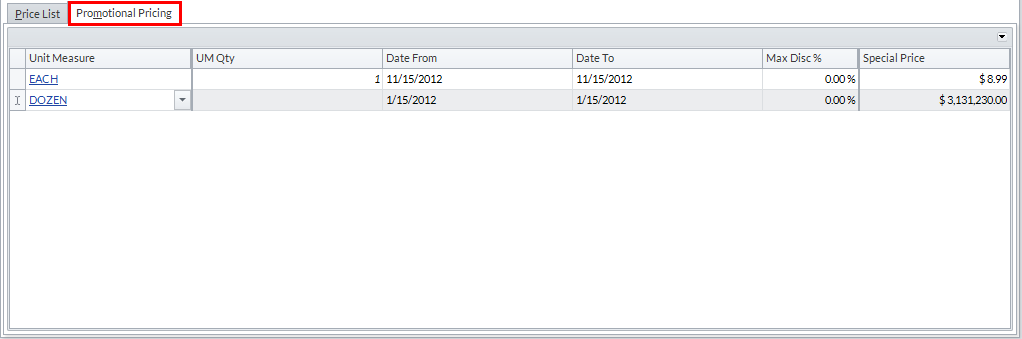
- Enter the inclusive dates of the special/promotional price in the Start Date and End Date fields. Note that when the promotional pricing has expired, you will be prompted that the promotional price has expired for the item.
- Enter the new cost price of the item in the Special Price column.
Know how to set-up promotional pricing. Read More: Setting Up Price Lists