
Manage Internal Movements
An Internal Movement record or document is done when inventory items were moved from one warehouse location and inventory account to another.
Move Items from One Location to Another
- From the Inventory Module > Stock > Internal Movement > New Internal Movement

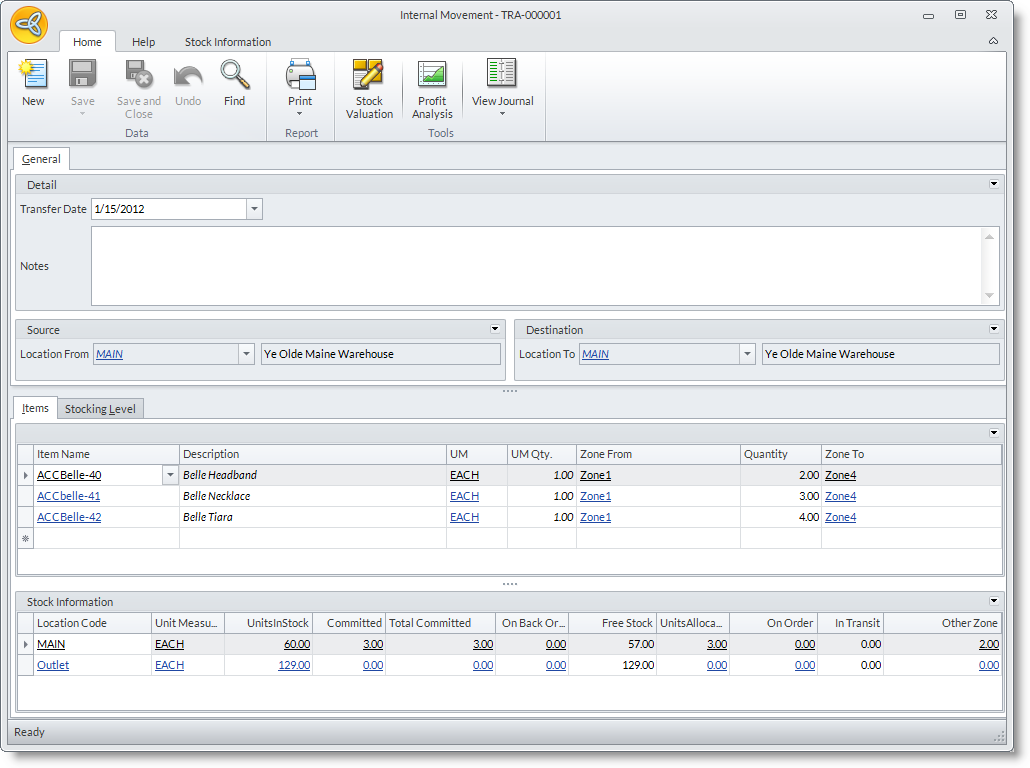
- The Internal Movement form will be displayed.

|
Internal Movement Form |
|
|
Fields |
Description |
|
Transfer Date |
Set on the current date. Select the date in the calendar to change from the default current date, or accept the default current date as true. |
|
Notes |
Input notes for internal movement. The notes should apply to all the items included in the current internal movement. |
|
Source Location |
Select the Source Location where the item will be moved from. |
|
Item |
Select the items to move in the Items tab. From the Item Name column, select the items to be moved from here.. |
|
Quantity |
Enter the Quantity of the items to be moved. |
| Zone From/ Zone To |
Select the source Zone and the destination Zone of the item being moved. |
- Save the details before closing the form. Two adjustment records (an Adjustment-Out for the Source location and an Adjustment-In for the destination location) are automatically created in the background and referenced to the internal movement record. This adjustment records would verify the changes in the stock quantities.

Stock Transfers are done when inventory items were moved from one warehouse to another.
To know more about this topic, read more: How to Transfer Stocks

View Internal Movements
- From the Inventory Module > Stock > Internal Movement > Find Internal Movement. The Internal Movement history search will be displayed.

- Select the Internal Movement record you want to view to display the Internal Movement form

- Input your desired details in the Internal Movement form as necessary.
- Save your inputs before closing the form.
AMEND INTERNAL MOVEMENTS
To amend an internal movement, create a new internal movement record reflecting the items and quantity in the first internal movement.
- From the Inventory Module > Stock > Internal Movement > New Internal Movement. The Internal Movement form will be displayed.
- From the Source section, select the same location you made the previous internal movement on.
- In the Zone From field, select the destination location from the previous internal movement.
- In the Zone To field, select the source location from the previous internal movement.