
Maintain Accounting Fiscal Year/Fiscal Periods
|
Content
|
|---|
In Connected Business, you can have as many periods as you may need and be able to lengthen or shorten the periods as you may need.
Steps
- From the Accounting module, select Setup > Account Period. The Accounting Period setup form will display.
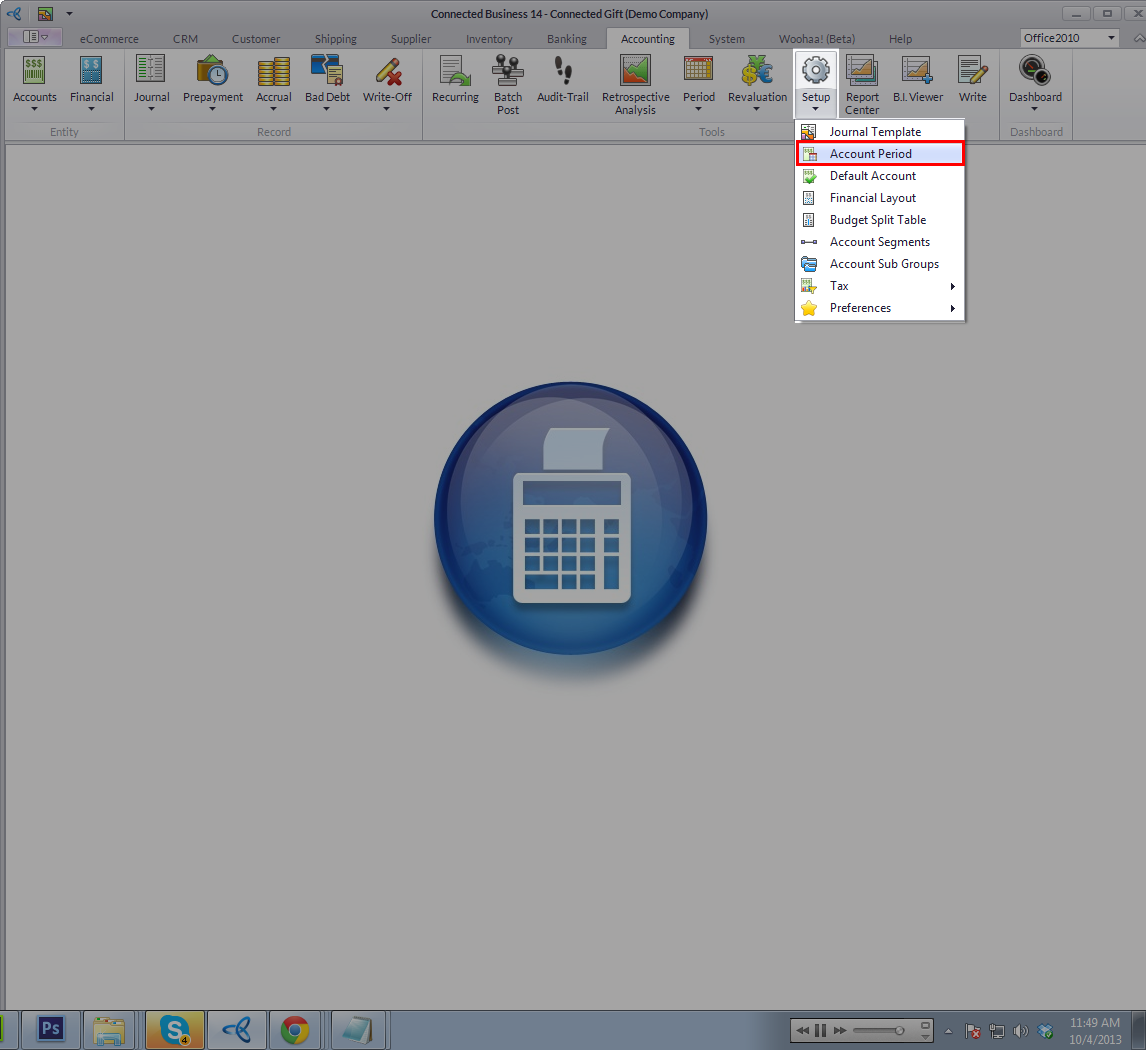
Click Image to Enlarge
- By default, the current fiscal year is displayed. You can select another fiscal year in the list to view.
- Edit the details as necessary and save before closing the form.
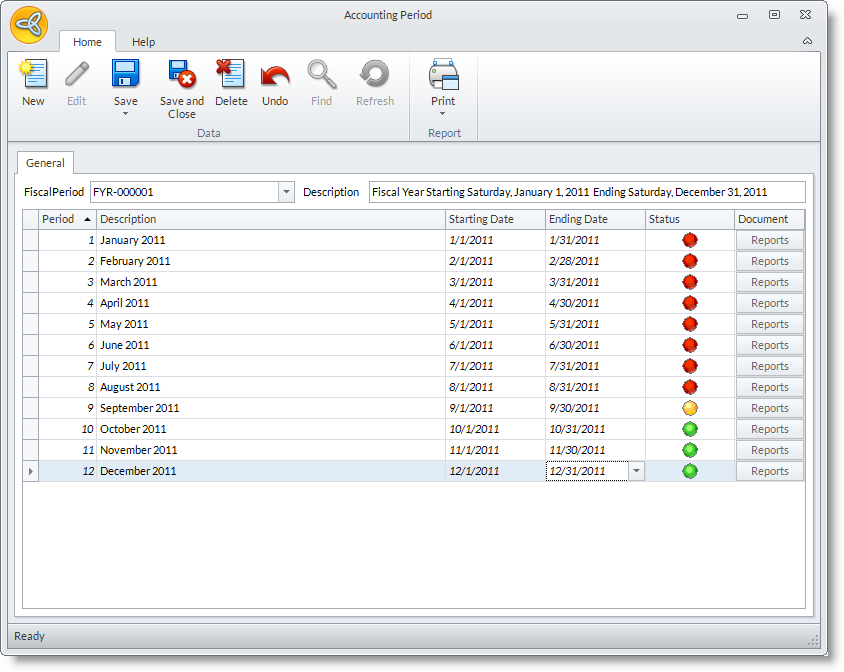
- Save the details before closing the form.

Change Period End Dates
Connected Business has allowed for the event that the company would change the length of the fiscal year e.g. shorten or lengthen the fiscal year when they have come to a point when they need to change their fiscal year. Note that the end date for the current and closed periods cannot be amended.
To change the starting or end dates,
- In the Accounting Period form, select the date in the End Date column. The starting and end dates for the succeeding periods should be adjusted accordingly.
- Save the details before closing the Accounting Period form.
Set Current Period

You cannot change the current period anymore if there are transactions entered in the current fiscal year.
To change the current period,
- In the Accounting Period form, select the current fiscal year from the Fiscal Year field pulldown.
- Select the period from the table. You can select either a closed or open period to set as the new current period.
- Click on the Set As Current Period option from the toolbar. All periods before the current period will be closed.
Add a Period
You may lengthen your current fiscal year by adding a period next to the last period.
To add a new period:
- In the Accounting Period form, right-click on the last period in the Accounting Period table and select Add Period.
- Select Yes in the prompt to insert a new period. The next fiscal year will be adjusted if any.
- You may change the default period description, start and end dates.
Delete Periods
A period can be deleted as long as it is a future period. Journals in the unposted file will be updated with the new period or the next available period.
To delete a period,
- In the Accounting Period form, select the period from the list.
- Click on the Delete option in the menu options.
- Choose Yes in the prompt to delete.
Delete a Fiscal Year
Note that only the future fiscal year can be deleted. The current and the last fiscal years cannot be deleted.
To delete a fiscal year,
- In the Accounting Period form, select the fiscal year from the Fiscal Year field pulldown.
- Click on the Delete button from the toolbar menu.
- Choose Yes in the prompt to delete.
See Also:
Create Accounting Periods | Add Budget Information to Apply Across Periods