
How to Suspend Transaction
This article will demonstrate how to suspend, resume and void suspended transactions in Connected Business Mobile POS.

Only Sale transactions can be suspended.
Suspend Transaction
To suspend a transaction,
- Create a sale transaction. Refer to Create Mobile POS Transactions.
- After entering the items to checkout, tap on Complete. The Payment Options dialog box will be displayed.

Click Image to Enlarge
- Tap Suspend. A print preview of the receipt will be displayed.
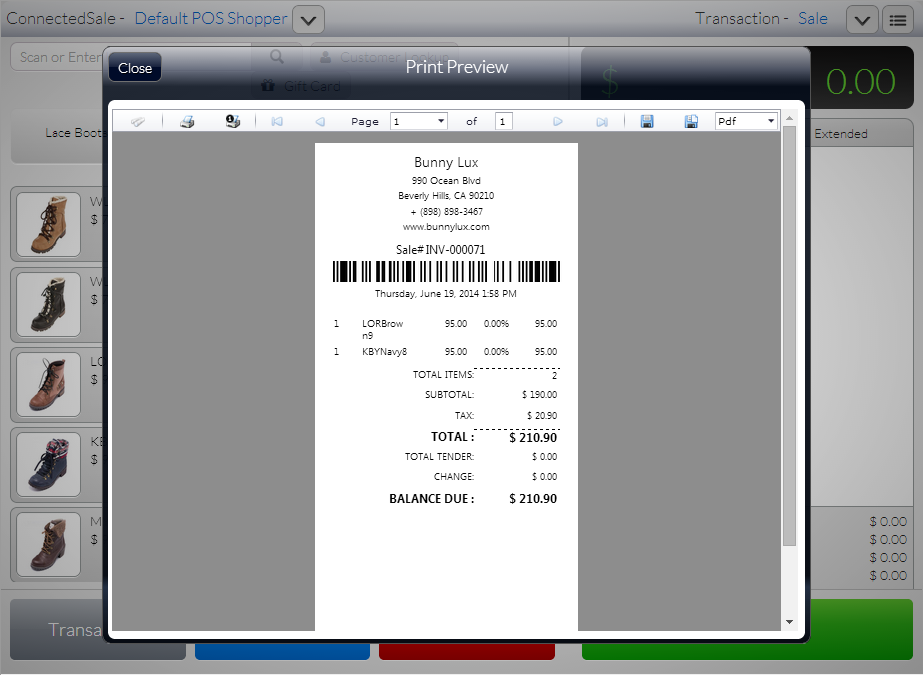
Click Image to Enlarge
- To view the list of suspended transactions, tap the Transactions button to load the Transactions form then select the Suspended menu.

Click Image to Enlarge

Resume Suspended Transaction
To resume suspended transaction,
- Tap the Transactions button. The Transactions form will be displayed.
- Select the Suspended menu to view the list of suspended transaction.
- Select transactions from the list. A pop-up menu will be displayed.
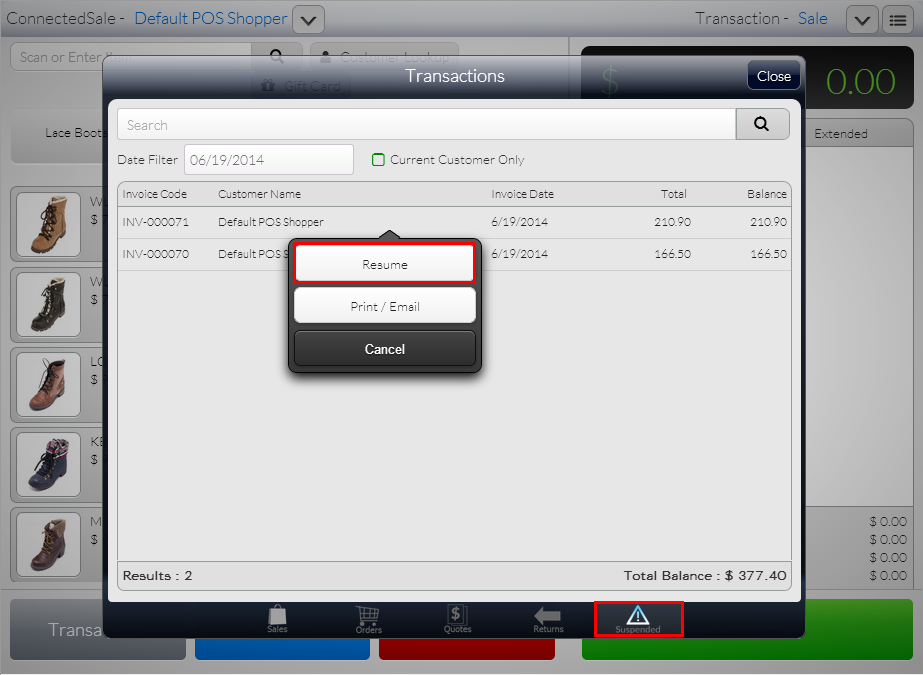
Click Image to Enlarge
- Select Resume option. The sale transaction details will be displayed in the Transaction tape.

Click Image to Enlarge
- Process the payment and complete the transaction as needed.
Void Suspended Transaction
You can only void suspended sale transactions from the Connected Business backend application. To do this,
- Go to Invoice > Find Invoice > Unposted Invoices. The list of unposted invoice will be displayed (Mobile POS sale transactions are considered as invoices in the backend).

Click Image to Enlarge
- Select invoice from the list to load the invoice form.
- Click Void button. A message prompt will be displayed confirming the voiding of transaction, Click Yes.

Click Image to Enlarge
- Once voided, the transaction will be deleted from the list as well as in the Connected Business POS.