
How To Create Mobile POS Transaction
This article will demonstrate how to create mobile POS transactions such as sale/invoice, quote and order.
Create Sale Transaction
To create a sale transaction,
- Tap the Transaction pull down arrow then select Sale. Upon opening the POS application, Sale is set as the default transaction type.
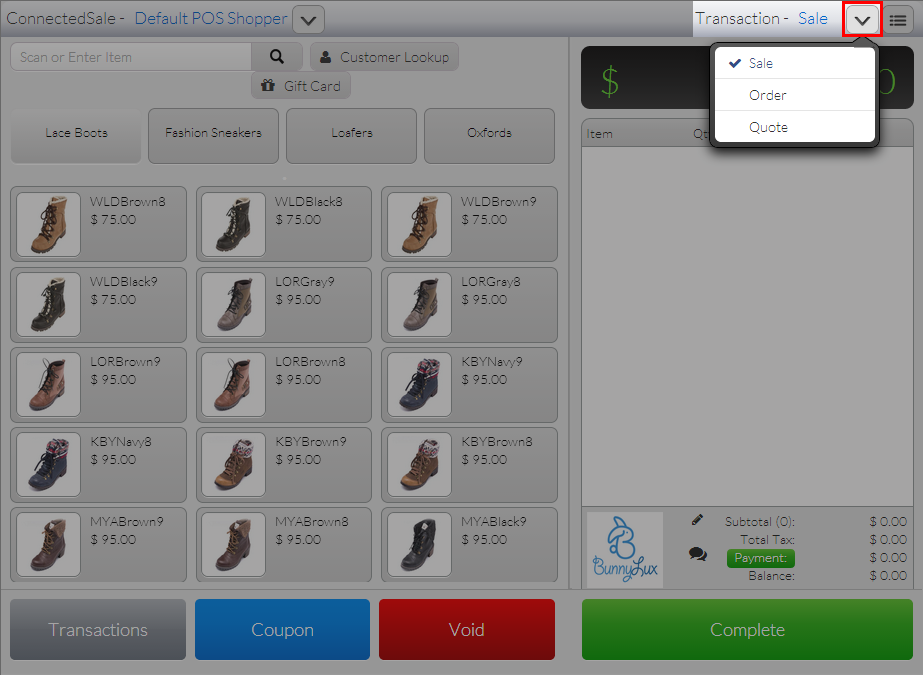
Click Image to Enlarge
- Enter items to checkout in the Transaction tape.
- Tap Complete, the payment options dialog box will be displayed.
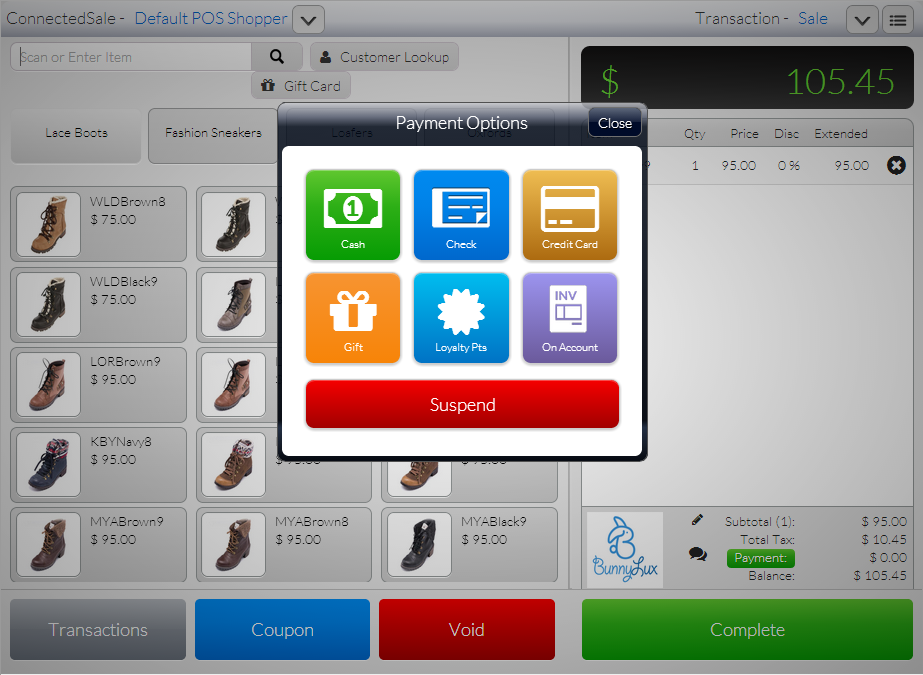
Click Image to Enlarge
- Select the mode of payment to be used then process the payment.
- Once completed, a print preview of the sale receipt will be displayed (if Auto Print Receipt is set to OFF in Settings). Click Close to close the Print Preview window.
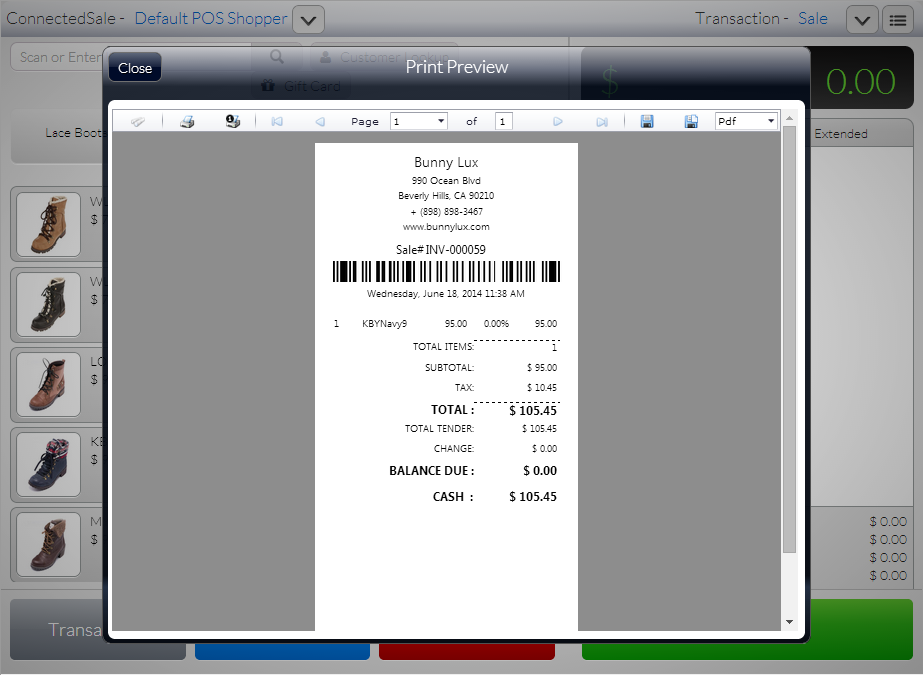
Click Image to Enlarge
- To view the list of Sale transactions, tap the Transactions button to load the Transactions form then tap the Sales menu.
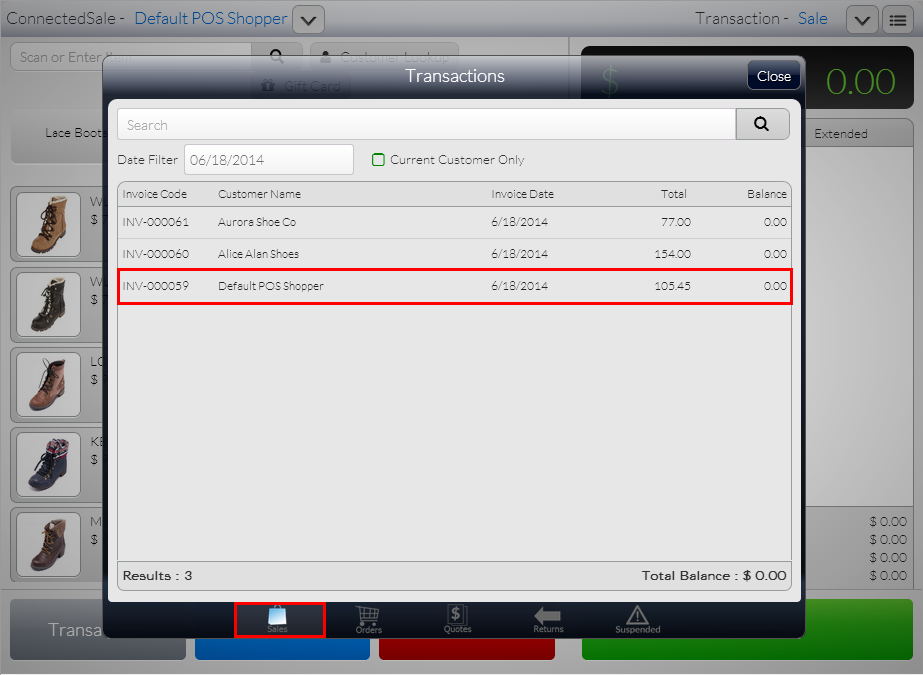
Click Image to Enlarge

Create Order Transaction
To create an order transaction,
- Tap the Transaction pull down arrow then select Order.
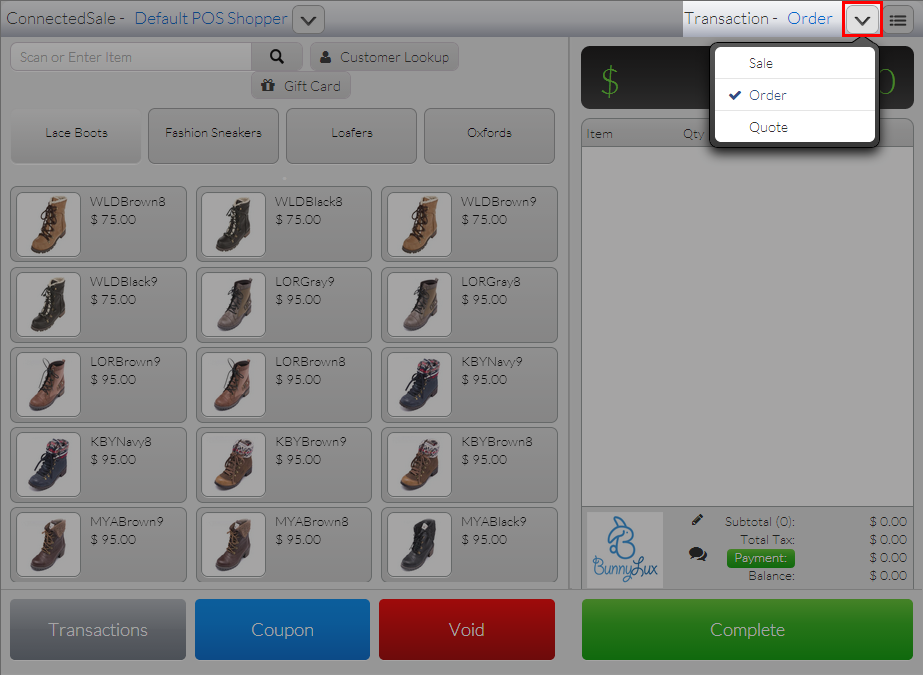
Click Image to Enlarge
- Enter items to checkout in the Transaction tape.
- Tap Complete, the payment options dialog box will be displayed.
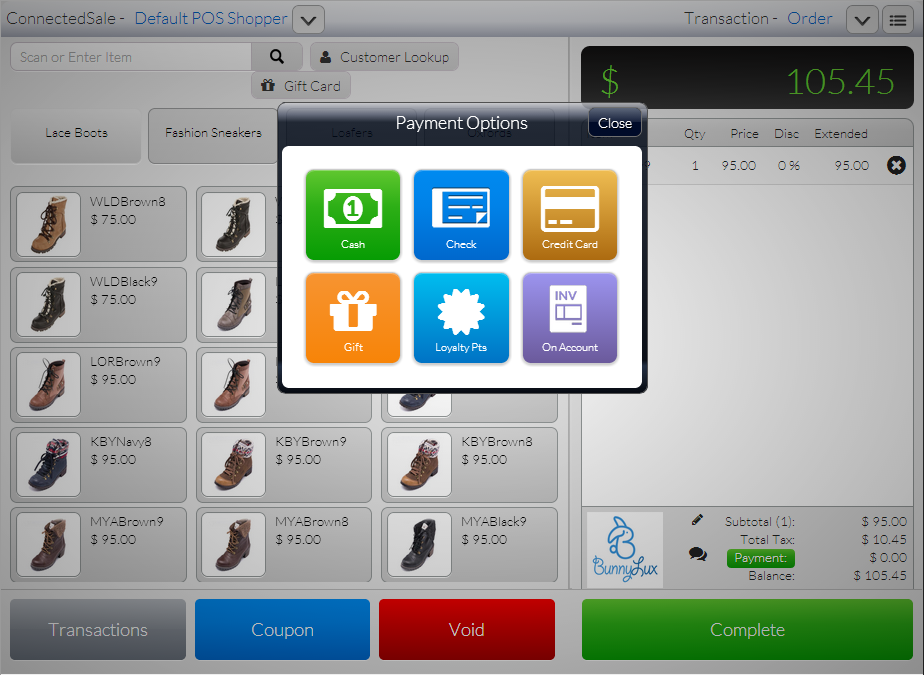
Click Image to Enlarge
- Select the mode of payment to be used then process the payment.
- Once completed, a print preview of the order receipt will be displayed (if Auto Print Receipt is set to OFF in Settings).
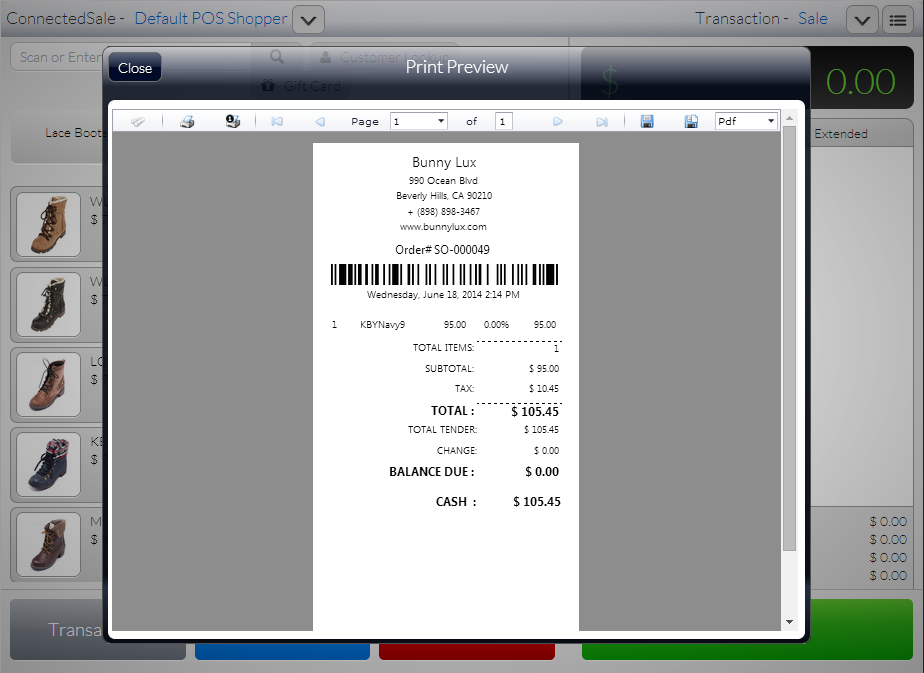
Click Image to Enlarge
- Click Close to close the Print Preview window.
- To view the list of Order transactions, tap the Transactions button to load the Transactions form then tap the Orders menu.
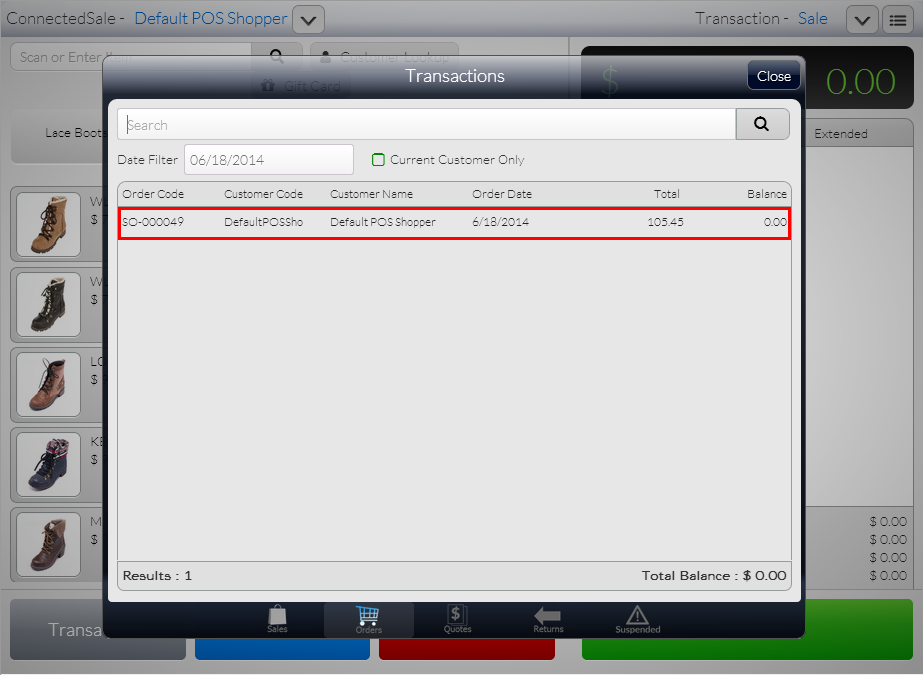
Click Image to Enlarge
Create Quote Transaction
To create a quote transaction,
- Tap the Transaction pull down arrow then select Quote.
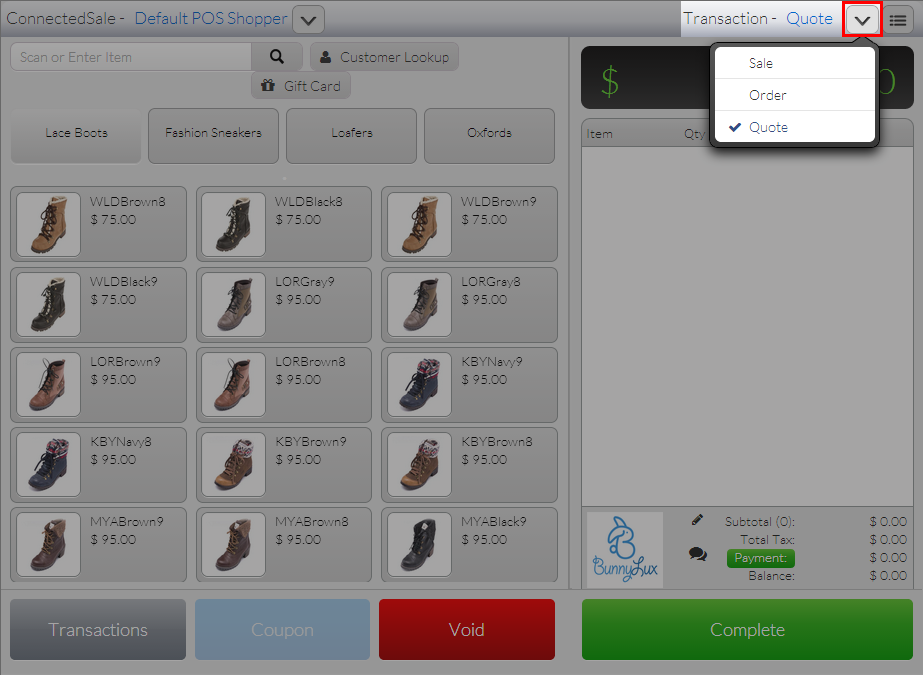
Click Image to Enlarge
- Enter items to checkout in the Transaction tape.
- Tap Complete. A print preview of the sale receipt will be displayed (if Auto Print Receipt is set to OFF in Settings). Click Close to close the Print Preview window.
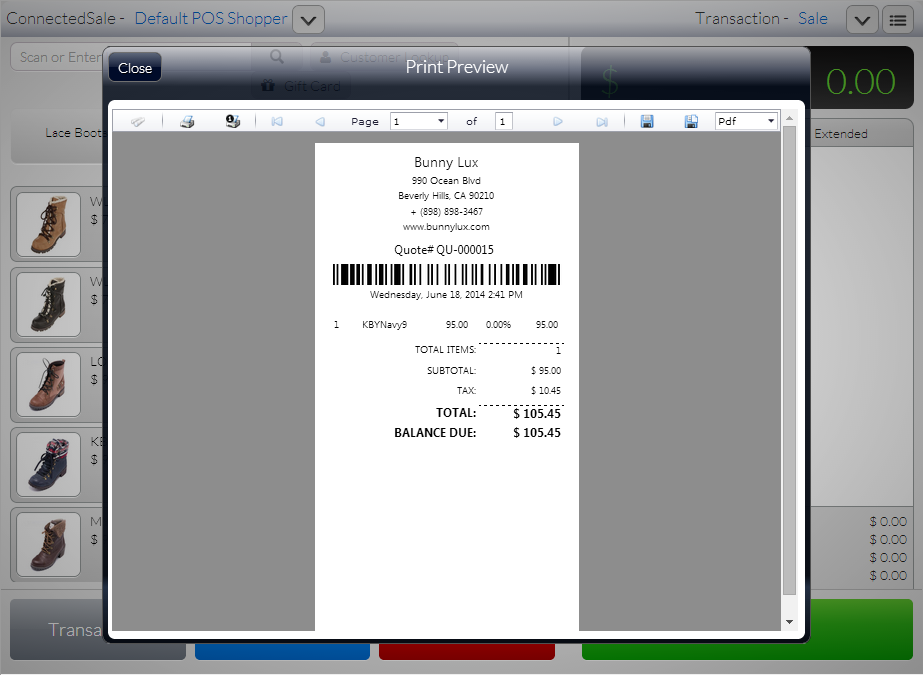
Click Image to Enlarge
- To view the list of Quote transactions, tap the Transactions button to load the Transactions form then tap the Quotes menu.
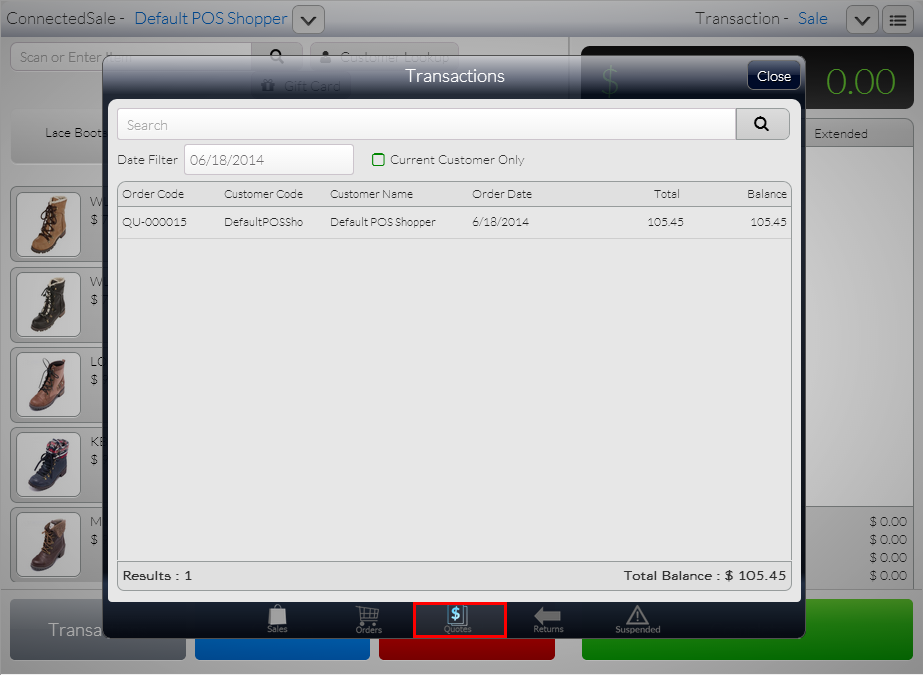
Click Image to Enlarge