
Create Store Account
In order to properly checkout items in the webstore with the full convenience of what eCommerce can provide, customers must first create their respective webstore customer accounts.

*If you are a new customer of the webstore you are currently browsing, visit the respective eCommerce webstore you want to shop from.
*If you are the web admin of the webstore and would like to try creating an account from, run your webstore in your browser locally. (e.g. https://localhost/ConnectedBusiness)
- On the home page of the webstore click the Log-in link. A Log-in screen will be displayed.
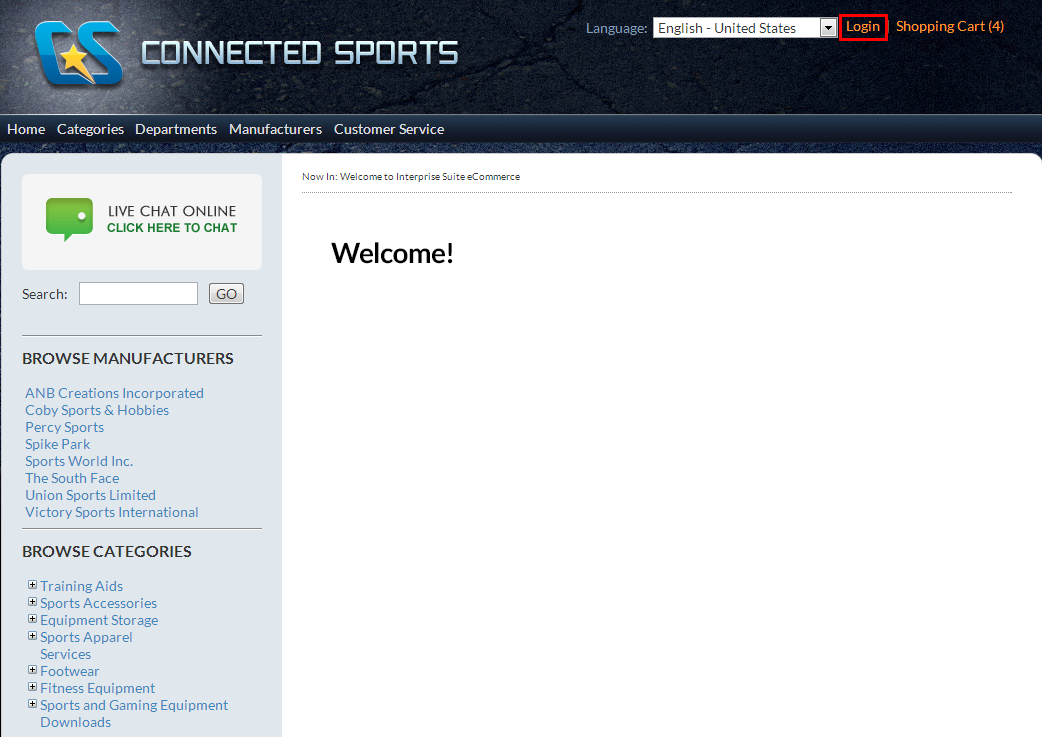
Click Image to Enlarge
- Click New Members Sign Up Here. The Registration Form will be displayed.

Click Image to Enlarge
- The registration form is divided to three sections: Profile Info, Billing Info and Shipping Info.
- Profile Info
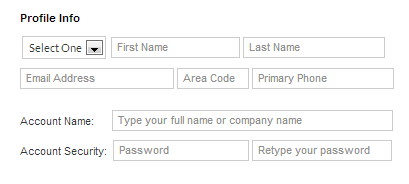
Profile Info
Fields
Value
Conditions
Salutation Dropdown list You should select one salutation. Your First Name Customer’s First Name Non-Numeric and No Special Characters Your Last Name Customer’s Last Name Non-Numeric and No Special Characters Your Email Address Customer’s Email Address Should be VALID email address This is used in case of lost or forgotten password. Area Code Customer's Area Code Should be numeric characters Primary Phone Customer's Phone Number Should be numeric characters. Account Name Customer's Company or Full Name Should reflect company, proprietor or business name in alphanumeric characters. Account Security Customer’s Password Password minimum length is 4 characters and can be modified using "PasswordMinLength" appconfig (default value is 4). Re-Enter Your Password Customer’s Password Should be the same password in the Create A Personal Password field - Billing Info

Billing Info
Fields
Value
Conditions
Address Customer’s Address Address where the store owner can send the customer’s billing statement Country Customer’s Country Customer can choose from the selection in the drop down box made available from the System Manager Module.
For more information, please refer to the Maintain Country Settings online documentation.
Postal Code Customer’s Postal Code Entering a valid postal code will automatically input its respective city and state. You may select the city and state from the dropdown list that appears after entering the postal code.
For more information, please refer to the Maintain Postal Code Details and Register Postal Codes online documentations.
- Shipping Information

You can put a check on the Same as Billing Info checkbox to automatically input shipping information to the fields
Billing Info
Fields
Value
Conditions
Address Customer’s Address Address where the store owner can send the customer’s billing statement
Country Customer’s Country Customer can choose from the selection in the drop down box made available from the System Manager Module.
For more information, please see the Maintain Country Settings online documentation.
Postal Code Customer’s Postal Code Entering a valid postal code will automatically input its respective city and state. You may select the city and state from the dropdown list that appears after entering the postal code.
For more information, please see the Maintain Postal Code Details and Register Postal Codes online documentations.
Address Type Type of address entered by Customer in the Address field
Choose the appropriate option from the dropdown list for the customer’s billing address.
OK To Email Yes or No Radio Buttons
Yes – Customer will receive product updates/information through email
No - Customer will not receive product updates/information through emailI am over 13 years old Check box
Should be checked if customer’s age is over 13 years old.
- Profile Info