
Create Pickup Order Via Web Store
This document demonstrates the In-Store Pickup Feature available for customers purchasing from the web store. They have the option to order and reserve items and pick them up from a convenient physical location. When their items have been picked and reserved, they will receive a notification email inviting them to visit their chosen store location to pick up their purchase.
In-store pickup offers great value for customers who want to save on shipping costs

This feature is only available in Connected Business v14 and higher.
Select Pickup As Shipping Method
-
Customers begin by shopping for items and proceeding to checkout.
-
Make sure that your customers' checkout information includes a shipping address. The address will be used by the in-store pickup feature to find the nearest physical store locations that have your products in their inventory.
If you already have an existing account, refer to our documentation on how to Add or Edit Shipping Address.
-
Under shipping options, choose Pickup from the list before clicking on the Select Shipping Method button.
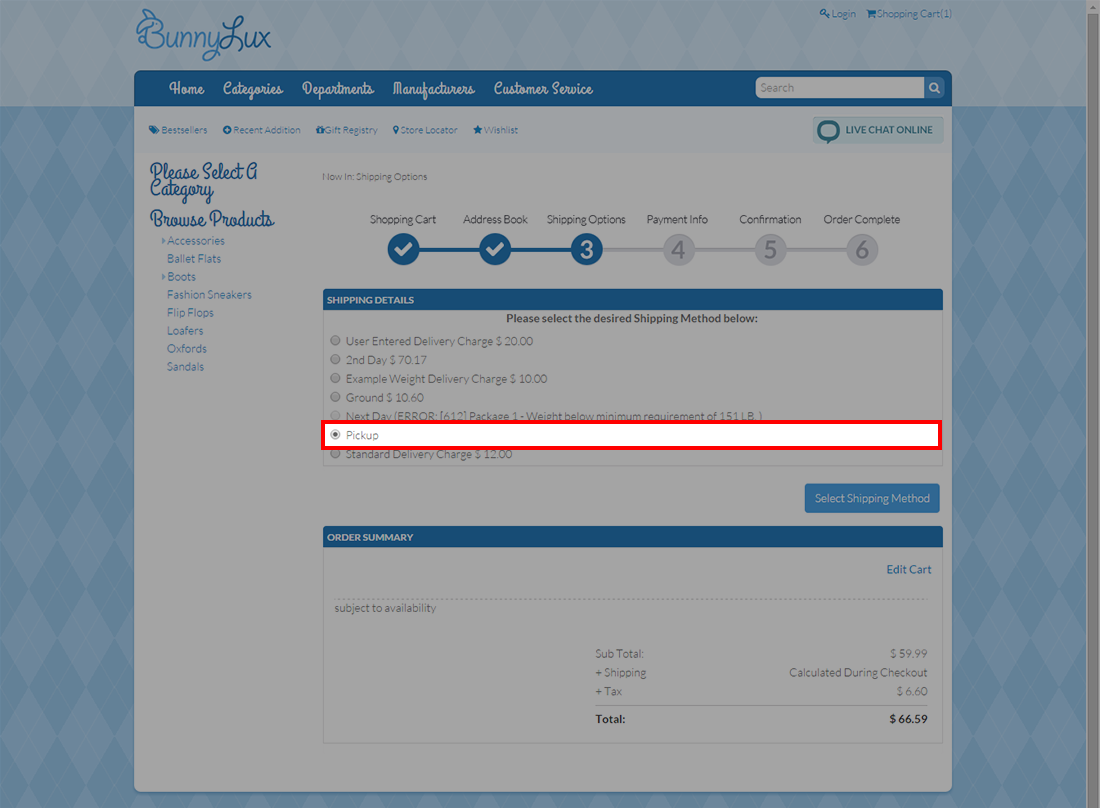
Click Image to Enlarge
-
On the next page, click on the Pick Store link that appears beside the Pickup option.
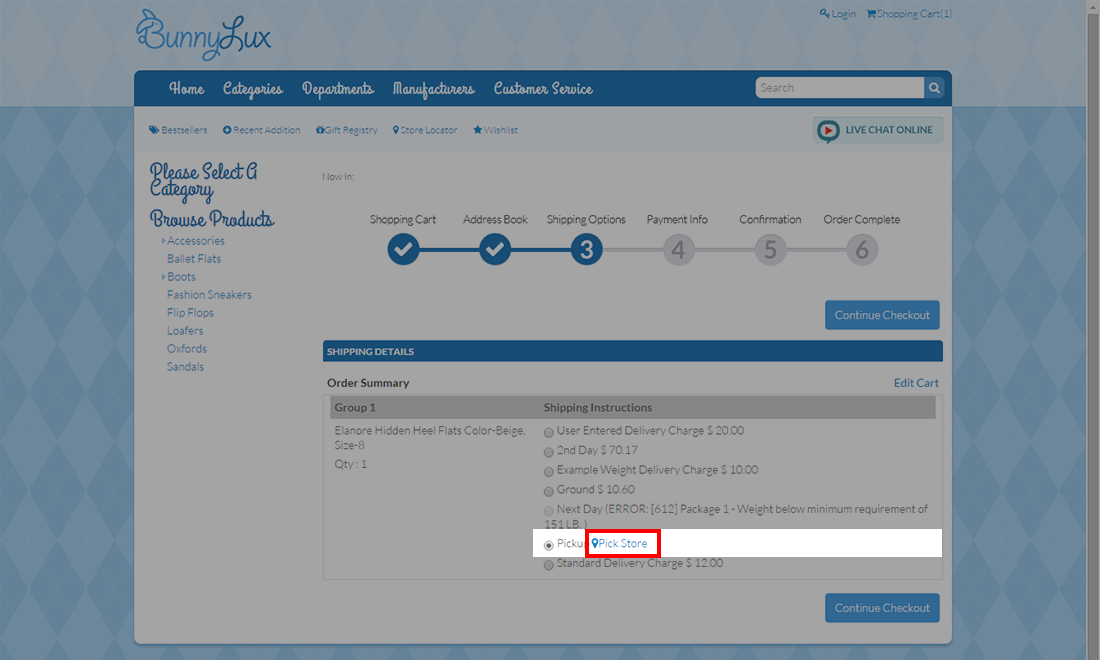
Click Image to Enlarge
This action will display a new dialog box containing your suggested pickup location options.
-
By default, Connected Business eCommerce uses the zip code from your shipping address to locate stores near your area.
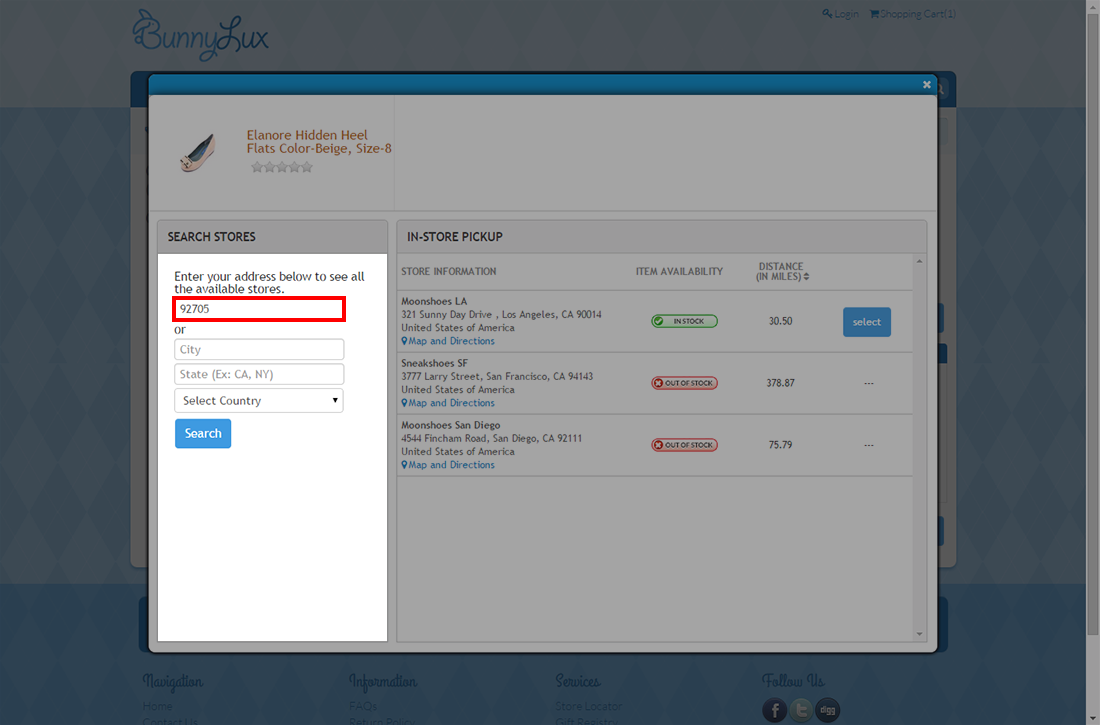
Click Image to Enlarge
-
You can fill in the different fields located on the left side of the screen to narrow or widen the paramaters. Customers can define the city, state or country when searching for their preferred pickup points.
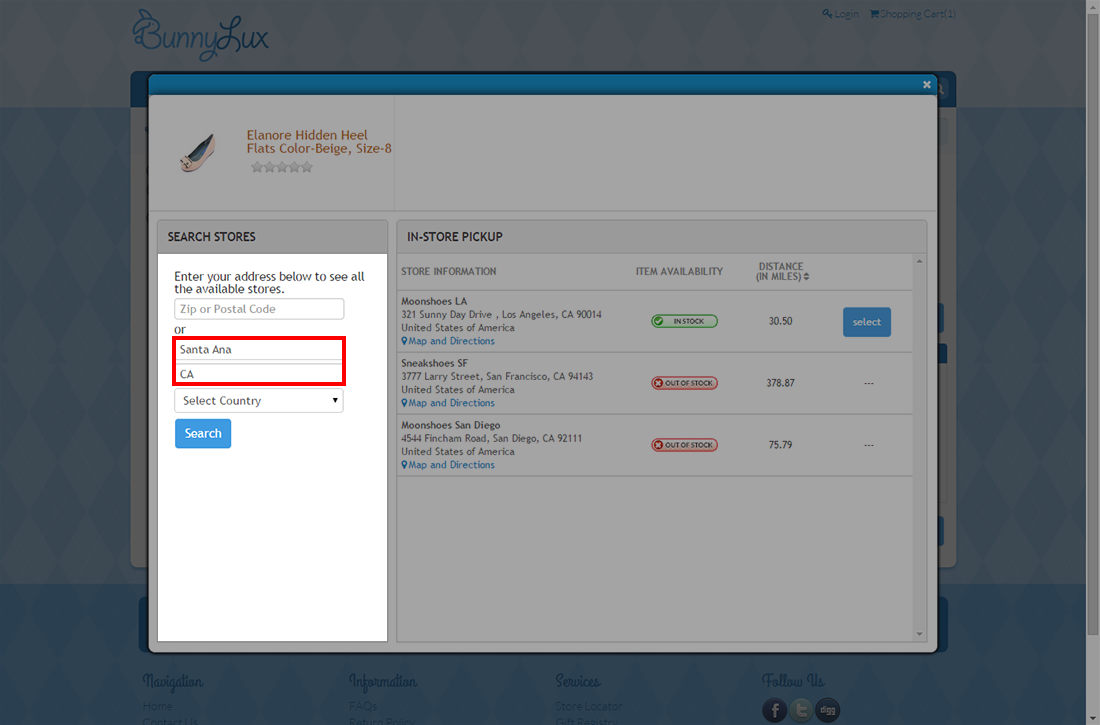
Click Image to Enlarge
-
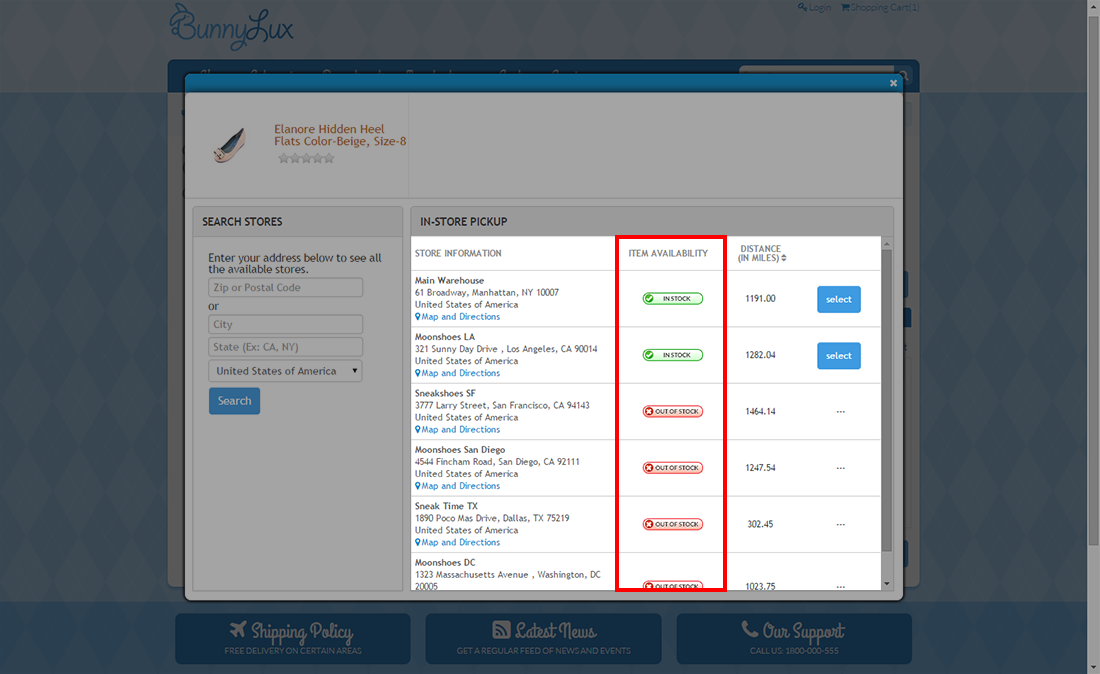
Each store that appears on the list indicates whether the items in the checkout are in stock or out of stock. This is real time information and may change depending on the time or day of the purchase.
Click Image to Enlarge
The Select button is disabled when an item is currently Out of Stock in a particular store on the list. Furthermore, the stock value will only show if the AppConfig, ShowActualInventory is set to TRUE. Refer to The Application Configuration Window for more details.
-
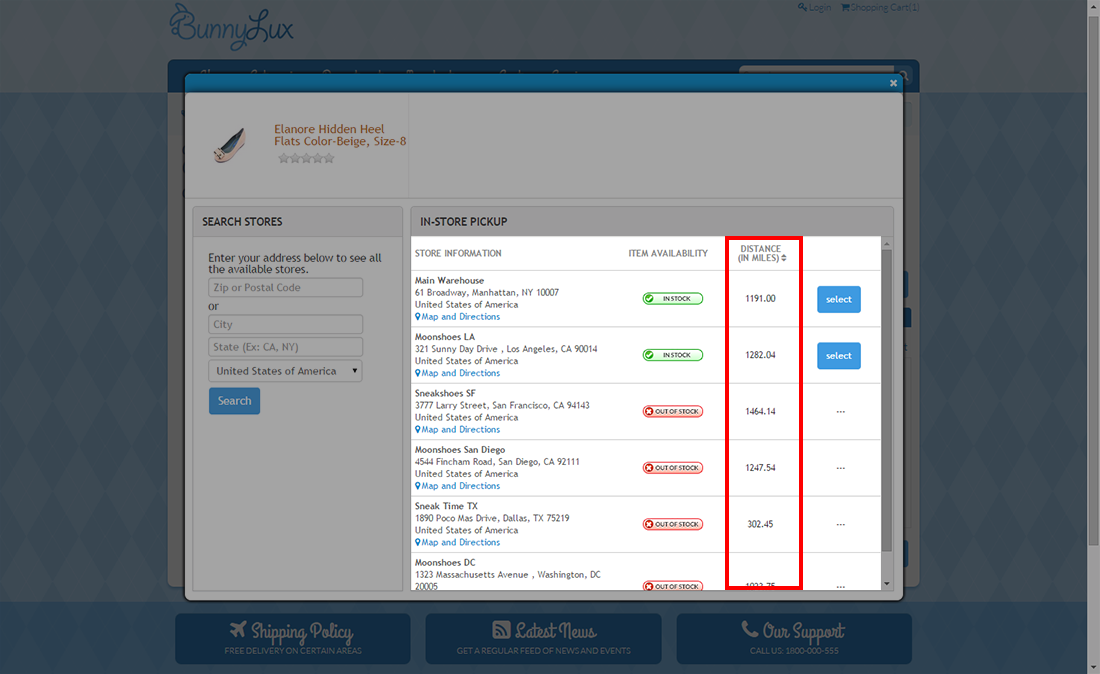
The system will also automatically compute the distance (in miles) of each available store within the search parameter. Clicking the Distance column will sort the store list according to the nearest to the farthest store and vice versa.
Click Image to Enlarge
View Store Information
To find out more details regarding your chosen store location:
-
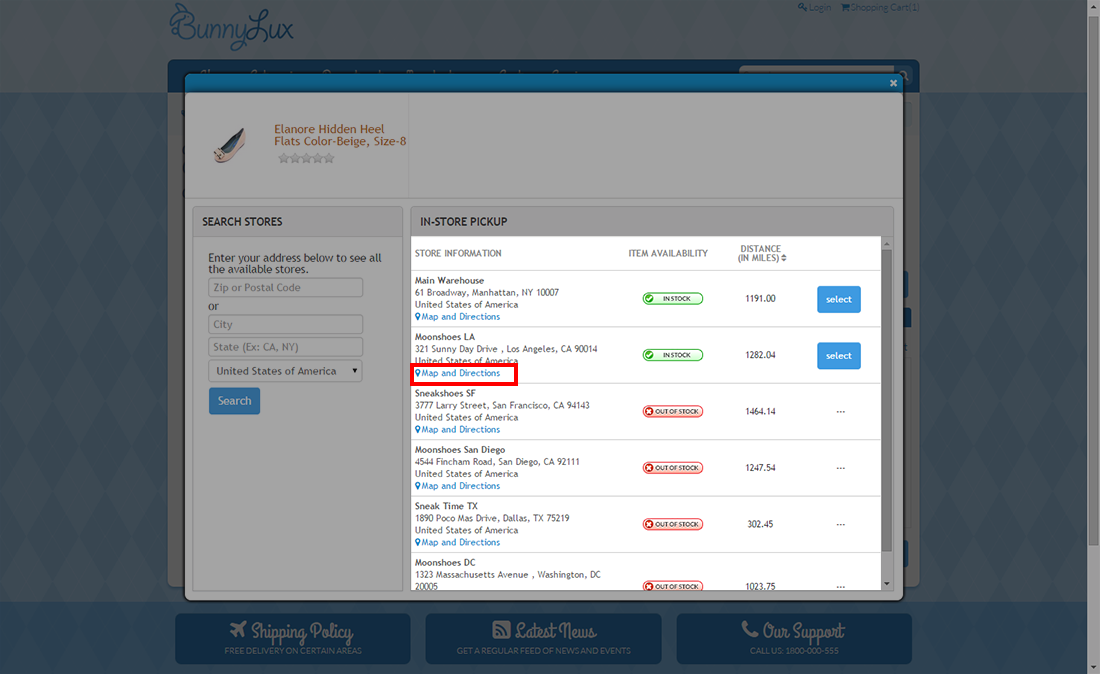
Click the Map and Directions link at the bottom-part of an listed store to display the store information page.
Click Image to Enlarge
-
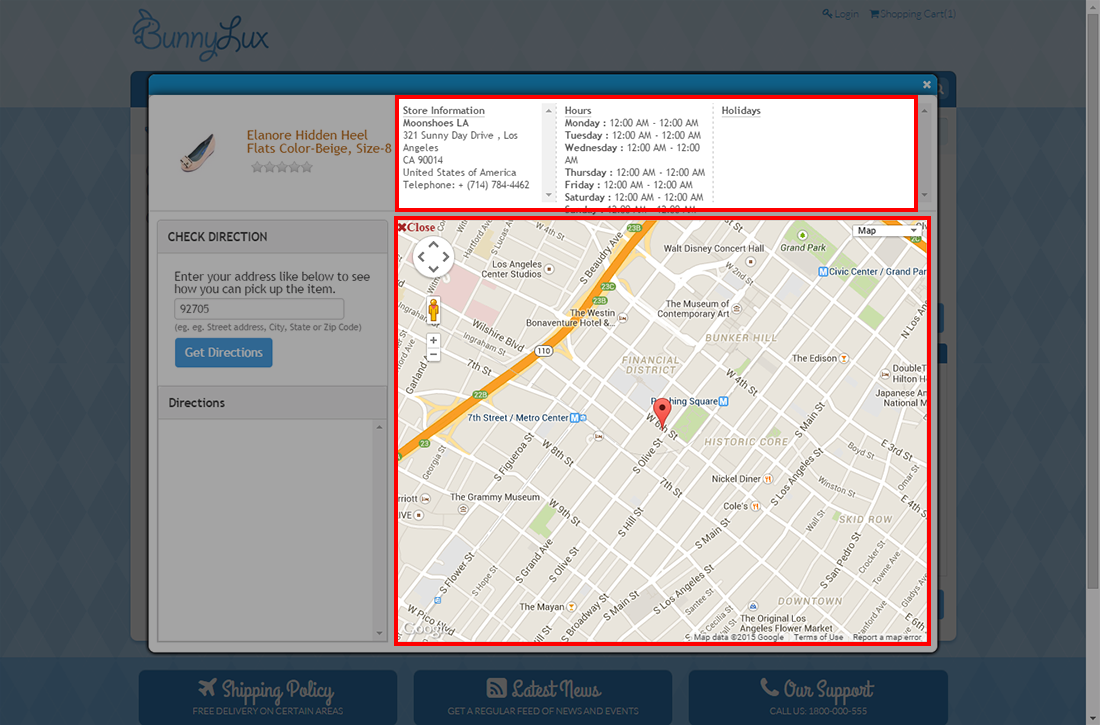
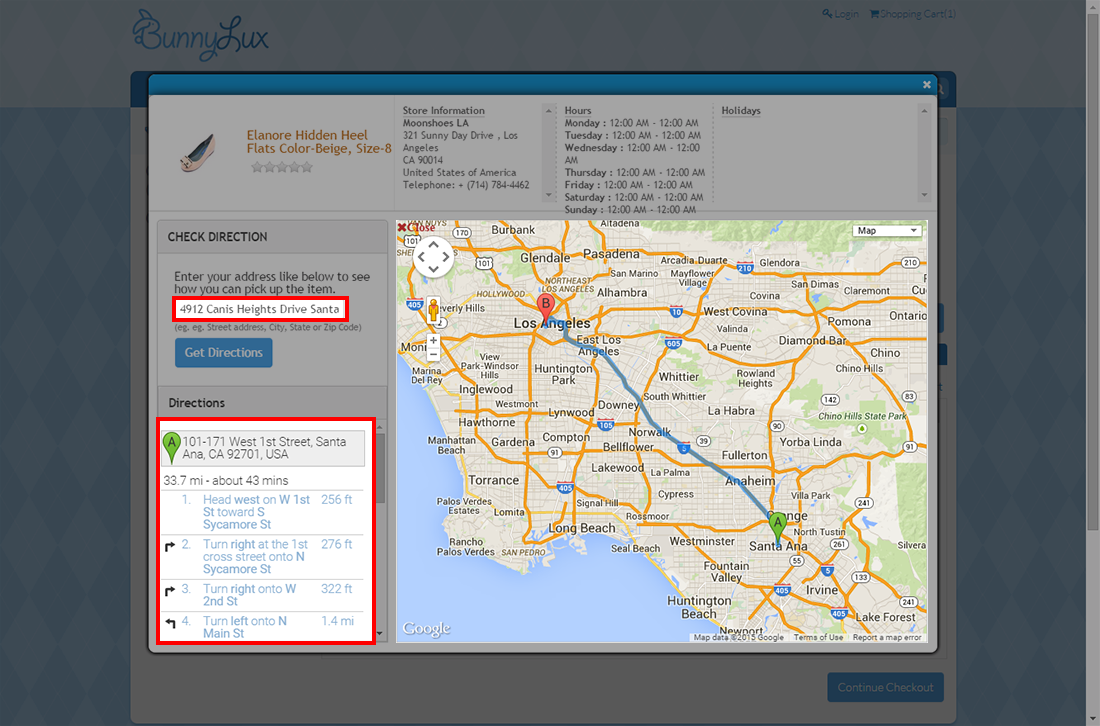
Store information, including the product rating, address, business hours, holiday store hours and store map will be displayed on the main section of the page.
Click Image to Enlarge
-
On the Check Direction section, type the complete address, including the zip code. Click Get Directions to get the exact waypoint navigation and directions from your location to the store. The map will display the exact routing directions to guide you on how to go to the store from your point of origin.
Click Image to Enlarge
-
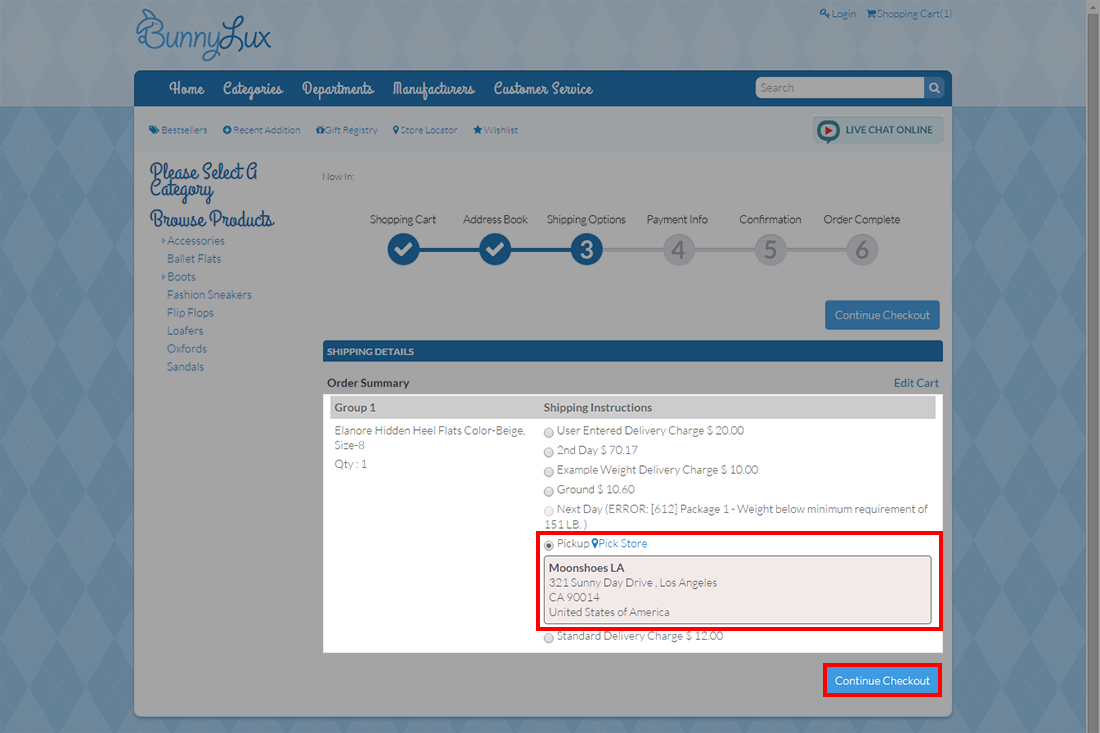
In the Order Confirmation page, the address of the chosen pick-up points for the purchased items will also be displayed. Click continue checkout to finalize the shopping process.
Click Image to Enlarge
Connected Business allows shoppers to check out multiple items with differently defined shipping methods. However, doing so will create a separate receipt for each to comply with tax calculations for different locations, as well as with other miscellaneous computations.
Online orders specified for in-store pickup are processed through POS. To learn how to process the transaction when the customer picks up the order, read Pickup Notification.