
Apply Quantity Price Break in Mobile POS
This article talks about applying quantity price breaks for transactions made via Connected Sale Mobile POS.
Quantity price breaks allows the user to use different price range when a customer reaches a specific quantity that is set by the user. This can be assigned to both Customer and Item, and can be applied to transactions made through Connected Sale Mobile POS.
Create Item Price Break
To create a quantity price break for an item:
- Go to Inventory module > Pricing > Item Pricing > Price List > New. The Price List form will be displayed. Enter the details for the new price list.
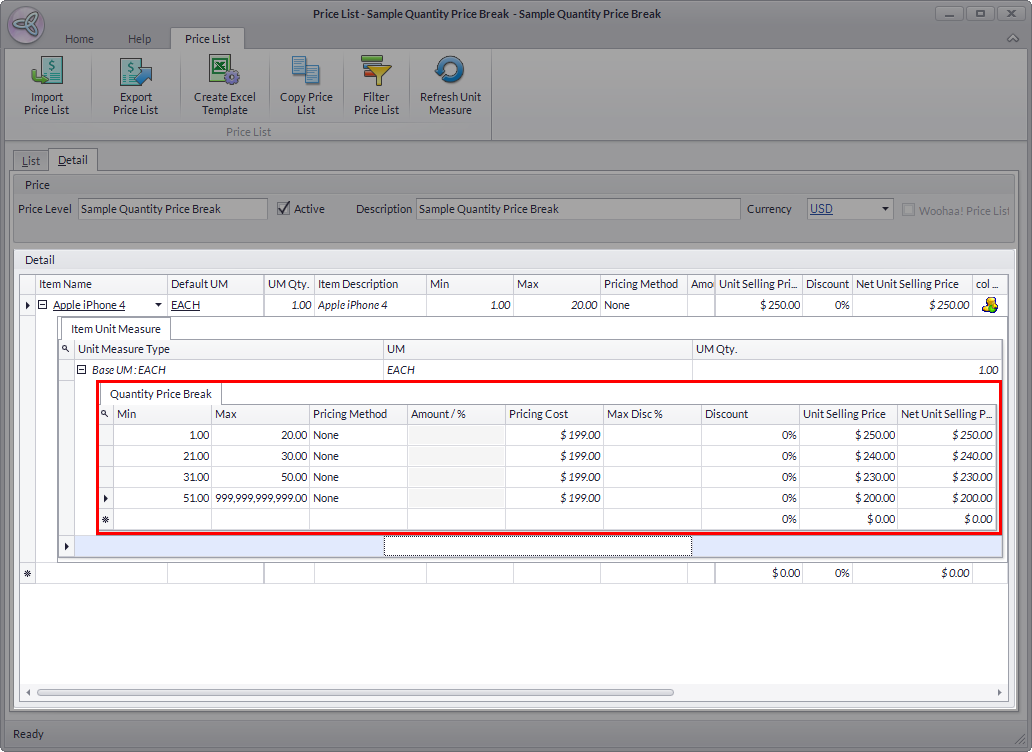
- In the Detail section, select an item, to which you want to assign the quantity price break to. Drilldown the item details and the Base UM to edit the preferred price breaks for different quantity levels.
Click Image to Enlarge
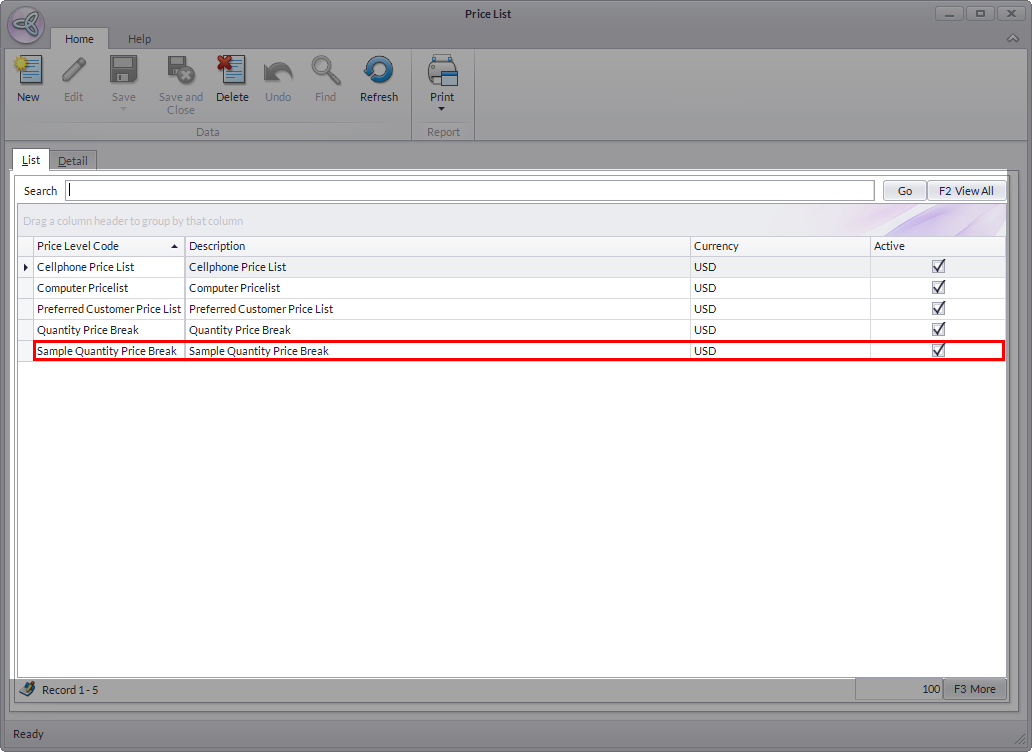
- Click YES in the dialog box upon closing the form to save changes. From the Price List form, tick the Active checkbox to activate the new price list.
Click Image to Enlarge


To know more about multi-level pricing and other pricing schemes, refer to Set Up Inventory and Pricing Discount Schemes.

Assign Quantity Price Break
To assign the quantity price break to the customer:
- Go to Customer module > Find Customer and select one from the list.
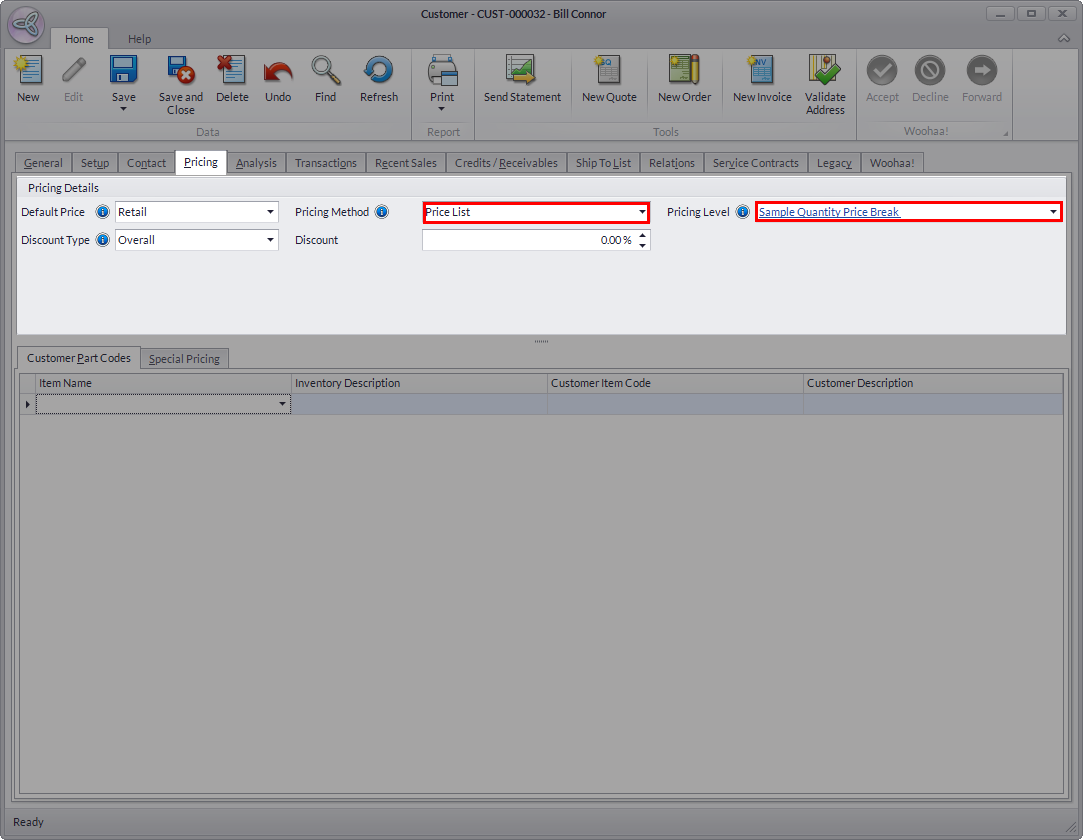
- From the Customer Detail form, go to Pricing tab and set the Pricing Method to Price List.
- From the Pricing Level dropdown, select the newly-created price list.
Click Image to Enlarge
- Click Save and Close to apply changes.

For more information about setting different pricing method for specific customers, refer to Maintain Customer Specific Pricing, Part Codes and Special Pricing.
Apply Quantity Price Break
The Quantity Price Break for the item should apply based on the price list assigned to the customer. To check if the price break is applied:
- Create a sale/quote/order transaction from the Mobile POS.
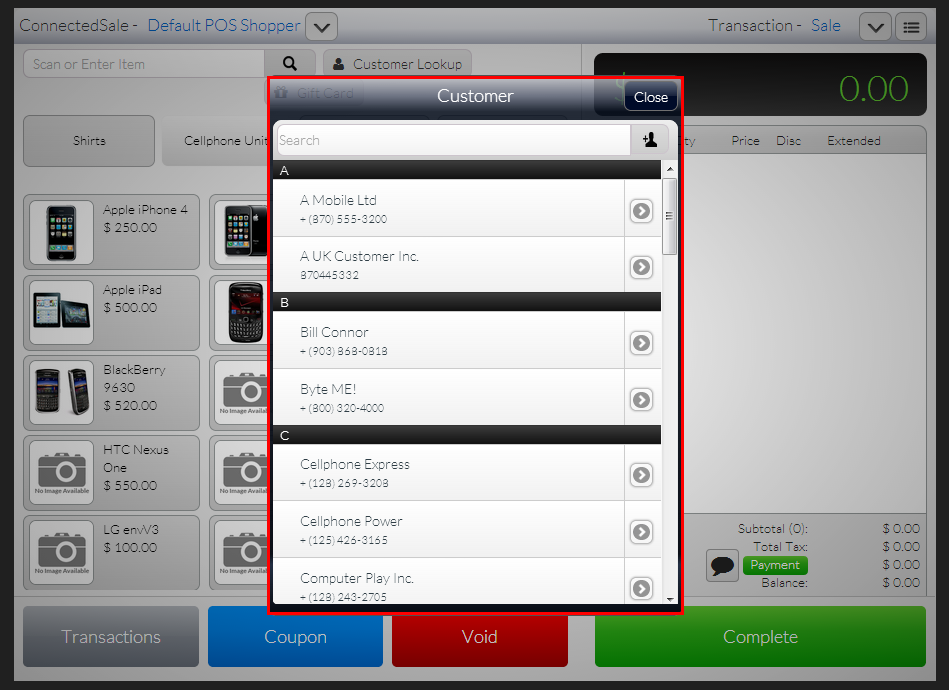
- Search the specific customer with the Quantity Price Break pricing from the Customer Lookup list.
Click Image to Enlarge
- Depending on the quantity, notice that the item’s original price will change based on the price levels that you have previously assigned from the backend.


Click Image to Enlarge

Click Image to Enlarge

Click Image to Enlarge