
Void Item/Transaction
The following article demonstrates how to void an item or cancel a transaction in Connected Business POS.
Void Item
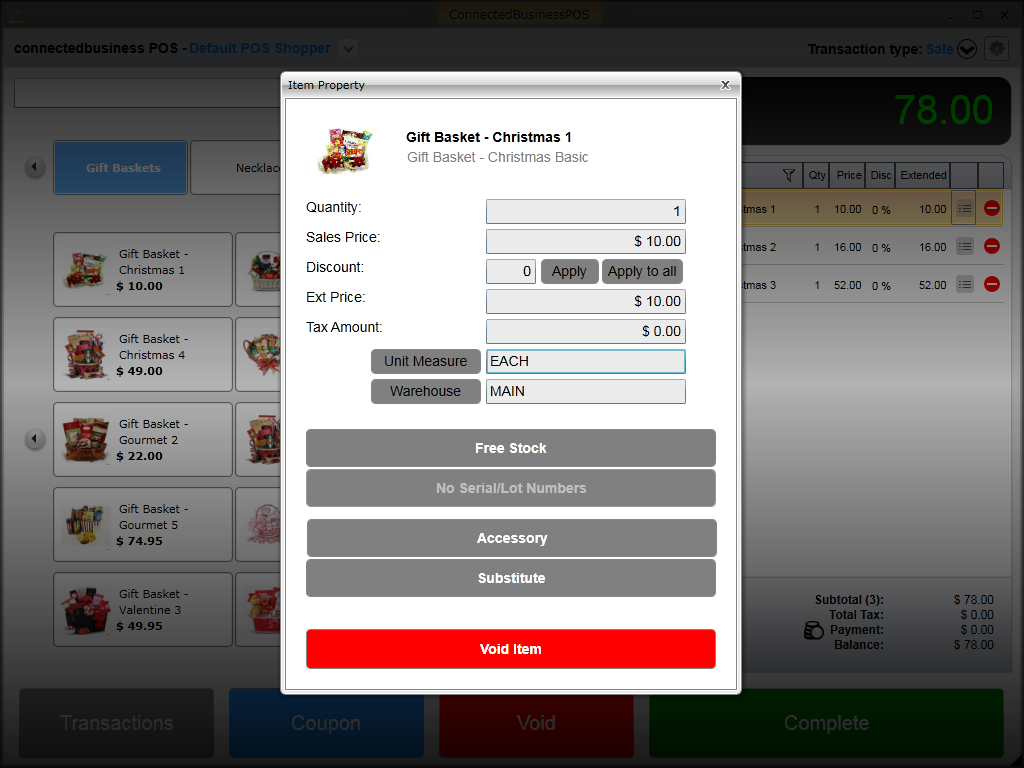
To void or delete an item, simply click on the delete ( ) button. If you want to view the item property prior to deleting the item, click on the property (
 ) icon. The Item Property window will be displayed. Click on the Void Item button to remove the item from the current transaction.
Click Image to Enlarge
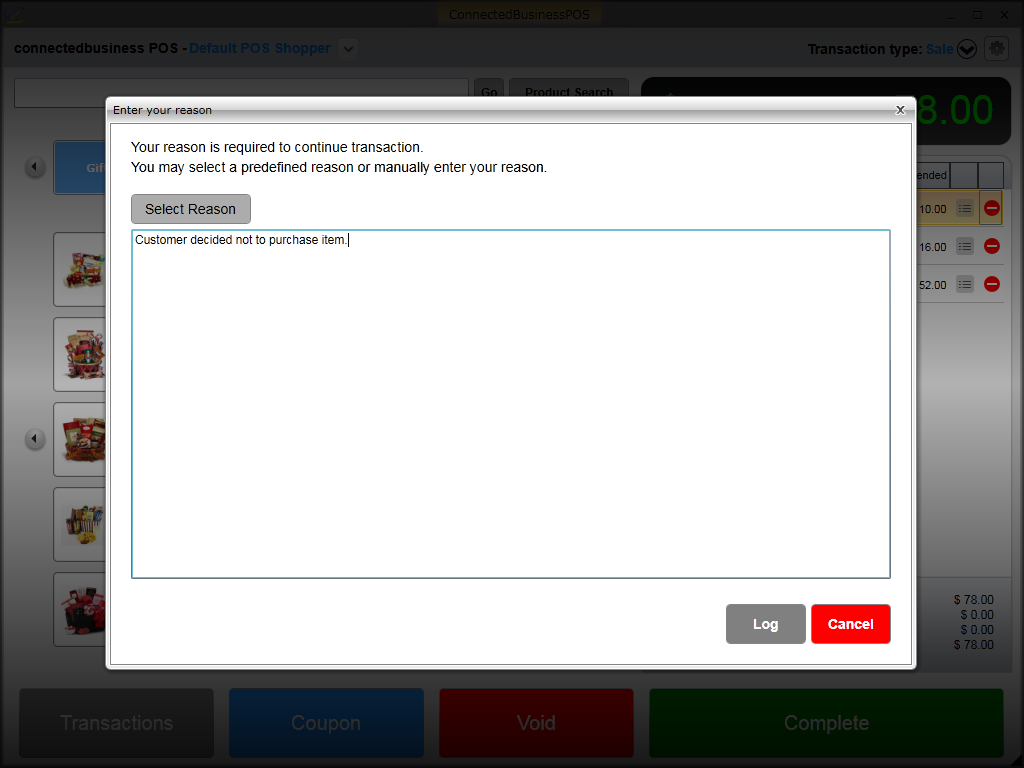
If reason code is required for voiding items, the Enter your reason window will be displayed. You need to specify the details for removing the item before it can be deleted from the current transaction. Refer to Configure POS Reason Codes.
Click Image to Enlarge
Void Transaction
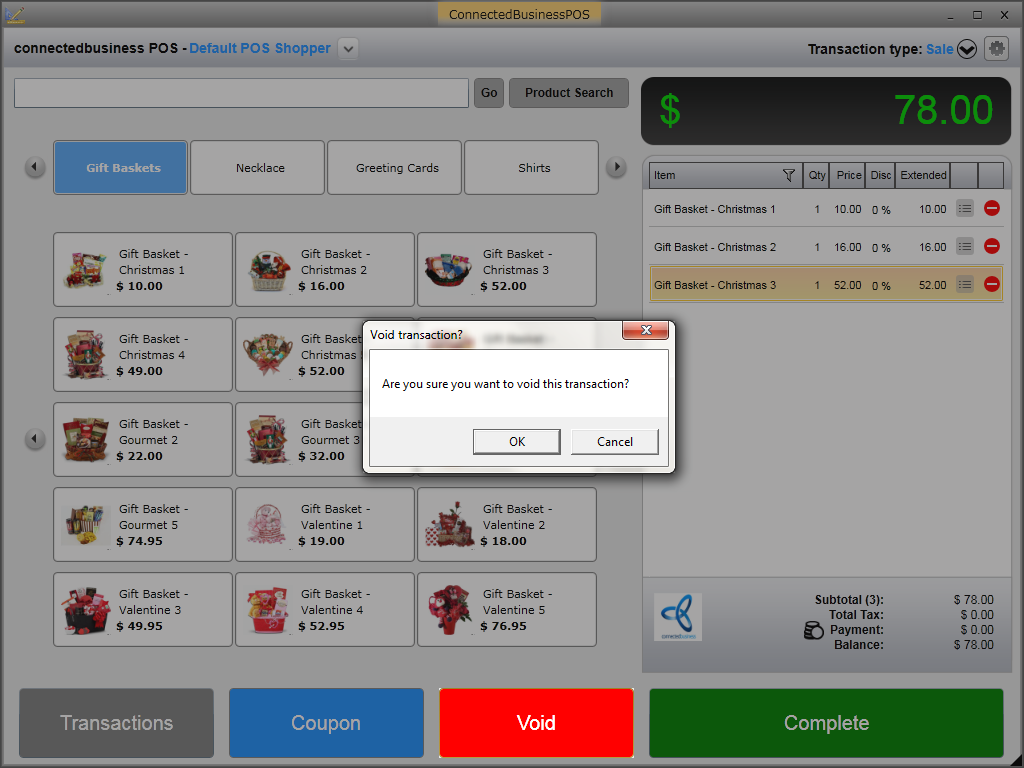
To void a transaction, simply click the Void button. A message prompt will be displayed confirming the voiding of transaction. Click Yes to confirm.
Click Image to Enlarge
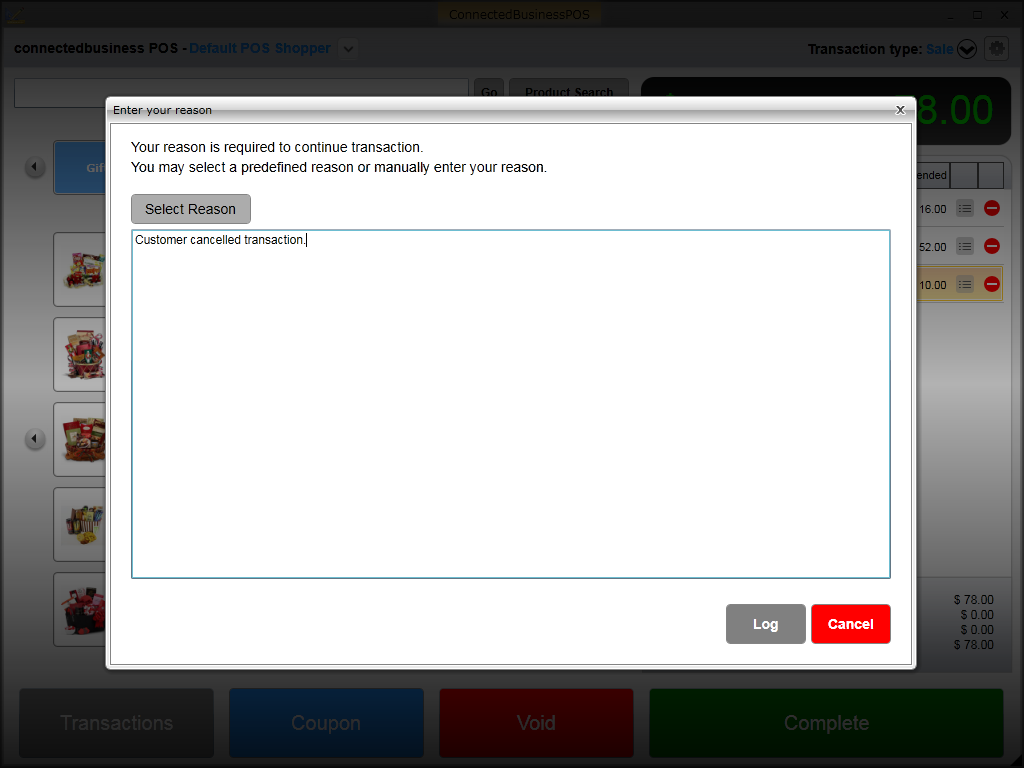
If reason code is required for voiding transactions, the Enter your reason window will be displayed. You need to specify the details for cancelling the transaction before it can be voided. Refer to Configure POS Reason Codes.
Click Image to Enlarge