
Void Invoice With Shipment
This article will demonstrate how to void invoice with shipment.
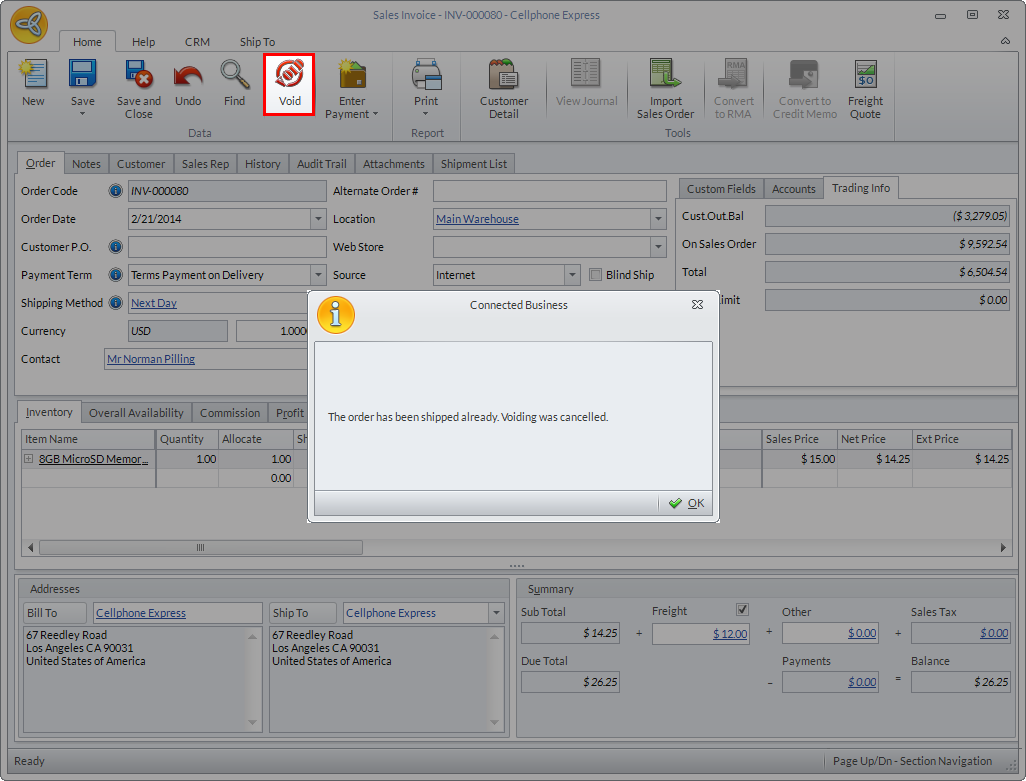
By default, invoice with shipments cannot be voided. If you try to void the invoice, a prompt message will be displayed indicating that the order has been shipped and voiding was cancelled.
Click Image to Enlarge
Before an invoice with shipment can be voided, you need to void the completed shipment of the invoice first. To do this,
- Go to the Shipping module > History > Completed Shipments tab. The list of all completed shipments will be displayed.
- Select the shipment from the list. The Shipment form will be displayed.
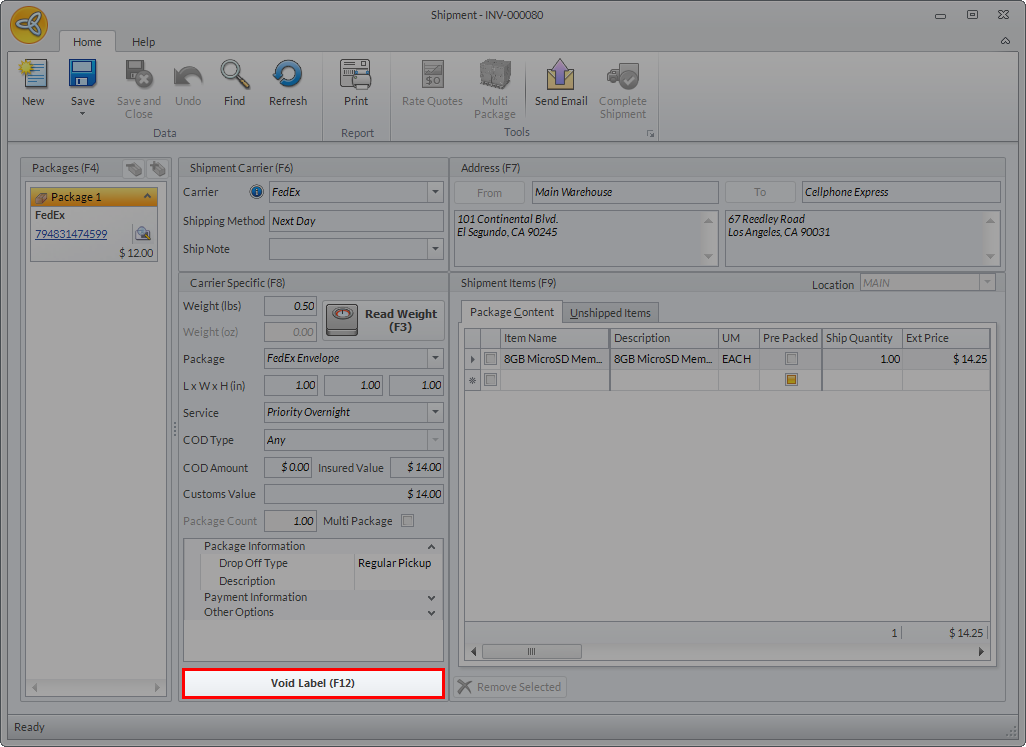
- Click Void Label (F12) to void the completed shipment then close the shipment form.
Click Image to Enlarge
After voiding the completed shipment, you can now void the invoice. To do this,
- Locate the invoice by going to Customer module > Invoice > Find Invoice. The Invoice History list will be displayed.
- Select the invoice from the list to load the Sales Invoice form.
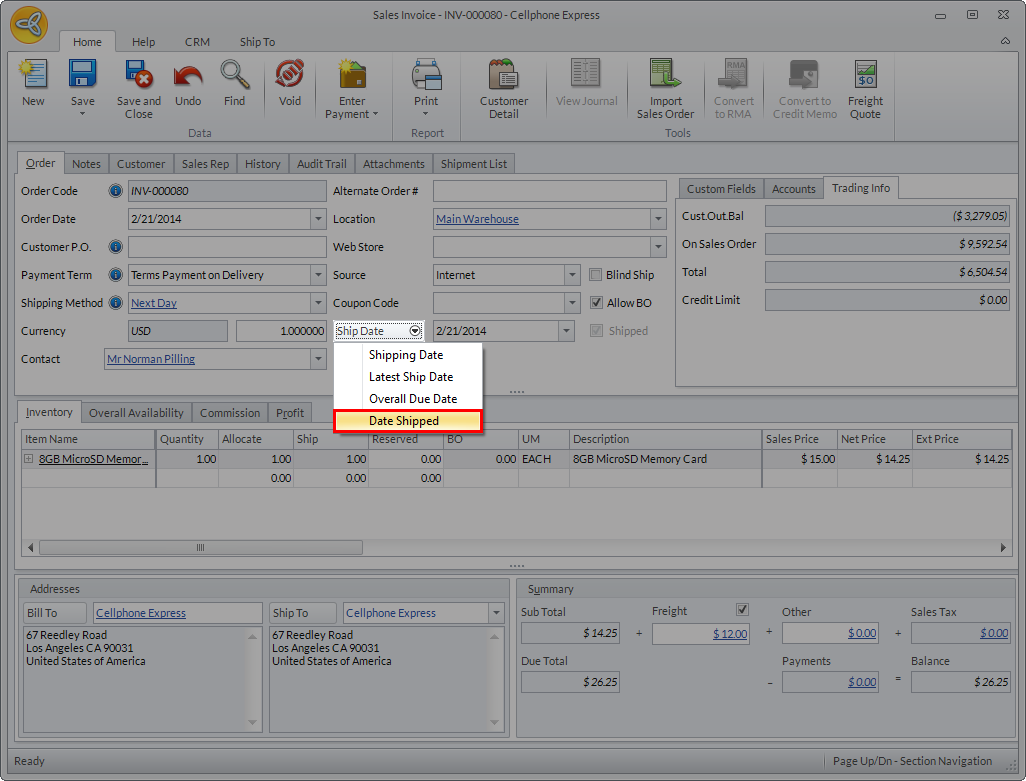
- In the Sales Invoice form, click the Ship Date dropdown list and select Date Shipped.
Click Image to Enlarge
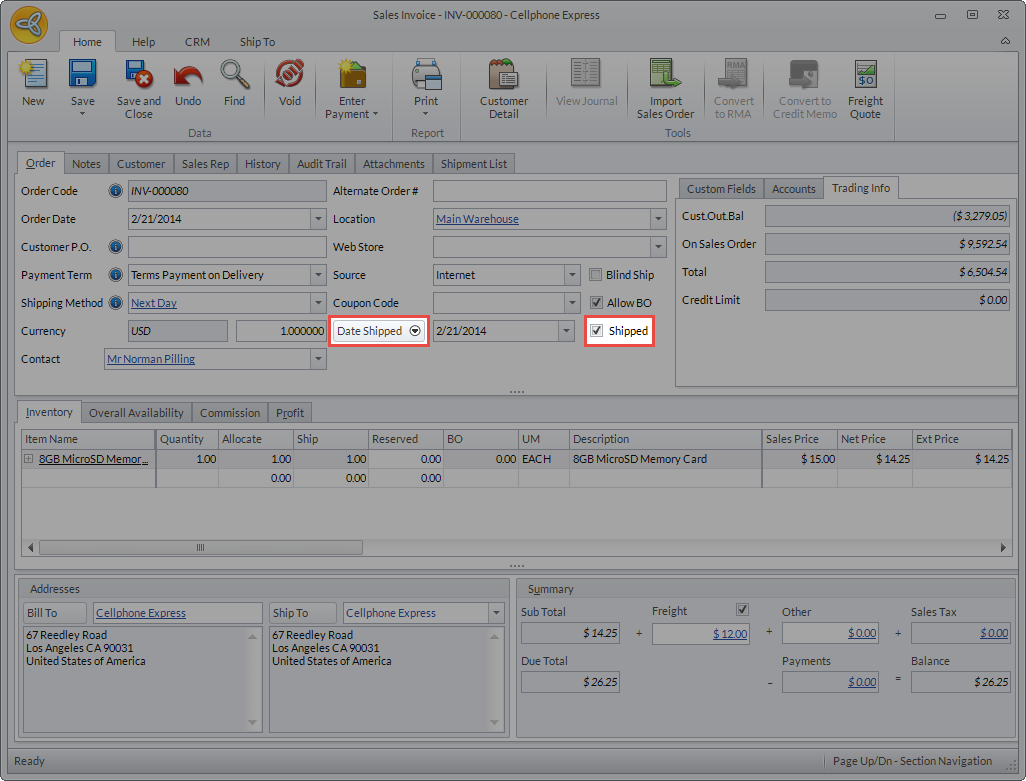
This will enable the Shipped checkbox.
Click Image to Enlarge
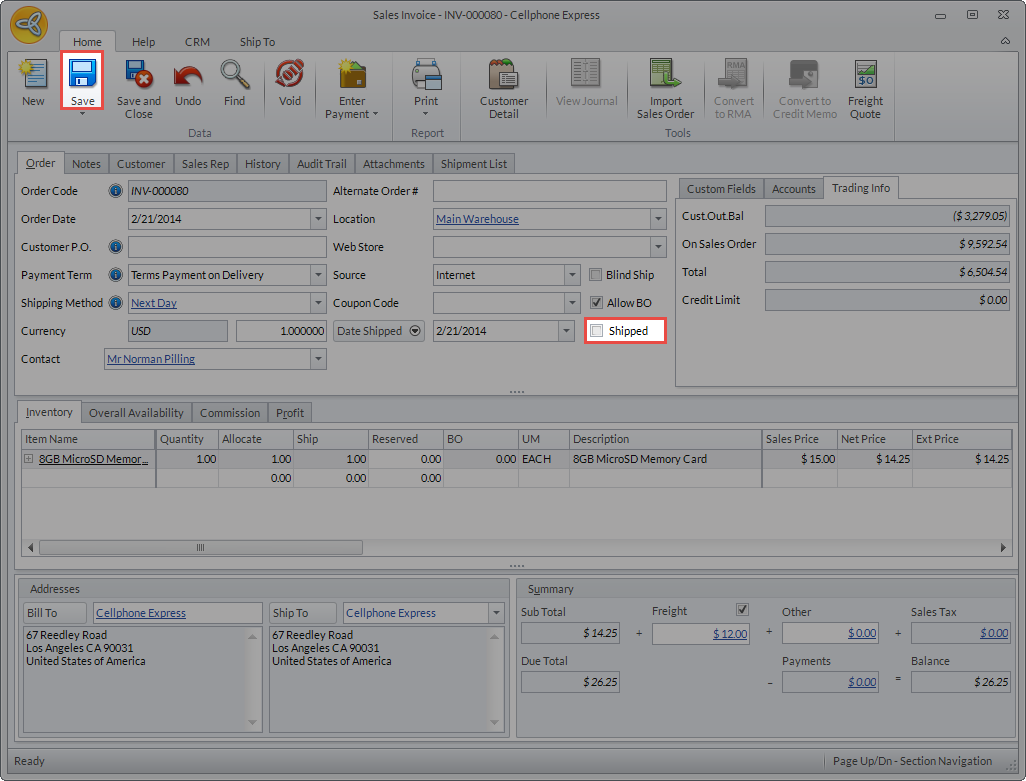
- Untick the Shipped checkbox and click Save.
Click Image to Enlarge

Upon completing the shipment, this checkbox will be automatically ticked and disabled.
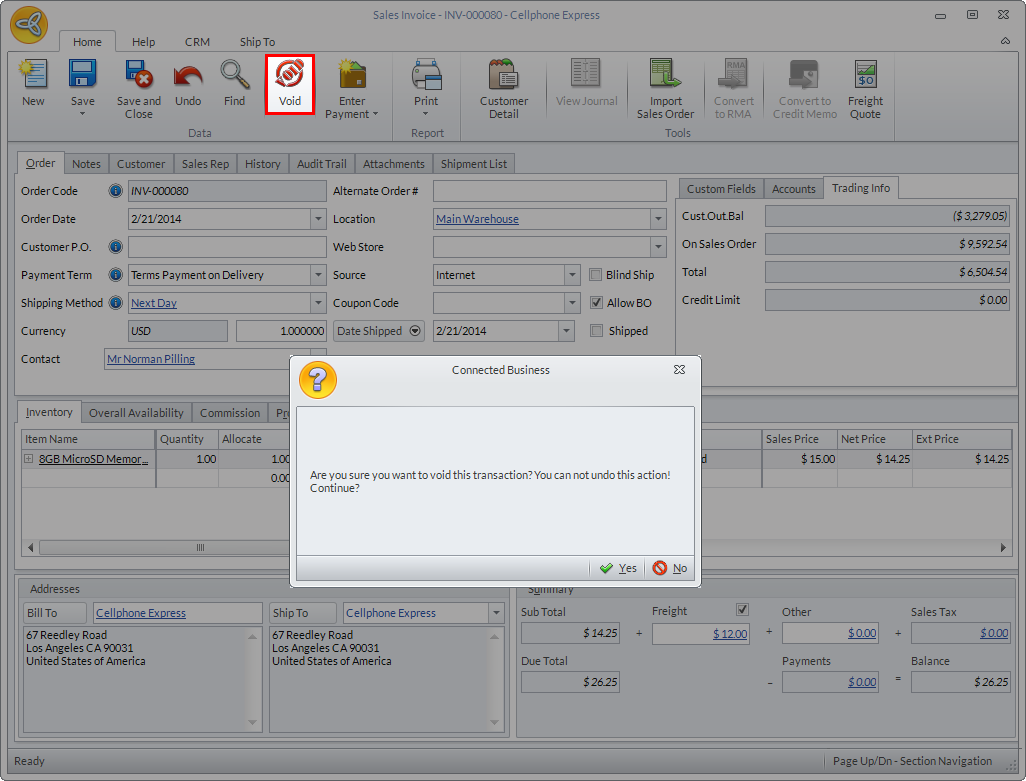
- Click Void. A message prompt will be displayed confirming if you want to void the transaction. Click Yes.
Click Image to Enlarge
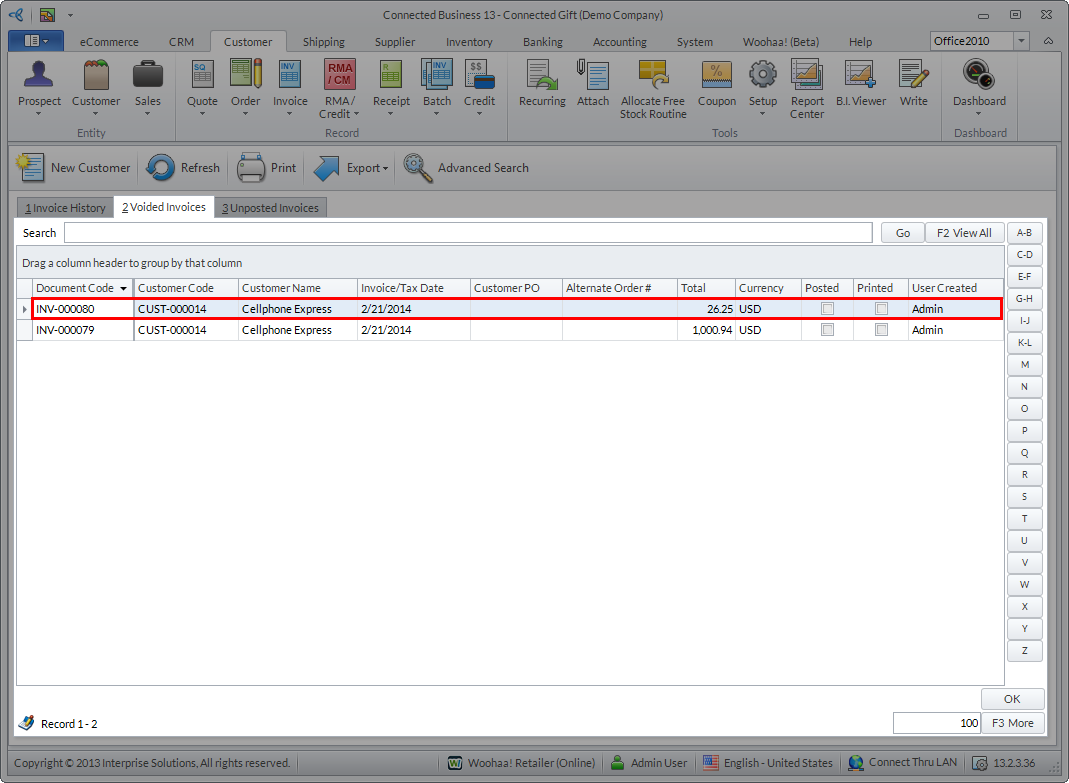
You can check the voided invoice from Customer module > Invoice > Find Invoice > Voided Invoices tab.
Click Image to Enlarge