
View FedEx Smart Post Rates
This article demonstrates how to view rates for FedEx Smart Post in Connected Business.
FedEx SmartPost is a service provided by FedEx in collaboration with USPS to ship items to residential customers in places not usually serviced by FedEx. Refer to FedEx SmartPost® for details.
In previous versions of Connected Business, whenever SmartPost is enabled, the system automatically follows the shipping rate for FedEx Ground service (by default). In the new version, you can now view rates for SmartPost service as returned from the shipping carrier's database.
Enable FedEx SmartPost
Before you can get the rates for FedEx SmartPost, you need to enable the service.
- Go to Shipping module > Setup> Carrier Plugin. The list of shipping carriers will be displayed.
- Select FedEx and click the Detail tab to view the carrier details.
- Enter your hub id in the SmartPost Hub ID field.
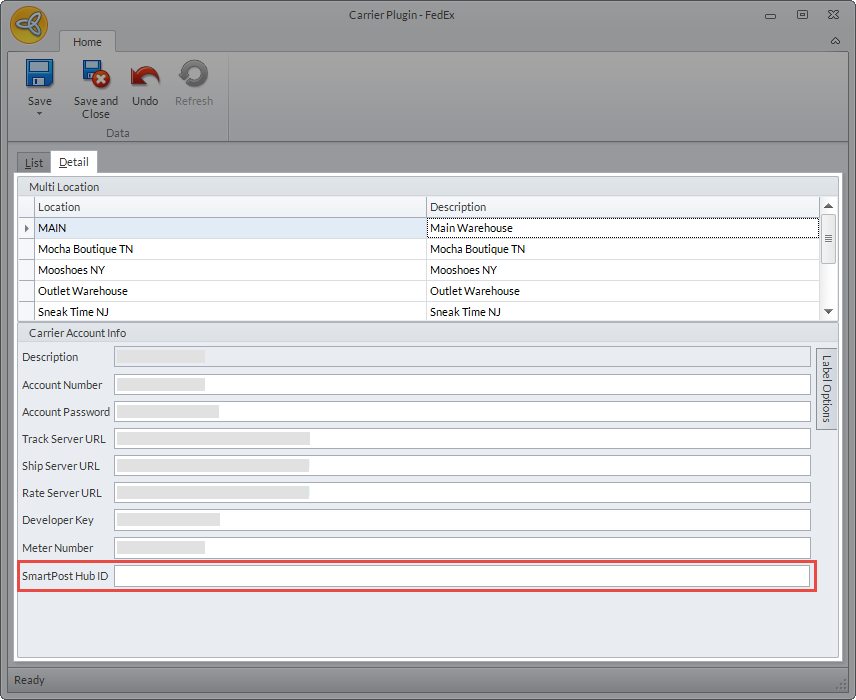
Click Image to Enlarge
- Click Save and Close to apply changes.

Configure Shipping Method To Use SmartPost
You can only view rates for SmartPost if the shipping method used is Ground, the service type selected is Smart Post, and the packaging type is set to Your Packaging. To check this,
- Go to Shipping > Setup > Shipping Method. The list of shipping methods will be displayed.
- Select Ground shipping method and click the Detail tab to view the shipping method details.
- Click the Carrier Detail tab.
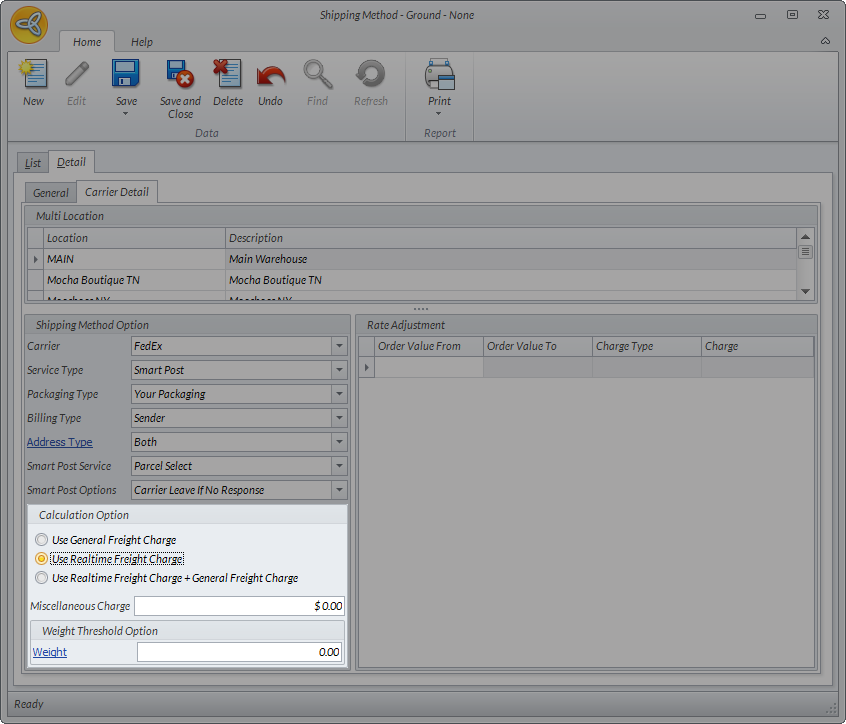
- In the Shipping Method Option section, set the service type to SmartPost and the Packaging Type to Your Packaging.
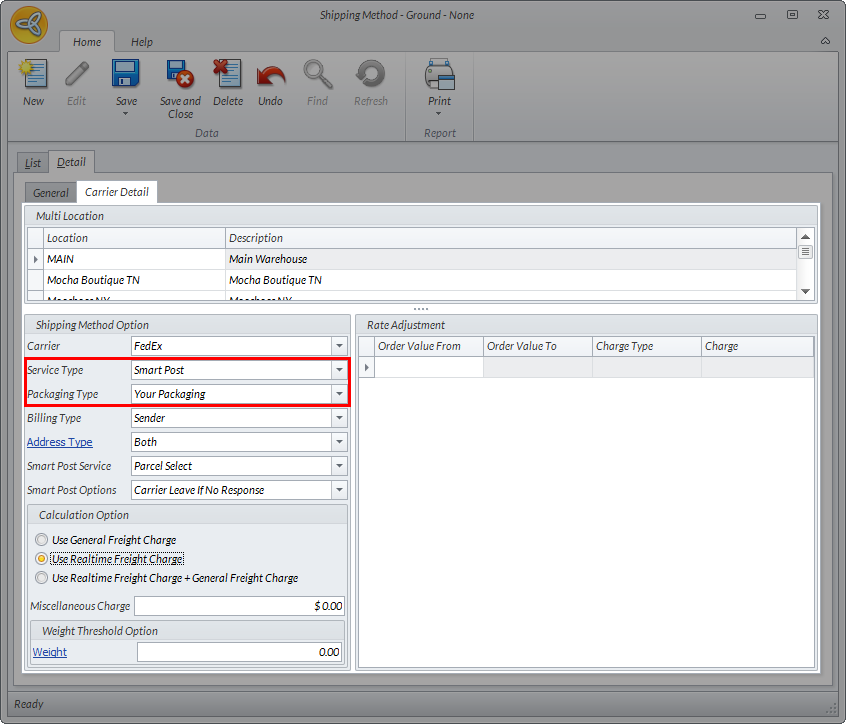
Click Image to Enlarge
- Upon enabling SmartPost, the SmartPost services and options will also be enabled. In the Smart Post Service field, select the service to be used in delivering your shipment with SmartPost from the dropdown list.
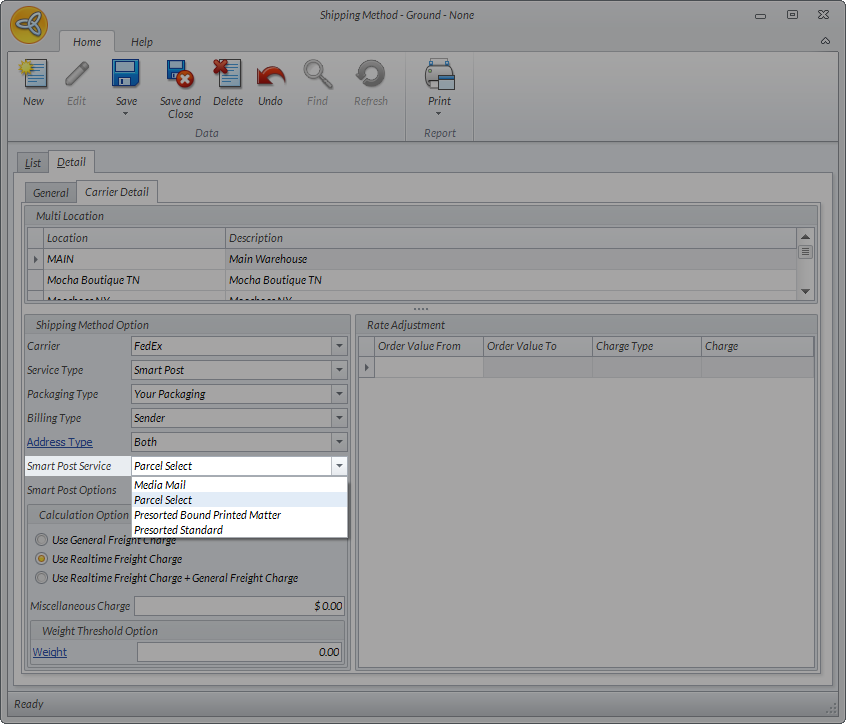
Click Image to Enlarge
If the shipment is not delivered. select an alternative SmartPost delivery option from the SmartPost Options dropdown list.
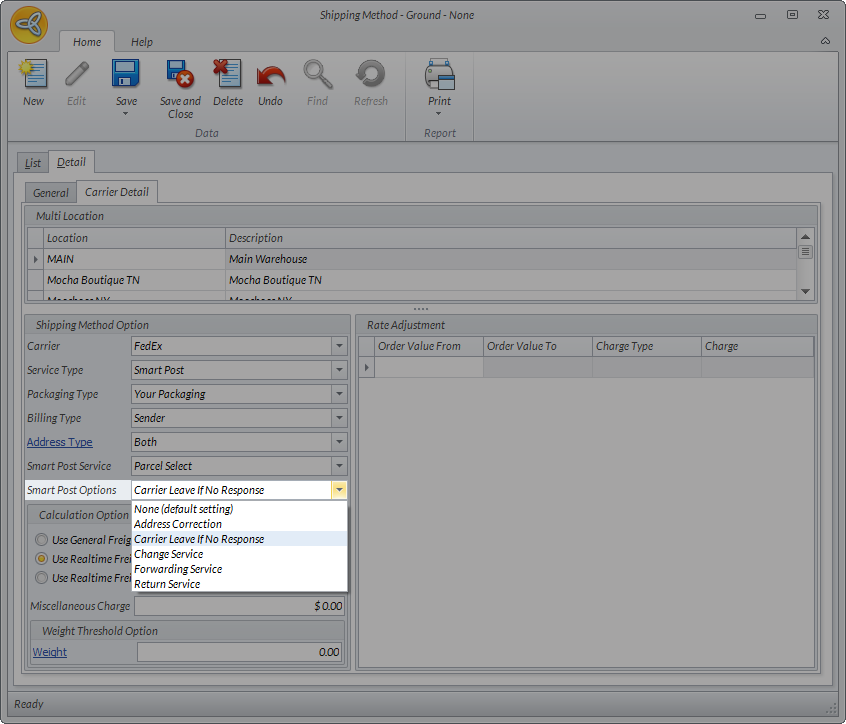
Click Image to Enlarge
- In the Calculation Option section, tick the Use Realtime Freight Charge radio button.
Click Image to Enlarge
Get FedEx SmartPost Rates
To get the rates for FedEx SmartPost,
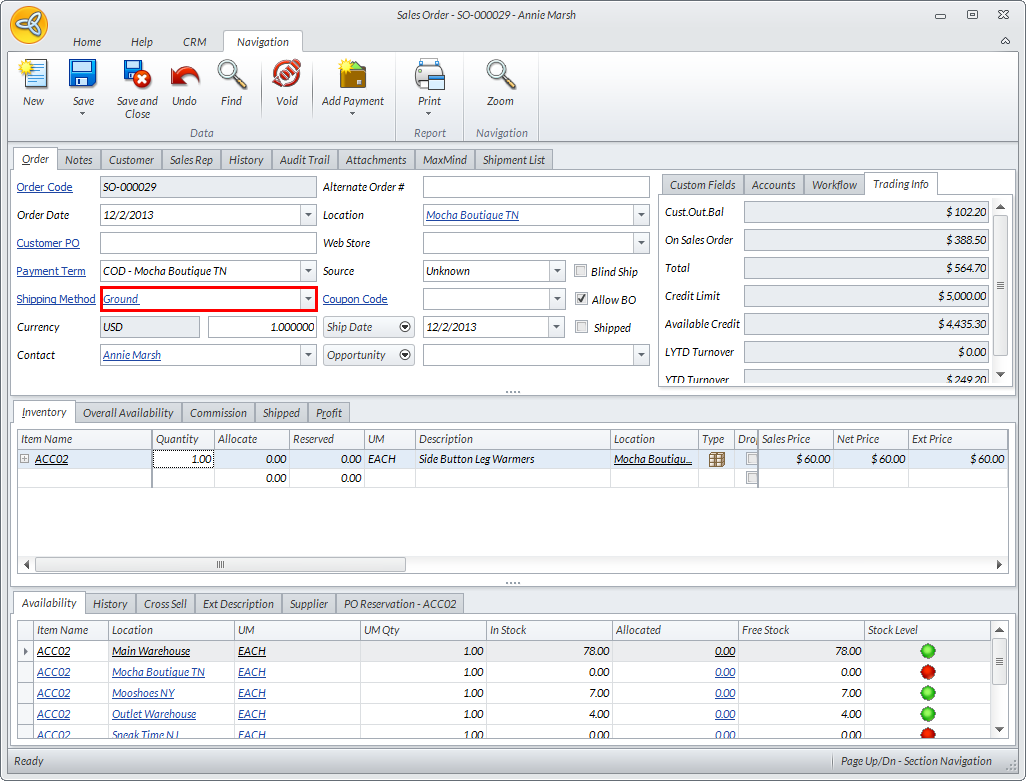
- Create a sales order/ sales invoice and set the shipping method to Ground. Save the sales order.
Click Image to Enlarge
- Open the shipment form from the Shipment List tab. A message prompt will be displayed indicating that no shipment is found for the sale order record. Click Yes to create shipment record.

Click Image to Enlarge
Alternatively, you can also view the shipment form from the Shipping module > From SO or From INV.
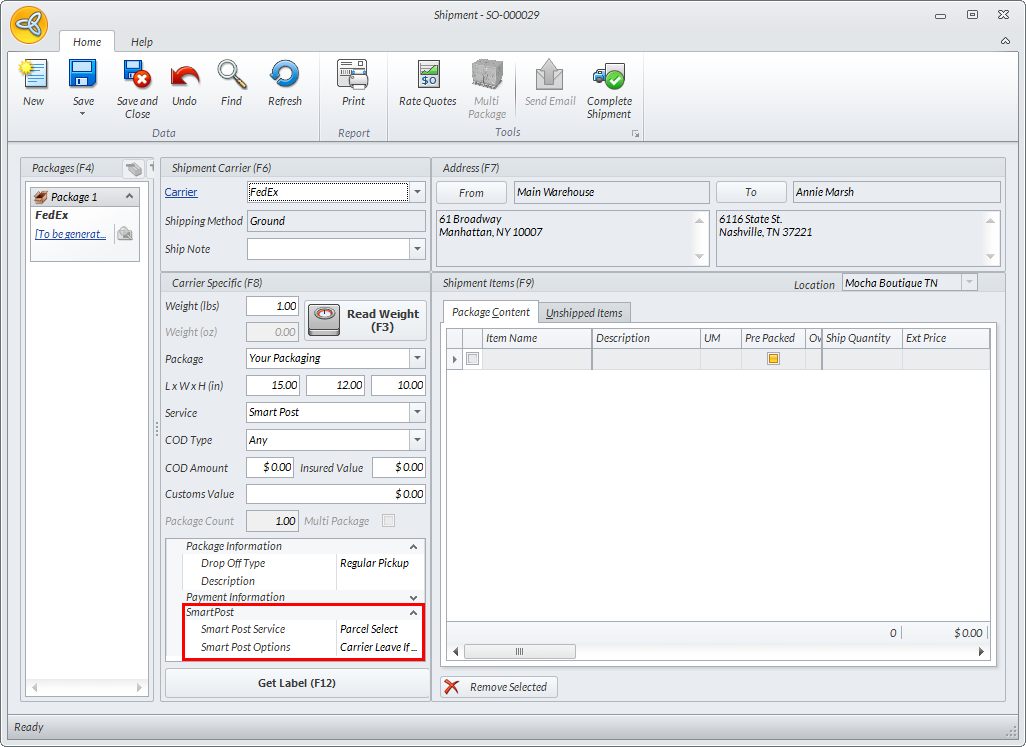
- In the Shipment form, enter the total weight for the items in the Weight (lbs) field.
- If you want to change the service and delivery option for shipping the item with Smart Post, you can select the service or option from the Smart Post Service or Smart Post Options dropdown lists in the Carrier Specific section of the form.
Click Image to Enlarge
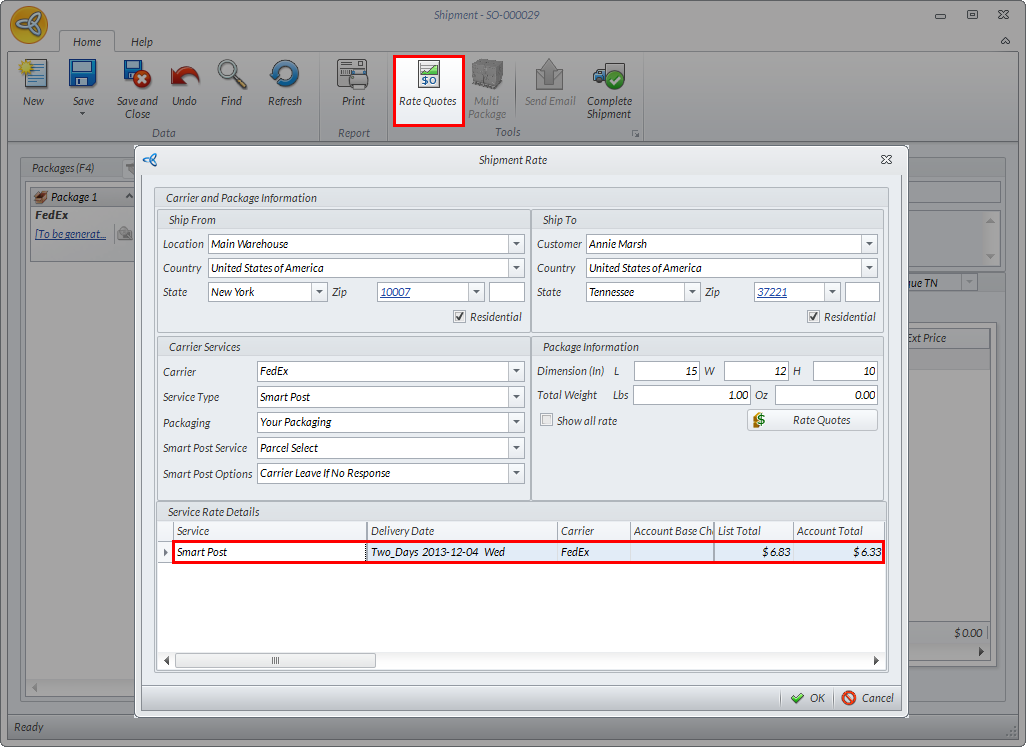
- After entering all the details for shipment, click Rate Quotes. The Shipment Rate form will be displayed with the service rate details for SmartPost.
Click Image to Enlarge