
Validate Customer Address
Address Verification feature helps you keep accurate customer information by validating the customer’s address and directly comparing it to the shipping carrier’s database.
Set Up Address Verification
Prior to using this feature, you need to set up the shipping carrier account and configure the settings for it to work.
Set Up Shipping Carrier Account
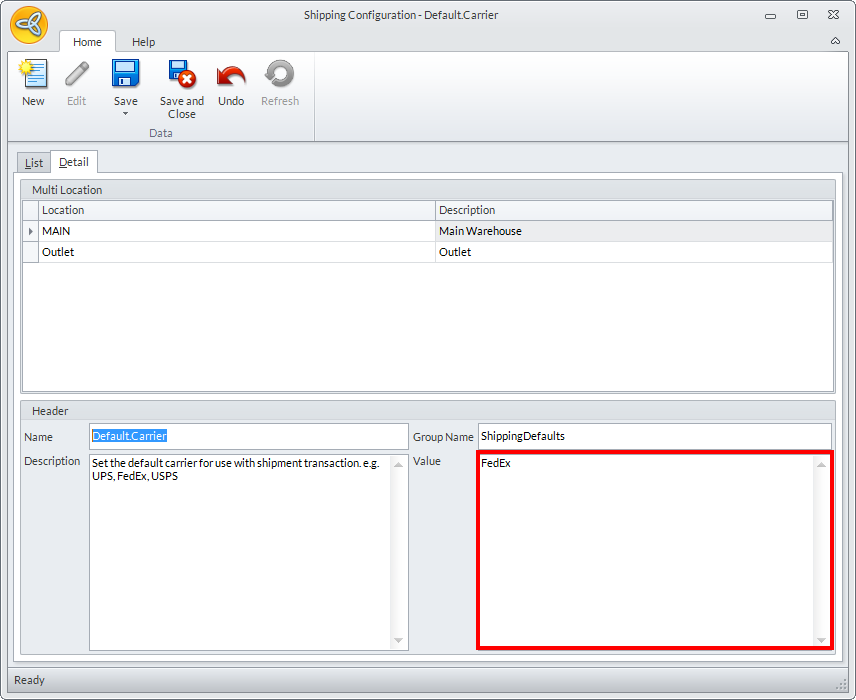
You need to set the default carrier account to use for validating address. To set this, go to Shipping module > Setup > Shipping Configuration and the Shipping Configuration form will be displayed. Search for the Default.Carrier shipping configuration and enter the name of your preferred carrier in the Value field.
Click Image to Enlarge

The supported shipping carriers that can validate address are FedEx, UPS, and USPS.
You need to have a FedEx, UPS, and USPS account in production mode to use this feature.
FedEx allows the use of Address Validation feature only in production mode and only after you have passed the certification for FedEx Web Services. Once in production, you can request to have theAddress Validation activated. To know more on how to obtain a FedEx account, click here.
UPS needs a production account to enable the UPS Address Verification Component. To know more on how to obtain a UPS account, click here.
USPS also needs a production account to enable the USPS Address Verification Component. To know more on how to obtain a USPS account, click here.
Configure Address Verification
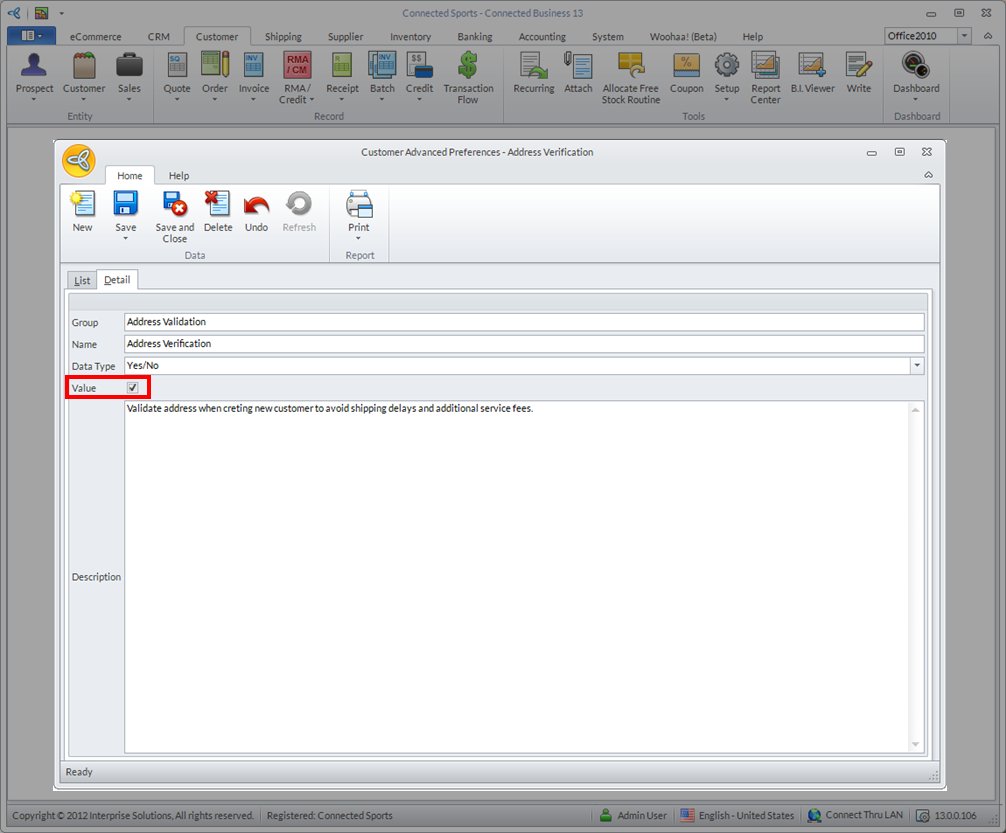
To configure the setting for the Address Verification, go to Customer module > Setup > Preferences > Advance Preferences > Address Verification and tick the Value checkbox to set the preference to TRUE.
Click Image to Enlarge
Validate Customer Address
The address validation process can be performed either through the webstore or through the Connected Business backend.
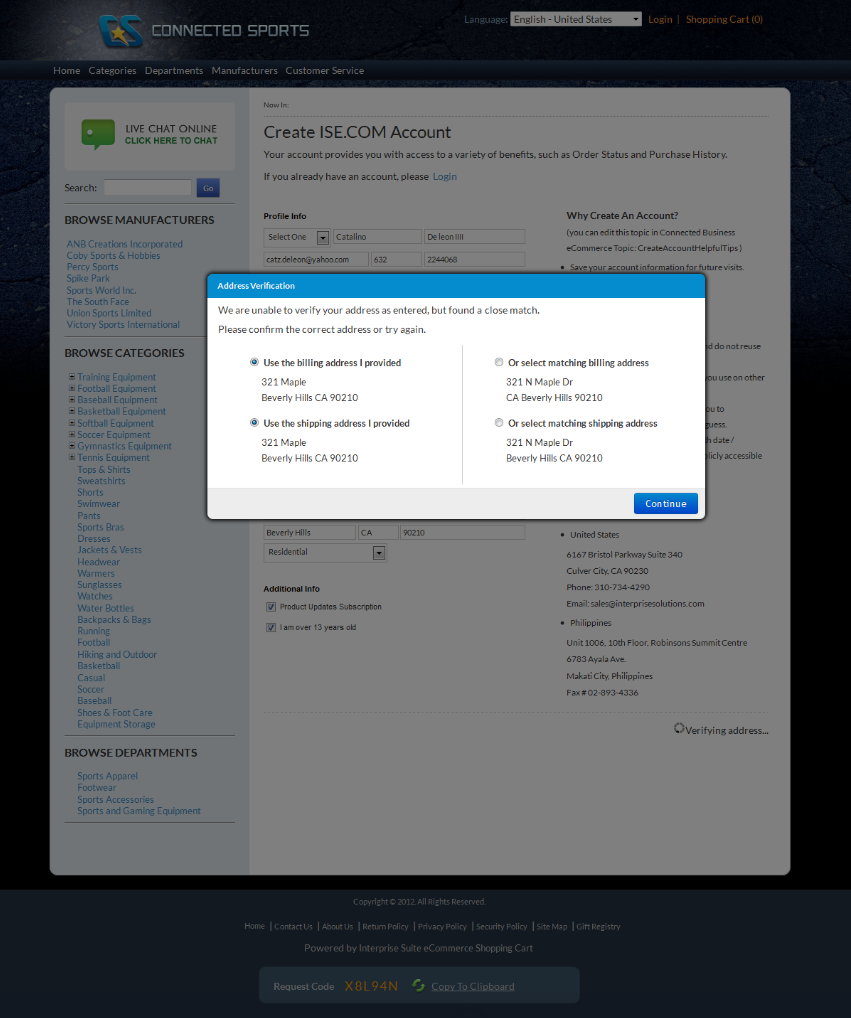
On the webstore, validation occurs on the checkout page. When a customer enters an address while creating or updating their account, the page automatically sends the data to third party carriers' database. I dialog box listing suggested addresses will appear. Based on the suggestions, customers can then choose the address that corresponds with their own.
Click Image to Enlarge
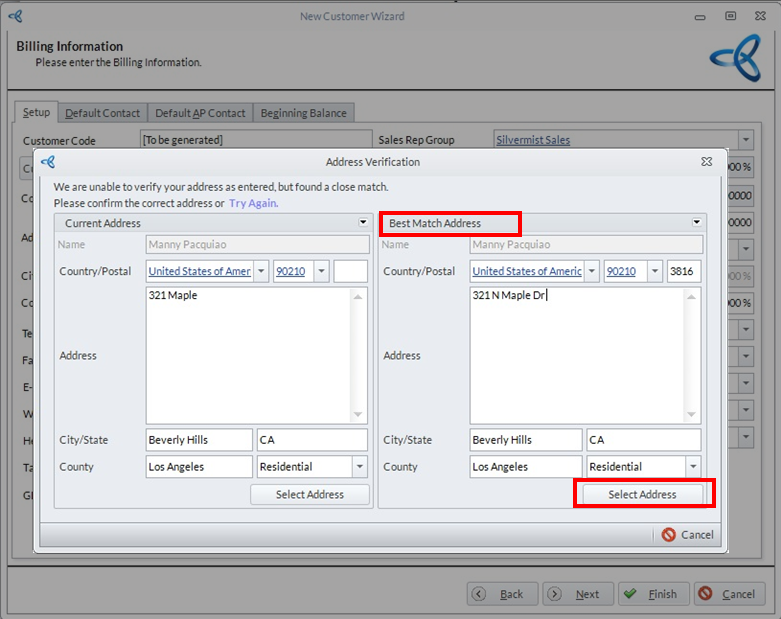
Choose the correct address by clicking the Select Address button in the Current Address or in the Best Match Address. This will automatically update the customer’s address, city and postal code.
Click Image to Enlarge
In Connected Business, if an incorrect address is entered into a new customer's information, the Address Verification form will pop up showing the Current Address (the address entered for the customer) and the Best Match Address (the address from the shipping carrier’s database).
You can also validate the address directly from the Customer Detail form and Ship To form.
Aside from the address, you can also set the address type for the customer. Depending on the information provided, you can set the address type to Residential or Commercial. Having the correct address type allows your shipping carriers to give more accurate information on shipping rates.