
Update POS
In this section, we will discuss how to update Connected Touch as well as the Connected Business POS (host). Make sure that both software are updated to the same version.
Update Connected Touch
- Assuming you already have a lower version of Connected Business Touch, double click the shortcut icon found on your desktop. Once the Connected Touch is displayed, click the Edit button at the upper left corner of the screen to enter Edit mode.

The Edit Mode button is hidden if in case you enter Edit mode upon loading the Connected Business Touch.
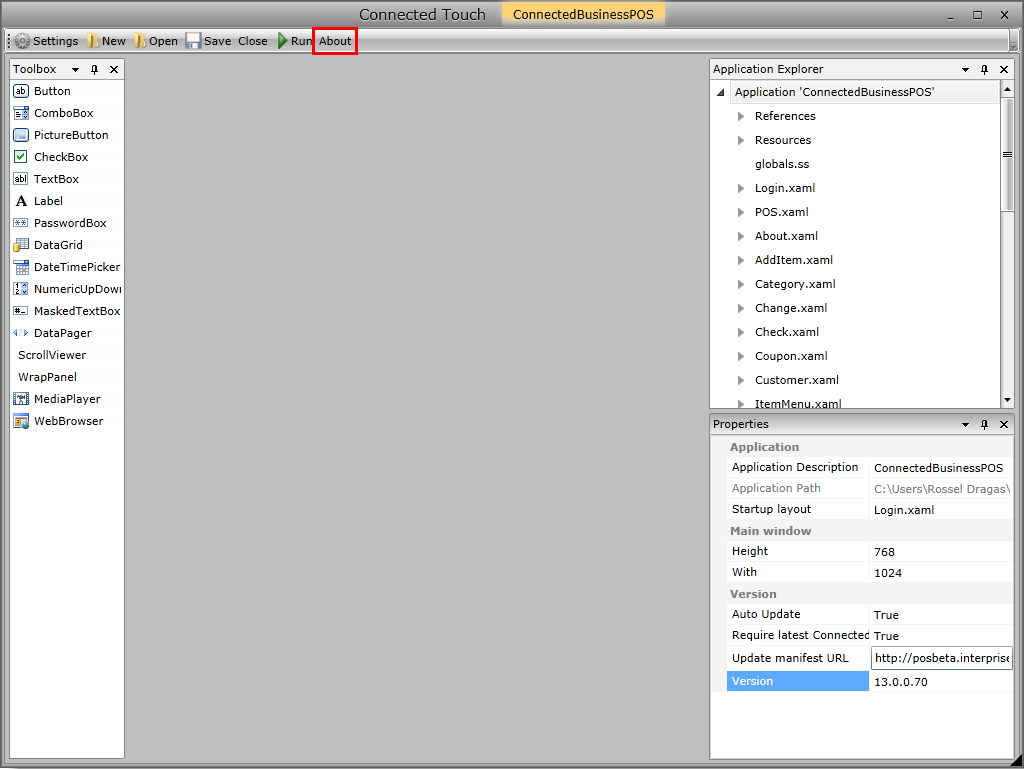
- Click the About button to check updates for Connected Touch.
Click Image to Enlarge
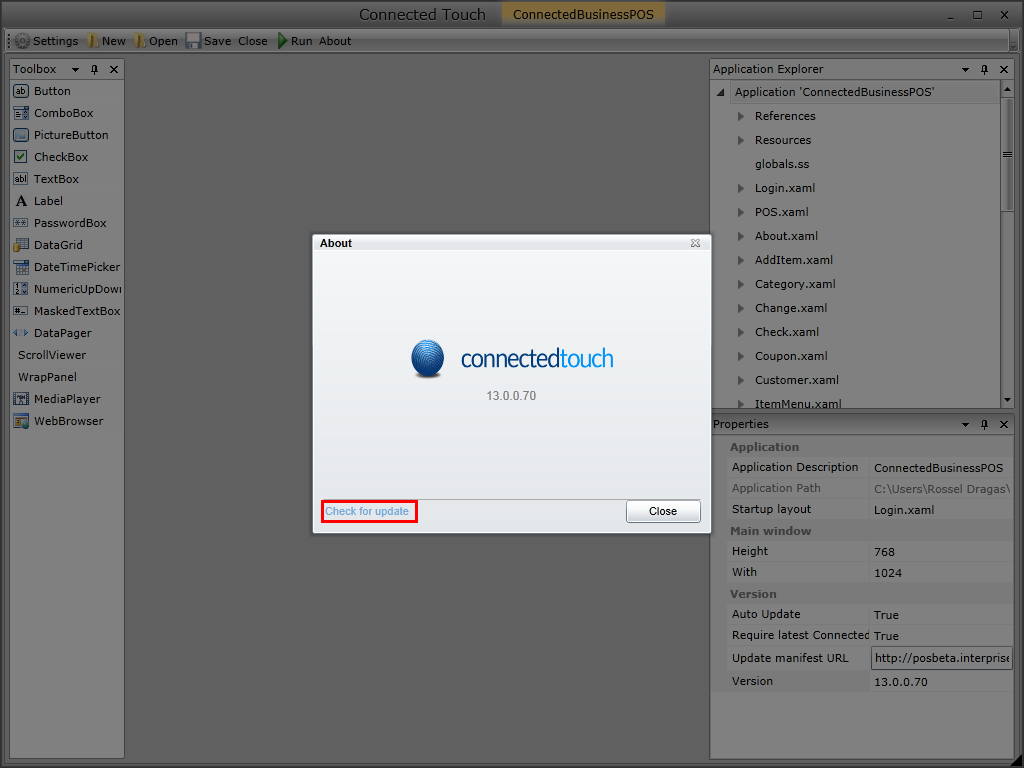
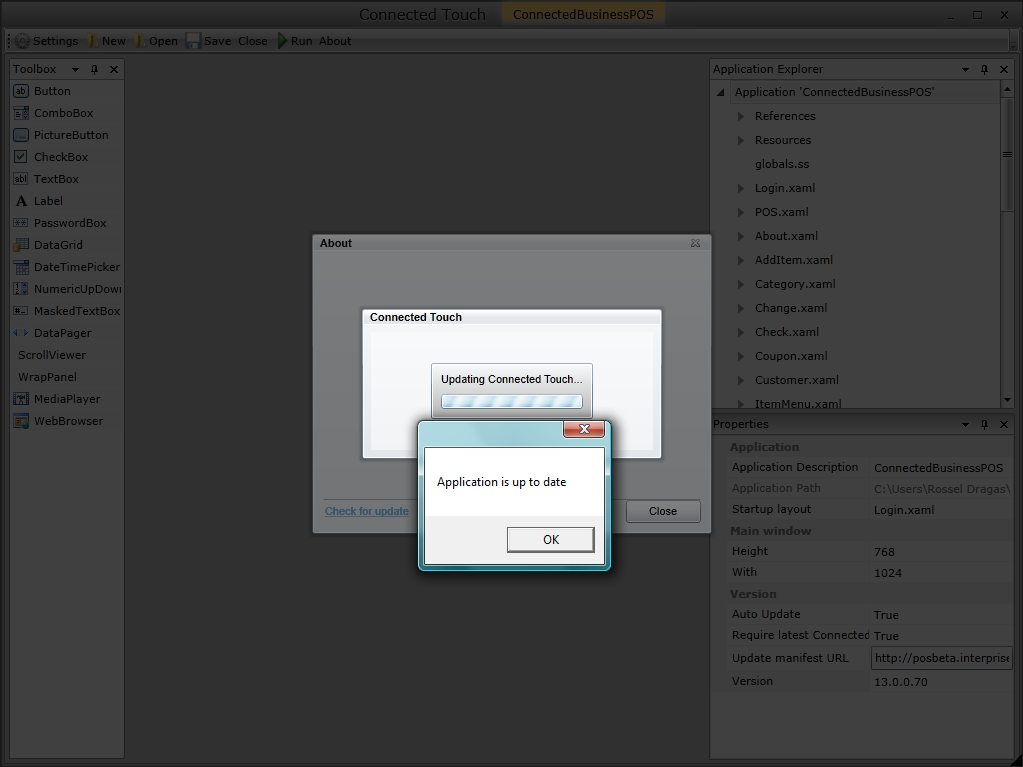
- On the About window, click on Check for Updates button. As soon as the software checks for the update, it will automatically inform that the application is already updated. Click OK, then click Close button.
Click Image to Enlarge
- Once you have already updated Connected Touch, the next step is to update Connected Business POS.
Click Image to Enlarge

Update Connected POS
You can update the latest version of Connected Business POS through automatic update.
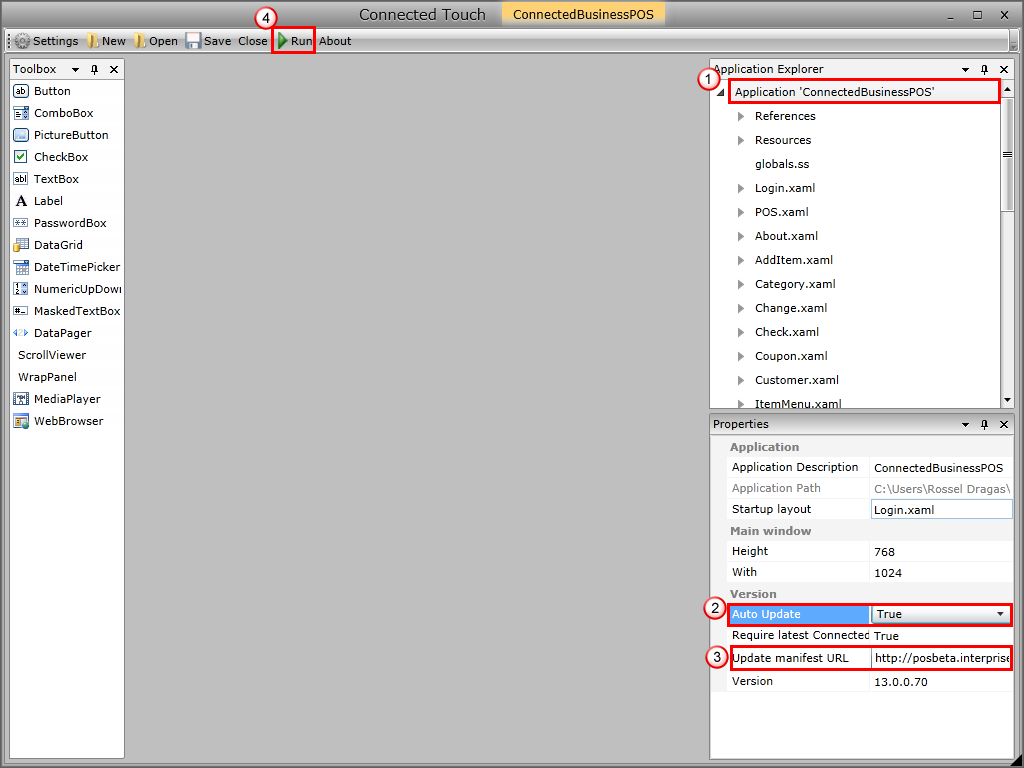
- On the Connected Business POS screen, click on the Connected Business POS application. On the Properties Pane, set the IsAutoUpdateEnabled to True. This will automatically update Connected Business POS whenever there will be a new version release. Click Run button.
Click Image to Enlarge
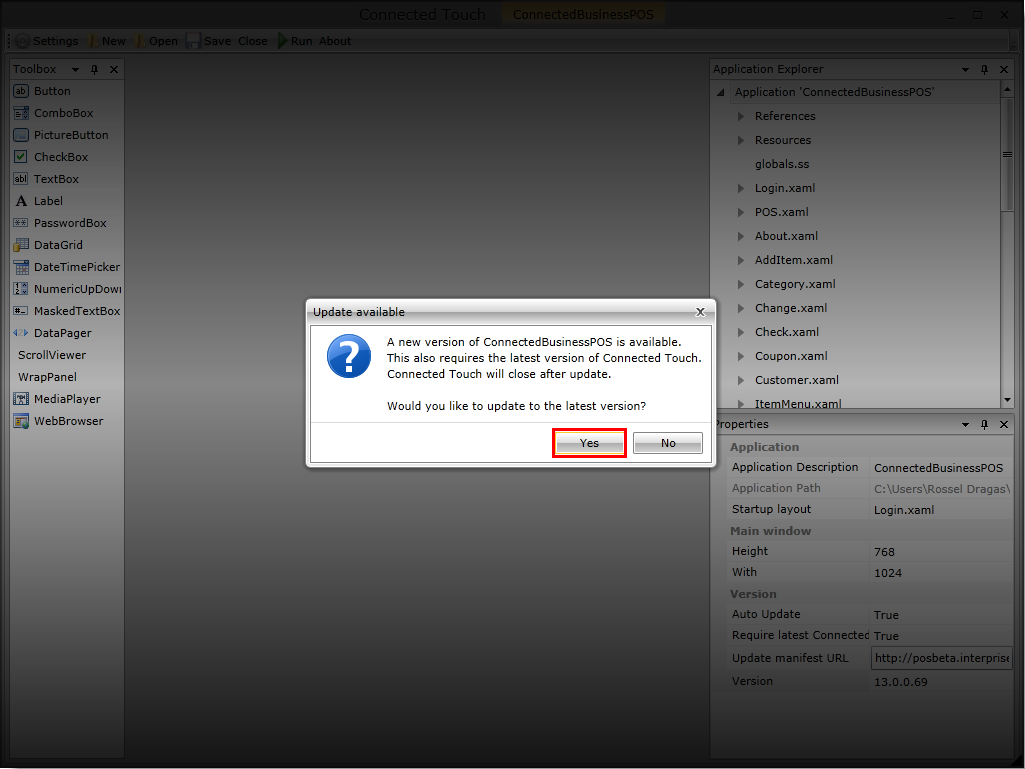
- On the Update Available pop-up form, click on Yes button.
Click Image to Enlarge
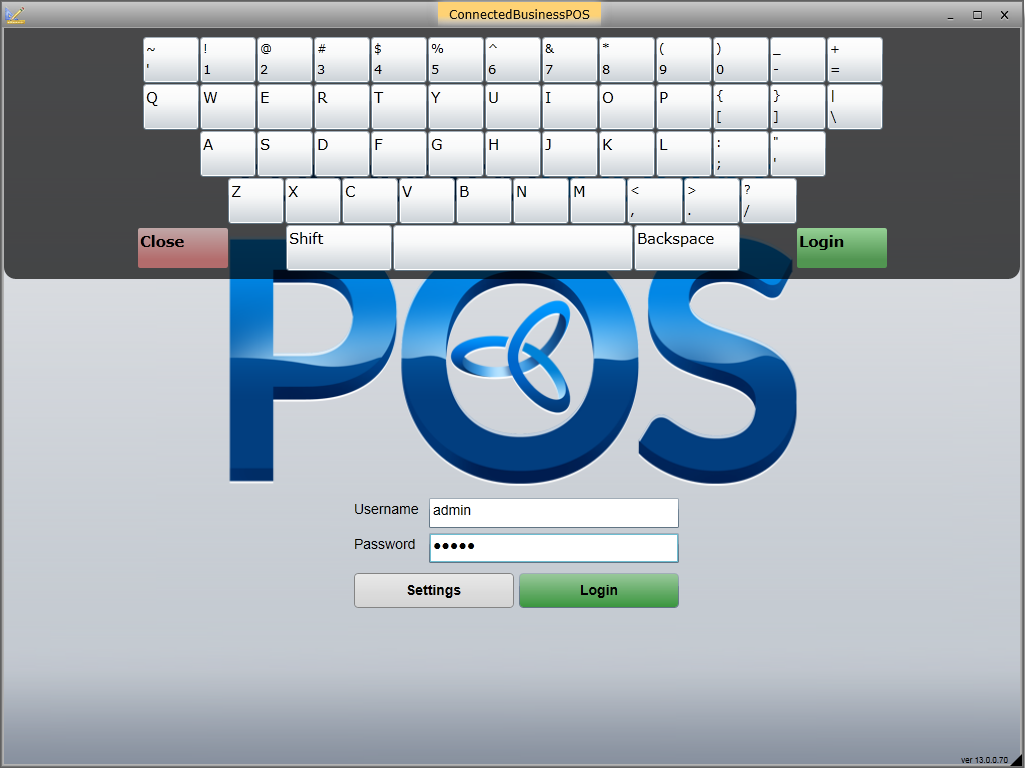
- After updating, you will automatically be diverted into the login page of Connected POS. Enter Username and Password, then click OK button. The main menu of Connected POS will then display.
Click Image to Enlarge
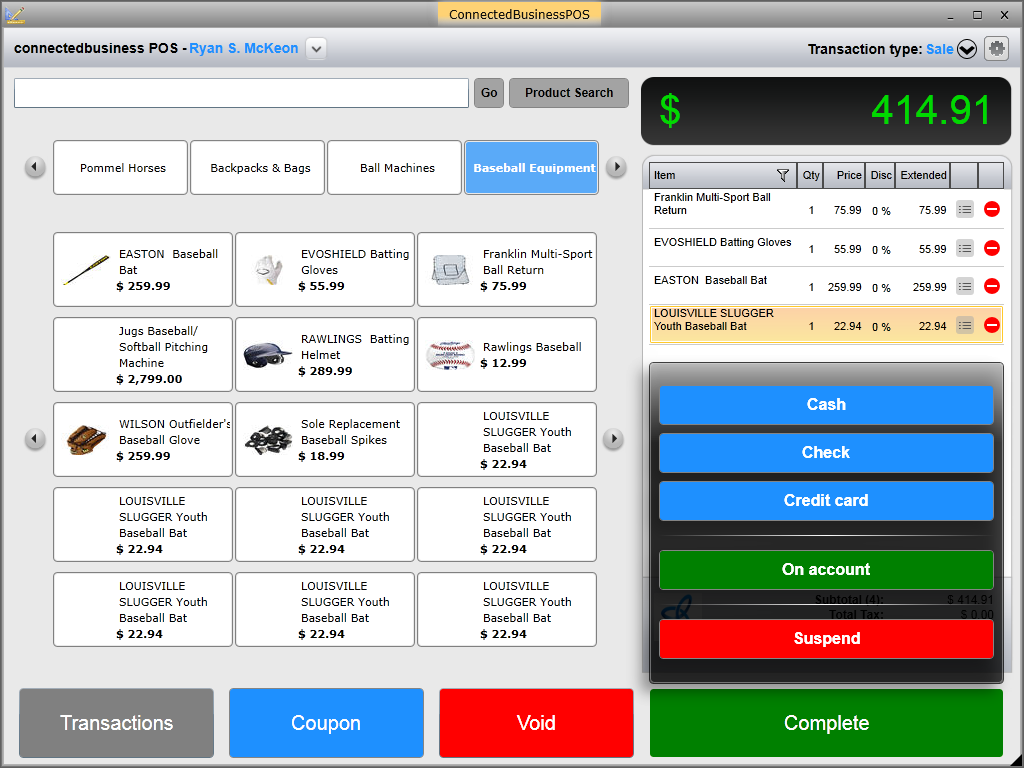
- Click the Edit Mode button on the upper leftmost part of the window if you want to check the software version.
Click Image to Enlarge
- You will be directed to the Connected Touch menu.
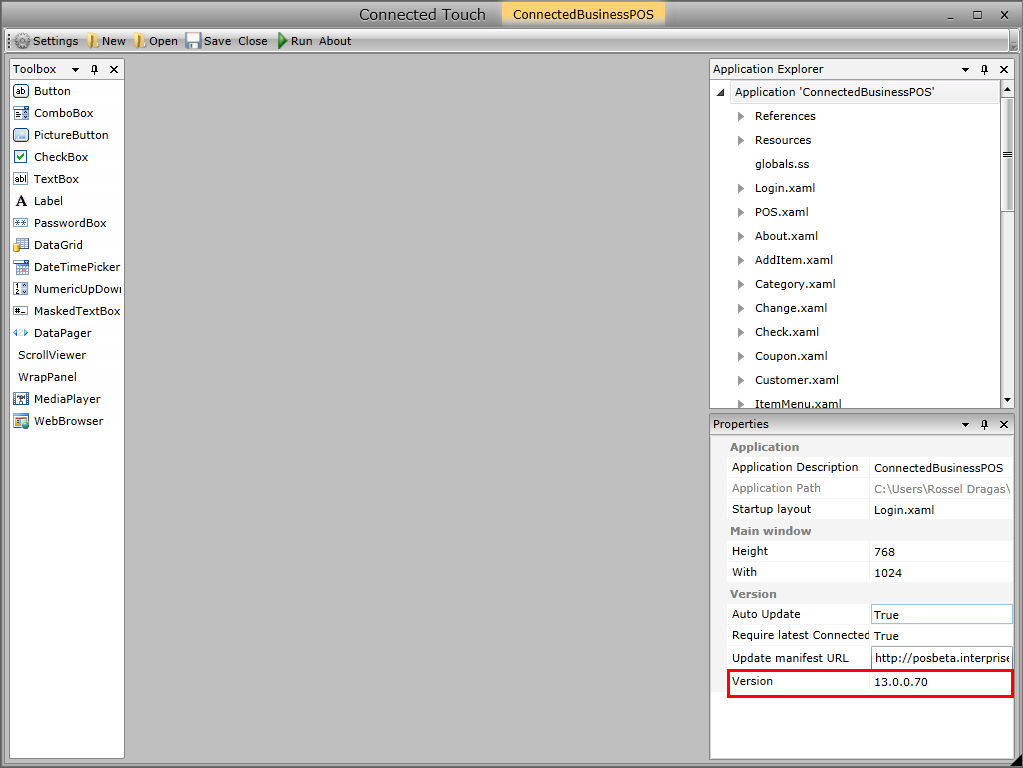
- On the Application Explorer pane, select Application Connected POS. Then on the Properties Pane, check the version of the software.
Click Image to Enlarge